Stop explorer focusing on selected file/folder

BOYD1981

New member
Local time
6:28 AM
Messages
4
I really don't know how to better describe this particular problem in the title so I'll use this space to describe in more detail this annoyance.

I would like to prevent Explorer from scrolling a folder's contents to focus on a selected file or folder. Like, if I have a folder open with quite a few files in it and the file I want to double click to open is on the third row I'll go to double click but with the first click Explorer has scrolled along and the second click lands on a completely different file.
It's extremely irritating.

Hopefully at least one other person out there will get what I'm on about and be just as annoyed by it as I am.

Thanks.

-Boyd
 

My Computer

Computer Manufacturer/Model Number
Custom
OS
Windows 7 Ultimate 32bit
CPU
AMD Athlon II X4 640
Motherboard
MSI GF615M-P33
Memory
2GB PC10666 DDR3/1333mhz
Graphics Card(s)
ATI Radeon HD 5750 1gb
Sound Card
Onboard Realtek HD
Monitor(s) Displays
22" LG Flatron
Hard Drives
1TB
PSU
600 Watt
Case
CoolerMaster Elite 310
Cooling
Asetek Liquid CPU Cooling System
I would like to prevent Explorer from scrolling a folder's contents to focus on a selected file or folder. Like, if I have a folder open with quite a few files in it and the file I want to double click to open is on the third row I'll go to double click but with the first click Explorer has scrolled along and the second click lands on a completely different file.
I confess... I do not follow what you're describing.

With Windows Explorer, the folders show up on the left pane as you expand them, and the contents of those folders (both sub-folders as well as files) show up on the right pane. You wouldn't have any files show on the left side, so the only place you can select a file would be on the right side.

Now you say you want to double-click on a file, which I would think MUST be on the right side. When I click on a file on the right side (which by definition must already be visible, so that I can click on it) the only thing that happens is that the selected item lights up, as "selected". That's it. No scrolling of any kind.

Have I described what you're doing correctly? Or does something different happen for you than I've described, at some point in the sequence?


Perhaps you could provide two screenshots, one just before your first click on the file you want to double-click on, showing its initial presentation (i.e. in the third row as you describe).

Then, a second screenshot right after the first click, where you say the presentation has scrolled in some way.

A picture's worth 1000 words. And two pictures are better than one.
 

My Computer

Computer type
PC/Desktop
Computer Manufacturer/Model Number
Home-built, two systems (1) and (2)
OS
Windows 7 Pro x64 (1), Win7 Pro X64 (2)
CPU
i5-3350p 3.1Ghz/6MB-cache (1); E8400 3.0Ghz/6MB-cache (2)
Motherboard
ASUS P8Z77-V Pro (1); ASUS P5Q3 (2)
Memory
8GB PC3-12800 DDR3 (1); 4GB PC3-10600 DDR3 (2)
Graphics Card(s)
ATI HD7750 (1), (see TV cards); ATI R7 250 (2)
Sound Card
Realtek ALC892 HD Audio (1); Realtek ALC1200 HD Audio (2)
Monitor(s) Displays
Eizo HD2441W LCD, Eizo S2433W (1); Eizo 24" S2433W (2)
Screen Resolution
1920x1200, 1920x1200 (1); 1920x1200 (2)
Hard Drives
(1) 1TB SATA-II (7200RPM), 2x2TB SATA-III (7200RPM), 250GB SATA-III (10000RPM) for OS; 2x2TB external USB 3.0

(2) 320GB SATA-II (7200RPM), 750GB SATA-II (7200RPM), 150GB SATA-II (10000RPM) for OS; 2TB external USB 3.0
PSU
Nesteq ECS-6001 600W (1); Nesteq ECS-5001 500W (2)
Case
Acousti-Case 360 (1) and (2)
Cooling
Noctua NH-U12P SE2 for CPU, 2x120mm case fans (1) and (2)
Keyboard
IBM PS/2 (1) and (2)
Mouse
Logitech MX Revolution wireless (1); Microsoft wired (2)
Internet Speed
100mbps down / 10mbps up
Antivirus
Microsoft Security Essentials; Malwarebyte Anti-Malware Pro
Browser
Firefox
Other Info
Ceton InfiniTV 4-tuner cablecard-enabled TV card as well as Hauppauge HVR-2250 OTA/ATSC 2-tuner TV card in (1), running under Win7 WMC
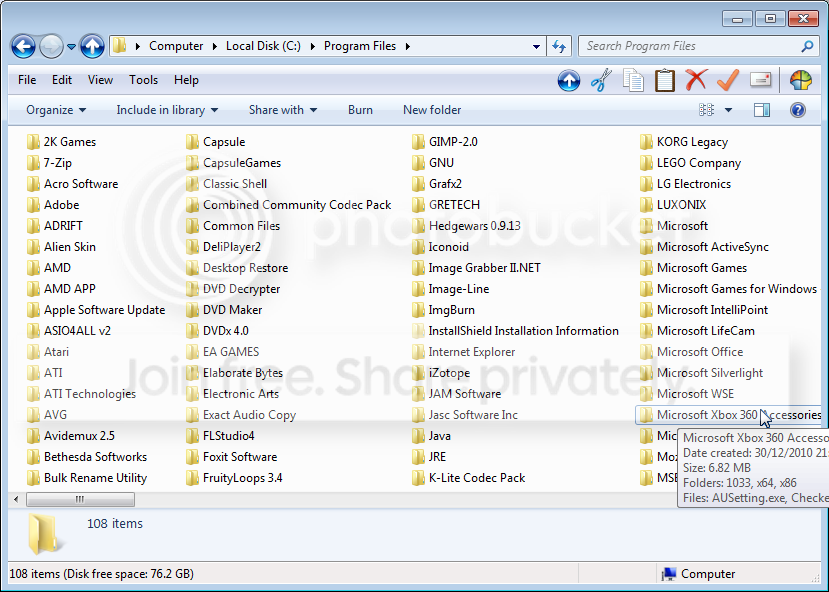
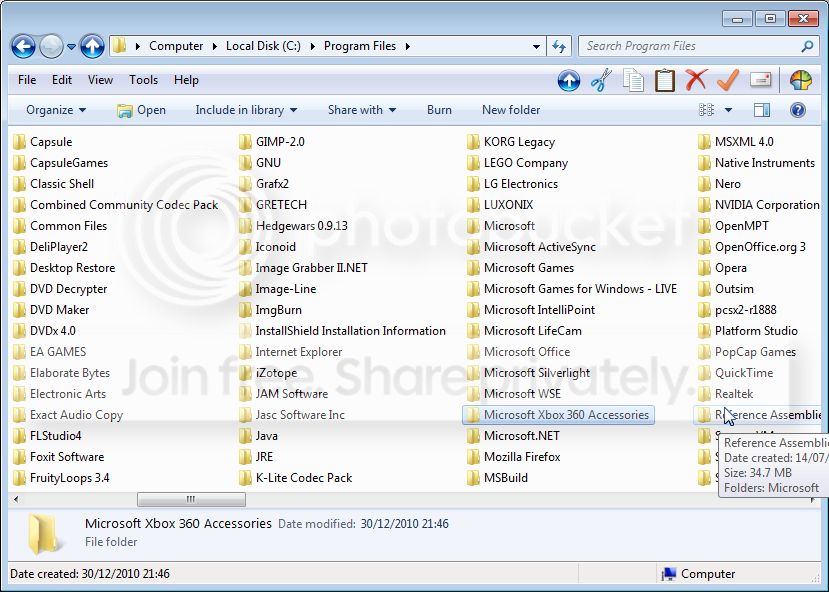
Here are two screenshots that will hopefully better demonstrate what I mean:
folder1.png


This is before I click on the folder (blue rectangle is from where I had already selected then deselected) and then boom:

folder2.png


this happens as soon as I click, and it doesn't just happen with files/folders with long names. I've also checked on another computer running Windows 7 that hasn't been customised at all and the same thing happens.

It's not really a major problem just very annoying and it happens no matter how quickly I double click.

Hope that helps.

-Boyd
 

My Computer

Computer Manufacturer/Model Number
Custom
OS
Windows 7 Ultimate 32bit
CPU
AMD Athlon II X4 640
Motherboard
MSI GF615M-P33
Memory
2GB PC10666 DDR3/1333mhz
Graphics Card(s)
ATI Radeon HD 5750 1gb
Sound Card
Onboard Realtek HD
Monitor(s) Displays
22" LG Flatron
Hard Drives
1TB
PSU
600 Watt
Case
CoolerMaster Elite 310
Cooling
Asetek Liquid CPU Cooling System

My Computer

Computer Manufacturer/Model Number
HP Pavillion dv5t (generation 1)
OS
Vista 64 bit and 32 bit (SP2)
CPU
Intel(R) Core(TM)2 Duo Processor T9400 (2.53 GHz
Memory
4GB DDR2 System Memory (2 Dimm)
Graphics Card(s)
512 MB NVIDIA GeForce 9600M GT
Monitor(s) Displays
15.4" diagonal WSXGA+ High-Definition HP BrightView Widescre
Screen Resolution
1680 x 1050
Hard Drives
320GB 5400RPM SATA Hard Drive with HP ProtectSmart Hard Drive Protection
Keyboard
Built-in HP
Mouse
Built in - Synaptics TouchPad V6.5 on PS/2 Port
Internet Speed
Max
Other Info
~ Intel Next-Gen Wireless-N Mini-card w/Bluetooth ~ Blu-Ray ROM DVD+/-R/RW ~ Integ. HDTV Hybrid Tuner ~ 12 Cell Battery ~ MS Office (Home Premium) 2007 ~
Here are two screenshots that will hopefully better demonstrate what I mean:
folder1.png


This is before I click on the folder (blue rectangle is from where I had already selected then deselected) and then boom:

folder2.png


this happens as soon as I click, and it doesn't just happen with files/folders with long names. I've also checked on another computer running Windows 7 that hasn't been customised at all and the same thing happens.

It's not really a major problem just very annoying and it happens no matter how quickly I double click.
AHA!!! A picture's worth 1000 words!

The problem (not really) is that you're using "list" view (which is fine, and not really part of the problem) but the item you've selected for opening is in a column on the right which is only partially visible at the right edge of the window. I don't know if that final column would be "fully visible" if you maximized that window into full-screen, but perhaps it would.

I think this "snap to the left, one column" reaction from Windows Explorer is it actually trying to HELP you, by making the entire value visible (since it's currently partially invisible) on the off-chance it's not really the right one for you to be selecting.

If you click on an already fully-visible item, you would not get this "snap to the left one column" result. Or, if the right column were fully-visible, you would not get this "snap to the left one column" result.
 

My Computer

Computer type
PC/Desktop
Computer Manufacturer/Model Number
Home-built, two systems (1) and (2)
OS
Windows 7 Pro x64 (1), Win7 Pro X64 (2)
CPU
i5-3350p 3.1Ghz/6MB-cache (1); E8400 3.0Ghz/6MB-cache (2)
Motherboard
ASUS P8Z77-V Pro (1); ASUS P5Q3 (2)
Memory
8GB PC3-12800 DDR3 (1); 4GB PC3-10600 DDR3 (2)
Graphics Card(s)
ATI HD7750 (1), (see TV cards); ATI R7 250 (2)
Sound Card
Realtek ALC892 HD Audio (1); Realtek ALC1200 HD Audio (2)
Monitor(s) Displays
Eizo HD2441W LCD, Eizo S2433W (1); Eizo 24" S2433W (2)
Screen Resolution
1920x1200, 1920x1200 (1); 1920x1200 (2)
Hard Drives
(1) 1TB SATA-II (7200RPM), 2x2TB SATA-III (7200RPM), 250GB SATA-III (10000RPM) for OS; 2x2TB external USB 3.0

(2) 320GB SATA-II (7200RPM), 750GB SATA-II (7200RPM), 150GB SATA-II (10000RPM) for OS; 2TB external USB 3.0
PSU
Nesteq ECS-6001 600W (1); Nesteq ECS-5001 500W (2)
Case
Acousti-Case 360 (1) and (2)
Cooling
Noctua NH-U12P SE2 for CPU, 2x120mm case fans (1) and (2)
Keyboard
IBM PS/2 (1) and (2)
Mouse
Logitech MX Revolution wireless (1); Microsoft wired (2)
Internet Speed
100mbps down / 10mbps up
Antivirus
Microsoft Security Essentials; Malwarebyte Anti-Malware Pro
Browser
Firefox
Other Info
Ceton InfiniTV 4-tuner cablecard-enabled TV card as well as Hauppauge HVR-2250 OTA/ATSC 2-tuner TV card in (1), running under Win7 WMC
Here are two screenshots that will hopefully better demonstrate what I mean:
folder1.png
Just out of curiosity, how did you get the "File, Edit, ..." menu bar to appear? Is that some 3rd-party product or Registry tweak or other customization trick I'm not familiar with?

Same question about the XP-like functional icons on the right side of this bar? Is this all part of the same enhancement package?

Also, you don't show the "Explorer Tree" pane on the left side. How did that get set?

thanks.
 

My Computer

Computer type
PC/Desktop
Computer Manufacturer/Model Number
Home-built, two systems (1) and (2)
OS
Windows 7 Pro x64 (1), Win7 Pro X64 (2)
CPU
i5-3350p 3.1Ghz/6MB-cache (1); E8400 3.0Ghz/6MB-cache (2)
Motherboard
ASUS P8Z77-V Pro (1); ASUS P5Q3 (2)
Memory
8GB PC3-12800 DDR3 (1); 4GB PC3-10600 DDR3 (2)
Graphics Card(s)
ATI HD7750 (1), (see TV cards); ATI R7 250 (2)
Sound Card
Realtek ALC892 HD Audio (1); Realtek ALC1200 HD Audio (2)
Monitor(s) Displays
Eizo HD2441W LCD, Eizo S2433W (1); Eizo 24" S2433W (2)
Screen Resolution
1920x1200, 1920x1200 (1); 1920x1200 (2)
Hard Drives
(1) 1TB SATA-II (7200RPM), 2x2TB SATA-III (7200RPM), 250GB SATA-III (10000RPM) for OS; 2x2TB external USB 3.0

(2) 320GB SATA-II (7200RPM), 750GB SATA-II (7200RPM), 150GB SATA-II (10000RPM) for OS; 2TB external USB 3.0
PSU
Nesteq ECS-6001 600W (1); Nesteq ECS-5001 500W (2)
Case
Acousti-Case 360 (1) and (2)
Cooling
Noctua NH-U12P SE2 for CPU, 2x120mm case fans (1) and (2)
Keyboard
IBM PS/2 (1) and (2)
Mouse
Logitech MX Revolution wireless (1); Microsoft wired (2)
Internet Speed
100mbps down / 10mbps up
Antivirus
Microsoft Security Essentials; Malwarebyte Anti-Malware Pro
Browser
Firefox
Other Info
Ceton InfiniTV 4-tuner cablecard-enabled TV card as well as Hauppauge HVR-2250 OTA/ATSC 2-tuner TV card in (1), running under Win7 WMC
You inquired:

"Just out of curiosity, how did you get the "File, Edit, ..." menu bar to appear? Is that some 3rd-party product or Registry tweak or other customization trick I'm not familiar with?"


1. Open the Control Panel, then select (click on) Appearance and Personalization.
2. Select (click on) Folder Options.
3. Click on the View tab.
4. Under Advanced settings:, Files and Folders, select (check mark) Always show menus.
5. Click on the OK button.

Regards,
GEWB
 

My Computer

Computer type
PC/Desktop
Computer Manufacturer/Model Number
(7 different computers booting up to 10 systems)
OS
Linux Mint / XP / Win7 Home, Pro, Ultimate / Win8.1 / Win10
Other Info
Four desktops, two laptops, one notebook and one tablet
You inquired:

"Just out of curiosity, how did you get the "File, Edit, ..." menu bar to appear? Is that some 3rd-party product or Registry tweak or other customization trick I'm not familiar with?"


1. Open the Control Panel, then select (click on) Appearance and Personalization.
2. Select (click on) Folder Options.
3. Click on the View tab.
4. Under Advanced settings:, Files and Folders, select (check mark) Always show menus.
5. Click on the OK button.

Regards,
GEWB
AHA! Many thanks.

Actually, now that you describe how to get it, I believe I HAD discovered (or learned from others) about that during my learning process for Win7, on my first install in late 2009. I apparently forgot all about it during my reinstall this past March.


Now, how about the second part of my question, regarding adding those XP-like buttons on the right side of that menu bar? Doesn't seem like that's part of standard Win7 functionality from MS.

Is it 3rd-party?
 

My Computer

Computer type
PC/Desktop
Computer Manufacturer/Model Number
Home-built, two systems (1) and (2)
OS
Windows 7 Pro x64 (1), Win7 Pro X64 (2)
CPU
i5-3350p 3.1Ghz/6MB-cache (1); E8400 3.0Ghz/6MB-cache (2)
Motherboard
ASUS P8Z77-V Pro (1); ASUS P5Q3 (2)
Memory
8GB PC3-12800 DDR3 (1); 4GB PC3-10600 DDR3 (2)
Graphics Card(s)
ATI HD7750 (1), (see TV cards); ATI R7 250 (2)
Sound Card
Realtek ALC892 HD Audio (1); Realtek ALC1200 HD Audio (2)
Monitor(s) Displays
Eizo HD2441W LCD, Eizo S2433W (1); Eizo 24" S2433W (2)
Screen Resolution
1920x1200, 1920x1200 (1); 1920x1200 (2)
Hard Drives
(1) 1TB SATA-II (7200RPM), 2x2TB SATA-III (7200RPM), 250GB SATA-III (10000RPM) for OS; 2x2TB external USB 3.0

(2) 320GB SATA-II (7200RPM), 750GB SATA-II (7200RPM), 150GB SATA-II (10000RPM) for OS; 2TB external USB 3.0
PSU
Nesteq ECS-6001 600W (1); Nesteq ECS-5001 500W (2)
Case
Acousti-Case 360 (1) and (2)
Cooling
Noctua NH-U12P SE2 for CPU, 2x120mm case fans (1) and (2)
Keyboard
IBM PS/2 (1) and (2)
Mouse
Logitech MX Revolution wireless (1); Microsoft wired (2)
Internet Speed
100mbps down / 10mbps up
Antivirus
Microsoft Security Essentials; Malwarebyte Anti-Malware Pro
Browser
Firefox
Other Info
Ceton InfiniTV 4-tuner cablecard-enabled TV card as well as Hauppauge HVR-2250 OTA/ATSC 2-tuner TV card in (1), running under Win7 WMC
dsperber;1478574 [/QUOTE said:
Just out of curiosity, how did you get the "File, Edit, ..." menu bar to appear? Is that some 3rd-party product or Registry tweak or other customization trick I'm not familiar with?

Same question about the XP-like functional icons on the right side of this bar? Is this all part of the same enhancement package?

Also, you don't show the "Explorer Tree" pane on the left side. How did that get set?

thanks.

The File, Edit View, etc. bar in Windows Explorer is the Menu Bar . To display it in Windows Explorer, click the Organize button, Layout option, and Menu Bar to enable the permanent visibility of the Menu Bar.

The "Explorer Tree" you refer to is the Navigation Pane. (How to Turn the Navigation Pane On or Off in Windows 7)To display or hide it in Windows Explorer, go to the Command Bar, Organize, Layout, and click or unclick Navigation Pane.
 

My Computer

Computer Manufacturer/Model Number
HP Pavillion dv5t (generation 1)
OS
Vista 64 bit and 32 bit (SP2)
CPU
Intel(R) Core(TM)2 Duo Processor T9400 (2.53 GHz
Memory
4GB DDR2 System Memory (2 Dimm)
Graphics Card(s)
512 MB NVIDIA GeForce 9600M GT
Monitor(s) Displays
15.4" diagonal WSXGA+ High-Definition HP BrightView Widescre
Screen Resolution
1680 x 1050
Hard Drives
320GB 5400RPM SATA Hard Drive with HP ProtectSmart Hard Drive Protection
Keyboard
Built-in HP
Mouse
Built in - Synaptics TouchPad V6.5 on PS/2 Port
Internet Speed
Max
Other Info
~ Intel Next-Gen Wireless-N Mini-card w/Bluetooth ~ Blu-Ray ROM DVD+/-R/RW ~ Integ. HDTV Hybrid Tuner ~ 12 Cell Battery ~ MS Office (Home Premium) 2007 ~
It's been a while since I installed Windows 7, but as far as I can remember the only changes I have made are those to settings available in Windows itself.
I believe most of the other stuff is done by Classic Shell
 

My Computer

Computer Manufacturer/Model Number
Custom
OS
Windows 7 Ultimate 32bit
CPU
AMD Athlon II X4 640
Motherboard
MSI GF615M-P33
Memory
2GB PC10666 DDR3/1333mhz
Graphics Card(s)
ATI Radeon HD 5750 1gb
Sound Card
Onboard Realtek HD
Monitor(s) Displays
22" LG Flatron
Hard Drives
1TB
PSU
600 Watt
Case
CoolerMaster Elite 310
Cooling
Asetek Liquid CPU Cooling System
The "Explorer Tree" you refer to is the Navigation Pane. (How to Turn the Navigation Pane On or Off in Windows 7)To display or hide it in Windows Explorer, go to the Command Bar, Organize, Layout, and click or unclick Navigation Pane.
Of course. Now I see that one too. Many thanks.

Still inquiring about that one remaining item... namely those XP-like customized buttons over on the right side of his Menu bar.
 

My Computer

Computer type
PC/Desktop
Computer Manufacturer/Model Number
Home-built, two systems (1) and (2)
OS
Windows 7 Pro x64 (1), Win7 Pro X64 (2)
CPU
i5-3350p 3.1Ghz/6MB-cache (1); E8400 3.0Ghz/6MB-cache (2)
Motherboard
ASUS P8Z77-V Pro (1); ASUS P5Q3 (2)
Memory
8GB PC3-12800 DDR3 (1); 4GB PC3-10600 DDR3 (2)
Graphics Card(s)
ATI HD7750 (1), (see TV cards); ATI R7 250 (2)
Sound Card
Realtek ALC892 HD Audio (1); Realtek ALC1200 HD Audio (2)
Monitor(s) Displays
Eizo HD2441W LCD, Eizo S2433W (1); Eizo 24" S2433W (2)
Screen Resolution
1920x1200, 1920x1200 (1); 1920x1200 (2)
Hard Drives
(1) 1TB SATA-II (7200RPM), 2x2TB SATA-III (7200RPM), 250GB SATA-III (10000RPM) for OS; 2x2TB external USB 3.0

(2) 320GB SATA-II (7200RPM), 750GB SATA-II (7200RPM), 150GB SATA-II (10000RPM) for OS; 2TB external USB 3.0
PSU
Nesteq ECS-6001 600W (1); Nesteq ECS-5001 500W (2)
Case
Acousti-Case 360 (1) and (2)
Cooling
Noctua NH-U12P SE2 for CPU, 2x120mm case fans (1) and (2)
Keyboard
IBM PS/2 (1) and (2)
Mouse
Logitech MX Revolution wireless (1); Microsoft wired (2)
Internet Speed
100mbps down / 10mbps up
Antivirus
Microsoft Security Essentials; Malwarebyte Anti-Malware Pro
Browser
Firefox
Other Info
Ceton InfiniTV 4-tuner cablecard-enabled TV card as well as Hauppauge HVR-2250 OTA/ATSC 2-tuner TV card in (1), running under Win7 WMC

My Computer

Computer type
PC/Desktop
Computer Manufacturer/Model Number
Home-built, two systems (1) and (2)
OS
Windows 7 Pro x64 (1), Win7 Pro X64 (2)
CPU
i5-3350p 3.1Ghz/6MB-cache (1); E8400 3.0Ghz/6MB-cache (2)
Motherboard
ASUS P8Z77-V Pro (1); ASUS P5Q3 (2)
Memory
8GB PC3-12800 DDR3 (1); 4GB PC3-10600 DDR3 (2)
Graphics Card(s)
ATI HD7750 (1), (see TV cards); ATI R7 250 (2)
Sound Card
Realtek ALC892 HD Audio (1); Realtek ALC1200 HD Audio (2)
Monitor(s) Displays
Eizo HD2441W LCD, Eizo S2433W (1); Eizo 24" S2433W (2)
Screen Resolution
1920x1200, 1920x1200 (1); 1920x1200 (2)
Hard Drives
(1) 1TB SATA-II (7200RPM), 2x2TB SATA-III (7200RPM), 250GB SATA-III (10000RPM) for OS; 2x2TB external USB 3.0

(2) 320GB SATA-II (7200RPM), 750GB SATA-II (7200RPM), 150GB SATA-II (10000RPM) for OS; 2TB external USB 3.0
PSU
Nesteq ECS-6001 600W (1); Nesteq ECS-5001 500W (2)
Case
Acousti-Case 360 (1) and (2)
Cooling
Noctua NH-U12P SE2 for CPU, 2x120mm case fans (1) and (2)
Keyboard
IBM PS/2 (1) and (2)
Mouse
Logitech MX Revolution wireless (1); Microsoft wired (2)
Internet Speed
100mbps down / 10mbps up
Antivirus
Microsoft Security Essentials; Malwarebyte Anti-Malware Pro
Browser
Firefox
Other Info
Ceton InfiniTV 4-tuner cablecard-enabled TV card as well as Hauppauge HVR-2250 OTA/ATSC 2-tuner TV card in (1), running under Win7 WMC
If you click on an already fully-visible item, you would not get this "snap to the left one column" result. Or, if the right column were fully-visible, you would not get this "snap to the left one column" result.

Ah right, seems it ignores the fact the item I'm selecting is fully visible but because another object isn't it's snapping.
 

My Computer

Computer Manufacturer/Model Number
Custom
OS
Windows 7 Ultimate 32bit
CPU
AMD Athlon II X4 640
Motherboard
MSI GF615M-P33
Memory
2GB PC10666 DDR3/1333mhz
Graphics Card(s)
ATI Radeon HD 5750 1gb
Sound Card
Onboard Realtek HD
Monitor(s) Displays
22" LG Flatron
Hard Drives
1TB
PSU
600 Watt
Case
CoolerMaster Elite 310
Cooling
Asetek Liquid CPU Cooling System
Back
Top