Swap left/right audio channels

SoWhy

New member
Local time
9:49 PM
Messages
14
Hi there,

due to the layout of my new desk, I have to keep the speaker which outputs the left stereo channel on the right and the one that outputs the right channel on the left. As such, my sound is now inverted, which is especially annoying when playing games.

Does anyone know if there is a on-board solution or a tool to swap the audio channels?

TIA
SoWhy

PS: I tried to search for a solution first but most where like "just swap the speakers" which I cannot do due to insufficient cable lengths
 

My Computer

OS
Win7 Pro x64 / WinXP x32
CPU
AMD Phenom II X6 1055T
Motherboard
MSI 870A-G54
Memory
2 GB PC1333 DDR3
Graphics Card(s)
XFX HD5700
Monitor(s) Displays
Samsung SyncMaster 226BW + FujitsuSiemens C17-3
Screen Resolution
1680x1050 + 1280x1024
Hard Drives
Samsung HD103UJ
Samsung HD753LJ
Samsung HD154UI
Keyboard
Cherry
Mouse
Logitech MX510
Internet Speed
ADSL 16 MBit
Other than Buying a 3.5mm Jack headphone extender as far as i know it cant be done, But saying that in a Old game (UT2k4) in the settings and audio area there is a reverse stereo. So have a look at your games setting menu you never know it might be there.

Regs
 

My Computer

Computer Manufacturer/Model Number
Home Build.
OS
Windows 7 Home Pre
CPU
Q8200 Intell 2.333
Motherboard
Asus P5Q3 Delux
Memory
DDR3 1333 4gig
Graphics Card(s)
Ati HD4870
Sound Card
Onboard Soundmax. 7.1
Monitor(s) Displays
1, 20" Samsung
Screen Resolution
1600/900
PSU
Good enough
Case
Le Shark
Cooling
FAN FAN FAN FAN, Thermaltake Minitype 90 with speed fan 4.
Keyboard
Standard, Gaming Wolfking
Mouse
Cm-storm-inferno-wired-gaming-mouse
Internet Speed
Sky Crappy upto 20meg I get a whapping 5.8mbs.
this is the closest thing i could find for you software wise if you don't have a utility to do it... its a free to try thing but you might have to pay later... i think a better option would be extension cables but this is technically what you are asking for...
Swap Speakers Software for Windows 7 - Swap speaker output. - Windows 7 Download

though im not really sure what EXACTLY it does, it could just be pin re-assignment too lol
 

My Computer

Computer Manufacturer/Model Number
Custom Built
OS
Windows 7 Ultimate x64
CPU
AMD Phenom II x4 955 ~4.1Ghz
Motherboard
AsRock Extreme 4 990FX
Memory
G.Skill 8Gb 1600 (2x 4Gb)
Graphics Card(s)
2x GTX 460 EVGA in SLI
Sound Card
Creative Sound Blaster X-Fi Surround 5.1 USB Sound Card
Monitor(s) Displays
ASUS 24 in LED
Screen Resolution
1920x1080
Hard Drives
2x WD 500Gb @7200rpm in RAID 0
SATA3 Force GT 60Gb SSD
120Gb WD HDD (minor backup)
1Tb external nightly back-up of RAID 0 Drive
PSU
Corsair TX750W
Case
Azza mid tower
Cooling
Corsair H80 Liquid cooling
Keyboard
Logitech G110
Mouse
mx518
Internet Speed
15mb/3mb
I know, this is an old post, but since it pops up as the first result in Google when searching for "Windows Swap Audio Channels", I thought it would be good posting a working solution here:


  • Download Equalizer APO from https://sourceforge.net/projects/equalizerapo/
  • Configure it to attach to your output device (Usually something like: "Speakers - VIA HD Audio" or "Speakers - Realtek HD Audio"); you can change this later with the "Configurator" tool from the Equalizer APO start menu folder
  • Create a new file in C:\Program Files\EqualizerAPO\config, name it for example swapchannels.txt
  • Paste the following line into it as its only content:
    Copy: L=R R=L
  • Save it
  • Open Equalizer APO's configuration editor
  • Make sure that your device is the correct one in the dropdown menu on the top right
  • If applicable, remove all pre-configured options by clicking the red "minus" icon (or, if shown, the button with two arrows pointing downwards, then "Remove")
  • Click the green "plus" icon to add a new configuration for your output device, then navigate to the "Include configuration file" option
  • Select your swapchannels.txt file
  • Save/Apply the configuration
  • Voilà!
tl;dr:
Install and configure EqualizerAPO for your output device with only one configuration file that has only
Code:
Copy: L=R R=L
as its content.


Hope this helps!
 

My Computer

Computer type
PC/Desktop
OS
Windows 7 Pro 64Bit
nope

It doesn't work, in fact the configuration editor tool will just crash if you try and do that, then becomes in-openable because it crashes instantly when you try and do so.
I'd really like to fix this tho :(
 

My Computer

Computer type
PC/Desktop
Computer Manufacturer/Model Number
Zoomstorm
OS
windows 10 64 bit
Memory
2tb
Graphics Card(s)
nivida 960 gtx
I know, this is an old post, but since it pops up as the first result in Google when searching for "Windows Swap Audio Channels", I thought it would be good posting a working solution here:


  • Download Equalizer APO from Equalizer APO download | SourceForge.net
  • Configure it to attach to your output device (Usually something like: "Speakers - VIA HD Audio" or "Speakers - Realtek HD Audio"); you can change this later with the "Configurator" tool from the Equalizer APO start menu folder
  • Create a new file in C:\Program Files\EqualizerAPO\config, name it for example swapchannels.txt
  • Paste the following line into it as its only content:
    Copy: L=R R=L
  • Save it
  • Open Equalizer APO's configuration editor
  • Make sure that your device is the correct one in the dropdown menu on the top right
  • If applicable, remove all pre-configured options by clicking the red "minus" icon (or, if shown, the button with two arrows pointing downwards, then "Remove")
  • Click the green "plus" icon to add a new configuration for your output device, then navigate to the "Include configuration file" option
  • Select your swapchannels.txt file
  • Save/Apply the configuration
  • Voilà!
tl;dr:
Install and configure EqualizerAPO for your output device with only one configuration file that has only
Code:
Copy: L=R R=L
as its content.


Hope this helps!

Works perfect for me, thx a lot !
Just want to add, you need to restart your PC after installation.
 

My Computer

Computer type
PC/Desktop
OS
Windows 7 x64
I registered here just to thank you for this. I added to it for surround sound. Works like a champ!
Copy: L=R R=L SL=SR SR=SL

I know, this is an old post, but since it pops up as the first result in Google when searching for "Windows Swap Audio Channels", I thought it would be good posting a working solution here:


  • Download Equalizer APO from Equalizer APO download | SourceForge.net
  • Configure it to attach to your output device (Usually something like: "Speakers - VIA HD Audio" or "Speakers - Realtek HD Audio"); you can change this later with the "Configurator" tool from the Equalizer APO start menu folder
  • Create a new file in C:\Program Files\EqualizerAPO\config, name it for example swapchannels.txt
  • Paste the following line into it as its only content:
    Copy: L=R R=L
  • Save it
  • Open Equalizer APO's configuration editor
  • Make sure that your device is the correct one in the dropdown menu on the top right
  • If applicable, remove all pre-configured options by clicking the red "minus" icon (or, if shown, the button with two arrows pointing downwards, then "Remove")
  • Click the green "plus" icon to add a new configuration for your output device, then navigate to the "Include configuration file" option
  • Select your swapchannels.txt file
  • Save/Apply the configuration
  • Voilà!
tl;dr:
Install and configure EqualizerAPO for your output device with only one configuration file that has only
Code:
Copy: L=R R=L
as its content.


Hope this helps!
 

My Computer

Computer type
PC/Desktop
Computer Manufacturer/Model Number
Custom build
OS
Windows 10 Pro 64 bit
CPU
Core i7 3770K
Motherboard
Asus P8Z77-V_Pro
Memory
16 GB
Graphics Card(s)
EVGA gefForce GTX 970 SC
Hard Drives
2ea 500 Gigabyte Samsung 840 SSD in raid 0
1ea Seagate 3 terabyte 7200 RPM for data
Antivirus
Avast Pro
Browser
Chrome
Worked great, Thank you

Just what I was looking for, Thank you! :D:D
 

My Computer

Computer type
PC/Desktop
Computer Manufacturer/Model Number
custom build
OS
Windows 7 Professional 64 bit
CPU
AMD Phenom II X4 B50
Motherboard
Asus M4A79XTD EVO
Memory
4GB
Graphics Card(s)
Nvidia GeForce GTX 660
Hard Drives
many
Antivirus
none
Browser
Epic
Thanks EdRoxter, this worked great! I had to delete all other existing configurations the software has pre-programmed, though I did not need them anyway.

Just to state my reason for the swap, I did not want to clutter my desk with more cables and adapters, but based on my desk setup, I need the cable from my headphones to be on my right side, not my left. As that reverses the left and right speakers, this is a clean and simple reversal fix.
 

My Computer

Computer type
PC/Desktop
Computer Manufacturer/Model Number
Custom
OS
Windows 7 professional x64
CPU
i7-4790K@4Ghz
Motherboard
Gigabyte Z97MX gaming 5
Memory
32 gigs
Graphics Card(s)
980 ti
Hard Drives
6
Antivirus
Bitdefender
Browser
Chrome/Firefox
Help. I tried what EdRoxter posted but it does not work for me. It wouldn't swap my speakers.

I restarted after software installation.

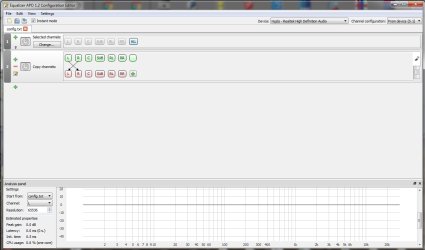
I have the config loaded and it shows arrows going from L to R and vice versa (from green to red). But testing the speakers, it didn't swap.

I'm even leaving the program on and "power on" for the config. I have selected in the top right "Default: speakers" and channel configuraiton "From device (stereo)".

Just like with OP, my temporary setup does not allow me to put the speakers in the proper location to have the left on left and right on right.

If it matters, my speakers are the logitech Z523 (2.1) and ASUS realtek HD Audio Manager
 

My Computer

OS
windows 7
5.1 swap channels.jpeg

This is the setup that worked for me, with 5.1 logitech speakers.

First Control->Channel (Select Channels)

Basic filters -> Copy (Copy between channels) then press the Assignments button -Add Assignment and finally try the combination that works for you.
 

My Computer

Computer type
PC/Desktop
Computer Manufacturer/Model Number
Custom
OS
Windows 7 Ultimate
CPU
Intel(R) Core(TM) i7
Back
Top