System connects to wireless network but not to the internet.

jwbryson

New member
Local time
9:07 PM
Messages
11
I am new to Windows 7 and to this forum! Howdy!

I have a brand new Dell Precision T1650 that I purchased about 2 months ago. It includes Windows 7, 16GB RAM, Intel Core i7 CPU at 3.7GHz, etc. So far I've only installed Lightroom 4 and Photoshop CS6 for processing photographs. I am running AVG (free) which I downloaded from the internet.

I also have a Dell XPS which is hard wired to the internet through Comcast cable. I have a D-Link DIR-655 wireless router for my home network.

I installed the following wireless card in my new Precision 1650 to access the internet:

TP-Link TL-WDN4800 450Mbps Wireless-N Dual Band PCI Express Adapter - 450Mbps, PCI Express x1, RP-SMA, Wireless-N, 3x 2dBi Antennas at TigerDirect.com

I am able to connect to the wireless network and access the internet on occasion (mainly in the mornings or early afternoon), but more often than not the internet connection is very spotty and in the evenings, I can access the wireless network but the internet will not load. I also have problems after the new system goes into sleep mode and I get back on it, I have to reconnect to the wireless network. It seems that it drops the network connection once it goes into sleep mode.

I have tried changing channels on the wireless router from 4 to 7 to 2 (the current channel), but it makes no difference.

I am frustrated. Any help you can offer is appreciated. Thanks very much! :)
 

My Computer My Computer

At a glance

Windows 7 64 bit
Computer Manufacturer/Model Number
Dell Precision T1650
OS
Windows 7 64 bit
I have the same router and with that 450Mbps PCI adaptor you should be seeing some really good wireless speeds but, you need to set the router up correctly in order to obtain those faster wireless speeds.

First you should install Xirrus WiFi inspector, post a screen shot of the results here so I can check out the wireless landscape in your area. You really can't guess at which channels to use, you need to look at the wireless connections in your area so you can make an informed decision on which channels to use.

After that we can make some adjustments in the router to obtain the best possible wireless speeds.

Wi-Fi Inspector | Xirrus
 

My Computer My Computer

At a glance

Windows 7 Ult, Windows 8.1 Pro,Q9650-4.275GHz, E8600 4.5GHz, E6750-3.8GHzG.Skill PC2 9600 1200Mhz 5 5 5 15 2TGTX480
Computer type
PC/Desktop
Computer Manufacturer/Model Number
Home built
OS
Windows 7 Ult, Windows 8.1 Pro,
CPU
Q9650-4.275GHz, E8600 4.5GHz, E6750-3.8GHz
Motherboard
Evga 780i FTW
Memory
G.Skill PC2 9600 1200Mhz 5 5 5 15 2T
Graphics Card(s)
GTX480
Sound Card
Asus Xonar D2
Monitor(s) Displays
HannsG
Screen Resolution
1680X1050
Hard Drives
GSkill Phoenix Pro 120GB SSD
PSU
ThermalTake Toughpower 1000Watt modular
Case
ThermalTake XaserV
Cooling
Xigmatek S1283
Keyboard
Logitech G15
Mouse
Logitech G9
Internet Speed
T1
First you should install Xirrus WiFi inspector, post a screen shot of the results here so I can check out the wireless landscape in your area. You really can't guess at which channels to use, you need to look at the wireless connections in your area so you can make an informed decision on which channels to use.

After that we can make some adjustments in the router to obtain the best possible wireless speeds.

Wi-Fi Inspector | Xirrus

Thanks. I'm at the office at the moment, but I will check that out tonight and post later today or tomorrow.
 

My Computer My Computer

At a glance

Windows 7 64 bit
Computer Manufacturer/Model Number
Dell Precision T1650
OS
Windows 7 64 bit
I have the same router and with that 450Mbps PCI adaptor you should be seeing some really good wireless speeds but, you need to set the router up correctly in order to obtain those faster wireless speeds.

First you should install Xirrus WiFi inspector, post a screen shot of the results here so I can check out the wireless landscape in your area. You really can't guess at which channels to use, you need to look at the wireless connections in your area so you can make an informed decision on which channels to use.

After that we can make some adjustments in the router to obtain the best possible wireless speeds.

Wi-Fi Inspector | Xirrus


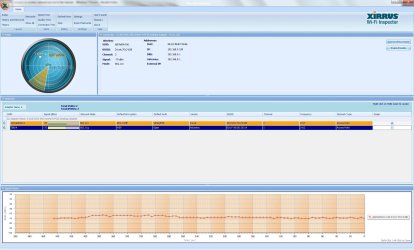
See below. I'm the first wireless network that starts 6j9....:
 

Attachments

  • WiFi Screen Shot.jpg
    WiFi Screen Shot.jpg
    214.2 KB · Views: 23

My Computer My Computer

At a glance

Windows 7 64 bit
Computer Manufacturer/Model Number
Dell Precision T1650
OS
Windows 7 64 bit
Yeah, tonight it actually connected pretty well, but that's definitely the exception to the rule.
 

My Computer My Computer

At a glance

Windows 7 64 bit
Computer Manufacturer/Model Number
Dell Precision T1650
OS
Windows 7 64 bit
Yeah, tonight it actually connected pretty well, but that's definitely the exception to the rule.


^^^^ This is a weird comment. It looked like somebody posted last night a comment that said "this is good" ahead of my response, but I don't see it today.

Anyhow, above you can see the screen shot of my wireless router.
 

My Computer My Computer

At a glance

Windows 7 64 bit
Computer Manufacturer/Model Number
Dell Precision T1650
OS
Windows 7 64 bit
I have the same router and with that 450Mbps PCI adaptor you should be seeing some really good wireless speeds but, you need to set the router up correctly in order to obtain those faster wireless speeds.

First you should install Xirrus WiFi inspector, post a screen shot of the results here so I can check out the wireless landscape in your area. You really can't guess at which channels to use, you need to look at the wireless connections in your area so you can make an informed decision on which channels to use.

After that we can make some adjustments in the router to obtain the best possible wireless speeds.

Wi-Fi Inspector | Xirrus


See below. I'm the first wireless network that starts 6j9....:

I will assume that you want the best possible wireless speeds.

You will need to make some adjustments in the wireless settings on your DIR655 by typing 192.168.0.1 into the URL of your browser.

You will want to go into your routers set up page and choose Set up, then Wireless Settings, then down to the bottom of the page choose Manual Wireless Setup.

First go into the wireless settings and change the channel to 11, be sure and hit the save settings button at the top of the page after making these adjustments.

Second, there is an adjustment called Channel Width, choose the Auto 20-40Mhz setting which is for channel bonding, this will give you twice the bandwidth and therefore better wireless speeds.

Also for 802.11 mode choose the 802.11n Only setting which will give the best possible wireless speed.

You should also define the DNS servers you want to use by going to the Set Up tab, then choose Manual Internet Connection Set up. Go down to where it says Primary and Secondary DNS setup and type in two DNS servers, Google's DNS work well here at 8.8.8.8 and 8.8.4.4 , save settings.

These adjustments will give you the best possible connection speeds and better performance but may not fix the exact problem you seem to be having.

As for the problem of connecting to the network but not the internet. This can be caused from many things. I will need to see a screen shot of the ipconfig/all from this machine.
 

My Computer My Computer

At a glance

Windows 7 Ult, Windows 8.1 Pro,Q9650-4.275GHz, E8600 4.5GHz, E6750-3.8GHzG.Skill PC2 9600 1200Mhz 5 5 5 15 2TGTX480
Computer type
PC/Desktop
Computer Manufacturer/Model Number
Home built
OS
Windows 7 Ult, Windows 8.1 Pro,
CPU
Q9650-4.275GHz, E8600 4.5GHz, E6750-3.8GHz
Motherboard
Evga 780i FTW
Memory
G.Skill PC2 9600 1200Mhz 5 5 5 15 2T
Graphics Card(s)
GTX480
Sound Card
Asus Xonar D2
Monitor(s) Displays
HannsG
Screen Resolution
1680X1050
Hard Drives
GSkill Phoenix Pro 120GB SSD
PSU
ThermalTake Toughpower 1000Watt modular
Case
ThermalTake XaserV
Cooling
Xigmatek S1283
Keyboard
Logitech G15
Mouse
Logitech G9
Internet Speed
T1
I have the same router and with that 450Mbps PCI adaptor you should be seeing some really good wireless speeds but, you need to set the router up correctly in order to obtain those faster wireless speeds.

First you should install Xirrus WiFi inspector, post a screen shot of the results here so I can check out the wireless landscape in your area. You really can't guess at which channels to use, you need to look at the wireless connections in your area so you can make an informed decision on which channels to use.

After that we can make some adjustments in the router to obtain the best possible wireless speeds.

Wi-Fi Inspector | Xirrus


See below. I'm the first wireless network that starts 6j9....:

I will assume that you want the best possible wireless speeds.

You will need to make some adjustments in the wireless settings on your DIR655 by typing 192.168.0.1 into the URL of your browser.

You will want to go into your routers set up page and choose Set up, then Wireless Settings, then down to the bottom of the page choose Manual Wireless Setup.

First go into the wireless settings and change the channel to 11, be sure and hit the save settings button at the top of the page after making these adjustments.

Second, there is an adjustment called Channel Width, choose the Auto 20-40Mhz setting which is for channel bonding, this will give you twice the bandwidth and therefore better wireless speeds.

Also for 802.11 mode choose the 802.11n Only setting which will give the best possible wireless speed.

These adjustments will give you the best possible connection speeds and better performance but may not fix the problem you seem to be having.

As for the problem of connecting to the network but not the internet. This can be caused from many things. I will need to see a screen shot of the ipconfig/all from this machine.


Thanks. I will try this and let you know. For my personal information, what's special about Channel 11 and why would the router default to both 802.11g + 802.11n?
 

My Computer My Computer

At a glance

Windows 7 64 bit
Computer Manufacturer/Model Number
Dell Precision T1650
OS
Windows 7 64 bit
See below. I'm the first wireless network that starts 6j9....:

I will assume that you want the best possible wireless speeds.

You will need to make some adjustments in the wireless settings on your DIR655 by typing 192.168.0.1 into the URL of your browser.

You will want to go into your routers set up page and choose Set up, then Wireless Settings, then down to the bottom of the page choose Manual Wireless Setup.

First go into the wireless settings and change the channel to 11, be sure and hit the save settings button at the top of the page after making these adjustments.

Second, there is an adjustment called Channel Width, choose the Auto 20-40Mhz setting which is for channel bonding, this will give you twice the bandwidth and therefore better wireless speeds.

Also for 802.11 mode choose the 802.11n Only setting which will give the best possible wireless speed.

These adjustments will give you the best possible connection speeds and better performance but may not fix the problem you seem to be having.

As for the problem of connecting to the network but not the internet. This can be caused from many things. I will need to see a screen shot of the ipconfig/all from this machine.


Thanks. I will try this and let you know. For my personal information, what's special about Channel 11 and why would the router default to both 802.11g + 802.11n?

As it was you were using a channel that was right next to the one your neighbor is using, the bandwidth for these channels crosses over into the 4 surrounding channels and borrows the band width from them. Because of this, the further you are from your neighbors channels the more bandwidth will be available to you, using channel bonding increases the available bandwidth even more.

G and N are just default settings, there is no way to achieve true wireless n speeds when you are using mixed modes. Mixed modes are only to support wireless G or below clients.

If you are still having the connection problem, Type or copy each command one at a time into an elevated command prompt then hit "enter" after each one, then reboot your machine.


netsh winsock reset catalog (reset winsock entries)

netsh int ip reset reset.log hit (reset TCP/IP stack)
 

My Computer My Computer

At a glance

Windows 7 Ult, Windows 8.1 Pro,Q9650-4.275GHz, E8600 4.5GHz, E6750-3.8GHzG.Skill PC2 9600 1200Mhz 5 5 5 15 2TGTX480
Computer type
PC/Desktop
Computer Manufacturer/Model Number
Home built
OS
Windows 7 Ult, Windows 8.1 Pro,
CPU
Q9650-4.275GHz, E8600 4.5GHz, E6750-3.8GHz
Motherboard
Evga 780i FTW
Memory
G.Skill PC2 9600 1200Mhz 5 5 5 15 2T
Graphics Card(s)
GTX480
Sound Card
Asus Xonar D2
Monitor(s) Displays
HannsG
Screen Resolution
1680X1050
Hard Drives
GSkill Phoenix Pro 120GB SSD
PSU
ThermalTake Toughpower 1000Watt modular
Case
ThermalTake XaserV
Cooling
Xigmatek S1283
Keyboard
Logitech G15
Mouse
Logitech G9
Internet Speed
T1
I will assume that you want the best possible wireless speeds.

You will need to make some adjustments in the wireless settings on your DIR655 by typing 192.168.0.1 into the URL of your browser.

You will want to go into your routers set up page and choose Set up, then Wireless Settings, then down to the bottom of the page choose Manual Wireless Setup.

First go into the wireless settings and change the channel to 11, be sure and hit the save settings button at the top of the page after making these adjustments.

Second, there is an adjustment called Channel Width, choose the Auto 20-40Mhz setting which is for channel bonding, this will give you twice the bandwidth and therefore better wireless speeds.

Also for 802.11 mode choose the 802.11n Only setting which will give the best possible wireless speed.

These adjustments will give you the best possible connection speeds and better performance but may not fix the problem you seem to be having.

As for the problem of connecting to the network but not the internet. This can be caused from many things. I will need to see a screen shot of the ipconfig/all from this machine.


Thanks. I will try this and let you know. For my personal information, what's special about Channel 11 and why would the router default to both 802.11g + 802.11n?

As it was you were using a channel that was right next to the one your neighbor is using, the bandwidth for these channels crosses over into the 4 surrounding channels and borrows the band width from them. Because of this, the further you are from your neighbors channels the more bandwidth will be available to you, using channel bonding increases the available bandwidth even more.

G and N are just default settings, there is no way to achieve true wireless n speeds when you are using mixed modes. Mixed modes are only to support wireless G or below clients.

If you are still having the connection problem, Type or copy each command one at a time into an elevated command prompt then hit "enter" after each one, then reboot your machine.


netsh winsock reset catalog (reset winsock entries)

netsh int ip reset reset.log hit (reset TCP/IP stack)


I made all the changes you suggested to the router. The first thing I noticed was that my old computer which is hard wired to the internet via Comcast cable sped up a lot. This was a good thing but it only lasted for a day or so, and the it slowed back down. I've changed a few things back to where I started, but retained a couple of the suggested changes such as "wireless n only" and 20-40GHz. I am still having connectivity problems though. I can access the wireless network on the new box, but the connection to the internet is SLOWWWWWWWWWW and more often than not does not connect at all.

Next steps to fix this? Thanks!
 

My Computer My Computer

At a glance

Windows 7 64 bit
Computer Manufacturer/Model Number
Dell Precision T1650
OS
Windows 7 64 bit
Everything I suggested only covers the routers settings and doesn't deal with the adaptor you are using which I'm not familiar with at all.

Updating the drivers for the wireless PCI adaptor would be good, I would think that Windows would have a driver for this so check to update the driver in Device Manager or Windows update.

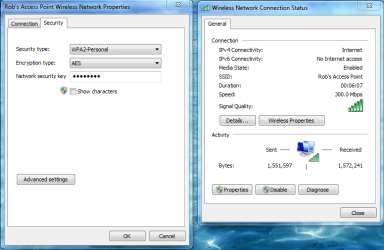
When you say slow I have no idea how slow, can you post the wireless speed just like the picture below on the right.
 

Attachments

  • 300mbps AES.PNG
    300mbps AES.PNG
    41.5 KB · Views: 6

My Computer My Computer

At a glance

Windows 7 Ult, Windows 8.1 Pro,Q9650-4.275GHz, E8600 4.5GHz, E6750-3.8GHzG.Skill PC2 9600 1200Mhz 5 5 5 15 2TGTX480
Computer type
PC/Desktop
Computer Manufacturer/Model Number
Home built
OS
Windows 7 Ult, Windows 8.1 Pro,
CPU
Q9650-4.275GHz, E8600 4.5GHz, E6750-3.8GHz
Motherboard
Evga 780i FTW
Memory
G.Skill PC2 9600 1200Mhz 5 5 5 15 2T
Graphics Card(s)
GTX480
Sound Card
Asus Xonar D2
Monitor(s) Displays
HannsG
Screen Resolution
1680X1050
Hard Drives
GSkill Phoenix Pro 120GB SSD
PSU
ThermalTake Toughpower 1000Watt modular
Case
ThermalTake XaserV
Cooling
Xigmatek S1283
Keyboard
Logitech G15
Mouse
Logitech G9
Internet Speed
T1
Hi jwbryson updating the drivers may help a little but looking at your xirrus you are suffering from a weak signal it ranges from -62dbm to -70dbm and at -70 it is considered a weak signal so it is fluctuating and is disconnection territory.

Where is your computer located in relation to the router is in the same room or different room or different floors?

If you have an older house they will have solid walls which will degrade the signal quicker than a modern house where the internal walls are not brick.

Some remedies for a weak signal are:

1. Use an ethernet cable if feasible from one of the router Lan ports to your computers ethernet port.
2. Buy a high power wireless adapter it may help with the signal.
3. Buy high gain antennas for router and Dlink wireless adapter.
4. Use an access point wired to your main router and place halfway between router and computer if feasible.
5. Buy a range extender(wireless repeater) and place halfway between main router and computer to boost wireless signal from main router.

One or a combination of the above remedies should work.
 

My Computer My Computer

At a glance

Windows 7 Ultimate x64AMD turion 64x2 TL-64 2.2GhzSodimm DDR2 4GBATI Radeon 1250 128MB IGP
Computer Manufacturer/Model Number
HP Compaq 6715B
OS
Windows 7 Ultimate x64
CPU
AMD turion 64x2 TL-64 2.2Ghz
Motherboard
HC030
Memory
Sodimm DDR2 4GB
Graphics Card(s)
ATI Radeon 1250 128MB IGP
Hard Drives
Fujitsu Siemens 500GB sata 3.0 Gb/s
Hi jwbryson updating the drivers may help a little but looking at your xirrus you are suffering from a weak signal it ranges from -62dbm to -70dbm and at -70 it is considered a weak signal so it is fluctuating and is disconnection territory.

Where is your computer located in relation to the router is in the same room or different room or different floors?

If you have an older house they will have solid walls which will degrade the signal quicker than a modern house where the internal walls are not brick.

Some remedies for a weak signal are:

1. Use an ethernet cable if feasible from one of the router Lan ports to your computers ethernet port.
2. Buy a high power wireless adapter it may help with the signal.
3. Buy high gain antennas for router and Dlink wireless adapter.
4. Use an access point wired to your main router and place halfway between router and computer if feasible.
5. Buy a range extender(wireless repeater) and place halfway between main router and computer to boost wireless signal from main router.

One or a combination of the above remedies should work.


Thanks for the post. The wireless router and both computers are located on my second floor. The old "hard wired" computer and my DIR-655 are in my office which is about 50 feet away from my new computer. I was originally using a wireless network extension (see here TRENDnet TEW-736RE 300Mbps Wireless N Range Extender at TigerDirect.com) but when it was installed and running, the wireless signal would drop continuously and I could never access the internet.

I'm flustered at this point...
 

My Computer My Computer

At a glance

Windows 7 64 bit
Computer Manufacturer/Model Number
Dell Precision T1650
OS
Windows 7 64 bit
You may try a reset of the trendnet and re-configure we can help if you wish?
 

My Computer My Computer

At a glance

Windows 7 Ultimate x64AMD turion 64x2 TL-64 2.2GhzSodimm DDR2 4GBATI Radeon 1250 128MB IGP
Computer Manufacturer/Model Number
HP Compaq 6715B
OS
Windows 7 Ultimate x64
CPU
AMD turion 64x2 TL-64 2.2Ghz
Motherboard
HC030
Memory
Sodimm DDR2 4GB
Graphics Card(s)
ATI Radeon 1250 128MB IGP
Hard Drives
Fujitsu Siemens 500GB sata 3.0 Gb/s
Thanks for the post. The wireless router and both computers are located on my second floor. The old "hard wired" computer and my DIR-655 are in my office which is about 50 feet away from my new computer. I was originally using a wireless network extension (see here TRENDnet TEW-736RE 300Mbps Wireless N Range Extender at TigerDirect.com) but when it was installed and running, the wireless signal would drop continuously and I could never access the internet.

I'm flustered at this point...

With the DIR 655 and 50 feet through a few walls you can forget about having a decent connection. It's a good router but it's not magical.

The -70 signal strength can go either way, might work ok or not at all or somewhere in between which is where you are now. I was attempting to get this rather weak signal to function better but there is only so much you can do with a weak signal.

Wireless extenders work ok if the incoming signal is fairly strong to begin with.

I'd have a hard time recommending a range extender over a dedicated access point like the D-Link DAP-1522 which is what I use which is made to work with your exact model router.

It's highly recommend to use this dedicated access point over using another router or wireless extender. The only draw back is that you have to run an Ethernet wire to the access point, it also works like a wired switch with 4 LAN ports.
http://www.amazon.com/s?ie=UTF8&page=1&rh=i%3Aaps%2Ck%3Adap%201522

There are some adjustments you can do to obtain the true max bandwidth/speed to achieve the advertised throughput of 300Mbps. This only applies if you are interested in true wireless performance and reliability. ;)
 
Last edited:

My Computer My Computer

At a glance

Windows 7 Ult, Windows 8.1 Pro,Q9650-4.275GHz, E8600 4.5GHz, E6750-3.8GHzG.Skill PC2 9600 1200Mhz 5 5 5 15 2TGTX480
Computer type
PC/Desktop
Computer Manufacturer/Model Number
Home built
OS
Windows 7 Ult, Windows 8.1 Pro,
CPU
Q9650-4.275GHz, E8600 4.5GHz, E6750-3.8GHz
Motherboard
Evga 780i FTW
Memory
G.Skill PC2 9600 1200Mhz 5 5 5 15 2T
Graphics Card(s)
GTX480
Sound Card
Asus Xonar D2
Monitor(s) Displays
HannsG
Screen Resolution
1680X1050
Hard Drives
GSkill Phoenix Pro 120GB SSD
PSU
ThermalTake Toughpower 1000Watt modular
Case
ThermalTake XaserV
Cooling
Xigmatek S1283
Keyboard
Logitech G15
Mouse
Logitech G9
Internet Speed
T1
I reconnected the signal booster I was using previously and I have had some limited improvement, but I am still having trouble in general.

When I connect it, I am now showing 2 wireless networks in my house that appear to be competing with each other. The signal has DROPPED to the 60's but is now GREEN which means a better signal? I'm confused. I thought below 70 was bad?

The original network "Bryson" is on one channel and the new network "6j97z0....." is on another channel. If the signal booster is boosting the network called 6j97a0.....then why does it appear on a different channel? That makes no sense to me.

Still loads extremely slowly if at all.

I'm trying to upload the Xirrus screen print but it is having problems uploading to the forum...
 

My Computer My Computer

At a glance

Windows 7 64 bit
Computer Manufacturer/Model Number
Dell Precision T1650
OS
Windows 7 64 bit
I reconnected the signal booster I was using previously and I have had some limited improvement, but I am still having trouble in general.

When I connect it, I am now showing 2 wireless networks in my house that appear to be competing with each other. The signal has DROPPED to the 60's but is now GREEN which means a better signal? I'm confused. I thought below 70 was bad?

The original network "Bryson" is on one channel and the new network "6j97z0....." is on another channel. If the signal booster is boosting the network called 6j97a0.....then why does it appear on a different channel? That makes no sense to me.

Still loads extremely slowly if at all.

I'm trying to upload the Xirrus screen print but it is having problems uploading to the forum...

It sounds like this signal booster is acting more like a wireless access point because it appears to broadcasting on a different channel than the router is. Seems like it should only be boosting the original signal. I guess now we know why I don't put much faith in wireless extenders or those so called special antenna's.

Generally speaking, wireless range is extended by adding access points, those wireless antenna's or range boosters don't work so well when there are many walls involved.

You may be able to change the settings of the booster to match the ones your router is using.
 

My Computer My Computer

At a glance

Windows 7 Ult, Windows 8.1 Pro,Q9650-4.275GHz, E8600 4.5GHz, E6750-3.8GHzG.Skill PC2 9600 1200Mhz 5 5 5 15 2TGTX480
Computer type
PC/Desktop
Computer Manufacturer/Model Number
Home built
OS
Windows 7 Ult, Windows 8.1 Pro,
CPU
Q9650-4.275GHz, E8600 4.5GHz, E6750-3.8GHz
Motherboard
Evga 780i FTW
Memory
G.Skill PC2 9600 1200Mhz 5 5 5 15 2T
Graphics Card(s)
GTX480
Sound Card
Asus Xonar D2
Monitor(s) Displays
HannsG
Screen Resolution
1680X1050
Hard Drives
GSkill Phoenix Pro 120GB SSD
PSU
ThermalTake Toughpower 1000Watt modular
Case
ThermalTake XaserV
Cooling
Xigmatek S1283
Keyboard
Logitech G15
Mouse
Logitech G9
Internet Speed
T1
I am having similar problems to the original post, I am connected to the wifi network but there is no internet access despite every other PC and mobile device in the house working fine. I am at my wits end having trawled through forums for the past 2 months trying all the different solutions. To say I am pissed off would be an understatement, Microsoft need to sort this out ASAP (even if it is not their fault they could come up with a program to help fix it in order to maximise the productivity of their software).
I have tried:
resetting the router
a system restore to a previous date
a static gateway (although I am sure I was doing something wrong here as I had no DNS info to input)
using a program called winsockfix.exe
IPCONFIG /RELEASE /RENEW
The NETSH INT IP RESET thing (including the similar option mentioned by a helpful poster above)
IPCONFIG /FLUSHDNS
Changing the wireless network to public and work instead of home (saw it advised somewhere!)
creating a notepad doc called speedup.bat with '@echo off' and some other stuff inside it. That didnt work either.

The only thing that has worked is a wired connection but seeing as though the router is in a housemates room and not my own this isnt always an option (nor is constantly resetting the router box).
I have had the same problems on wifi networks in work (but nowhere near as often).

If anyone would be nice enough to offer some help I am up for some remote connecting (I got no skeletons to hide!) and can post txt documents with my ipconfig /all data for when my wifi connection is working and when it has not been working (and the same for when I am in work!)
 

My Computer My Computer

At a glance

Windows 7 x64
OS
Windows 7 x64
Also I should probably say I am using windows 7 64bit and it is a 2/3month old Dell Inspiron 7520. It has an Intel Centrino Wireless N 2230 network card with all uptodate drivers. There is also a program that came with the PC called intel proset wireless tools - on it you can run a diagnosis test so I did and it failed on the ping test with this description: no response: default gateway, DHCP server

I have no virus protection such as McAfee or anything, only microsoft security essentials and spybot search and destroy. I have just downloaded Ccleaner and that Xirrus thing mentioned above to see if they help at all. I cant think of anything else that could have a firewall that would get in the way other than the inbuilt windows firewall but I am guessing that its a requirement to have that on.

Also, on my last Dell laptop, I had it for 4 years and never had antivirus software on it, only microsoft security essentials and I never had a single problem in the whole 4 years - so I dont think it is a virus problem and I am incredibly annoyed that my newer and supposedly better PC cant even run the frikkin internet!
 

My Computer My Computer

At a glance

Windows 7 x64
OS
Windows 7 x64
If anyone would be nice enough to offer some help I am up for some remote connecting (I got no skeletons to hide!) and can post txt documents with my ipconfig /all data for when my wifi connection is working and when it has not been working (and the same for when I am in work!)


With all due respect, please do not hijack my thread just because we have a similar issue. Please start another thread for YOUR problem. Thanks. ;)
 

My Computer My Computer

At a glance

Windows 7 64 bit
Computer Manufacturer/Model Number
Dell Precision T1650
OS
Windows 7 64 bit
Back
Top