System Image erroneous space error

Deepblue

New member
Local time
6:33 AM
Messages
6
Dear All,

I am attempting to take a system image of my C drive (which is Programs only, RAID) on to a spare drive with over a terrabite of free space. However, I receive the message:

There is not enough space to create the volume shadow copy on the storage location... and it ends with the code Ox80780119.

A while back I found and then lost a post elsewhere that referred to a known problem in that within the programs partition it required at least X amount of spare space to initiate the system image. At the time the solution was too complex for me but I am now anxious to move ahead.

Has anyone encountered this and is a quick fixz to buy e.g. Norton Ghost or would I hit the same problem?

:confused:
 

My Computer

Computer Manufacturer/Model Number
Acer
OS
Windows 7 x32
Please post back a screenshot of your maximized full Disk Mgmt drive map with listings showing all columns, using the Snipping Tool in Start Menu.

You may not have enough free space on the 100mb System Reserved boot partition, because something has written to it if it has a drive letter. We can help you expand it.

If you have WD or Seagate HD's in the mix, you can also use the free version of Acronis' premium imaging app, which is recommended by many here while Norton Ghost isn't recommended by any I've seen.
 
System Image Problem - map opf

Dear Gregrocker,

Thanks for such a swift response. I am having difficulty pasting the snip in and have therefore attached it. Is the attached the map you refer to?

The HDs are Samsung, put in by the engineer who put RAID on for me (I am very much a novice).

I am grateful for your assistance.

Best regards,

Deepblue
 

Attachments

  • Disk Map.PNG
    Disk Map.PNG
    25.3 KB · Views: 72

My Computer

Computer Manufacturer/Model Number
Acer
OS
Windows 7 x32
A system image requires a minimum of 40MB of free space in system reserved. Your screenshot shows 34MB free. There are several options as gregrocker suggested, The free version of macrium is another option.
 

My Computers

System One System Two

  • Computer type
    PC/Desktop
    Computer Manufacturer/Model Number
    ALWAYS UNDER CONSTRUCTION
    OS
    Windows 11 Pro
    CPU
    Ryzen 9 5900X
    Motherboard
    Asus X570 Crosshair Viii Hero
    Memory
    32GB G Skill DDR4-3600
    Graphics Card(s)
    EVGA RTX 3080 FTW 3 Ultra
    Sound Card
    On Board/Sennheiser PC37X Headset
    Monitor(s) Displays
    3 X Asus 27"
    Screen Resolution
    2560x1440
    Hard Drives
    2 X 1 TB NVME drives
    PSU
    EVGA 850
    Case
    Phanteks Eclipse P400A
    Cooling
    EVGA 280 AIO
    Keyboard
    Logitech G510s/ Logitech G13
    Mouse
    Logitech G502
    Internet Speed
    24/1
    Antivirus
    ESET/MBAM Pro/SAS Pro
    Browser
    Chrome/ Firefox/ Edge
  • Computer type
    Laptop
    System Manufacturer/Model Number
    Dell 16 Plus
    OS
    Windows 11 Pro
    CPU
    Intel Ultra 9 288V
    Memory
    32 GB LPDDR5X 8533
    Monitor(s) Displays
    16" Mini-LED HDR600 Touch 90 Hz
    Screen Resolution
    2560X1600
    Hard Drives
    1 TB NVME
You can temporarily assign a letter to System Reserved partition in Disk Management, then open it in Explorer and post back a screenshot of its contents so we can help you explore the files to see what is there that shouldn't be.

Or you can fix it now by using free Partition Wizard bootable CD: rightclick C, select Resize, drag the left grey border to the right 100mb to make more space for the SysReserved partition, click OK. Then rightclick System Reserved, drag it's right grey border to the right to include the space you made, OK, Apply steps. You should now be able to make the image.

Or you can use one of the other suggested free imaging apps and not be bothered - up to you.,
 
System Image Problem - map of System Reserved

Dear Gregrocker,

Thanks for yours. I have assigned a drive letter and the only folder showing is 'Users', which although it has subfolders with my name (and then sub folders My Docs and Desktop) these are empty and show as using zero space.

I can see that there must be hidden folders because of the space used by the System Reserved as a whole but having explored options I am unclear as to how to show hidden folders within this partition.

I would like (subject to your patience) to explore this investigation because having previously relied on third parties it would be good to build my knowledge.

If you are able to indicate how I can reveal the contents I will post a further map. Thank you also for the other fixes, which I am storing as knowledge.

Best regards and thank you again,

Deepblue
 

My Computer

Computer Manufacturer/Model Number
Acer
OS
Windows 7 x32
Re Macrium

A system image requires a minimum of 40MB of free space in system reserved. Your screenshot shows 34MB free. There are several options as gregrocker suggested, The free version of macrium is another option.

Dear Essenbe,

I am grateful to you also for such assistance. Thsi is the first time I have ever used an IT forum and already I feel as if I have gone from lost and bewildered to having some options. I will hold your fix along with thsoe suggested by Gregrocker on the basis that, as an absolute novice, the more knowledge acquired the better.

In the meantime it is warming that there are such altruistic people about.

Best regards,

Deepblue
 

My Computer

Computer Manufacturer/Model Number
Acer
OS
Windows 7 x32
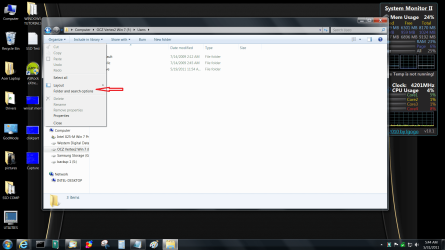
Try this. Go back and open up system reserved in windows explorer. In the top left of the box click on organize and a dropdown will appear.
Untitled.png
Next click on folder and search options
Untitled1.png
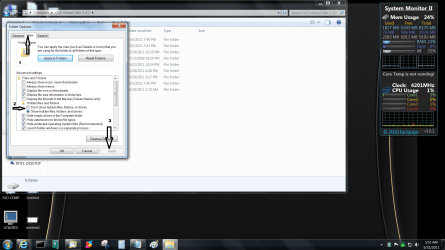
Next click on the view tab. click on show hidden in the middle and click on apply
Untitled3.png

Please Post a screenshot of the contents of system reserved for gregrocker.
 

My Computers

System One System Two

  • Computer type
    PC/Desktop
    Computer Manufacturer/Model Number
    ALWAYS UNDER CONSTRUCTION
    OS
    Windows 11 Pro
    CPU
    Ryzen 9 5900X
    Motherboard
    Asus X570 Crosshair Viii Hero
    Memory
    32GB G Skill DDR4-3600
    Graphics Card(s)
    EVGA RTX 3080 FTW 3 Ultra
    Sound Card
    On Board/Sennheiser PC37X Headset
    Monitor(s) Displays
    3 X Asus 27"
    Screen Resolution
    2560x1440
    Hard Drives
    2 X 1 TB NVME drives
    PSU
    EVGA 850
    Case
    Phanteks Eclipse P400A
    Cooling
    EVGA 280 AIO
    Keyboard
    Logitech G510s/ Logitech G13
    Mouse
    Logitech G502
    Internet Speed
    24/1
    Antivirus
    ESET/MBAM Pro/SAS Pro
    Browser
    Chrome/ Firefox/ Edge
  • Computer type
    Laptop
    System Manufacturer/Model Number
    Dell 16 Plus
    OS
    Windows 11 Pro
    CPU
    Intel Ultra 9 288V
    Memory
    32 GB LPDDR5X 8533
    Monitor(s) Displays
    16" Mini-LED HDR600 Touch 90 Hz
    Screen Resolution
    2560X1600
    Hard Drives
    1 TB NVME
Dear essenbe and Gregrocker,

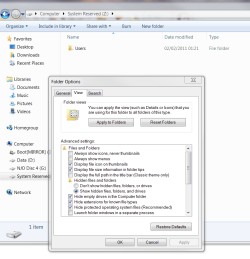
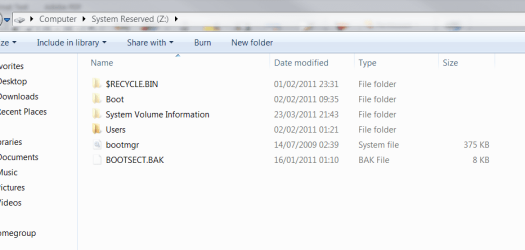
I have ticked to show hidden files and when this only showed 'User' (which occupies only 6kb on the disc) I also ncecked 'hide operating system files (recommended) to reveal the rest of the files there. Thus the two screen captures.

I would be interested to knwo what this tells the informed.

Thanks again,
System reserve after show hidden.PNG

System reserved with show OS files checked.PNG
Deepblue
 

My Computer

Computer Manufacturer/Model Number
Acer
OS
Windows 7 x32
Deepblue, This is gregrockers area of expertise. We will have to wait for Greg. The best I could do is get you there. Greg is excellent in this area. But I might suggest yoy backup all of your personal information before any alterations are made to this partition and I believe you will need to remove the letter you assigned system reserved before you turn the computer off.
 

My Computers

System One System Two

  • Computer type
    PC/Desktop
    Computer Manufacturer/Model Number
    ALWAYS UNDER CONSTRUCTION
    OS
    Windows 11 Pro
    CPU
    Ryzen 9 5900X
    Motherboard
    Asus X570 Crosshair Viii Hero
    Memory
    32GB G Skill DDR4-3600
    Graphics Card(s)
    EVGA RTX 3080 FTW 3 Ultra
    Sound Card
    On Board/Sennheiser PC37X Headset
    Monitor(s) Displays
    3 X Asus 27"
    Screen Resolution
    2560x1440
    Hard Drives
    2 X 1 TB NVME drives
    PSU
    EVGA 850
    Case
    Phanteks Eclipse P400A
    Cooling
    EVGA 280 AIO
    Keyboard
    Logitech G510s/ Logitech G13
    Mouse
    Logitech G502
    Internet Speed
    24/1
    Antivirus
    ESET/MBAM Pro/SAS Pro
    Browser
    Chrome/ Firefox/ Edge
  • Computer type
    Laptop
    System Manufacturer/Model Number
    Dell 16 Plus
    OS
    Windows 11 Pro
    CPU
    Intel Ultra 9 288V
    Memory
    32 GB LPDDR5X 8533
    Monitor(s) Displays
    16" Mini-LED HDR600 Touch 90 Hz
    Screen Resolution
    2560X1600
    Hard Drives
    1 TB NVME
Dear essenbe,

Thank you for yours and your assistance in getting thus far. I went to remove the drive letter but am noit sure how. I am sorry to seem so lame but could you guide mas to how to revert. I cannot seem to even see how I added it in the first place.

Best regards,

deepblue
 

My Computer

Computer Manufacturer/Model Number
Acer
OS
Windows 7 x32
If you have rebooted with the drive letter in place and it works don't worry about it. To remove the letter go to disk management, right click on the system reserved partition, select 'change drive letter and path' in the drop down box select remove. that will remove the drive letter.
 

My Computers

System One System Two

  • Computer type
    PC/Desktop
    Computer Manufacturer/Model Number
    ALWAYS UNDER CONSTRUCTION
    OS
    Windows 11 Pro
    CPU
    Ryzen 9 5900X
    Motherboard
    Asus X570 Crosshair Viii Hero
    Memory
    32GB G Skill DDR4-3600
    Graphics Card(s)
    EVGA RTX 3080 FTW 3 Ultra
    Sound Card
    On Board/Sennheiser PC37X Headset
    Monitor(s) Displays
    3 X Asus 27"
    Screen Resolution
    2560x1440
    Hard Drives
    2 X 1 TB NVME drives
    PSU
    EVGA 850
    Case
    Phanteks Eclipse P400A
    Cooling
    EVGA 280 AIO
    Keyboard
    Logitech G510s/ Logitech G13
    Mouse
    Logitech G502
    Internet Speed
    24/1
    Antivirus
    ESET/MBAM Pro/SAS Pro
    Browser
    Chrome/ Firefox/ Edge
  • Computer type
    Laptop
    System Manufacturer/Model Number
    Dell 16 Plus
    OS
    Windows 11 Pro
    CPU
    Intel Ultra 9 288V
    Memory
    32 GB LPDDR5X 8533
    Monitor(s) Displays
    16" Mini-LED HDR600 Touch 90 Hz
    Screen Resolution
    2560X1600
    Hard Drives
    1 TB NVME
Not related to your image problem, but ...

I ALWAYS uncheck, "Hide extensions for known file types".

IMO that has got to be one of the most foolish default settings that I have ever seen.
What were MS thinking?
Why is it still a default setting in Windows 7? :shock:

I wonder how many people have been "nailed" by malware because of that.

I also use Macrium Free Edition and it has always "done the job" for me.

See this post for a link about how to use Macrium (Thanks to Bare Foot Kid):
http://www.sevenforums.com/backup-restore/166248-there-way-clone-windows.html#post1423106
 
Last edited:

My Computer

Computer type
PC/Desktop
Computer Manufacturer/Model Number
n/a
OS
W7 Ultimate SP1, LM19.2 MATE, W10 Home 1703, W10 Pro 1703 VM, #All 64 bit
CPU
AMD Phenom II x6 1100T, 3.3 GHz
Motherboard
ASUS M4A88T-M/USB3 (AM3)
Memory
12GB DDR3 1333 G-Skill (4GB x 2), G-Skill (2GB x 2)
Graphics Card(s)
NVIDIA GeForce GTX 660
Sound Card
Realtek?
Monitor(s) Displays
Samsung S23B350
Screen Resolution
1920x1080
Hard Drives
WD Green 2TB (SATA), WD Green 3TB (SATA), WD Blue 4TB (SATA), WD Blue 6TB (SATA)
PSU
Cooler Master
Case
Antec GX300 Tower
Cooling
3x Antec TRICOOL 120mm Fans
Mouse
Wired Optical
Internet Speed
DSL
Antivirus
Avast
Browser
Pale Moon (64 bit)
Other Info
2018-12-27 Upgraded HDDs
2015-12-10 Upgraded case, graphics card, storage
2015-08-15 Upgraded motherboard & RAM
2015-07-15 Upgraded LM17.1 to LM17.2
I ALWAYS uncheck, "Hide extensions for known file types".

IMO that has got to be one of the most foolish default settings that I have ever seen.
What were MS thinking?
Why is it still a default setting in Windows 7? :shock:

I wonder how many people have been "nailed" by malware because of that.

I also use Macrium Free Edition and it has always "done the job" for me.

See this post for a link about how to use Macrium (Thanks to Bare Foot Kid):
http://www.sevenforums.com/backup-restore/166248-there-way-clone-windows.html#post1423106

I agree about free Macrium. That is what I use along with Acronis. I always use at least 2 backup programs-better safe than sorry. Macrium is one of the easiest backup programs there is.
 

My Computers

System One System Two

  • Computer type
    PC/Desktop
    Computer Manufacturer/Model Number
    ALWAYS UNDER CONSTRUCTION
    OS
    Windows 11 Pro
    CPU
    Ryzen 9 5900X
    Motherboard
    Asus X570 Crosshair Viii Hero
    Memory
    32GB G Skill DDR4-3600
    Graphics Card(s)
    EVGA RTX 3080 FTW 3 Ultra
    Sound Card
    On Board/Sennheiser PC37X Headset
    Monitor(s) Displays
    3 X Asus 27"
    Screen Resolution
    2560x1440
    Hard Drives
    2 X 1 TB NVME drives
    PSU
    EVGA 850
    Case
    Phanteks Eclipse P400A
    Cooling
    EVGA 280 AIO
    Keyboard
    Logitech G510s/ Logitech G13
    Mouse
    Logitech G502
    Internet Speed
    24/1
    Antivirus
    ESET/MBAM Pro/SAS Pro
    Browser
    Chrome/ Firefox/ Edge
  • Computer type
    Laptop
    System Manufacturer/Model Number
    Dell 16 Plus
    OS
    Windows 11 Pro
    CPU
    Intel Ultra 9 288V
    Memory
    32 GB LPDDR5X 8533
    Monitor(s) Displays
    16" Mini-LED HDR600 Touch 90 Hz
    Screen Resolution
    2560X1600
    Hard Drives
    1 TB NVME
Or you can fix it now by using free Partition Wizard bootable CD: rightclick C, select Resize, drag the left grey border to the right 100mb to make more space for the SysReserved partition, click OK. Then rightclick System Reserved, drag it's right grey border to the right to include the space you made, OK, Apply steps. You should now be able to make the image.
Hello Deepblue, welcome to Seven Forums!


If you want to enlarge the System Reserved partition as Greg has suggested, you would need to "Move/Resize" (shrink) the left side of the Boot[Mirror] C: partition by at least 100MB using the outline in Step 1 of this tutorial at the link below as a guide.

I would suggest a system restart after the shrink just to make sure all is well, before you continue.

System Reserved : Create for Dual Boot

Then you could you could just use Windows 7 disk management to extend the existing SysResv to include the newly created unallocated space.
 

My Computer

Computer Manufacturer/Model Number
* BFK Customs *
OS
W 7 64-bit Ultimate
CPU
Intel Q9550 Yorkfield
Motherboard
ASUS P5Q Pro
Memory
8GB Dominator 8500C5D
Graphics Card(s)
ATI : XFX 5870
Sound Card
Realtek HD Audio 7-1
Monitor(s) Displays
1x 47" LCD HDMI & 3x 26" LCD HDMI
Screen Resolution
1920x1080P & 1920x1200
Hard Drives
1x 80GB Intel X25-M G2 SSD : 1x 500GB & 1x 640GB WD Caviar Black(s)
PSU
Corsair 620HX
Case
Cooler Master RC-690
Cooling
Tuniq Tower 120, 2x 140mm and 3x 120mm case fans
Keyboard
Microsoft 500
Mouse
Razer Diamondback 3G
Internet Speed
14 Mb/s
Other Info
1x Koutech 3Gb/s SATA HDD Hot Swap Rack
I have never seen a User folder in System Reserved before. Do you know how it got there? It would have to have had a letter assigned at the time to copy it in there, or for some backup to copy it in.

Once you unhide the files as you did, what is inside the User folder now? Please post back the contents of each folder and subfolder, and the total size.

Do you have your complete User folder on C and are these the files you are working from now? Open some of your active files and look at their Properties to see what the location of the User folder is - it needs to be C.

It's possible the User folder on System Reserved is the cause of the imaging error and it's removal will solve it once we see it's inactive, and if it brings the size of the partition below 34 mb used space. If not, we need to look in the other folders to see if something got written there erroneously as well.

At any point you can also use free Partition Wizard bootable CD to Resize C from the left by 100mb and add that space to System Reserved from the right - an easier fix although I wouldn't want to have a set of User folders in my System Reserved either way.
 
A Users folder doesn't belong in the system reserved partition and I have no idea what it is doing there. The system reserved is the OS domain and no other application should use it. Space is tight in this little system reserved partition and 50MB is required by the OS for shadow copies during the imaging process.

I would suggest you install the Partition Wizard mini Tool (link given earlier). The explore partition function of the tool will give greater insight than simply assigning sys res a letter and using explorer.
Have a look inside this Users folder and post back the result.
 

My Computer

Computer type
PC/Desktop
Computer Manufacturer/Model Number
Own build
OS
Windows 7x64 Home Premium SP1
CPU
Intel i7 2600k
Motherboard
ASUS P8Z68 Deluxe
Memory
G.Skill Ripjaws (DDR3-1600) 2x4GB
Graphics Card(s)
Nvidia GeForce GTS 450; Intel HD Graphics 3000(GT2+)
Monitor(s) Displays
Dell Ultrasharp IPS panel U2311H, Samsung SyncMaster P2350
Screen Resolution
1920x1080
Hard Drives
Samsung 850 Pro SSD 256GB, Samsung SSD 840 120GB, Seagates 1TB Barracuda ST31000528AS x2
PSU
Seasonic M12II 520W
Case
Lian Li Lancool PC-K60
Cooling
Case: 1x120mm, 3x140mm CPU: Hyper 212+
Keyboard
Logitech MK520 (wireless)
Mouse
Logitech MK520
Internet Speed
6-7 Mbps
Antivirus
Norton Security Premium, Malwarebytes on 2 (MSE on 3rd PC)
Browser
FireFox
Other Info
Audio: Logitech Z523 2.1
Back
Top