System Protection Restore Points - Delete

How to Delete System Protection Restore Points in Windows 7 and Windows 8

   Information
This will show you how to delete all, all but the most recent, or individual System Protection restore points for a selected hard disk in Windows 7 and Windows 8.

System Restore isn't available for Windows RT.

   Warning
If you delete all of the restore points, then you cannot restore the disk until System Protection is on and a restore point is created for the hard disk again.

It has been reported that some 3rd party disk defragmentation programs could also delete your restore points when used.


OPTION ONE

Use System Protection Properties to Delete Restore Points


:warn:WARNING: This will delete all restore points (system settings and previous versions of files) for the selected hard disk.
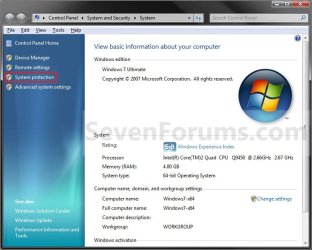
1. Open the Control Panel (icons view) in Windows 7 or Windows 8, and click/tap on the System icon.

2. In the left side of System, click/tap on the System Protection link. (See screenshot below)

3. If prompted by UAC, then click/tap on Yes.

4. Close the System window. (See screenshot below)
System.jpg
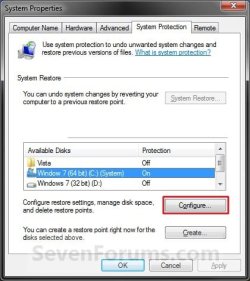
5. Click/tap on the available hard disk drive or partition, that you want to delete the System Protection restore points for, to select it. (See screenshot below step 6)
NOTE: Windows should be the C: disk with (System). System Protection will need to be turned on for the selected disk to be able to delete the restore points.

6. Click/tap on the Configure button. (See screenshot below)
System_Properties.jpg
7. Click/tap on the Delete button. (See screenshot below)
Configure-Delete.jpg
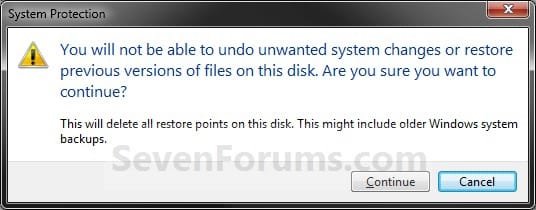
8. Click/tap on the Continue button to confirm the deletion. (See screenshot below)
Confirm_Delete_All.jpg
9. Click/tap on Close in the success prompt. (See screenshot below)
Success.jpg
10. Click/tap on OK. (See screenshot below step 7)

11. Click/tap on OK. (See screenshot below step 6)


OPTION TWO

Use Disk Cleanup to Delete Restore Points


NOTE: This will help free up more disk space for the selected hard disk by removing all but the most recent restore point. This will also include deleting shadow copies (Previous Versions) that were created with a deleted restore point.
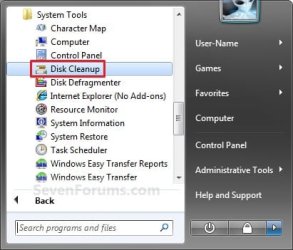
1. Press the Windows + R keys to open the Run dialog, type cleanmgr, and press Enter.

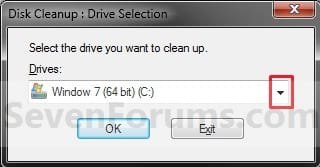
2. Select the hard disk you want to use Disk Cleanup on, and click/tap on OK. (See screenshot below)
NOTE: You will not see this window unless you have more than one drive or partition on your computer.
Select_Drive.jpg
3. You will now see this scanning screenshot below for a few seconds.
Scanning.jpg
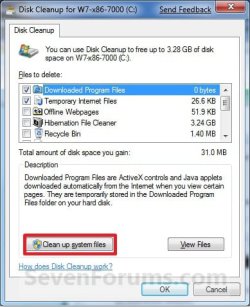
4. Click/tap on the Clean up system files button. (See screenshot below)
Disk_Cleanup-1.jpg
5. If prompted by UAC, then click/tap on Yes.

6. Select the hard disk you want to use Disk Cleanup on, and click/tap on OK. (See screenshot below step 2)
NOTE: You will not see this window unless you have more than one drive or partition on your computer.

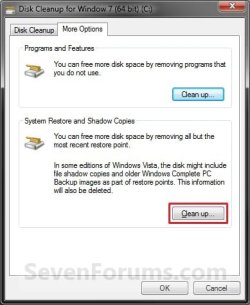
7. Click/tap on the More Options tab, and click/tap on the Clean up button under the System Restore and Shadow Copies section. (See screenshot below)
More_Options.jpg
8. Click/tap on the Delete button in the confirm deletion window. (See screenshot below)
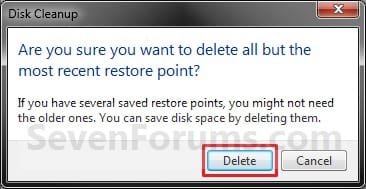
Confirm.jpg
9. Close the Disk Cleanup window. (See screenshot below step 7)
WARNING: Do not click on OK unless you wanted to delete the checked files in the Disk Cleanup tab.


OPTION THREE

Use CCleaner to Delete Individual Restore Points


1. If you have not already, download and install the free program CCleaner and run it.

2. In CCleaner, click on the Tools icon, System Restore button, then select the restore points that you wish to delete and click on Remove. (see screenshot below)
NOTE: You can press and hold the CTRL key while clicking on the restore points to be able to select random restore points.
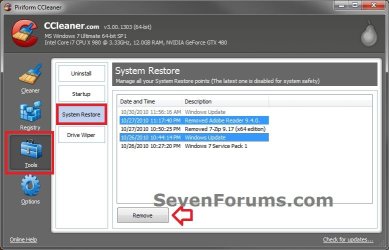
CCleaner.jpg
3. Click on OK to confirm deleting them. (see screenshot below)
CCleaner2.jpg
4. When finished, close CCleaner. The selected restore points have been deleted.


OPTION FOUR

Use "System Restore Explorer" to Delete Individual Restore Points


   Note
You could also use the System Restore Explorer program to mount specific restore points to be able to browse and copy individual files and folders from a mounted restore point back into Windows without having to use Previous Versions or to do a full System Restore.

For more on this, see:
How to Extract Files and Folders from System Restore Points in Windows 7 and Vista


1. If you have not already, download and install the free program System Restore Explorer and run it.

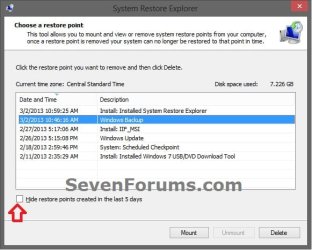
2. In System Restore Explorer, select a specific restore point that you would like to delete, and click on the Delete button. (see screenshot below)
NOTE: If displayed, uncheck the Hide restore points created in last 5 days box to see all restore points.
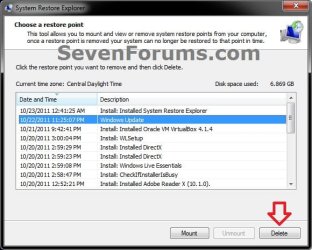
System-Restore-Explorer-1.jpg

System_Restore_Explorer_unhide.jpg

3. Click on Yes to confirm the deletion. (see screenshot below)
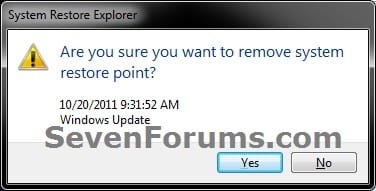
System-Restore-Explorer-2.jpg
4. When finished, close System Restore Explorer. The selected restore points have been deleted.


OPTION FIVE

Use "Manage Windows Backup disk space" to Delete System Image Restore Points


   Note
This option is good to delete the System Image Restore Point "Backup" type restore points like below.
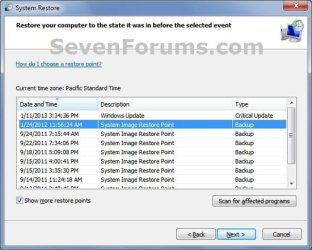
System_Image_Restore_Point.jpg


1. Use step 5 in OPTION ONE of the tutorial below to select the Keep only the latest system image and minimum space used by backup option, and click/tap on OK.
How to Delete Windows 7 User Data and System Image Backup Files
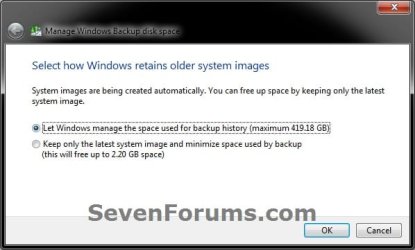

Manage_on.jpg


That's it,
Shawn


Attachments

  • Start_Menu.jpg
    Start_Menu.jpg
    90.3 KB · Views: 548
Last edited:
Hello betaupsilon, :)

Are you able to use any of the other options to delete restore points without the others getting deleted?
 

My Computer

Computer type
PC/Desktop
Computer Manufacturer/Model Number
Self built custom
OS
64-bit Windows 11 Pro for Workstations
CPU
Intel i7-8700K OC'd to 5 GHz
Motherboard
ASUS ROG Maximus XI Formula Z390
Memory
64 GB (4x16GB) G.SKILL TridentZ RGB DDR4 3600 MHz
Graphics Card(s)
ASUS ROG-STRIX-GTX1080TI-O11G-GAMING
Sound Card
Integrated
Monitor(s) Displays
2 x Samsung Odyssey G7 27"
Screen Resolution
2560x1440
Hard Drives
1TB Samsung 990 PRO M.2,
4TB Samsung 990 PRO PRO M.2,
TerraMaster F8 SSD Plus NAS
PSU
Seasonic Prime Titanium 850W
Case
Thermaltake Core P3
Cooling
Corsair Hydro H115i
Keyboard
Logitech wireless K800
Mouse
Logitech MX Master 4
Internet Speed
2 Gb/s Download and 100 Mb/s Upload
Antivirus
Malwarebyte Anti-Malware Premium
Browser
Google Chrome
Other Info
Logitech Z625 speaker system,
Logitech BRIO 4K Pro webcam,
HP Color LaserJet Pro MFP M477fdn,
APC SMART-UPS RT 1000 XL - SURT1000XLI,
Galaxy S23 Plus phone
I am revisiting this issue now. I will try CCleaner & report back.
 

My Computer

Computer type
PC/Desktop
OS
Windows 7 Home Prem 32 bit
I am revisiting this issue now. I will try CCleaner & report back.

I am not sure what is occurring, but I seem to be losing RESTORE POINTS with or without System Restore Explorer. I am doing experiments to attempt to isolate the cause or at least reproduce the problem.

Will report back.
 

My Computer

Computer type
PC/Desktop
OS
Windows 7 Home Prem 32 bit
I am revisiting this issue now. I will try CCleaner & report back.

I am not sure what is occurring, but I seem to be losing RESTORE POINTS with or without System Restore Explorer. I am doing experiments to attempt to isolate the cause or at least reproduce the problem.

Will report back.

I think I found the problem, but I need a solution. To avoid placing files on the wrong partition during the installation process I hid the 2nd partition using "MINI PARTITION WIZARD". I then install the software on the partition of interest. After installation I UNHIDE the 2nd partition & REBOOT. I then discover that the RESTORE PTS on the 2nd partition have been wiped out.

What can I do?
 

My Computer

Computer type
PC/Desktop
OS
Windows 7 Home Prem 32 bit
betaupsilon,

I'm not sure there's anything you can do about it unless you stop hiding and unhiding the partition like that. :(
 

My Computer

Computer type
PC/Desktop
Computer Manufacturer/Model Number
Self built custom
OS
64-bit Windows 11 Pro for Workstations
CPU
Intel i7-8700K OC'd to 5 GHz
Motherboard
ASUS ROG Maximus XI Formula Z390
Memory
64 GB (4x16GB) G.SKILL TridentZ RGB DDR4 3600 MHz
Graphics Card(s)
ASUS ROG-STRIX-GTX1080TI-O11G-GAMING
Sound Card
Integrated
Monitor(s) Displays
2 x Samsung Odyssey G7 27"
Screen Resolution
2560x1440
Hard Drives
1TB Samsung 990 PRO M.2,
4TB Samsung 990 PRO PRO M.2,
TerraMaster F8 SSD Plus NAS
PSU
Seasonic Prime Titanium 850W
Case
Thermaltake Core P3
Cooling
Corsair Hydro H115i
Keyboard
Logitech wireless K800
Mouse
Logitech MX Master 4
Internet Speed
2 Gb/s Download and 100 Mb/s Upload
Antivirus
Malwarebyte Anti-Malware Premium
Browser
Google Chrome
Other Info
Logitech Z625 speaker system,
Logitech BRIO 4K Pro webcam,
HP Color LaserJet Pro MFP M477fdn,
APC SMART-UPS RT 1000 XL - SURT1000XLI,
Galaxy S23 Plus phone
betaupsilon,

I'm not sure there's anything you can do about it unless you stop hiding and unhiding the partition like that. :(

OK, I have a software package that wants to stash files onto another partition instead of the partition onto which the installation is designated. My solution was to hide the other partition, but I ran into the SYSTEM RESTORE problem.

Maybe I should shrink the 2nd partition to force the software to place the files on the partition where the installation is specified. I'll try that & report back.
 

My Computer

Computer type
PC/Desktop
OS
Windows 7 Home Prem 32 bit
Maybe I should shrink the 2nd partition to force the software to place the files on the partition where the installation is specified. I'll try that & report back.

It appears that this alternative approach worked. I do not quite understand why the RESTORE PTS get eliminated when HIDING & then UNHIDING the partition. When UNHIDING the partition along with the correct drive letter assignment should the SYSTEM VOLUME file have the correct RESTORE PTS?
 

My Computer

Computer type
PC/Desktop
OS
Windows 7 Home Prem 32 bit
Great news, but I'm not sure why it happens either.
 

My Computer

Computer type
PC/Desktop
Computer Manufacturer/Model Number
Self built custom
OS
64-bit Windows 11 Pro for Workstations
CPU
Intel i7-8700K OC'd to 5 GHz
Motherboard
ASUS ROG Maximus XI Formula Z390
Memory
64 GB (4x16GB) G.SKILL TridentZ RGB DDR4 3600 MHz
Graphics Card(s)
ASUS ROG-STRIX-GTX1080TI-O11G-GAMING
Sound Card
Integrated
Monitor(s) Displays
2 x Samsung Odyssey G7 27"
Screen Resolution
2560x1440
Hard Drives
1TB Samsung 990 PRO M.2,
4TB Samsung 990 PRO PRO M.2,
TerraMaster F8 SSD Plus NAS
PSU
Seasonic Prime Titanium 850W
Case
Thermaltake Core P3
Cooling
Corsair Hydro H115i
Keyboard
Logitech wireless K800
Mouse
Logitech MX Master 4
Internet Speed
2 Gb/s Download and 100 Mb/s Upload
Antivirus
Malwarebyte Anti-Malware Premium
Browser
Google Chrome
Other Info
Logitech Z625 speaker system,
Logitech BRIO 4K Pro webcam,
HP Color LaserJet Pro MFP M477fdn,
APC SMART-UPS RT 1000 XL - SURT1000XLI,
Galaxy S23 Plus phone
It just occurred to me that manipulating any system partition with PARTITION WIZARD whether HIDING or changing the letter drive probably wipes out the SYSTEM RESTORE PTS. I will conduct an experiment & see if this is the case & report back.

I imagine someone probably has encountered this problem & maybe has a solution. Anyone know about this?
 

My Computer

Computer type
PC/Desktop
OS
Windows 7 Home Prem 32 bit
It just occurred to me that manipulating any system partition with PARTITION WIZARD whether HIDING or changing the letter drive probably wipes out the SYSTEM RESTORE PTS. I will conduct an experiment & see if this is the case & report back.

I imagine someone probably has encountered this problem & maybe has a solution. Anyone know about this?

My experiment revealed that resizing or hiding the system partition will eliminate the RESTORE PTS. Changing the drive letter does not seem to delete these points.

So the question is can the RESTORE PTS be protected whenever making partition changes with PARTITION WIZARD?
 

My Computer

Computer type
PC/Desktop
OS
Windows 7 Home Prem 32 bit
Nope.
 

My Computer

Computer type
PC/Desktop
Computer Manufacturer/Model Number
Self built custom
OS
64-bit Windows 11 Pro for Workstations
CPU
Intel i7-8700K OC'd to 5 GHz
Motherboard
ASUS ROG Maximus XI Formula Z390
Memory
64 GB (4x16GB) G.SKILL TridentZ RGB DDR4 3600 MHz
Graphics Card(s)
ASUS ROG-STRIX-GTX1080TI-O11G-GAMING
Sound Card
Integrated
Monitor(s) Displays
2 x Samsung Odyssey G7 27"
Screen Resolution
2560x1440
Hard Drives
1TB Samsung 990 PRO M.2,
4TB Samsung 990 PRO PRO M.2,
TerraMaster F8 SSD Plus NAS
PSU
Seasonic Prime Titanium 850W
Case
Thermaltake Core P3
Cooling
Corsair Hydro H115i
Keyboard
Logitech wireless K800
Mouse
Logitech MX Master 4
Internet Speed
2 Gb/s Download and 100 Mb/s Upload
Antivirus
Malwarebyte Anti-Malware Premium
Browser
Google Chrome
Other Info
Logitech Z625 speaker system,
Logitech BRIO 4K Pro webcam,
HP Color LaserJet Pro MFP M477fdn,
APC SMART-UPS RT 1000 XL - SURT1000XLI,
Galaxy S23 Plus phone
I installed System Restore Explorer but System Image Restore Points do not appear [they do, however, appear when I tick "show more restore points" on Windows System Restore. Any thoughts??
 

My Computer

Computer type
PC/Desktop
Computer Manufacturer/Model Number
custom
OS
Win 7
CPU
AMD FX 6100
Motherboard
Asus M5A97 EVO
Memory
16GB
Graphics Card(s)
AMD Radeon R7 200 series
Sound Card
none - see "other info"
Monitor(s) Displays
Acer
Screen Resolution
1920x1080
Hard Drives
Samsung SSD 120GB
PSU
Enermax TriAthlor 650 watt
Keyboard
Happy Hacking Professional 2
Mouse
Logitech MX Revolution [bluetooth]
Antivirus
Bitdefender
Browser
Waterfox & Chrome
Other Info
I use the following DAC's:
Benchmark DAC1 USB [via Coax] to splitter with Teac A-H01 [via optical]

Hugo2 [connected via USB]
Hello Rontokyo, :)

I'm not sure why. Do they show up in CCleaner?
 

My Computer

Computer type
PC/Desktop
Computer Manufacturer/Model Number
Self built custom
OS
64-bit Windows 11 Pro for Workstations
CPU
Intel i7-8700K OC'd to 5 GHz
Motherboard
ASUS ROG Maximus XI Formula Z390
Memory
64 GB (4x16GB) G.SKILL TridentZ RGB DDR4 3600 MHz
Graphics Card(s)
ASUS ROG-STRIX-GTX1080TI-O11G-GAMING
Sound Card
Integrated
Monitor(s) Displays
2 x Samsung Odyssey G7 27"
Screen Resolution
2560x1440
Hard Drives
1TB Samsung 990 PRO M.2,
4TB Samsung 990 PRO PRO M.2,
TerraMaster F8 SSD Plus NAS
PSU
Seasonic Prime Titanium 850W
Case
Thermaltake Core P3
Cooling
Corsair Hydro H115i
Keyboard
Logitech wireless K800
Mouse
Logitech MX Master 4
Internet Speed
2 Gb/s Download and 100 Mb/s Upload
Antivirus
Malwarebyte Anti-Malware Premium
Browser
Google Chrome
Other Info
Logitech Z625 speaker system,
Logitech BRIO 4K Pro webcam,
HP Color LaserJet Pro MFP M477fdn,
APC SMART-UPS RT 1000 XL - SURT1000XLI,
Galaxy S23 Plus phone
I had to use Sys Restore this week, and I had a choice of only 2 restore points. "Show more points" resulted in nothing more, and I chose one reluctantly. But when I searched for restores in CCleaner just now, it shows I have 7.
 

My Computer

Computer type
PC/Desktop
Computer Manufacturer/Model Number
HP p6-2020t
OS
Win 7 Ult 64-bit
CPU
G620 2.6GHZ Pentium R
Memory
6 GB
Monitor(s) Displays
25" HPLV2311
Screen Resolution
1920 x 1200
Hard Drives
1 SATA, 1 exterior SATA
Case
HP
Cooling
PSU
Antivirus
Glasswire
Browser
Waterfox; Firefox; Chrome for work
Other Info
Firewall--Glasswire
Similar specs in Gateway DX4200
Verizon FIOS Wired network

1 other Win7 computer-- has SSD
Back
Top