
system reserved partition on second drive

spitemonkey

New member
Local time
9:22 AM
Messages
22
Location
Orlando
My computer came with a 1TB drive pre-installed with windows 7 home premium and no windows install disk. I immediately created the system restore dvd's so at least I have a default copy of windows.

From past experience I prefer to have a smaller drive with windows (which i loaded from the restore disks) and the 1TB as a second drive to hold all my files. Now I see I have a system reserved drive listed which I didn't have before, presumably a partition on the 1TB. Before I do anything stupid I just have a few questions.

Can the system reserved partition even be accessed for an emergency reinstall if it is on the second drive?

Is it unwise to delete the partition if I don't have the original windows 7 boot cd? I do however have the system restore dvd's which seem to work fine.

Can I reformat the entire 1TB drive, or must I delete the partition first?

If I keep the partition, how can I hide it. Traditional means don't seem to work.


I appreciate any help. Thanks.
 

My Computer

Computer Manufacturer/Model Number
Gateway DX4822
OS
MS Windows 7 Home Premium 64-bit SP1
CPU
Intel Pentium E5300 @ 2.60GHz
Motherboard
Gateway EG43M
Memory
6.0GB Dual-Channel DDR2 @ 399MHz
Graphics Card(s)
512MB GeForce 9800 GTX+ (PNY)
Sound Card
Realtek High Definition Audio
Hard Drives
Seagate Barracuda 7200.10 SATA 80GB
Western Digital WD10EADS SATA 1TB
You can certainly reformat the 1 TB and get the system reserved partition off of it. You may have to use diskpart to do get rid of it.

If you have retail install discs, you don't need the system restore partition anyway--but your situation with only restore discs might be a different situation.

I'd guess you don't need the reserved partition since you have the restore discs, but I'd wait for more detailed comment.
 

My Computer

Computer type
PC/Desktop
Computer Manufacturer/Model Number
Ignatz Special; 4 speed manual gearbox; factory air conditioning; one of one
OS
Windows 7 Home Premium SP1, 64-bit
CPU
Intel Skylake i5-6600K, not overclocked
Motherboard
AsRock Z170M Extreme 4, micro ATX
Memory
8 GB HyperX DDR4-2666 (2 x 4 GB)
Graphics Card(s)
none; graphics are integrated on CPU
Sound Card
onboard: Realtek ALC1150; external: USB Behringer UF0-202
Monitor(s) Displays
Dell S2340M 23 inch IPS
Screen Resolution
1600 x 900
Hard Drives
System: Crucial MX100 series SSD, 128 GB;
Data: Samsung Spinpoint 103SJ, 1 TB;
Backup: WD Caviar Green WD30EZRX-00D8PB0, 3 TB
PSU
Rosewill SilentNight 500 watt fanless, semi-modular
Case
Antec Solo II
Cooling
Noctua NH-U12S; Noctua F12 intake, Noctua S12A exhaust
Keyboard
Microsoft 200 6JH-00001 USB
Mouse
Dell or Microsoft optical wired; USB
Antivirus
Microsoft Security Essentials and Malwarebytes Premium
Browser
Pale Moon
Other Info
All fans PWM; speeds at idle: CPU circa 500 rpm; intake circa 600 rpm; exhaust circa 600 rpm; CPU temps 27 idle and 47 C load in a warm room (27 C/81 F) when running Intel Extreme Tuning Utility stress test.
Recovery disks should reinstall the SysReserved partition since it holds the boot-critical files. If you dont' want it then we can help you remove it by marking WIn7 partition active, then booting the Repair CD to run Startup Repair up to 3 separate times with reboots to write the System MBR into the WIn7 partition. http://www.sevenforums.com/tutorials/2083-system-repair-disc-create.html
http://www.sevenforums.com/tutorials/71432-partition-mark-active.html
http://www.sevenforums.com/tutorials/681-startup-repair.html?ltr=S

Be sure to run the recovery with the 1tb unplugged so it doesn't interfere.

Once you have the new WIn7 HD up and runnning, you can plug the 1tb back in and Clean it using DISKPART from the Repair CD command line: http://www.sevenforums.com/tutorials/52129-disk-clean-clean-all-diskpart-command.html

Here is a new video from 7forums on how to move your User folders to a second HD partition to free up space and take advantage of faster reads from a second laser: http://www.sevenforums.com/tutorials/72427-data-partition.html

And our tutorial: http://www.sevenforums.com/tutorials/18629-user-folders-change-default-location.html
 
Thanks for the help.
 

My Computer

Computer Manufacturer/Model Number
Gateway DX4822
OS
MS Windows 7 Home Premium 64-bit SP1
CPU
Intel Pentium E5300 @ 2.60GHz
Motherboard
Gateway EG43M
Memory
6.0GB Dual-Channel DDR2 @ 399MHz
Graphics Card(s)
512MB GeForce 9800 GTX+ (PNY)
Sound Card
Realtek High Definition Audio
Hard Drives
Seagate Barracuda 7200.10 SATA 80GB
Western Digital WD10EADS SATA 1TB

My Computer

Computer Manufacturer/Model Number
* BFK Customs *
OS
W 7 64-bit Ultimate
CPU
Intel Q9550 Yorkfield
Motherboard
ASUS P5Q Pro
Memory
8GB Dominator 8500C5D
Graphics Card(s)
ATI : XFX 5870
Sound Card
Realtek HD Audio 7-1
Monitor(s) Displays
1x 47" LCD HDMI & 3x 26" LCD HDMI
Screen Resolution
1920x1080P & 1920x1200
Hard Drives
1x 80GB Intel X25-M G2 SSD : 1x 500GB & 1x 640GB WD Caviar Black(s)
PSU
Corsair 620HX
Case
Cooler Master RC-690
Cooling
Tuniq Tower 120, 2x 140mm and 3x 120mm case fans
Keyboard
Microsoft 500
Mouse
Razer Diamondback 3G
Internet Speed
14 Mb/s
Other Info
1x Koutech 3Gb/s SATA HDD Hot Swap Rack
Thanks for the info. From everything I've read I went the easiest route for me. I used disk management to hide the 100Mb partition on the 1Tb drive. I figure It's small enough not to be bothered with as long as I don't have to see it, and I can always use it as an emergency backup of windows if all else fails. I then reformatted the much larger partition. Works for me. Thanks again.
 

My Computer

Computer Manufacturer/Model Number
Gateway DX4822
OS
MS Windows 7 Home Premium 64-bit SP1
CPU
Intel Pentium E5300 @ 2.60GHz
Motherboard
Gateway EG43M
Memory
6.0GB Dual-Channel DDR2 @ 399MHz
Graphics Card(s)
512MB GeForce 9800 GTX+ (PNY)
Sound Card
Realtek High Definition Audio
Hard Drives
Seagate Barracuda 7200.10 SATA 80GB
Western Digital WD10EADS SATA 1TB
So which partition is booting your new Win7 on the smaller drive? How is performance?

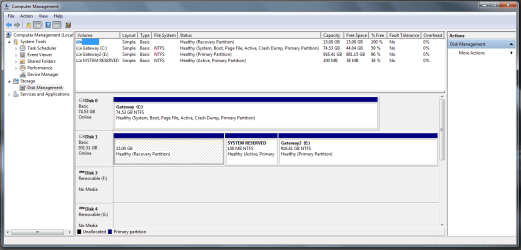
Check which partition has "System Active" listing in Disk Management, or post back a Screenshot of the full Disk Mgmt drive map and listings using Snipping Tool in Start Menu.
 
I installed windows 7 on an 80Gb Seagate Barracuda 7200 drive from my restore DVD's without the other drive connected. Windows seems to work fine and I haven't noticed any change in performance. 80Gb might have been too small but I can always mirror the drive and put it on a larger one later if I need.

The second 1Tb drive seems to have 3 partitions: A recovery partition of 15Gb, a system reserved of 100Mb and the large main partition which I formatted over the old copy of windows.

I hid the system reserved and I'm not quite sure what the recovery partition is for or if I need it.

I kind of like the idea of having a backup of the base windows kept on the 1Tb, but I'm not exactly sure how to access it. I assume I would have to disconnect the 80Gb drive and reboot into a recovery mode to reinstall windows back onto the 1Tb. But that is all mute if I don't lose the recovery DVD's.

I was thinking I could still reformat the entire 1Tb and use something like Paragon to mirror the 80Gb onto it. What do you think is my best move?
 

Attachments

  • Capture.PNG
    Capture.PNG
    39 KB · Views: 455

My Computer

Computer Manufacturer/Model Number
Gateway DX4822
OS
MS Windows 7 Home Premium 64-bit SP1
CPU
Intel Pentium E5300 @ 2.60GHz
Motherboard
Gateway EG43M
Memory
6.0GB Dual-Channel DDR2 @ 399MHz
Graphics Card(s)
512MB GeForce 9800 GTX+ (PNY)
Sound Card
Realtek High Definition Audio
Hard Drives
Seagate Barracuda 7200.10 SATA 80GB
Western Digital WD10EADS SATA 1TB
Hello spitemonkey, welcome to Seven Forums!


Here is another very useful tutorial that will show you how to create and partition the drive during the install, at the link below.


SSD / HDD : Optimize for Windows Reinstallation


If you wanted to wipe and re-install, you could use this, at Step Three to create a specific size partition you would enter it like this ...

"create partition primary 102400MB" <enter> you need to enter the size of the partition you want in MBs. you would do this for each partition you wanted to create. ;)
 

My Computer

Computer Manufacturer/Model Number
* BFK Customs *
OS
W 7 64-bit Ultimate
CPU
Intel Q9550 Yorkfield
Motherboard
ASUS P5Q Pro
Memory
8GB Dominator 8500C5D
Graphics Card(s)
ATI : XFX 5870
Sound Card
Realtek HD Audio 7-1
Monitor(s) Displays
1x 47" LCD HDMI & 3x 26" LCD HDMI
Screen Resolution
1920x1080P & 1920x1200
Hard Drives
1x 80GB Intel X25-M G2 SSD : 1x 500GB & 1x 640GB WD Caviar Black(s)
PSU
Corsair 620HX
Case
Cooler Master RC-690
Cooling
Tuniq Tower 120, 2x 140mm and 3x 120mm case fans
Keyboard
Microsoft 500
Mouse
Razer Diamondback 3G
Internet Speed
14 Mb/s
Other Info
1x Koutech 3Gb/s SATA HDD Hot Swap Rack
If you have the Recovery Disks and know they work, then you can delete the Recovery partition which probably won't run anyway.

I would wipe the 1tb drive to use as you planned for a Data and backup partition, storing your linked User folders there using tutorial I posted earlier, and a Win7 backup image of your System drive which will be more useful for recovery than the disks anyway: http://www.sevenforums.com/tutorials/663-backup-complete-computer-create-image-backup.html

You have a potential complication there with the 100mb Sys Reserved partition on the 1tb which you mistakenly thought you were backing up by keeping - it is only functional as installed with Win7 and now holds a second Active flag which could derail your new System drive boot if a Repair is run. So it needs to be wiped along with the 1tb.

But first, I would unplug it to make sure Win7 will boot without it. If not we need to fully recover the MBR to the 80gb SysReserved.
 
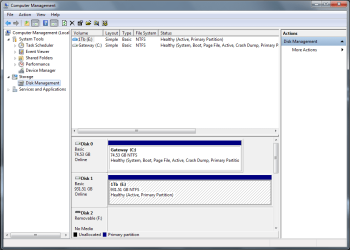
I was able to use diskpart to reformat the entire drive. It was easier than I thought it would be. Now I have 931Gb free on my 1Tb drive--I think that's all I can get. Windows boots fine on the 80Gb drive without the 1Tb plugged in, so I felt secture to wipe the 1Tb. I did a "clean all" in diskpart just to make sure.

The Gateway system restore disks will restore disks will restore the system back to factory defaults but there is no system recovery option. I was, however, able to enter the system recovery from the safeboot option menu without the disks.

Overall I think this is what I wanted: A clean 1Tb drive with no remnants of Windows, a full functioning window 7 on the 80Gb, a working backup copy of windows on disks, and I will also create a backup image.

Please let me know if there is anything I left out. Thanks Gregrocker and Bare Foot Kid for the advice and tutorials.
 

Attachments

  • Capture2.PNG
    Capture2.PNG
    29.3 KB · Views: 62

My Computer

Computer Manufacturer/Model Number
Gateway DX4822
OS
MS Windows 7 Home Premium 64-bit SP1
CPU
Intel Pentium E5300 @ 2.60GHz
Motherboard
Gateway EG43M
Memory
6.0GB Dual-Channel DDR2 @ 399MHz
Graphics Card(s)
512MB GeForce 9800 GTX+ (PNY)
Sound Card
Realtek High Definition Audio
Hard Drives
Seagate Barracuda 7200.10 SATA 80GB
Western Digital WD10EADS SATA 1TB
How long did it take for a "clean all" on a 1TB HDD, do tell.


You're very welcome, I'm glad you found a solution that worked for you; thanks for the update.
 

My Computer

Computer Manufacturer/Model Number
* BFK Customs *
OS
W 7 64-bit Ultimate
CPU
Intel Q9550 Yorkfield
Motherboard
ASUS P5Q Pro
Memory
8GB Dominator 8500C5D
Graphics Card(s)
ATI : XFX 5870
Sound Card
Realtek HD Audio 7-1
Monitor(s) Displays
1x 47" LCD HDMI & 3x 26" LCD HDMI
Screen Resolution
1920x1080P & 1920x1200
Hard Drives
1x 80GB Intel X25-M G2 SSD : 1x 500GB & 1x 640GB WD Caviar Black(s)
PSU
Corsair 620HX
Case
Cooler Master RC-690
Cooling
Tuniq Tower 120, 2x 140mm and 3x 120mm case fans
Keyboard
Microsoft 500
Mouse
Razer Diamondback 3G
Internet Speed
14 Mb/s
Other Info
1x Koutech 3Gb/s SATA HDD Hot Swap Rack

My Computer

Computer Manufacturer/Model Number
* BFK Customs *
OS
W 7 64-bit Ultimate
CPU
Intel Q9550 Yorkfield
Motherboard
ASUS P5Q Pro
Memory
8GB Dominator 8500C5D
Graphics Card(s)
ATI : XFX 5870
Sound Card
Realtek HD Audio 7-1
Monitor(s) Displays
1x 47" LCD HDMI & 3x 26" LCD HDMI
Screen Resolution
1920x1080P & 1920x1200
Hard Drives
1x 80GB Intel X25-M G2 SSD : 1x 500GB & 1x 640GB WD Caviar Black(s)
PSU
Corsair 620HX
Case
Cooler Master RC-690
Cooling
Tuniq Tower 120, 2x 140mm and 3x 120mm case fans
Keyboard
Microsoft 500
Mouse
Razer Diamondback 3G
Internet Speed
14 Mb/s
Other Info
1x Koutech 3Gb/s SATA HDD Hot Swap Rack

My Computer

Computer Manufacturer/Model Number
* BFK Customs *
OS
W 7 64-bit Ultimate
CPU
Intel Q9550 Yorkfield
Motherboard
ASUS P5Q Pro
Memory
8GB Dominator 8500C5D
Graphics Card(s)
ATI : XFX 5870
Sound Card
Realtek HD Audio 7-1
Monitor(s) Displays
1x 47" LCD HDMI & 3x 26" LCD HDMI
Screen Resolution
1920x1080P & 1920x1200
Hard Drives
1x 80GB Intel X25-M G2 SSD : 1x 500GB & 1x 640GB WD Caviar Black(s)
PSU
Corsair 620HX
Case
Cooler Master RC-690
Cooling
Tuniq Tower 120, 2x 140mm and 3x 120mm case fans
Keyboard
Microsoft 500
Mouse
Razer Diamondback 3G
Internet Speed
14 Mb/s
Other Info
1x Koutech 3Gb/s SATA HDD Hot Swap Rack
Why is the 1TB marked as active? It could potential cause problems and since the is no data on it yet just, quickly format it. It won't say active anymore and then go on and starting using it as normal. Don't forget to create a system image of the new C drive.

I recommend a program called Macrium Reflect Free Edition. It's so easy and a great tool. Run the program and create the Recovery CD and put away in a safe location. Then create a system image and save it your new D drive.

Good Luck,
Happy Imaging!
 

My Computers

System One System Two

  • Computer type
    PC/Desktop
    Computer Manufacturer/Model Number
    PowerSpec G164
    OS
    WIN10
    CPU
    AMD Ryzen 5 3600 6-Core Processor 3.59 GHz
    Memory
    16.0 GB
    Internet Speed
    VERY FAST>>>!!!
  • Antivirus
    ESET Security Premium
I wish I knew how long it took for the "clean all" on the 1Tb drive but I set it and went to bed. The tutorial said a 500Mb drive took about 2 hours and I think the 1Tb took more than 3 hours.

I set the 1Tb as active after formatting. I don't exactly know what that means but I thought I was supposed to do that to use it. I already have data on it and it seems to work fine. I don't see any "mark as inactive" option in disk management. There is about 35Gb of data on it but I can take it off and reformat it if you think I need to.

I'll look into Macrium Reflect. Someone told me Paragon was really good, but I like easy!
 

My Computer

Computer Manufacturer/Model Number
Gateway DX4822
OS
MS Windows 7 Home Premium 64-bit SP1
CPU
Intel Pentium E5300 @ 2.60GHz
Motherboard
Gateway EG43M
Memory
6.0GB Dual-Channel DDR2 @ 399MHz
Graphics Card(s)
512MB GeForce 9800 GTX+ (PNY)
Sound Card
Realtek High Definition Audio
Hard Drives
Seagate Barracuda 7200.10 SATA 80GB
Western Digital WD10EADS SATA 1TB
My Computer

Computer Manufacturer/Model Number
* BFK Customs *
OS
W 7 64-bit Ultimate
CPU
Intel Q9550 Yorkfield
Motherboard
ASUS P5Q Pro
Memory
8GB Dominator 8500C5D
Graphics Card(s)
ATI : XFX 5870
Sound Card
Realtek HD Audio 7-1
Monitor(s) Displays
1x 47" LCD HDMI & 3x 26" LCD HDMI
Screen Resolution
1920x1080P & 1920x1200
Hard Drives
1x 80GB Intel X25-M G2 SSD : 1x 500GB & 1x 640GB WD Caviar Black(s)
PSU
Corsair 620HX
Case
Cooler Master RC-690
Cooling
Tuniq Tower 120, 2x 140mm and 3x 120mm case fans
Keyboard
Microsoft 500
Mouse
Razer Diamondback 3G
Internet Speed
14 Mb/s
Other Info
1x Koutech 3Gb/s SATA HDD Hot Swap Rack
I explained in post #10 why you do not want an Active partition on a data drive.

It can confuse the Repair utility to prevent repair when Win7 will not start.

Install free Partition Wizard, rightclick 1tb partition, Modify>Set to Inactive, OK, Apply.
 
Last edited:
Back
Top