System Restore Point Shortcut

How to Make a "Create System Restore Point" Shortcut in XP, Vista, Windows 7, and Windows 8

   Information
This tutorial will provide you with a create a manual system restore point shortcut that will instantly create a restore point with an optional description and success message in XP, Vista, Windows 7, and Windows 8.

System Restore isn't available for Windows RT.

   Note
Restore points contain information about registry settings and other system information that Windows uses. System Restore points do not include personal user files in the C:\Users\(user-name) folders.

   Warning
For this shortcut to work, you must have System Protection turned on for the C: (Windows) drive. If you do not have it on, then you will get the error below when you try to use the shortcut.
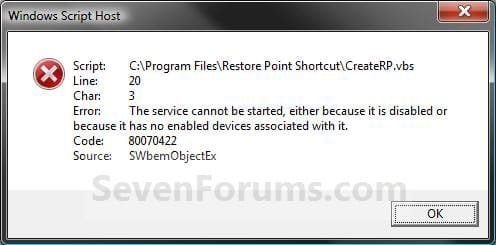
Error_Message.jpg


EXAMPLE: Create System Restore Point with description and message shortcut
NOTE: When you click on the Create System Restore Point shortcut, you will see this window. Just type in a name for the restore point, and click on OK to create the restore point.
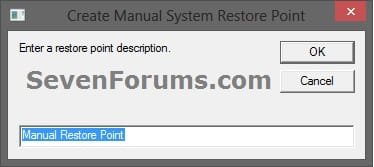
Decription_Prompt.jpg

Success_Message2.jpg


OPTION ONE

To Create the "Create Restore Point" Shortcut


1. Do step 2, 3, or 4 below for what type of shortcut you would like to use to create a restore point with.
2. For an Instant Create Restore Point Shortcut
NOTE: This shortcut will instantly create a restore point named Instant Restore Point in System Restore without prompting for a description or giving you any type of success message. If you didn't get an error, then the restore point was created successfully after a few moments.
A) Click/tap on the Download button below to download the file below, and go to step 5 below.
Instant_Restore_Point.zip

Download


3. For a Create Restore Point with Description Prompt Shortcut
NOTE: This shortcut will prompt you to enter a description name for the restore point, then create the restore point. If you didn't get an error, then the restore point was created successfully after a few moments.
A) Click/tap on the Download button below to download the file below, and go to step 5 below.
Restore_Point_Shortcut.zip

Download


4. For a Create Restore Point with Description and Success Message Shortcut
NOTE: This shortcut will prompt you to enter a description for the restore point, create the restore point, and give you a successfully completed message when it's finished.
A) Click/tap on the Download button below to download the file below, and go to step 5 below.
Restore_Point_Message_Shortcut.zip

Download


5. Save the downloaded .zip file to your desktop.

6. Unblock the downloaded .zip file.

7. Open the downloaded .zip file, right click on the Instant_Restore_Point (step 2), or Restore Point Shortcut (step 3), or Restore Point Message Shortcut (step 4) folder, and click/tap on Copy.

8. Navigate to and open the C:\Program Files folder in Windows Explorer, then right click or press and hold on an empty area in the folder window, and click/tap on Paste. (see screenshot below step 10)

9. If prompted by UAC, then click on Continue and Yes.

10. You should now see the Instant_Restore_Point (step 2), or Restore Point Shortcut (step 3), or Restore Point Message Shortcut (step 4) folder in the C:\Program Files window now. (see screenshot below)
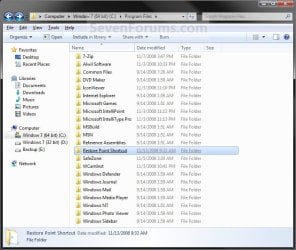
Program_Files.jpg
11. Open the downloaded .zip file, extract (drag and drop) the Create System Restore Point or Instant Restore Point shortcut to your desktop.

13. You can now leave the Create System Restore Point (left screenshot below) or Instant Restore Point (right screenshot below) shortcut on the desktop or move it to where you like for easy use of it.
Shortcut-1.jpgShortcut.jpg


OPTION TWO

To Remove the "Create Restore Point" Shortcut


1. Navigate to C:\Program Files in Windows Explorer, then right click on either the Instant_Restore_Point (step 2 above), or Restore Point Shortcut (step 3 above), or Restore Point Message Shortcut (step 4 above) folder, and click on Delete. (see screenshot below)
Program_Files.jpg
2. If prompted by UAC, then click/tap on Yes (Windows 7/8) or Continue (Vista).

3. Right click or press and hold on the Create System Restore Point (left screenshot below) or Instant Restore Point (right screenshot below) shortcut, and click/tap on Delete.
Shortcut-1.jpgShortcut.jpg
That's it,
Shawn


Attachments

Last edited:
Thanks for sticking with me on this. It is now 10 hours and a complete system reboot since last checking. System Restore still shows no new restore points created since 11/5/2014 11:45:49 PM, which I noted in last message.

Umm... Step 5 is 5. To Add "Take Ownership" with Pause to Context Menu including EXE Files

Do you mean Step 6. To Remove "Take Ownership" from Context Menu?

Followed by 2. To Add "Take Ownership" to Context Menu

Thanks again. You really are awesome even without solving the System Restore problem. I'm wondering if it has more to do with something about Win7 Task Scheduler. It seems to "think" it has successfully created a restore point when it has not created one that shows up in System Restore's list. Since System Restore itself can be used to manually create restore points, and automatically creates restore points on some occasions (at least it seemed to) SR itself seems to be functional.

Will let you know after I use your Steps 6 and 2 to resolve the "Take Ownership/Run as Administrator" issues.
 

My Computer

Computer type
PC/Desktop
Computer Manufacturer/Model Number
DELL
OS
Windows 7 Pro 64bit SP1
CPU
Intel® Core™ i7-4770 @ 3.40 GHz
Memory
12.0GB
Graphics Card(s)
AMD Radeon HD 7500 Series
Hard Drives
2 1TB HDD RAID1 Array
Antivirus
AdAware Anti-Virus Free Edition
Browser
Firefox
YES! "Run as Administrator" now shows for EXE files and it is replaced with "Take Ownership" for other types of files! Thanks!
 

My Computer

Computer type
PC/Desktop
Computer Manufacturer/Model Number
DELL
OS
Windows 7 Pro 64bit SP1
CPU
Intel® Core™ i7-4770 @ 3.40 GHz
Memory
12.0GB
Graphics Card(s)
AMD Radeon HD 7500 Series
Hard Drives
2 1TB HDD RAID1 Array
Antivirus
AdAware Anti-Virus Free Edition
Browser
Firefox
Oops, yeah it should be step 6 to remove.

Great news so far. Please test creating a restore point with the task again now that "Run as administrator" is fixed to see if it may have affected this as well. :)
 

My Computer

Computer type
PC/Desktop
Computer Manufacturer/Model Number
Self built custom
OS
64-bit Windows 11 Pro for Workstations
CPU
Intel i7-8700K OC'd to 5 GHz
Motherboard
ASUS ROG Maximus XI Formula Z390
Memory
64 GB (4x16GB) G.SKILL TridentZ RGB DDR4 3600 MHz
Graphics Card(s)
ASUS ROG-STRIX-GTX1080TI-O11G-GAMING
Sound Card
Integrated
Monitor(s) Displays
2 x Samsung Odyssey G7 27"
Screen Resolution
2560x1440
Hard Drives
1TB Samsung 990 PRO M.2,
4TB Samsung 990 PRO PRO M.2,
TerraMaster F8 SSD Plus NAS
PSU
Seasonic Prime Titanium 850W
Case
Thermaltake Core P3
Cooling
Corsair Hydro H115i
Keyboard
Logitech wireless K800
Mouse
Logitech MX Master 4
Internet Speed
2 Gb/s Download and 100 Mb/s Upload
Antivirus
Malwarebyte Anti-Malware Premium
Browser
Google Chrome
Other Info
Logitech Z625 speaker system,
Logitech BRIO 4K Pro webcam,
HP Color LaserJet Pro MFP M477fdn,
APC SMART-UPS RT 1000 XL - SURT1000XLI,
Galaxy S23 Plus phone
To help make the manual creation easier, until hopefully it can be scheduled automatically, I've created a shortcut using the steps in a search result:

  1. Right-click the desktop
  2. Choose New-Shortcut
  3. For the location of the item, enter:
    control.exe sysdm.cpl,,4
    (Make sure to include both commas.)
  4. Click “Next”
  5. Enter a name for the shortcut
  6. Click “Finish”
Works better than digging.
 

My Computer

Computer type
PC/Desktop
Computer Manufacturer/Model Number
DELL
OS
Windows 7 Pro 64bit SP1
CPU
Intel® Core™ i7-4770 @ 3.40 GHz
Memory
12.0GB
Graphics Card(s)
AMD Radeon HD 7500 Series
Hard Drives
2 1TB HDD RAID1 Array
Antivirus
AdAware Anti-Virus Free Edition
Browser
Firefox
Does the shortcut from step 4 in Option One of the tutorial on the first page here work for you?
 

My Computer

Computer type
PC/Desktop
Computer Manufacturer/Model Number
Self built custom
OS
64-bit Windows 11 Pro for Workstations
CPU
Intel i7-8700K OC'd to 5 GHz
Motherboard
ASUS ROG Maximus XI Formula Z390
Memory
64 GB (4x16GB) G.SKILL TridentZ RGB DDR4 3600 MHz
Graphics Card(s)
ASUS ROG-STRIX-GTX1080TI-O11G-GAMING
Sound Card
Integrated
Monitor(s) Displays
2 x Samsung Odyssey G7 27"
Screen Resolution
2560x1440
Hard Drives
1TB Samsung 990 PRO M.2,
4TB Samsung 990 PRO PRO M.2,
TerraMaster F8 SSD Plus NAS
PSU
Seasonic Prime Titanium 850W
Case
Thermaltake Core P3
Cooling
Corsair Hydro H115i
Keyboard
Logitech wireless K800
Mouse
Logitech MX Master 4
Internet Speed
2 Gb/s Download and 100 Mb/s Upload
Antivirus
Malwarebyte Anti-Malware Premium
Browser
Google Chrome
Other Info
Logitech Z625 speaker system,
Logitech BRIO 4K Pro webcam,
HP Color LaserJet Pro MFP M477fdn,
APC SMART-UPS RT 1000 XL - SURT1000XLI,
Galaxy S23 Plus phone
Making progress. And I apologize for the length of my posts.
Before going into details (below), here's a synopsis:

Finally able to run sfc /scannow as Administrator (see below). Although it was unable to repair all errors, it now allows me to again use "Create Restore Point - howtogeek.com" which is a VBS script that I was using to easily create on-demand System Restore Points with Description before trying yours as an alternative. Therefore, I will not need to try to install yours again.

What I don't know is whether the problem with Task Scheduler automatically creating "successful" restore points at System Startup and 10:00PM daily that don't show up in available restore points in System Restore is resolved. I don't see a restore point from my recent Restart, but will wait a few hours and do a complete System Startup. If that works - problems solved.

Otherwise I must at this point assume Task Scheduler cannot automatically create successful restore points even though it "thinks" it did. Will let you know after the 10PM scheduled time passes. If no available restore point(s) show up, maybe you can help repair the Task Scheduler?

I just used the howtogeek script to successfully create a System Restore point with definition that immediately appears in the available System Restore Points list (11/6/2014 3:35:57) giving me further reason to believe the problem does not lie with System Restore, but with Task Scheduler.

I don't know what your "Scheduled Instant System Restore Point" would do differently that would allow it to work where my previously-created Task Scheduler (Local)/Task Scheduler Library/Microsoft/Windows/SystemRestore window shows SR-Ready-Multiple triggers defined-...-Last Run Time 11/6/2014 3:32:08 PM - The operation completed successfully. (0x0) , etc. does not show up in the available System Restore points.

If you want the complete results of the most recent sfc /scannow CBS.log, let me know how to either attach the TXT file, or if I can copy/paste 677KB in a message.

THANK YOU!

Here, if you're interested, is the complete story:
Wanted to try running sfc /scannow but only right-click "Take Ownership" is available for Start/All Programs/Accessories/Command Prompt. So I ran "Remove_Take_Ownership.reg" again and now "Run as Administrator" shows for Command Prompt. That allowed me to run sfc /scannow from the Command Prompt.

Aha.. maybe this will help: "Windows Resource Protection found corrupt files but was unable to fix some of them. Details are included in the CBS.Log windir/Logs/CBS/CBS.log. For example C:/Windows/Logs/CBS/CBS.log"

Of course access was denied, so I had to run "Add_Take_Ownership.reg" again which allowed me to access the LOG file. It would be really helpful if BOTH Take Ownership AND Run as Administrator could co-exist in the options.

There is a whole lot of stuff in the 4+MB LOG file, going back to October. The most recent results (2014-11-06 starting 11:47:18 shows 144 "POQ" events. I copied only that sfc run into a 677KB Notepad file. There are a lot of "Move File"; "ignoring duplicate ownership for directory"; "Set Key Value: Key ="; "Found" (something) "Expected" (something else); and things like "2014-11-06 11:49:47, Info CSI 00000135 [SR] Could not reproject corrupted file
[ml:520{260},l:96{48}]"\??\C:\Windows\diagnostics\scheduled\Maintenance"\[l:50
{25}]"TS_UnusedDesktopIcons.ps1"; source file in store is also corrupted
2014-11-06 11:49:47, Info CSI 00000136 Hashes for file member \??\C:\Windows
\diagnostics\scheduled\Maintenance\TS_BrokenShortcuts.ps1 do not match actual file [l:44
{22}]"TS_BrokenShortcuts.ps1" :"

>end this forum post message<
 

My Computer

Computer type
PC/Desktop
Computer Manufacturer/Model Number
DELL
OS
Windows 7 Pro 64bit SP1
CPU
Intel® Core™ i7-4770 @ 3.40 GHz
Memory
12.0GB
Graphics Card(s)
AMD Radeon HD 7500 Series
Hard Drives
2 1TB HDD RAID1 Array
Antivirus
AdAware Anti-Virus Free Edition
Browser
Firefox
CBS log of sfc /scannow

Maybe I figured out how to send you that TXT file. Here's my attempt :geek:
 

My Computer

Computer type
PC/Desktop
Computer Manufacturer/Model Number
DELL
OS
Windows 7 Pro 64bit SP1
CPU
Intel® Core™ i7-4770 @ 3.40 GHz
Memory
12.0GB
Graphics Card(s)
AMD Radeon HD 7500 Series
Hard Drives
2 1TB HDD RAID1 Array
Antivirus
AdAware Anti-Virus Free Edition
Browser
Firefox

My Computer

Computer type
PC/Desktop
Computer Manufacturer/Model Number
Self built custom
OS
64-bit Windows 11 Pro for Workstations
CPU
Intel i7-8700K OC'd to 5 GHz
Motherboard
ASUS ROG Maximus XI Formula Z390
Memory
64 GB (4x16GB) G.SKILL TridentZ RGB DDR4 3600 MHz
Graphics Card(s)
ASUS ROG-STRIX-GTX1080TI-O11G-GAMING
Sound Card
Integrated
Monitor(s) Displays
2 x Samsung Odyssey G7 27"
Screen Resolution
2560x1440
Hard Drives
1TB Samsung 990 PRO M.2,
4TB Samsung 990 PRO PRO M.2,
TerraMaster F8 SSD Plus NAS
PSU
Seasonic Prime Titanium 850W
Case
Thermaltake Core P3
Cooling
Corsair Hydro H115i
Keyboard
Logitech wireless K800
Mouse
Logitech MX Master 4
Internet Speed
2 Gb/s Download and 100 Mb/s Upload
Antivirus
Malwarebyte Anti-Malware Premium
Browser
Google Chrome
Other Info
Logitech Z625 speaker system,
Logitech BRIO 4K Pro webcam,
HP Color LaserJet Pro MFP M477fdn,
APC SMART-UPS RT 1000 XL - SURT1000XLI,
Galaxy S23 Plus phone
Reply to your question + update

Does the shortcut from step 4 in Option One of the tutorial on the first page here work for you?
Yes. Just tried it (11/7/2014 1:09:56 AM). The Description I gave it appeared immediately as an available (Type manual) restore point.

Also, a while ago, System Restore automatically created a (Type Critical Update) restore point (11/6/2014 11:24:51 pm) when I installed Update System Readiness Tool (Windows 6.1-KB947821-v34-x64.msu).

Re-ran sfc a few more times, but there are still some files it can't repair. Will try to do the sfc at boot method.

Checked Task Scheduler and it says the Last Run Time it created a successful restore point 11/7/2014 12:10:40 AM. No clue why and it does not appear as an available System Restore point.
Thanks for the links to other threads/tutorials. I'll try work with them and stay within the forum protocols. :o
 

My Computer

Computer type
PC/Desktop
Computer Manufacturer/Model Number
DELL
OS
Windows 7 Pro 64bit SP1
CPU
Intel® Core™ i7-4770 @ 3.40 GHz
Memory
12.0GB
Graphics Card(s)
AMD Radeon HD 7500 Series
Hard Drives
2 1TB HDD RAID1 Array
Antivirus
AdAware Anti-Virus Free Edition
Browser
Firefox
Questions

Hi Shawn,

After all this time I hope I can still contact you. I just stumbled across your Restore Point Shortcuts. They are just what I've been looking for, thank you.

I've been trying to follow your logic, but there are a few rough spots I don't understand...

1. You probably already know this, but in Windows 8.1 the SystemRestorePointCreationFrequency key is included in the Registry by default.

2. In your CreateSRP sub, the second line of code is redundant and can be completely removed.

3. You create an Install (Type 0) restore point. Is there any (simple) way of creating Manual, Automatic or Scheduled types? There are no options to do this in CreateRestorePoint, but Windows does it with the restore points it creates.

4. Is there any harm in creating a BEGIN_SYSTEM_CHANGE (EventType 100) restore point without closing it with a END_SYSTEM_CHANGE (EventType 101)?

5. Where can I find a list of the Error Codes returned by CreateRestorePoint?
 

My Computer

Computer type
PC/Desktop
Computer Manufacturer/Model Number
Dell
OS
8.1x64
CPU
Intel Core i3 G3240 Haswell, 3.1 GHz
Motherboard
Dell
Memory
8 GB RAM
Graphics Card(s)
Intel HD
Hard Drives
500 GB
Antivirus
NIS
Browser
Firefox
Hi Shawn,

After all this time I hope I can still contact you. I just stumbled across your Restore Point Shortcuts. They are just what I've been looking for, thank you.

I've been trying to follow your logic, but there are a few rough spots I don't understand...

1. You probably already know this, but in Windows 8.1 the SystemRestorePointCreationFrequency key is included in the Registry by default.

2. In your CreateSRP sub, the second line of code is redundant and can be completely removed.

3. You create an Install (Type 0) restore point. Is there any (simple) way of creating Manual, Automatic or Scheduled types? There are no options to do this in CreateRestorePoint, but Windows does it with the restore points it creates.

4. Is there any harm in creating a BEGIN_SYSTEM_CHANGE (EventType 100) restore point without closing it with a END_SYSTEM_CHANGE (EventType 101)?

5. Where can I find a list of the Error Codes returned by CreateRestorePoint?


Hello BK, and welcome to Seven Forums.

1) Yeah, I include it in the .vbs to make sure it's set properly in the registry.

2) The 2nd line of code is there to make it easy for someone to change it to have a restore point name they may want instead.

3) If you like, you could use the method 2 in the tutorial below to have a scheduled create restore point using Task Manager.

http://www.sevenforums.com/tutorials/67114-system-restore-point-create-system-startup.html

4) It's important to end it to prevent issues or errors.

5) I'm not aware of a list of error codes, but Googling a specific error code will usually give you good results.
 

My Computer

Computer type
PC/Desktop
Computer Manufacturer/Model Number
Self built custom
OS
64-bit Windows 11 Pro for Workstations
CPU
Intel i7-8700K OC'd to 5 GHz
Motherboard
ASUS ROG Maximus XI Formula Z390
Memory
64 GB (4x16GB) G.SKILL TridentZ RGB DDR4 3600 MHz
Graphics Card(s)
ASUS ROG-STRIX-GTX1080TI-O11G-GAMING
Sound Card
Integrated
Monitor(s) Displays
2 x Samsung Odyssey G7 27"
Screen Resolution
2560x1440
Hard Drives
1TB Samsung 990 PRO M.2,
4TB Samsung 990 PRO PRO M.2,
TerraMaster F8 SSD Plus NAS
PSU
Seasonic Prime Titanium 850W
Case
Thermaltake Core P3
Cooling
Corsair Hydro H115i
Keyboard
Logitech wireless K800
Mouse
Logitech MX Master 4
Internet Speed
2 Gb/s Download and 100 Mb/s Upload
Antivirus
Malwarebyte Anti-Malware Premium
Browser
Google Chrome
Other Info
Logitech Z625 speaker system,
Logitech BRIO 4K Pro webcam,
HP Color LaserJet Pro MFP M477fdn,
APC SMART-UPS RT 1000 XL - SURT1000XLI,
Galaxy S23 Plus phone
More

Hi Shawn,

Thank you.

1. In question 3 I was referring to the fact that all your restore points are ..., 0, 100. A "0" restore point shows up in the Restore window as Type Install. When Windows creates a restore point it Types it as Install, Uninstall, Manual, Scheduled, Automatic, etc. Is there any way to change the Type to Manual, Automatic or Scheduled to make what you see in the Restore window agree with the Restore Point you are creating?

2. In question 4 I was also referring to the fact that all your restore points are ...0, 100. A "100" restore point is a BEGIN_SYSTEM_CHANGE, but you don't close it with an END_SYSTEM_CHANGE. Is this harmful? Is BEGIN_SYSTEM_CHANGE the actual beginning of a process or just a description of the restore point?
 

My Computer

Computer type
PC/Desktop
Computer Manufacturer/Model Number
Dell
OS
8.1x64
CPU
Intel Core i3 G3240 Haswell, 3.1 GHz
Motherboard
Dell
Memory
8 GB RAM
Graphics Card(s)
Intel HD
Hard Drives
500 GB
Antivirus
NIS
Browser
Firefox
So far, I've only been able to have the "Type" show as either "Install" (1, 10), "System" (11, 14), "Uninstall" (2), or "Unknown" (other numbers so far) by changing 0 to that number. I haven't found the number for "Manual" though.

The "100" is set properly to begin the restore point. It'll automatically end when finished.
 
Last edited:

My Computer

Computer type
PC/Desktop
Computer Manufacturer/Model Number
Self built custom
OS
64-bit Windows 11 Pro for Workstations
CPU
Intel i7-8700K OC'd to 5 GHz
Motherboard
ASUS ROG Maximus XI Formula Z390
Memory
64 GB (4x16GB) G.SKILL TridentZ RGB DDR4 3600 MHz
Graphics Card(s)
ASUS ROG-STRIX-GTX1080TI-O11G-GAMING
Sound Card
Integrated
Monitor(s) Displays
2 x Samsung Odyssey G7 27"
Screen Resolution
2560x1440
Hard Drives
1TB Samsung 990 PRO M.2,
4TB Samsung 990 PRO PRO M.2,
TerraMaster F8 SSD Plus NAS
PSU
Seasonic Prime Titanium 850W
Case
Thermaltake Core P3
Cooling
Corsair Hydro H115i
Keyboard
Logitech wireless K800
Mouse
Logitech MX Master 4
Internet Speed
2 Gb/s Download and 100 Mb/s Upload
Antivirus
Malwarebyte Anti-Malware Premium
Browser
Google Chrome
Other Info
Logitech Z625 speaker system,
Logitech BRIO 4K Pro webcam,
HP Color LaserJet Pro MFP M477fdn,
APC SMART-UPS RT 1000 XL - SURT1000XLI,
Galaxy S23 Plus phone
Uh-Oh!!

Hi Shawn,

Have you tried to run any of the automatic/scheduled programs in Win 8.1? Every time I try the infamous "What program do you want to use..." window pops up. That's telling me that the programs can't find WSH, so I give it to them. Here's how...

For the Program/Script on the Actions tab in Task Scheduler I enter simply Wscript.exe and for the Argument I use a fragment of the code from the ELSE clause:
Set SRP = getobject("winmgmts:\\.\root\default:Systemrestore")
sDesc = "Scheduled Restore Point"
sOut = SRP.createrestorepoint (sDesc, 11, 100)
If sOut <> 0 Then
MsgBox "Error " & sOut & ": Unable to create restore point.", 16, "Create Restore Point"
End If

Works fine! Every time!

Anyway, I don't (1) fully understand your code (or is it Ted's) or (2) see how the program is supposed to run.

1. What is the purpose of, why is it needed & what is it supposed to do...
If WScript.Arguments.Count = 0 Then
Set objShell = CreateObject("Shell.Application")
objShell.ShellExecute "wscript.exe", Chr(34) & WScript.ScriptFullName & Chr(34) & " Run", , "runas", 1

2. Suppose the IF is True. The code executes then Exits without ever having set a restore point. So how do you get back in the program to set the restore point? LOL if it's scheduled for the wee hours. You can do it all in one pass if you change the IF-THEN-ELSE to IF-THEN and move the END IF up to where the ELSE was.
 

My Computer

Computer type
PC/Desktop
Computer Manufacturer/Model Number
Dell
OS
8.1x64
CPU
Intel Core i3 G3240 Haswell, 3.1 GHz
Motherboard
Dell
Memory
8 GB RAM
Graphics Card(s)
Intel HD
Hard Drives
500 GB
Antivirus
NIS
Browser
Firefox
Hello BK,

I wrote the .vbs scripts for the shortcuts in this tutorial.

That part of the code is to give you a UAC prompt to have the shortcut "Run as administrator". :)
 

My Computer

Computer type
PC/Desktop
Computer Manufacturer/Model Number
Self built custom
OS
64-bit Windows 11 Pro for Workstations
CPU
Intel i7-8700K OC'd to 5 GHz
Motherboard
ASUS ROG Maximus XI Formula Z390
Memory
64 GB (4x16GB) G.SKILL TridentZ RGB DDR4 3600 MHz
Graphics Card(s)
ASUS ROG-STRIX-GTX1080TI-O11G-GAMING
Sound Card
Integrated
Monitor(s) Displays
2 x Samsung Odyssey G7 27"
Screen Resolution
2560x1440
Hard Drives
1TB Samsung 990 PRO M.2,
4TB Samsung 990 PRO PRO M.2,
TerraMaster F8 SSD Plus NAS
PSU
Seasonic Prime Titanium 850W
Case
Thermaltake Core P3
Cooling
Corsair Hydro H115i
Keyboard
Logitech wireless K800
Mouse
Logitech MX Master 4
Internet Speed
2 Gb/s Download and 100 Mb/s Upload
Antivirus
Malwarebyte Anti-Malware Premium
Browser
Google Chrome
Other Info
Logitech Z625 speaker system,
Logitech BRIO 4K Pro webcam,
HP Color LaserJet Pro MFP M477fdn,
APC SMART-UPS RT 1000 XL - SURT1000XLI,
Galaxy S23 Plus phone
Great script! I have been using for a while now on Windows 8. To make this work with Windows 10, you need to make two quick changes.


Bonus info: If you want to make this script part of a scheduled task, then create a task that starts this program:
Code:
C:\Windows\System32\wscript.exe
With a path to your VBS file as the arguments (in quotes), so for example:
Code:
"C:\Users\Admin\Documents\Restore\Instant_Restore_Point.vbs"
 
Last edited by a moderator:

My Computer

Computer type
PC/Desktop
OS
Windows 7 Home Premium 64bit
Great script! I have been using for a while now on Windows 8. To make this work with Windows 10, you need to make two quick changes.


Bonus info: If you want to make this script part of a scheduled task, then create a task that starts this program:
Code:
C:\Windows\System32\wscript.exe
With a path to your VBS file as the arguments (in quotes), so for example:
Code:
"C:\Users\Admin\Documents\Restore\Instant_Restore_Point.vbs"

If you like, you can use the Windows 10 version below instead. :)

System Restore Point shortcut - Create in Windows 10 - Windows 10 Forums
 

My Computer

Computer type
PC/Desktop
Computer Manufacturer/Model Number
Self built custom
OS
64-bit Windows 11 Pro for Workstations
CPU
Intel i7-8700K OC'd to 5 GHz
Motherboard
ASUS ROG Maximus XI Formula Z390
Memory
64 GB (4x16GB) G.SKILL TridentZ RGB DDR4 3600 MHz
Graphics Card(s)
ASUS ROG-STRIX-GTX1080TI-O11G-GAMING
Sound Card
Integrated
Monitor(s) Displays
2 x Samsung Odyssey G7 27"
Screen Resolution
2560x1440
Hard Drives
1TB Samsung 990 PRO M.2,
4TB Samsung 990 PRO PRO M.2,
TerraMaster F8 SSD Plus NAS
PSU
Seasonic Prime Titanium 850W
Case
Thermaltake Core P3
Cooling
Corsair Hydro H115i
Keyboard
Logitech wireless K800
Mouse
Logitech MX Master 4
Internet Speed
2 Gb/s Download and 100 Mb/s Upload
Antivirus
Malwarebyte Anti-Malware Premium
Browser
Google Chrome
Other Info
Logitech Z625 speaker system,
Logitech BRIO 4K Pro webcam,
HP Color LaserJet Pro MFP M477fdn,
APC SMART-UPS RT 1000 XL - SURT1000XLI,
Galaxy S23 Plus phone
Great script! I have been using for a while now on Windows 8. To make this work with Windows 10, you need to make two quick changes.


Bonus info: If you want to make this script part of a scheduled task, then create a task that starts this program:
Code:
C:\Windows\System32\wscript.exe
With a path to your VBS file as the arguments (in quotes), so for example:
Code:
"C:\Users\Admin\Documents\Restore\Instant_Restore_Point.vbs"

If you like, you can use the Windows 10 version below instead. :)

System Restore Point shortcut - Create in Windows 10 - Windows 10 Forums

Would have been helpful before :) But admittedly I did not look. Anything different besides what I stated?
 

My Computer

Computer type
PC/Desktop
OS
Windows 7 Home Premium 64bit
Nope, that was. We just had a separate version at our sister site www.tenforums.com instead. :)
 

My Computer

Computer type
PC/Desktop
Computer Manufacturer/Model Number
Self built custom
OS
64-bit Windows 11 Pro for Workstations
CPU
Intel i7-8700K OC'd to 5 GHz
Motherboard
ASUS ROG Maximus XI Formula Z390
Memory
64 GB (4x16GB) G.SKILL TridentZ RGB DDR4 3600 MHz
Graphics Card(s)
ASUS ROG-STRIX-GTX1080TI-O11G-GAMING
Sound Card
Integrated
Monitor(s) Displays
2 x Samsung Odyssey G7 27"
Screen Resolution
2560x1440
Hard Drives
1TB Samsung 990 PRO M.2,
4TB Samsung 990 PRO PRO M.2,
TerraMaster F8 SSD Plus NAS
PSU
Seasonic Prime Titanium 850W
Case
Thermaltake Core P3
Cooling
Corsair Hydro H115i
Keyboard
Logitech wireless K800
Mouse
Logitech MX Master 4
Internet Speed
2 Gb/s Download and 100 Mb/s Upload
Antivirus
Malwarebyte Anti-Malware Premium
Browser
Google Chrome
Other Info
Logitech Z625 speaker system,
Logitech BRIO 4K Pro webcam,
HP Color LaserJet Pro MFP M477fdn,
APC SMART-UPS RT 1000 XL - SURT1000XLI,
Galaxy S23 Plus phone
Good morning All! ... Shawn Brink (?)
I've been using Shawn's Restore Point script for 4+ years on Windows 7. Has someone written one for Windows 10?

Thanks in advance for your assistance!
Best,
/jdU
 

My Computer

Computer Manufacturer/Model Number
HP
OS
Windows 7 Pro 64bit
CPU
2nd Gen Intel quad core 3.4GB i7-2600, 8MB Shared Cache
Memory
8 Gig RAM
Graphics Card(s)
3GB NIVIDA GeForce GT545
Monitor(s) Displays
23" HP
Hard Drives
Two 1TB 7200 RPM SATA HD
Cooling
HeatSink Air Cooling Solution
Back
Top