
System Sounds Auto Leveling - Disable

How to Disable Auto System Sounds Leveling in Windows 7


   Information
Windows can automatically adjust the volume level of different sounds when it detect communications activity.

   Note
It took me a while to find this maybe it will help some one else.

Basicaly my system volume kept changing on me. I would put it up, and it would go back down. It was making me mad so I started looking to find out why, and this is what i came up with.


Here's How:
1. Right click on the Volume icon in the notification area, and click on Sounds.
A) Go to step 3.
OR

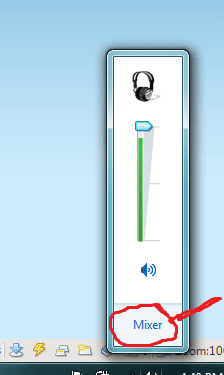
2. Go to the sound icon on you desktop and click it you should get a pop up like this below.
mixxer1.png

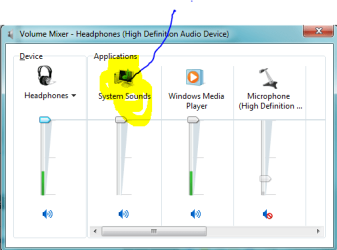
A) Click on Mixer and you should get some thing like this, then click on the System Sounds icon.
mixxer.PNG
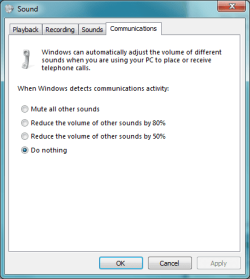
3. Click on the Communications tab, and select (dot) Do nothing.
NOTE: The default setting is Reduce the volume of other sounds by 80%.
communications.PNG
4. Click on OK.

5. Now Windows 7 should not be auto leveling your sound anymore.

 
Last edited by a moderator:
Great tutorial
 

My Computer

Computer Manufacturer/Model Number
Dell Studio XPS 9000
OS
windows 7 64
CPU
i7-920 2.66GHz
Motherboard
?
Memory
6 GB DDR3 SDRAM 1066MHz
Graphics Card(s)
NVIDIA Ge Force G310 512 MB DDR3
Sound Card
on MB
Monitor(s) Displays
Princeton 19 inch LCD
Hard Drives
500 GB Serial ATA2 7200RPM Serial
I have a problem. This option does not work for me. I have changed the settings to "do nothing" when using for example teamspeak 3 while playing games, videos or/and music. Windows still reduces wolume by 80%.
 

My Computer

OS
windows 7 home premium x64
Nevermind. I have found the solution to my problems. Let me explain the whole thing:

I use teamspeak 3 for VOIP when in games. I'm using my own TS3 server.

The problem I had, was that sounds within windows, when playing music, games and videos got toned down by 80% when someone was talking in Teamspeak, I tried to change the windows settings to not change anything when using communication software, though nothing go changed. I checked the teamspeak 3 client, and found out that the TS3 client itself has an option in the "plugins" where the client takes control. uncheck this option and everything will work perfectly.

how to:

Open TS3 - settings - plugins - uncheck "volume control" and close the window.

Problem solved.
 

My Computer

OS
windows 7 home premium x64
Code:
Windows Registry Editor Version 5.00

[HKEY_CURRENT_USER\Software\Microsoft\Multimedia\Audio]
"UserDuckingPreference"=dword:00000003
Or
reg add HKCU\Software\Microsoft\Multimedia\Audio /v UserDuckingPreference /t REG_DWORD /d 0x3 /f
 

My Computer

OS
windows7 ultimate x32
CPU
DualCore Intel Core 2 Duo E8400, 3000 MHz (9 x 333)
Motherboard
ASRock 4Core1333-GLAN (3 PCI,1 PCI-E x16,4 DDR2 DIMM...)
Memory
4Gb (1x4 DDR2-800 DDR2 SDRAM)
Graphics Card(s)
NVIDIA GeForce 9600 GT (512 mb)
Sound Card
onboard
Monitor(s) Displays
lg flatron w2242t
Screen Resolution
1680 x 1050
Hard Drives
WDC WD5000AAJS-00YFA0 ATA Device
PSU
-
Case
-
Cooling
-
Other Info
d-link dir100
mic level problem when using ooVoo

Hello, I would please like you to help me resolve this problem.
everytime I make a call with ooVoo, system mic levels go down
I tried to solve the issue and I found out that when I open the "check audio and video" tab in ooVoo and push to check the mic, the levels go down automatically (I also have open the levels tab from control pannel and I see it going from +40db to zero)
 

My Computer

Computer type
Laptop
Computer Manufacturer/Model Number
lenovo
OS
---win 7 32bit
Back
Top