OK, here's the PowerShell script, delay between launch of Program_1 and Program_2 set to 10 seconds (10,000 milliseconds). Use Notepad or other text editor to write the script, save it with
.ps1 extension, for instance
F:\Scripts\MyScript.ps1.
The instructions might look complicated but this really is quite fast and easy.
This script would work as follows:
- Start Program 1
- Wait given time, in this example 10 seconds
- Start Program 2
- When Program 2 is manually closed, close Program 1
- Exit PowerShell
1. The script:
Code:
[System.Diagnostics.Process]::Start("[hl]Path_to_Program_1[/hl]").WaitForExit(10000)
[System.Diagnostics.Process]::Start("[hl]Path_to_Program_2[/hl]").WaitForExit()
taskkill /IM [hl]Name_of_the_process_Program_1[/hl]
exit
Highlighted parts:
- Lines 1 and 2:
Name and path of Programs 1 & 2, for instance C:\Windows\System32\notepad.exe or D:\Games\MyGame\Rally.exe
- Line 3:
Process (image) name for process (program) 1, for example notepad.exe. The second process needs no Taskkill as Program_2 is already manually closed for the script to continue.
2. Change PowerShell Script Execution Policy:
Before running the script you have to change the
PowerShell Execution Policy. This must be done only once, any change in policy will be active until the next time you decide to change it. By default the policy is set to
Restricted, meaning no scripts are allowed to run.
To do this run
PowerShell elevated (as administrator) and change the policy as told here:
- Click Start
- Type PowerShell to Start Menu Search field
- Right click PowerShell
- Select Run as administrator
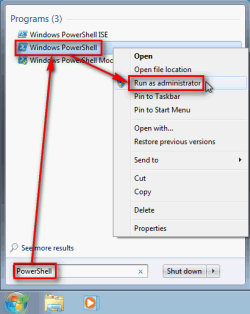
- Accept the UAC prompt by clicking Yes
- Type the following command to PowerShell, press Enter:
Set-ExecutionPolicy Unrestricted
- Accept the policy change by typing Y, press Enter
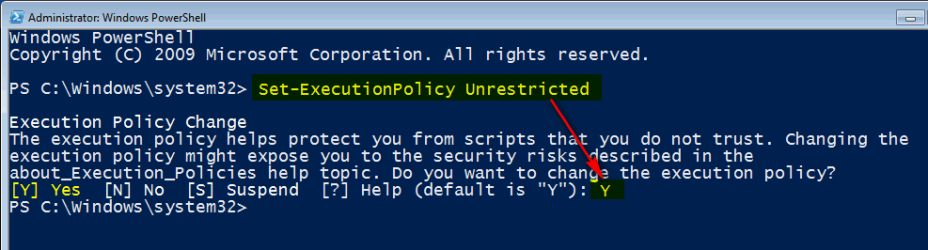
The policy is now changed, you can close the elevated PowerShell window and continue from below.
3. Run the script:
- Save the script with .ps1 extension, for instance F:\Scripts\MyScript.ps1
- Now simply run the script using Run dialog (WIN + R) giving the following command or create a shortcut for this command:
powershell.exe F:\Scripts\MyScript.ps1
Notice please: If the launch of the Program_2 does not need to wait until the Program_1 has completely started, leave the Wait for Exit switch away from first line. In this case the script would be:
Code:
[System.Diagnostics.Process]::Start("Path_to_Program_1")
[System.Diagnostics.Process]::Start("Path_to_Program_2").WaitForExit()
taskkill /IM Name_of_the_process_Program_1
exit
That's it.
Kari



 Looked good..


