Task Scheduler - Create New Task

How to Create Automated Task that Runs at Set Time in Windows 7


   Information
A very handy feature within Vista, Windows Server 2008 & now Windows 7 is the Task Scheduler. This app will allow the automated running of files and programs at a user designated time.


Here's How:
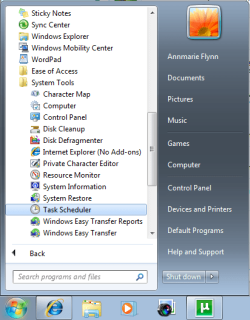
1. Open up Task Scheduler by either typing "task" into the Start Menu search bar, or by opening All Programs - Accesories - System Tools.​
Task Scheduler (Step 1 - Start).png
2. Select 'Create Basic Task' from the right hand pane and the 'Create Basic Task Wizard will open.
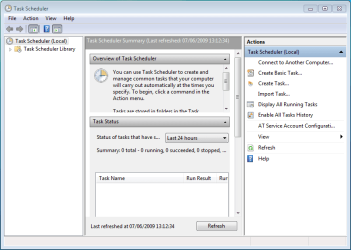
Task Scheduler (Step 2 - Opened).png


3. With the Wizard open, type a 'Name' and 'Description' for your new task and click Next.
NOTE: The Next button will only be accessible once a 'Name' has been entered.

Task Scheduler (Step 3a - Create basic task).png


4. Select when you would like the event/task to run and click Next.
NOTE: For this tutorial i've selected 'Daily'.
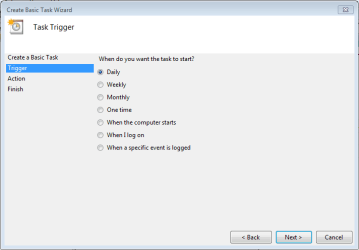
Task Scheduler (Step 3b - Create basic task - trigger).png


5. Select the exact time and date at which you wish the first task to start (each task afterward will run based on your selection in step 4) then click Next.
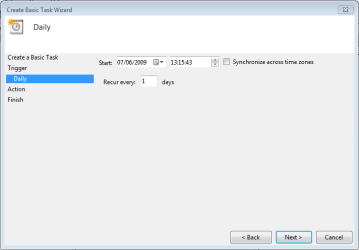
Task Scheduler (Step 3c - Create basic task - time & date).png


6. Choose the action you with the task to execute from the list then click Next.
NOTE: For this tutorial i've selected 'Start a program'.
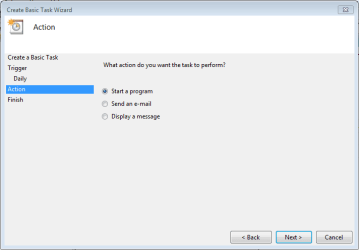
Task Scheduler (Step 3d - Create basic task - action).png


7. Click 'Browse' and navigate to the executable (exe) file of the program you wish to run then click Next.
NOTE: I've chosen to ignore 'Add arguments' and 'Start in'.
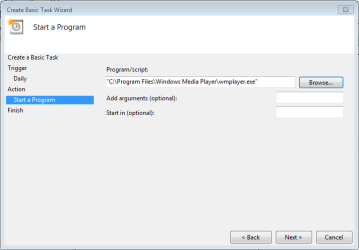
Task Scheduler (Step 3e - Create basic task - select program).png


8. Review the task and make sure that you've set all your required information correctly. If satisfied click Finish.
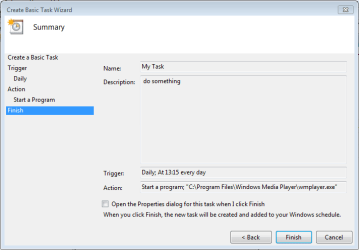
Task Scheduler (Step 3f - Create basic task - review task).png


9. Your new task has been created and will run at the user specified time. Click 'Refresh' and scroll the list to see your new task (in this case 'My Task'.
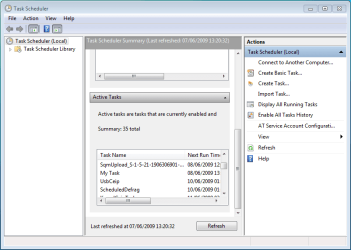
Task Scheduler (Step 4 - check task).png


   Note
You can create a new task with the 'Create Task' option in the right hand pane, this will just open the 'Create New Task' windows without the Wizard

Task Scheduler (Create task step 1).png


10. If you Created a Task to Wake Up the Computer and Run
A) You would need to change how long Windows 7 will wait to go back to sleep mode automatically after waking up unattended (no activity made by the actual user) and idle. The default time is only 120 seconds (2 minutes), so you would need to set this for how long it may take for the program or task to run instead. The tutorial below can help show you how to. It will be the same in Windows 7. For how, see:

Sleep Return Timeout for Unattended Wake Up - Vista Forums

Edit/Change Task:

1. You can change you task settings at any time, just double-click the new task.
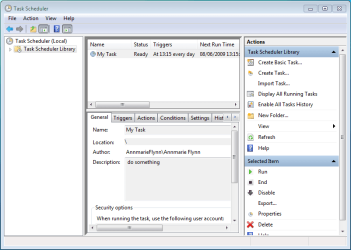
Task Scheduler (Step 5 - edit run disable delete).png


OR

2. If you wish to delete the task you can just click the 'Delete' button in the right hand pane. You will get the confimation dialog upon clicking 'delete'
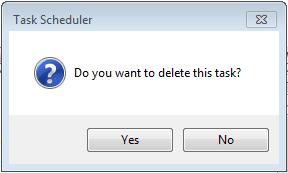
Task Scheduler Confirmation dialog.png


Last edited by a moderator:
I have just used the same settings as your screenshots and when unlocking my computer i get a message pop up.
Just try re-creating the task based on your screenshots.

When does it ask for the password?
When creating the task or when you unlock the computer?

As a test, once you have re-created the task, right click the task and select run to see if it works.
 

My Computer

Computer type
PC/Desktop
Computer Manufacturer/Model Number
Self Built
OS
Windows 8.1 Pro x64
CPU
Intel Core i5-2500K @ 3.30GHz - S1155
Motherboard
Asus P8P67 LE Rev3, Intel P67, S115
Memory
8GB Corsair DDR3 XMS3, PC3-12800
Graphics Card(s)
NVIDIA GeForce GTX 650
Sound Card
On-Board
Monitor(s) Displays
3 x 24" {Extended Display}
Screen Resolution
1920 x 1080
Hard Drives
300GB Seagate Barracuda 7200
PSU
550W Coolermaster GX550
Case
Silverstone Precision PS04B
Cooling
Stock
Keyboard
Logitech K120
Mouse
World of Warcraft Cataclysm MMO Gaming Mouse
Internet Speed
80 MB
Antivirus
MSE / Windows Defender
Browser
Chrome
Hi,

I have deleted the previous one and re-created. As you said i have tested it by clicking on Run, it is displaying the message but however it is not displaying once i unlock the system.

could you please help me in choosing the options in Conditions and Settings.
 

My Computer

Computer type
PC/Desktop
OS
WIN 7
also possible send me the Task as attachment, i will import that and try
 

My Computer

Computer type
PC/Desktop
OS
WIN 7
Hi,

I have deleted the previous one and re-created. As you said i have tested it by clicking on Run, it is displaying the message but however it is not displaying once i unlock the system.

could you please help me in choosing the options in Conditions and Settings.

Can i just clarify something, when you say "Unlock"...
Have you locked your computer and then unlocking it

or

Have you logged out of your computer and logging back in again?
 

My Computer

Computer type
PC/Desktop
Computer Manufacturer/Model Number
Self Built
OS
Windows 8.1 Pro x64
CPU
Intel Core i5-2500K @ 3.30GHz - S1155
Motherboard
Asus P8P67 LE Rev3, Intel P67, S115
Memory
8GB Corsair DDR3 XMS3, PC3-12800
Graphics Card(s)
NVIDIA GeForce GTX 650
Sound Card
On-Board
Monitor(s) Displays
3 x 24" {Extended Display}
Screen Resolution
1920 x 1080
Hard Drives
300GB Seagate Barracuda 7200
PSU
550W Coolermaster GX550
Case
Silverstone Precision PS04B
Cooling
Stock
Keyboard
Logitech K120
Mouse
World of Warcraft Cataclysm MMO Gaming Mouse
Internet Speed
80 MB
Antivirus
MSE / Windows Defender
Browser
Chrome
I just locked my system using Win+l and unlocking (ctrl+alt+del) by giving password
 

My Computer

Computer type
PC/Desktop
OS
WIN 7
Win 7 Task Scheduler does not let me start Speccy at startup

To all: As usual for this forum, a great thread. But I'm still stymied:

New to Win 7, and trying to use Task Scheduler to make Speccy start when the PC is turned on OR I log in, so Speccy and its temperature readings start right away. But so far no luck.

First, you might want to check Piriform's Speccy, a very useful utility.

Second, for some reason it will start but won't display! My Task Scheduler entry has the program run - it shows as a running process in task manager - but nothing is showing on my screen. So, what's the problem?

I've tried a few different settings in Task Scheduler, like changing from startup to log on, but no help.

Could one of you experts / knowledgeable fans experiment, get it to work, and then send me painfully, microscopically detailed instructions with all settings - even how tight I tie my shoelaces?

I could use Task Scheduler in XP pretty well (after hours of fussing the first few times), but Win 7 has made everything more complicated, and I'm finally giving up. If you ever see a pic of Bill Gates with a black eye, you'll know I finally had a chance to thank him properly.

Thanks to all.

PS Edit - Another thing I tried was to give elevated privileges to the program in the Task Scheduler parameters - by adding my Win 7 admin password - but same result. The only thing that will really help is if someone knowledgeable works with Speccy and Task Scheduler and gets this to work, and then send me the steps and settings. Thanks.
 

My Computer

Computer type
PC/Desktop
Computer Manufacturer/Model Number
Dell Optiplex 7010 MT
OS
Dual boot - Win 10 Pro 64-bit (good) and Win 7 Pro 64-bit (won't boot on the NVMe)
CPU
Intel Core i5 3470 @ 3.2GHz
Motherboard
Dell 0GY6Y8 - what would the Intel number be? - Q77 chipset
Memory
16GB RAM DDR3 (Four x 4GB)
Graphics Card(s)
Intel HD Graphics (on the CPU)
Sound Card
Realtek High Definition Audio - and Intel Display Audio
Monitor(s) Displays
Dell E176FP - nothing fancy
Screen Resolution
1280 x 1024 @ 60 Hz
Hard Drives
Now a Samsung 970 EVO Plus SSD NVMe, which works for the Win 10 only

Used to be two 500GB WDC WD5000AAKX (SATA @ 6GB/sec)

- External WD My Book 1110 USB device
PSU
What means PSU? I'm at sea level
Cooling
Ice cubes
Keyboard
Noisy
Mouse
Micky
Internet Speed
Verizon FIOS 500 Mbps (was 1Gbps but I can't type that fast)
Antivirus
Win 10 Windows Defender - Win 7 Avast Free
Browser
Firefox only with lots of security drives my wife crazy
Other Info
Also I still have an old but important XP SP3 machine that can run - Optiplex 755 Desktop w 4GB RAM and Momentus XT hybrid HD-SSD 500 GB hard drive. Used the registry hack to get more updates through "XP Embedded" or "POS" so now the machine rings like a cash register and the CD drawer opens to give change.
Hi, I wish to inform you that Speccy is a program that gives details of the computer and its accessories.This needs some sub commands inside the exe file. When you click the exe, when task schedule prompt you, then it will definitely work. When retrieving computer information, this will definitely work, if the exe consist those sub commands. Some programs are arranged in such a way that the screen of the program will open up and prompting to you to click ok and go to the menus in the program as per your wish. I will definitely try and inform about speccy. But my sheduler works perfectly well
Update: I have tried speccy and it prompts me to click ok to view the computer details. The task scheduler works perfectly at the time specified. I select one time for test and worked. Please carefully choose the program exe. It should work for you as well
The instructions given in how to schedule is clear. You have to choose the program exe and not the shortcut. You have to go to c:program files\speccy\speccy.exe. You should select this file.
I do not think that i have to repeat the excellent instructions given by the thread author. Please do tell
 
Last edited:

My Computer

Computer type
PC/Desktop
Computer Manufacturer/Model Number
custom build
OS
Microsoft Windows 7 Ultimate 64-bit 7601 Multiprocessor Free Service Pack 1
CPU
Intel(R) Core(TM)2 Duo CPU E7200 @ 2.53GHz
Motherboard
To be filled by O.E.M. To be filled by O.E.M.
Memory
4.00 GB
Graphics Card(s)
NVIDIA GeForce 210
Sound Card
(1) NVIDIA High Definition Audio (2) Realtek High Definiti
Screen Resolution
1920 x 1080 x 32 bits (4294967296 colors) @ 60 Hz
Hard Drives
ST3500312CS ATA Device
Hi, I created a simple flushdns task, as there is always of problem in net connectivity to get the log on connection. I have to go to cmd and issue flushdns command.
When i execute, it just, it runs the command.
I just want this to run on every log on.
At documents folder, this task if executed, it would just hang on the first line without moving, even if i issue command @echo on before the task.
If i execute, with admin , then the task runs without fail.
I just add this task in task scheduler and it does not execute, after i just moved the file to d: from c: because of permission issue.
What i did is , creaated bat file, with ipconfig /release,ipconfig /flushdns,ipconfig /renew with echo on at the top,and saved this as bat file, (all files format)
create basic task, given task name, trigger start the program, browsed to the d: and selected the bat file. start the program at every log on by any user, and finish it.
But the task is not showing as running at test log on repeatedly.
what i am missing please
History tab is disabled why?
 

My Computer

Computer type
PC/Desktop
Computer Manufacturer/Model Number
custom build
OS
Microsoft Windows 7 Ultimate 64-bit 7601 Multiprocessor Free Service Pack 1
CPU
Intel(R) Core(TM)2 Duo CPU E7200 @ 2.53GHz
Motherboard
To be filled by O.E.M. To be filled by O.E.M.
Memory
4.00 GB
Graphics Card(s)
NVIDIA GeForce 210
Sound Card
(1) NVIDIA High Definition Audio (2) Realtek High Definiti
Screen Resolution
1920 x 1080 x 32 bits (4294967296 colors) @ 60 Hz
Hard Drives
ST3500312CS ATA Device
Hi, Why no reply from experts . Can i expect a reply
 

My Computer

Computer type
PC/Desktop
Computer Manufacturer/Model Number
custom build
OS
Microsoft Windows 7 Ultimate 64-bit 7601 Multiprocessor Free Service Pack 1
CPU
Intel(R) Core(TM)2 Duo CPU E7200 @ 2.53GHz
Motherboard
To be filled by O.E.M. To be filled by O.E.M.
Memory
4.00 GB
Graphics Card(s)
NVIDIA GeForce 210
Sound Card
(1) NVIDIA High Definition Audio (2) Realtek High Definiti
Screen Resolution
1920 x 1080 x 32 bits (4294967296 colors) @ 60 Hz
Hard Drives
ST3500312CS ATA Device

My Computer

Computer type
PC/Desktop
Computer Manufacturer/Model Number
medionl/Aspire 6930G/acer x55a
OS
W7 home premium 32bit/W7HP 64bit/w10 tp insider ring
CPU
E5300 dual core
Motherboard
medion MS7366
Memory
3gb
Graphics Card(s)
Nvidia Geforce 7100 Nforce 630i
Monitor(s) Displays
avixc
Internet Speed
n (isp resticted to 72)
Antivirus
mse/pands
Browser
palemoon
Other Info
Belkin Fd7050 n USB using Railink RT2870 drivers, more upto date
Hi, Torch,
Thanks for your tips , It worked without any problem.
But, i had enabled @echo on , on the bat file.
It should have shown in command prompt the execution.
I have to go to the task scheduler and go to the folder i created and then to click the task, and then tb history to see the task is completed.
Do you have any tips , how to correct it
 

Attachments

My Computer

Computer type
PC/Desktop
Computer Manufacturer/Model Number
custom build
OS
Microsoft Windows 7 Ultimate 64-bit 7601 Multiprocessor Free Service Pack 1
CPU
Intel(R) Core(TM)2 Duo CPU E7200 @ 2.53GHz
Motherboard
To be filled by O.E.M. To be filled by O.E.M.
Memory
4.00 GB
Graphics Card(s)
NVIDIA GeForce 210
Sound Card
(1) NVIDIA High Definition Audio (2) Realtek High Definiti
Screen Resolution
1920 x 1080 x 32 bits (4294967296 colors) @ 60 Hz
Hard Drives
ST3500312CS ATA Device
Hi, i want to create a task to kill a avast process while shutting down. Can i do? i could create a bat file and could execute the task at the start up. But, what i want is this task to be scheduled on the shutdown of the computer.
If i give restart, I am getting error id of opending handles of this program during shutup in the next startup log in windows event viewer. But i want this to force kill all the processes .
Can i schedule this bat at the shutdown of windows.
any idea?
 

My Computer

Computer type
PC/Desktop
Computer Manufacturer/Model Number
custom build
OS
Microsoft Windows 7 Ultimate 64-bit 7601 Multiprocessor Free Service Pack 1
CPU
Intel(R) Core(TM)2 Duo CPU E7200 @ 2.53GHz
Motherboard
To be filled by O.E.M. To be filled by O.E.M.
Memory
4.00 GB
Graphics Card(s)
NVIDIA GeForce 210
Sound Card
(1) NVIDIA High Definition Audio (2) Realtek High Definiti
Screen Resolution
1920 x 1080 x 32 bits (4294967296 colors) @ 60 Hz
Hard Drives
ST3500312CS ATA Device

My Computers

System One System Two

  • Computer type
    PC/Desktop
    OS
    Windows 7 Ultimate 32bit
    Antivirus
    What is that? 👀
    Browser
    IE 9
  • Computer type
    PC/Desktop
    System Manufacturer/Model Number
    𝐖𝐈𝐍𝐃𝐎𝐖𝐒 𝟕 x86
    OS
    AlienOS
    Motherboard
    ALIENZ
    Internet Speed
    2FAST4U
    Antivirus
    What is that? 👀
Back
Top