Taskbar Button Grouping - Enable or Disable

How to Enable or Disable Taskbar Button Grouping in Windows 7

   Information
A taskbar button represents an open window on the desktop. These buttons appear on the taskbar as a horizontal bar or icon button.

This tutorial will show you how to have similar open window buttons to group to one button or separate buttons in Windows 7.

   Note
When you have more than one similar window open, say Notepad windows, you could set the taskbar to group the same Notepad taskbar buttons to just one button instead of multiple buttons. This can help organize the taskbar and save space when you have multiple windows open.

   Tip
Microsoft has made available a hotfix that will resolve a problem where the taskbar customizations are lost and reset to defaults when automatic logon is enabled in Windows 7 and Windows Server 2008 R2.

More details are available at FIX: The Taskbar is reset to the default settings when you use the "Automatically Log On" feature in Windows 7 and in Windows Server 2008 R2.


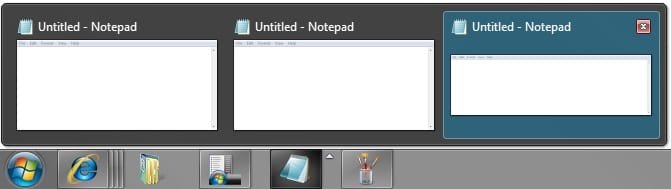
EXAMPLE: Taskbar Buttons Grouped
544d1226605261-taskbar-button-grouping-enable-disable-always_grouped.jpg


545d1226605261-taskbar-button-grouping-enable-disable-grouped_expanded.jpg

EXAMPLE: Taskbar Buttons Not Grouped
546d1226605261-taskbar-button-grouping-enable-disable-not_always_grouped.jpg


OPTION ONE

Enable or Disable Taskbar Button Grouping in Taskbar and Start Menu Properties


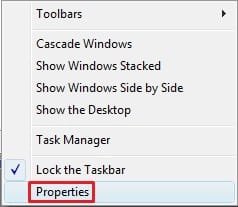
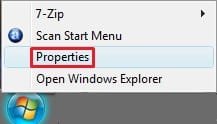
1. Right click on an empty area of the taskbar, and click/tap on Properties. (See screenshot below)
547d1226605261-taskbar-button-grouping-enable-disable-taskbar.jpg

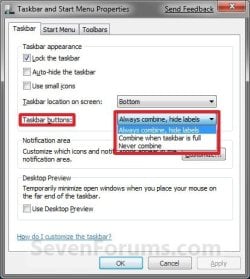
2. Click on the drop down arrow menu to the right of Taskbar buttons, and do step 3, 4, or 5 below for what you would like to do. (See screenshot below)
NOTE: If this option is grayed out, then see this tutorial to "Allow" it: http://www.sevenforums.com/tutorials/118986-taskbar-button-grouping-allow-prevent.html
Properties-6956.jpg Windows-8.jpg
3. To Always Group Taskbar Buttons
NOTE: Taskbar buttons for the same opened program or window will always be grouped to one icon button.
A) Click/tap on Always combine, hide labels to select it, and go to step 6 below. (See screenshot below step 3)
4. To Only Group Taskbar Buttons when the Taskbar is Full
NOTE: Taskbar bar buttons for the same opened program or window will be grouped to one icon button when the taskbar runs out space for the buttons.
A) Click/tap on Combine when taskbar is full to select it, and go to step 6 below. (See screenshot below step 3)
5. To Never Group Taskbar Buttons
NOTE: Open windows will remain as separate bar buttons on the taskbar and not be grouped together.
A) Click/tap on Never combine to select it, and go to step 6 below. (See screenshot below step 3)
6. Click/tap on OK. (See screenshot below step 3)


OPTION TWO

Enable or Disable Taskbar Button Grouping using a BAT File


1. Do step 2, 3, or 4 below for how you would like your taskbar buttons set to do.

2. To Always Group Taskbar Buttons
NOTE: Taskbar buttons for the same opened program or window will always be grouped to one icon button.
A) Click/tap on the download button below to download the file below, and go to step 5 below.
Always_combine_hide_labels.bat


Download


3. To Only Group Taskbar Buttons when the Taskbar is Full
NOTE: Taskbar bar buttons for the same opened program or window will be grouped to one icon button when the taskbar runs out space for the buttons.
A) Click/tap on the download button below to download the file below, and go to step 5 below.
Combine_when_taskbar_is_full.bat

Download


4. To Never Group Taskbar Buttons
NOTE: Open windows will remain as separate bar buttons on the taskbar and not be grouped together.
A) Click/tap on the download button below to download the file below, and go to step 5 below.
Never_combine.bat


Download


5. Save the .bat file to your Desktop.

6. Double click/tap on the downloaded .bat file to run it.

7. If prompted, click/tap on Run.
NOTE: If you like, you can stop getting the Run prompt by unblocking the downloaded .bat file.

8. You will now notice your screen quckly flash as explorer is restarted.

That's it,
Shawn


Attachments

  • Always_Grouped.jpg
    Always_Grouped.jpg
    4.2 KB · Views: 253,012
  • Grouped_Expanded.jpg
    Grouped_Expanded.jpg
    13.3 KB · Views: 252,935
  • Not_Always_Grouped.jpg
    Not_Always_Grouped.jpg
    16 KB · Views: 254,670
  • taskbar.jpg
    taskbar.jpg
    8.3 KB · Views: 253,589
  • Start_Menu.jpg
    Start_Menu.jpg
    5.1 KB · Views: 112,734
  • Always_combine_hide_labels.bat
    Always_combine_hide_labels.bat
    336 bytes · Views: 4,917
  • Combine_when_taskbar_is_full.bat
    Combine_when_taskbar_is_full.bat
    336 bytes · Views: 2,118
  • Never_combine.bat
    Never_combine.bat
    336 bytes · Views: 4,423
Last edited:
Sorry about that. It has been fixed. :)
 

My Computer

Computer type
PC/Desktop
Computer Manufacturer/Model Number
Self built custom
OS
64-bit Windows 11 Pro for Workstations
CPU
Intel i7-8700K OC'd to 5 GHz
Motherboard
ASUS ROG Maximus XI Formula Z390
Memory
64 GB (4x16GB) G.SKILL TridentZ RGB DDR4 3600 MHz
Graphics Card(s)
ASUS ROG-STRIX-GTX1080TI-O11G-GAMING
Sound Card
Integrated
Monitor(s) Displays
2 x Samsung Odyssey G7 27"
Screen Resolution
2560x1440
Hard Drives
1TB Samsung 990 PRO M.2,
4TB Samsung 990 PRO PRO M.2,
TerraMaster F8 SSD Plus NAS
PSU
Seasonic Prime Titanium 850W
Case
Thermaltake Core P3
Cooling
Corsair Hydro H115i
Keyboard
Logitech wireless K800
Mouse
Logitech MX Master 4
Internet Speed
2 Gb/s Download and 100 Mb/s Upload
Antivirus
Malwarebyte Anti-Malware Premium
Browser
Google Chrome
Other Info
Logitech Z625 speaker system,
Logitech BRIO 4K Pro webcam,
HP Color LaserJet Pro MFP M477fdn,
APC SMART-UPS RT 1000 XL - SURT1000XLI,
Galaxy S23 Plus phone
Thanks again. Your work with registry ready settings help me a lot in re-installing windows in multiple pc' s.

Nice work really!!!
 

My Computer

Computer Manufacturer/Model Number
Sony Vaio
OS
Windows 7 Home premium x64
CPU
Intel i5 520m at 2.4GHz(plus turbo mode at 2.9GHz)
Memory
4GB ddr3 1067
Graphics Card(s)
Nvidia 330m
Hey !
Gratz for the awsome forum !
Is it possible to have the buttons NOT GROUPED , but keep the style like they were grouped ?
I mean, when the buttons are GROUPED it only show the icon of the program. But when they are UNGROUPED they show the icon and text right after the icon.
I'd like to have the button ungrouped but showing only the icon of the program.
Thanks :D
 

My Computer

OS
Windows 7 Home Premium x64
Hello Pasadinhas, and welcome to Seven Forums.

While you have them set to "Never combine" to be ungrouped, you could use the tutorial below to change the taskbar button width size to a smaller number as a workaround to shrink the width of the button until the text does not show. You may need to experiment with the size number until you get it the way you like though.

http://www.sevenforums.com/tutorials/21233-taskbar-change-icon-button-width-size.html

Hope this helps,
Shawn
 

My Computer

Computer type
PC/Desktop
Computer Manufacturer/Model Number
Self built custom
OS
64-bit Windows 11 Pro for Workstations
CPU
Intel i7-8700K OC'd to 5 GHz
Motherboard
ASUS ROG Maximus XI Formula Z390
Memory
64 GB (4x16GB) G.SKILL TridentZ RGB DDR4 3600 MHz
Graphics Card(s)
ASUS ROG-STRIX-GTX1080TI-O11G-GAMING
Sound Card
Integrated
Monitor(s) Displays
2 x Samsung Odyssey G7 27"
Screen Resolution
2560x1440
Hard Drives
1TB Samsung 990 PRO M.2,
4TB Samsung 990 PRO PRO M.2,
TerraMaster F8 SSD Plus NAS
PSU
Seasonic Prime Titanium 850W
Case
Thermaltake Core P3
Cooling
Corsair Hydro H115i
Keyboard
Logitech wireless K800
Mouse
Logitech MX Master 4
Internet Speed
2 Gb/s Download and 100 Mb/s Upload
Antivirus
Malwarebyte Anti-Malware Premium
Browser
Google Chrome
Other Info
Logitech Z625 speaker system,
Logitech BRIO 4K Pro webcam,
HP Color LaserJet Pro MFP M477fdn,
APC SMART-UPS RT 1000 XL - SURT1000XLI,
Galaxy S23 Plus phone
Thanks ! That was just what i wanted :)

Worked just fine, and thanks for the really fast answer !

:D
 

My Computer

OS
Windows 7 Home Premium x64
You're most welcome Pasadinhas. I'm happy to hear that will work for you. :)
 

My Computer

Computer type
PC/Desktop
Computer Manufacturer/Model Number
Self built custom
OS
64-bit Windows 11 Pro for Workstations
CPU
Intel i7-8700K OC'd to 5 GHz
Motherboard
ASUS ROG Maximus XI Formula Z390
Memory
64 GB (4x16GB) G.SKILL TridentZ RGB DDR4 3600 MHz
Graphics Card(s)
ASUS ROG-STRIX-GTX1080TI-O11G-GAMING
Sound Card
Integrated
Monitor(s) Displays
2 x Samsung Odyssey G7 27"
Screen Resolution
2560x1440
Hard Drives
1TB Samsung 990 PRO M.2,
4TB Samsung 990 PRO PRO M.2,
TerraMaster F8 SSD Plus NAS
PSU
Seasonic Prime Titanium 850W
Case
Thermaltake Core P3
Cooling
Corsair Hydro H115i
Keyboard
Logitech wireless K800
Mouse
Logitech MX Master 4
Internet Speed
2 Gb/s Download and 100 Mb/s Upload
Antivirus
Malwarebyte Anti-Malware Premium
Browser
Google Chrome
Other Info
Logitech Z625 speaker system,
Logitech BRIO 4K Pro webcam,
HP Color LaserJet Pro MFP M477fdn,
APC SMART-UPS RT 1000 XL - SURT1000XLI,
Galaxy S23 Plus phone
It's Possible!

Well kind of....

you could use the tutorial below to change the taskbar button width size to a smaller number as a workaround

See the thing is there should never have had to be a 'workaround' to make users happy. Out of all the options, how was that the only one not included.... Not having a dig at you, just the guy who was responsible for giving that part of the OS the green light, if by chance that is you, well this is life, eh ;)

Anyway I have a workaround which has given me hope and courage that it's already been fixed for Windows 8.
I'm running the Taskbar as:
Always Combine, Hide Labels
At the same time I'm running a copy of UltraMon 3.0.10

While there is no obvious setting I've clicked (or available to click) in UltraMon, it has somewhat solved the problem on the secondary (NOT the primary monitor).
I can open many instances of anything without them combining, for example 2 firefox instances, 3 identical folder location instances, 4 control panel instances, 5 computer properties instances. All of these windows are available in small or large icons without labels/text next to them and without combining - may I add having NEVER had to change anything in the registry or fiddle with some code buried away in a subterranean folder.

HOWEVER, as soon as I try and transfer two identical instances back to the primary monitor (windows button), they once again combine.
So at the present moment I have 4 identical windows of My Computer/System Properties open. The two on the primary monitor are combined and the two on the secondary monitor are seperate (have not combined and are not using labels).

Therefore some file or piece of code somewhere has changed to allow the secondary monitor NOT to combine seperate instances of windows. The question is how to get what's currently on the secondary monitor also on the primary monitor?

The big thing I've noticed is the secondary monitor only displays tooltips as oppossed to thumbnails when the icons are hovered over, in all honesty I would even prefer this to thumbnails and would be more than willing to put up with the missing thumbnails if it means the windows didn't combine on the primary monitor.

Therefore I'm guessing it's code within the tooltip/combine that works, whereas maybe the developers were trying to fix something within thumbnail/combine and just can't understand why it wouldn't gel?
For example they already know something along the lines of this works:

Combine=yes<preview(thumbnail)=yes<tooltip=yes(insidethumbnail) - result = combines windows, shows thumbnails, shows tooltips inside thumbnails

Perhaps they've tried something along the lines of:

Combine=no<preview=no<tooltip=yes - result = doesn't work
Combine=no<preview=yes<tooltip=no - result = doesn't work
Combine=no<preview=yes<tooltip=yes - result = doesn't work

It's just a matter of working out where the tooltip needs to be on and where it doesn't, to give users that fourth option of
Never Combine, Hide Labels
Maybe it's the preview box and needs to be:

Combine=yes<preview=no<tooltip=yes - result = Never Combine, Hide Labels, Show tooltip
Perhaps it's an unusual heirachy structure, combine has to be on, then preview set to off, cancelling each other out before tooltip comes in and makes each window show merely the tooltip?
I know it's an odd way to think about the problem/solution, but perhaps it's the way things work there at Microsoft, eh!?

As for me, I always have two windows folders on each monitor (total of 4) just as the bare essentials. The two still combining on the primary monitor is just killing my productivity.

Any ideas?
 

My Computer

OS
Windows 7 Ultimate x64
is there a way to ungroup the ions without having them show the text?

example would be this picture
546d1226605261-taskbar-button-grouping-enable-disable-not_always_grouped.jpg


like this but without the text next to the icons.
 

My Computer

OS
Windows 7 64 bit
sorry guys. scrolled up and saw the workaround was posted. sorry for the old bump
 

My Computer

OS
Windows 7 64 bit
Back
Top