Taskbar - Move Location on Desktop Screen

How to Move Taskbar Location on Desktop in Windows 7


   Information
This tutorial will show you how to move the taskbar to be displayed at the bottom, left, right, or top border of the desktop screen in Windows 7.


EXAMPLE: Taskbar

attachment.php


OPTION ONE

From Taskbar and Start Menu Properties


1. Right click on a empty space on the taskbar and click on Properties.
A) Go to step 3.
OR

2. Right click on the Start button and click on Properties.
A) Click on the Taskbar tab. (See screenshots below step 3)
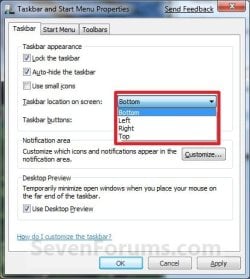
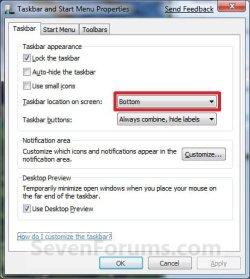
3. Click on the Taskbar location on screen drop down menu, then select the location you want the taskbar to be displayed at. (See screenshots below)
NOTE: The taskbar is displayed at the bottom of the desktop screen by default.
Move-1.jpgMove-2.jpg
4. Click on OK. (See screenshots above)


OPTION TWO

By Dragging the Taskbar


NOTE: If you have more than one monitor, then you can also drag the taskbar to be on any screen edge of the other monitor(s) instead of just on your primary monitor.
1. Unlock the taskbar.

2. Left click and hold on a empty space on the taskbar, then drag the taskbar to the desktop screen border of any monitor's display that you want it to be displayed at.

3. Lock the taskbar.


OPTION THREE

Using a REG File Download


NOTE: Special thank you to MrJukes for providing the registry location for this.
1. To Move the Taskbar to the Bottom of the Screen
NOTE: This is the default setting.
A) Click on the Download button below to download the file below.
Taskbar_at_Bottom_of_Screen.reg

Download


2. To Move the Taskbar to the Top of the Screen
A) Click on the Download button below to download the file below.
Taskbar_at_Top_of_Screen.reg

Download


3. To Move the Taskbar to the Left Side of the Screen
A) Click on the Download button below to download the file below.
Taskbar_at_Left_Side_of_Screen.reg

Download


4. To Move the Taskbar to the Right Side of the Screen
A) Click on the download button below to download the file below.
Taskbar_at_Right_Side_of_Screen.reg

Download


5. Click on Save, and save the .reg file to the desktop.

6. Double click on the downloaded .reg file to merge it.

7. When prompted, click on Run, Yes, Yes, and OK to approve merging the .reg file.

8. Log off and on, or restart the computer to apply.

9. You can now delete the downloaded REG file on the desktop if you like.
That's it,
Shawn


Attachments

Last edited:
OK Brink, I totally messed up my taskbar - it was 4 inches tall and 4 inches wide. could not reset it back for the life of me. Any wat I found this fix for all those like me, you will find the fix-it tool from microsoft HERE

Just make sure you open the compatibility under properties to previous version, and it should work - it did the trick for me. I love it.

Update - tool attached
 

Attachments

My Computer

Computer Manufacturer/Model Number
dell optiplex - 2003
OS
windows7 7600 x86
CPU
itel pentium 4
Memory
3.00 GB
Graphics Card(s)
diamond radion x1050
Sound Card
SoundMax
Monitor(s) Displays
dell 2408wfp dell e172fp
Screen Resolution
1920 x 1200 1280 x 1024
Hard Drives
2 - 80 GB internals WD
1 - 01 TB ext
2 - 750 GB ext
1- 500 GB ext
all running on system no problems
Keyboard
old logitech cordless
Mouse
logitech wireless
Internet Speed
16 / 4
Other Info
networked into my sbs2003 server running sp1 still
it's a wonder I could even get windows 7 to connect to it
Evan,

Thank you for sharing your solution for the problem that you had. :)

Shawn
 

My Computer

Computer type
PC/Desktop
Computer Manufacturer/Model Number
Self built custom
OS
64-bit Windows 11 Pro for Workstations
CPU
Intel i7-8700K OC'd to 5 GHz
Motherboard
ASUS ROG Maximus XI Formula Z390
Memory
64 GB (4x16GB) G.SKILL TridentZ RGB DDR4 3600 MHz
Graphics Card(s)
ASUS ROG-STRIX-GTX1080TI-O11G-GAMING
Sound Card
Integrated
Monitor(s) Displays
2 x Samsung Odyssey G7 27"
Screen Resolution
2560x1440
Hard Drives
1TB Samsung 990 PRO M.2,
4TB Samsung 990 PRO PRO M.2,
TerraMaster F8 SSD Plus NAS
PSU
Seasonic Prime Titanium 850W
Case
Thermaltake Core P3
Cooling
Corsair Hydro H115i
Keyboard
Logitech wireless K800
Mouse
Logitech MX Master 4
Internet Speed
2 Gb/s Download and 100 Mb/s Upload
Antivirus
Malwarebyte Anti-Malware Premium
Browser
Google Chrome
Other Info
Logitech Z625 speaker system,
Logitech BRIO 4K Pro webcam,
HP Color LaserJet Pro MFP M477fdn,
APC SMART-UPS RT 1000 XL - SURT1000XLI,
Galaxy S23 Plus phone
i've recently treated myself to an nice 1920x1080 widescreen monitor, and to make the most use of the extra width, i thought i would stick the taskbar over on the left-hand side, and try to get used to it in its new location.

i'm sort of getting the hang of it, but i would much prefer it if the taskbar was flipped - ie so the start button (or whatever it's called now) is at the bottom (ie where it's always been!) rather than at the top.

does anyone know if this is possible, or do i have to look at third-party skinning/theming tools?
 

My Computer

Computer Manufacturer/Model Number
mickey megabyte 1234
OS
ultimate 64 sp1
CPU
i5 2500K [email protected]
Motherboard
MSI P67A-GD53
Memory
8 gigs GSkill Ripjaws 1600
Graphics Card(s)
amd hd6950
Sound Card
creative x-fi gamer
Monitor(s) Displays
samsung 24"
Screen Resolution
1920x1080
Hard Drives
ocz vertex 2e 60 gig, samsung f3 1tb, buffalo 2tb ext
PSU
antec 550
Case
antec three hundred
Cooling
i'm a cooling fan
Keyboard
saitek eclipse ii
Mouse
logitech g3
Internet Speed
about 4 Mbps
Other Info
i love win7
I been placing the taskbar on the left since win 95, and as Mickey asked, is there a solution for placing the start button at the bottom, or a solution out there that allows the bar to be flipped.
 

My Computer

Computer Manufacturer/Model Number
HP Pavilion a4302f
OS
Win 7 Pro x64, VM Win XP, Win7 Pro Sandbox, Kubuntu 11
CPU
AMD Athlon(tm) II X4 640 @ 3.0 Gbz
Memory
12GB 1066MHz DDR3 SDRAM - 2x4GB, 2x2GB
Graphics Card(s)
ATI Radeon HD 4350 HD Graphics/Audio with 512MB
Sound Card
Realtek High Definition Audio
Monitor(s) Displays
1. Dell 23" SP2307, 2. Mitsublishi 40" HDTV, Hannspree 25"
Screen Resolution
1. 2048x1152, 2. 1920-1080, 3. 1920x1200
Hard Drives
Int: 1 120 Gig SSD i
1 - 2.5" 500 USB External HDD
1 -1 Tb USB External HDD
Case
Mid Tower
Cooling
Standard Fans - 5 fans (very quiet)
Keyboard
Microsoft Wireless 2000
Mouse
Microsoft Wireless Mouse 5000
Internet Speed
10 Mbit (realistically 500 Kbit - 1.2 Mbit)
Other Info
Speakers - Bose Desktop (Excellent Sound)
1 external CD|DVD\Blue-ray Recorders/Players (Sony)
Hello Lee,

None that I'm aware of. :(
 

My Computer

Computer type
PC/Desktop
Computer Manufacturer/Model Number
Self built custom
OS
64-bit Windows 11 Pro for Workstations
CPU
Intel i7-8700K OC'd to 5 GHz
Motherboard
ASUS ROG Maximus XI Formula Z390
Memory
64 GB (4x16GB) G.SKILL TridentZ RGB DDR4 3600 MHz
Graphics Card(s)
ASUS ROG-STRIX-GTX1080TI-O11G-GAMING
Sound Card
Integrated
Monitor(s) Displays
2 x Samsung Odyssey G7 27"
Screen Resolution
2560x1440
Hard Drives
1TB Samsung 990 PRO M.2,
4TB Samsung 990 PRO PRO M.2,
TerraMaster F8 SSD Plus NAS
PSU
Seasonic Prime Titanium 850W
Case
Thermaltake Core P3
Cooling
Corsair Hydro H115i
Keyboard
Logitech wireless K800
Mouse
Logitech MX Master 4
Internet Speed
2 Gb/s Download and 100 Mb/s Upload
Antivirus
Malwarebyte Anti-Malware Premium
Browser
Google Chrome
Other Info
Logitech Z625 speaker system,
Logitech BRIO 4K Pro webcam,
HP Color LaserJet Pro MFP M477fdn,
APC SMART-UPS RT 1000 XL - SURT1000XLI,
Galaxy S23 Plus phone
Moving taskbar programs to right, next to language bar

Since time immemorial (in computer terms: Win98, 2000, XP) I have had the taskbar programs on the right side of the taskbar, next (left of) the language bar. If I try to move the programs using the left mouse button, I get a double thingy but when I move it to the right side of the taskbar, nothing happens.

I don't want to move the programs or the taskbar to the right side of the monitor's screen, only to the right side of the taskbar because I don't like the crowded look that I see next to the Start button, I liked the clean look of XP.

How do I go about it in Windows 7?

Thanks

Roxy
 

My Computer

Computer Manufacturer/Model Number
Dell - Studio 540
OS
windows7-Home Premium 64Bit
CPU
Intel Core 2 Quad Q8300
Motherboard
Dell OM017G
Memory
16384MBytes
Graphics Card(s)
Intel G45/Gre Express Chipset
Sound Card
Intel HD Audio HDMI/Realtek HD Audio
Monitor(s) Displays
Dell ST 2410
Screen Resolution
1920 x 1080
Hard Drives
Western Digital WDC WD6400AAKS-75A7B2
640.1 GB
Serial ATA (ide)
Case
AT
Keyboard
EuroTek Keytronic
Mouse
Intellimouse Optical
Internet Speed
Cable Broadband
Other Info
Network Adapter Realtek PCI GBE Family Controller
Hi,

The way you would do this is by using this tutorial but instead of centering them you can shift them to the right side
 

My Computer

Computer Manufacturer/Model Number
Dell Vostro 1000
OS
Windows 7 Ultimate x86
CPU
AMD Sempron 3600+
Graphics Card(s)
ATI Radeon Xpress 1150
Monitor(s) Displays
Generic PnP Monitor
Screen Resolution
1200 x 800
Hard Drives
WD Scorpio Blue 500 GB (WD5000BEVT)
Mouse
Logitech V320 Cordless Optical Mouse
Taskbar location

A most interesting tutorial. Now I have my taskbar just like I had it in XP.

Thanks

Roxy
 

My Computer

Computer Manufacturer/Model Number
Dell - Studio 540
OS
windows7-Home Premium 64Bit
CPU
Intel Core 2 Quad Q8300
Motherboard
Dell OM017G
Memory
16384MBytes
Graphics Card(s)
Intel G45/Gre Express Chipset
Sound Card
Intel HD Audio HDMI/Realtek HD Audio
Monitor(s) Displays
Dell ST 2410
Screen Resolution
1920 x 1080
Hard Drives
Western Digital WDC WD6400AAKS-75A7B2
640.1 GB
Serial ATA (ide)
Case
AT
Keyboard
EuroTek Keytronic
Mouse
Intellimouse Optical
Internet Speed
Cable Broadband
Other Info
Network Adapter Realtek PCI GBE Family Controller
I too place the Taskbar on the left but would like all the contents flipped over so the Start button is on the bottom.

Honestly, I don't understand why Microsoft didn't design it that way!
 

My Computer

Computer type
Laptop
OS
Windows 7 Home Premium 64bit
Thank you HDM. :)
 

My Computer

Computer type
PC/Desktop
Computer Manufacturer/Model Number
Self built custom
OS
64-bit Windows 11 Pro for Workstations
CPU
Intel i7-8700K OC'd to 5 GHz
Motherboard
ASUS ROG Maximus XI Formula Z390
Memory
64 GB (4x16GB) G.SKILL TridentZ RGB DDR4 3600 MHz
Graphics Card(s)
ASUS ROG-STRIX-GTX1080TI-O11G-GAMING
Sound Card
Integrated
Monitor(s) Displays
2 x Samsung Odyssey G7 27"
Screen Resolution
2560x1440
Hard Drives
1TB Samsung 990 PRO M.2,
4TB Samsung 990 PRO PRO M.2,
TerraMaster F8 SSD Plus NAS
PSU
Seasonic Prime Titanium 850W
Case
Thermaltake Core P3
Cooling
Corsair Hydro H115i
Keyboard
Logitech wireless K800
Mouse
Logitech MX Master 4
Internet Speed
2 Gb/s Download and 100 Mb/s Upload
Antivirus
Malwarebyte Anti-Malware Premium
Browser
Google Chrome
Other Info
Logitech Z625 speaker system,
Logitech BRIO 4K Pro webcam,
HP Color LaserJet Pro MFP M477fdn,
APC SMART-UPS RT 1000 XL - SURT1000XLI,
Galaxy S23 Plus phone
don´t worx... :-(((

Hello..
Unfortunately here is no of this 3 options working..
Option 1 gimme no selection..
Only a gray field..!:cry:


Regards
 

My Computer

Computer Manufacturer/Model Number
ACER
OS
Windows 7 Home Premium 64 bit.

My Computer

Computer type
PC/Desktop
Computer Manufacturer/Model Number
Self built custom
OS
64-bit Windows 11 Pro for Workstations
CPU
Intel i7-8700K OC'd to 5 GHz
Motherboard
ASUS ROG Maximus XI Formula Z390
Memory
64 GB (4x16GB) G.SKILL TridentZ RGB DDR4 3600 MHz
Graphics Card(s)
ASUS ROG-STRIX-GTX1080TI-O11G-GAMING
Sound Card
Integrated
Monitor(s) Displays
2 x Samsung Odyssey G7 27"
Screen Resolution
2560x1440
Hard Drives
1TB Samsung 990 PRO M.2,
4TB Samsung 990 PRO PRO M.2,
TerraMaster F8 SSD Plus NAS
PSU
Seasonic Prime Titanium 850W
Case
Thermaltake Core P3
Cooling
Corsair Hydro H115i
Keyboard
Logitech wireless K800
Mouse
Logitech MX Master 4
Internet Speed
2 Gb/s Download and 100 Mb/s Upload
Antivirus
Malwarebyte Anti-Malware Premium
Browser
Google Chrome
Other Info
Logitech Z625 speaker system,
Logitech BRIO 4K Pro webcam,
HP Color LaserJet Pro MFP M477fdn,
APC SMART-UPS RT 1000 XL - SURT1000XLI,
Galaxy S23 Plus phone
Taskbar - left side Start button on the bottom??

I too place the Taskbar on the left but would like all the contents flipped over so the Start button is on the bottom.

Honestly, I don't understand why Microsoft didn't design it that way!

I came here looking for a solution to the Taskbar placement. I like it on the left, but can't understand why there isn't an option to have the Start button at the bottom (just seems intuitive to me) .
wink.gif


Does anyone know of a hack for this?
 

My Computer

OS
Win 7 64 bit
Yup, I'm still waiting too.
 

My Computer

Computer type
Laptop
OS
Windows 7 Home Premium 64bit
Has anyone tried this one yet, I have not but did recently hear of it.

Start Orb Mover: Move your Start Button and Start Menu to different locations

This portable freeware will now allow you to move the Start Button and the Start Menu to either the center of the Taskbar or far right\bottom, depending on Taskbar location.

I tried installing it and it threw an error message that I couldn't easy troubleshoot, so I just restored my system and moved on. I'm using Win7PRo 64-bit, 8GB RAM. Sure would like that Start Button, etc at the bottom left but don't have time to fuss.:(
 

My Computer

OS
Win 7 64 bit
Same here, trouble with installation. It is the first release and will only get better moving forward.... hopefully.
 

My Computer

Computer type
Laptop
OS
Windows 7 Home Premium 64bit
I really like this site, I didn't realize that Windows 7 had an option to move the taskbar left, right, bottom or top. I kept trying to drag back to the bottom with no success, but as usual the info I needed was here. Thanks again for all the hard work that goes into running this site and getting the correct answer to problems.
MIKLO
 

My Computer

Computer type
PC/Desktop
Computer Manufacturer/Model Number
Dell
OS
windows 8 X64
Back
Top