
How to Pin or Unpin a Drive to Taskbar in Windows 7 and Windows 8
Information
This tutorial will show you how to pin a drive to the taskbar as a toolbar in Windows 7 and Windows 8.
EXAMPLE: Pin Drive to Taskbar

OPTION ONE
To Pin a Drive to the Taskbar as an EXE File
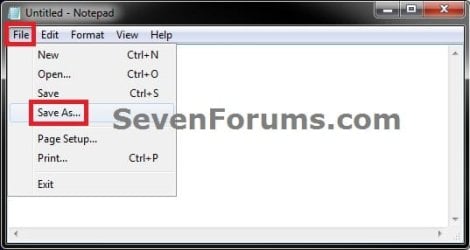
1. Open Notepad, and click on File (Menu bar) and Save as. (see screenshot below)
NOTE: You will need to leave notepad blank.
2. Navigate to your desktop. Under Save as type, change it to All Files (*.*), type in a name you want for this (ex: Drive C.exe) with the .exe file extension at the end, and click on the Save button. (see screenshot below)
3. Close Notepad.
4. Right click on the saved .exe file on your desktop (ex: Drive C.exe), and click on Pin to Taskbar.
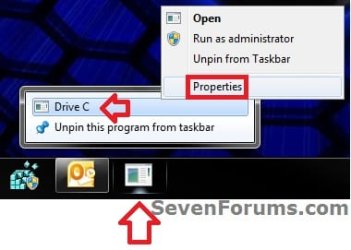
5. Right click on the pinned .exe icon on the taskbar, right click on the .exe file (ex: Drive C.exe) in the jump list, and click on Properties. (see screenshot below)
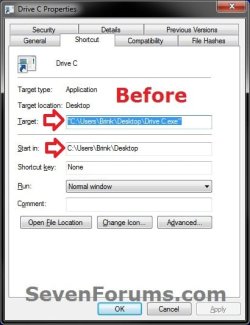
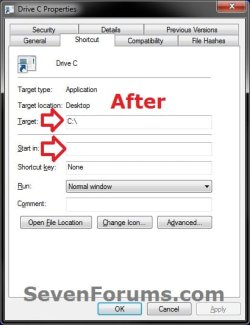
6. In the Start in field, make sure it's blank. In the Target field, change it to be the drive letter path (ex: C:\ ) that you want the pinned icon on the taskbar to open. Click on OK. (see screenshots below)
7. Log off and log on, or restart the computer to have the icon on the taskbar to change to the correct drive icon afterwards. (see screenshot below)

8. You can now drag the drive icon any where you like within the other pinned icons on the taskbar if you like. (see screenshot above)\
9. You can now delete the .exe file on your desktop (ex: Drive C.exe) if you like.
Note
To Unpin Drive from Taskbar:
1. Right click on the pinned drive icon on the taskbar, and click on Unpin this program from taskbar.
1. Right click on the pinned drive icon on the taskbar, and click on Unpin this program from taskbar.
OPTION TWO
To Pin a Drive to the Taskbar as a Toolbar
1. Right click on the Desktop and click on New and Folder, then rename the new folder Drives and press Enter.
NOTE: You can rename the folder anything you like. I'm just using Drives as an example in this tutorial.
2. Open the Computer window (Start Menu), then right click on any drive (ex: C: drive) that you want to pin to the taskbar and click on Create shortcut. This will create a shortcut for this drive on your desktop. (see screenshot below)
NOTE: You can create a shortcut for one or more drives if you like to use in step 3 below to pin them all to the taskbar as well.
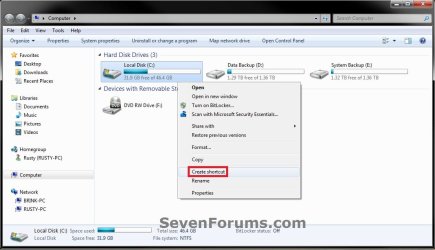
3. Select and Move all drive shortcuts on the desktop created in step 2 into the Drives folder (step 1).
4. Now Move the Drives folder to a location (ex: in My Documents folder) that you want to keep it saved at.
NOTE: The Drives folder must remain at this location for it to continue to work when finished pinning it to the taskbar.
5. Press and hold the Shift key, right click on the Drives folder (step 4), release Shift, and click on Copy as path.
NOTE: This path will be used in step 8 below.
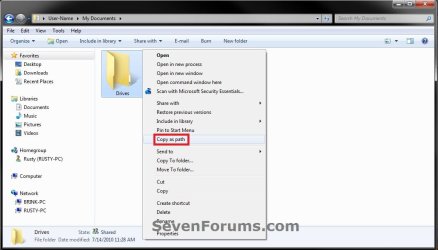
6. Unlock the taskbar.
7. Right click on a empty space on the taskbar and click on Toolbars and New toolbar. (see screenshot below)
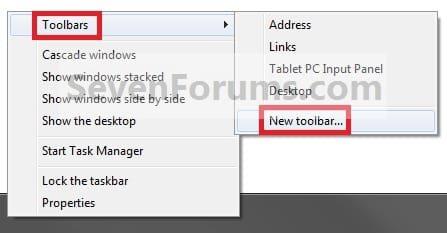
8. Right click in the Folder line and click on Paste to copy the path of the Drives folder from step 5, then click on Select Folder. (see screenshots below)
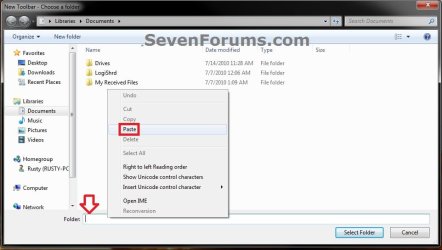
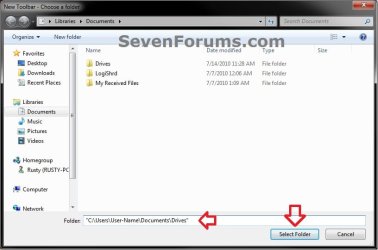
9. On the taskbar, right click on the dotted lines just to the left of the Drives toolbar icon, then uncheck Show Title by clicking on it. (see screenshot below)

10. To Select a Small or Large Pinned Drive Icon
A) Right click on the dotted lines just to the left of the drive, then click on View and select either Large Icons or Small Icons for the drive(s) on the taskbar. (see screenshots below)


11. To Keep or Remove Pinned Drive Text
A) Right click on the dotted lines just to the left of the drive, then click on View and click on Show Text to check (keep) or uncheck (remove) the drive name. (see screenshots below)
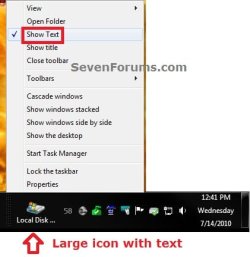
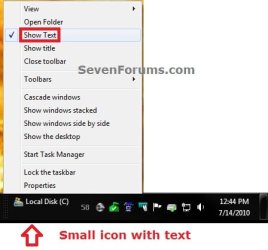
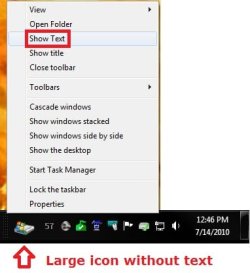
12. To Keep the Pinned Drive on the Right Side of Taskbar
A) Left click on the dotted lines just to the left of the drive and hold, then drag it to the left and right some to make any adjustments to how you want the drive(s) positioned on the right side of the taskbar. (see screenshot below)

B) Release the left click when done.
C) Go to step 14.
13. To Have the Pinned Drive on the Left Side of Taskbar
A) Left click on the dotted lines just to the left of the drive and hold, then drag it all the way to the left past the other pinned taskbar program icons on the left side of the taskbar and release. (see screenshot below)

B) Left click on the dotted lines just to the left of the pinned taskbar program icons on the now right side and hold, then drag it to the left until next to the drive and release. (see screenshots below)
NOTE: If you have another pinned toolbar on the left (ex: Recycle Bin) that you would like to keep to the far left instead of the pinned Drive icon, then you can drag the drive icon just to the right of it as well if you like.


14. Lock the taskbar.
15. You now have a pinned drive on the taskbar. (see example screenshot at the top of the tutorial)
Note
To Unpin Drive from Taskbar:
1. Right click on a empty space on the taskbar and click on Toolbars and on Drives (step 1 in OPTION ONE above) to uncheck it and remove it from the taskbar. (see screenshot below)
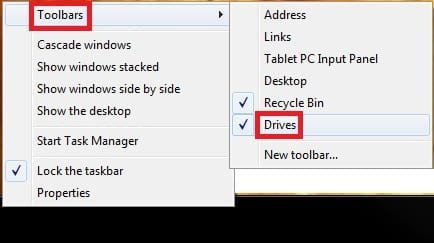
1. Right click on a empty space on the taskbar and click on Toolbars and on Drives (step 1 in OPTION ONE above) to uncheck it and remove it from the taskbar. (see screenshot below)
That's it,
Shawn
Related Tutorials
- How to Backup and Restore Taskbar Toolbars in Vista and Windows 7
- How to Reset and Clear All Taskbar Toolbars in Vista and Windows 7
- How to Pin or Unpin a Folder to Taskbar in Windows 7 and Windows 8
- How to Pin a Folder, Drive, and Library to the Start Menu in Windows 7
- How to Enable or Disable Quick Launch in Windows 7
- How to Pin or Unpin a Program to the Windows 7 Taskbar
- How to Use Small or Large Icons on the Windows 7 Taskbar
- How to Enable or Disable Windows 7 Taskbar Button Grouping
- How to Lock or Unlock the Windows 7 Taskbar
- How to Move the Windows 7 Taskbar Location on the Desktop
- How to Show or Hide the Windows 7 Taskbar with Auto-hide
- How to Create a Windows 7 Windows Update Shortcut to Pin to Taskbar
- How to Change the Windows 7 Taskbar Icon Width Size
- How to Add or Remove the Desktop Toolbar on the Windows 7 Taskbar
- How to Center the Taskbar Icons in Windows 7
- How to Use Toolbars in Windows 7 and Vista
- How to Change a Drive Icon in Vista, Windows 7, and Windows 8
- How to Rename a Drive in Vista, Windows 7, and Windows 8
- How to Add or Remove a Toolbar on the Taskbar in Vista and Windows 7
- How to Enable or Disable Adding and Removing Taskbar Toolbars in Vista and Windows 7
Attachments

Last edited:


