Taskbar Thumbnail Preview Acting Weird

mhasanbulli

New member
Member
Local time
3:17 AM
Messages
45
Location
Cyprus
This weird behavior of thumbnail preview of the windows started to happen lately. Sometimes, whenever I hover over a button on the taskbar, thumbnail preview does not show up. In addition, although I remove my mouse, the icon is still colored as if the mouse is still over. I attached some examples. In the pictures you see, the mouse is not over the icons but they keep glowing as if the mouse is over them. Did anyone experienced something like this before?
 

Attachments

  • Capture.PNG
    Capture.PNG
    6.4 KB · Views: 1,225
  • Capture2.PNG
    Capture2.PNG
    3 KB · Views: 1,218

My Computer

Computer Manufacturer/Model Number
ACER TravelMate 5720
OS
Windows 7 (32-Bits)
CPU
Intel Centrino Core 2 Duo T5670
Memory
3 GB
Graphics Card(s)
Mobile Intel 965 Express Chipset Family
Screen Resolution
1280x800
Hard Drives
250 GB
Mouse
A4 Tech
Internet Speed
1024 K/Bit
Hi there,

I've posted your question in another thread about the thumbnail previews sometimes not working. Hopefully someone will take renewed interest in the issue :) As for the glowing icons staying that way after un-hovering... I'm not sure.

Cheers,

Walker
Windows Outreach Team
 

My Computer

Computer Manufacturer/Model Number
HP Pavilion dm3 (netbook) *** 27" iMac (Dual-Boot)
OS
Windows 7 Home Premium (64-bit) *** Windows XP SP3 (32-bit), OSX 10.6
CPU
AMD Athlon Neo X2 1.6GHz *** Intel Core i7 Quad Core 2.8GHz
Memory
4.00 GB *** 4.00 GB
Graphics Card(s)
ATI Radeon HD 3200, 384MB *** ATI Radeon HD 4850, 1GB
Sound Card
ATI High Definition Audio *** ATI High Definition Audio
Monitor(s) Displays
LG Flatron W2053TX
Screen Resolution
1600 x 900 (monitor), 1266 x 768 (laptop) *** 2560 x 1440
Hard Drives
300 GB SATA (internal), 500 GB HP SimpleSave (external) *** 1 TB SATA (internal), 160 GB LaCie (external)
Mouse
Logitech Cordless Optical Mouse for Notebooks
Internet Speed
Broadband
Thank you very much :) I really appreciate it. I checked out the thread you posted my problem and that is my exact scenario. I did not have this problem when I had 32-Bits version of Windows 7. I upgraded my RAM's to 8 GB. Therefore, I installed 64-Bits. I am guessing that it is something related to one of the applications I am using although I am pretty sure that all the applications are compatible with Aero. I hope some solution will come up.

Cheers,

Musty...
 

My Computer

Computer Manufacturer/Model Number
ACER TravelMate 5720
OS
Windows 7 (32-Bits)
CPU
Intel Centrino Core 2 Duo T5670
Memory
3 GB
Graphics Card(s)
Mobile Intel 965 Express Chipset Family
Screen Resolution
1280x800
Hard Drives
250 GB
Mouse
A4 Tech
Internet Speed
1024 K/Bit
What caused issues for my aero was indeed a program. Sadly, I do not remember which one was it, but I remember that I went through active programs one by one, shutting them down and checking if that resolved my problem, and after I found the trouble maker I just updated it.

Long story short, the problem is not in your OS, but it is a program which causes the preview to not work correctly, updating the program solved the issue.

Sadly, I cant say what program is screwing up your case :P
 

My Computer

OS
Windows 7 64bit
CPU
i5 750 @2.67 Ghz
Motherboard
Asus P7P55D
Memory
2x2gb dual channel crossair
Graphics Card(s)
Nvidia GTX 260
PSU
630W
What caused issues for my aero was indeed a program. Sadly, I do not remember which one was it, but I remember that I went through active programs one by one, shutting them down and checking if that resolved my problem, and after I found the trouble maker I just updated it.

Long story short, the problem is not in your OS, but it is a program which causes the preview to not work correctly, updating the program solved the issue.

Sadly, I cant say what program is screwing up your case :P


Yeah, I also suspected that it is a program. Well, we will see :P Thanks for the reply >.<
 

My Computer

Computer Manufacturer/Model Number
ACER TravelMate 5720
OS
Windows 7 (32-Bits)
CPU
Intel Centrino Core 2 Duo T5670
Memory
3 GB
Graphics Card(s)
Mobile Intel 965 Express Chipset Family
Screen Resolution
1280x800
Hard Drives
250 GB
Mouse
A4 Tech
Internet Speed
1024 K/Bit
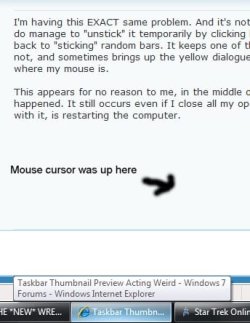
I'm having this EXACT same problem. And it's not any program causing it that I know of. I do manage to "unstick" it temporarily by clicking both mouse buttons against the taskbar, but it goes right back to "sticking" random bars. It keeps one of the bars highlighted as though it were open, when it is not, and sometimes brings up the yellow dialogue box describing the window and keeps it open no matter where my mouse is.

This appears for no reason to me, in the middle of programs running which had been running long before it happened. It still occurs even if I close all my open programs. The only solution to it, aside from dealing with it, is restarting the computer.
 

Attachments

  • Example.jpg
    Example.jpg
    24.5 KB · Views: 10

My Computer

Computer type
PC/Desktop
Computer Manufacturer/Model Number
custom build
OS
7
CPU
Intel Core i7 3770 3.40 GHz
Motherboard
ASRock Z77 EXTREME4-M
Memory
Corsair 16GB total RAM 4x4GB sticks
Graphics Card(s)
Nvidia GeForce GTX 780
Monitor(s) Displays
ViewSonic LED 1080p Full HD
Screen Resolution
1920x1080
Hard Drives
Two
PSU
Corsair HX 750W
Case
Cooler Master
Cooling
A bunch of fans
Keyboard
Old and busty Dell, with some letters scratched off
Mouse
Logitech trackball
Internet Speed
Xfinity
It may be out-of-memory issue or a system internal bug?
hence no fix is available until MS release a patch?


I have pseudo fix beside restart though, but a complex one
When you maximize/restore/open a window, move your cursor to taskbar and preview should be back and the "glowing-bar" should be gone. whenever there is a focus, preview will be back and when preview is back, "glowing-bar" will disappear.
Now, since "glowing-bar" is gone, you should be free to close/minimize or switch between windows.
 

My Computer

OS
Windows 7 Ultimate 64bit
I found another solution, but not savory. Opening up the Taskbar and closing explorer.exe and re-opening it
 

My Computer

Computer type
PC/Desktop
Computer Manufacturer/Model Number
custom build
OS
7
CPU
Intel Core i7 3770 3.40 GHz
Motherboard
ASRock Z77 EXTREME4-M
Memory
Corsair 16GB total RAM 4x4GB sticks
Graphics Card(s)
Nvidia GeForce GTX 780
Monitor(s) Displays
ViewSonic LED 1080p Full HD
Screen Resolution
1920x1080
Hard Drives
Two
PSU
Corsair HX 750W
Case
Cooler Master
Cooling
A bunch of fans
Keyboard
Old and busty Dell, with some letters scratched off
Mouse
Logitech trackball
Internet Speed
Xfinity
It is savory lol, faster and easier.

Good job and Thank you Andariel.
 

My Computer

OS
Windows 7 Ultimate 64bit
It is savory lol, faster and easier.

Good job and Thank you Andariel.


I'd hardly consider it savory; you'd have to close ALL explorer windows or else just crash them down. It just doesn't seem natural to be closing things in task manager and re-opening them. It's an interruption when you're using explorer windows
 

My Computer

Computer type
PC/Desktop
Computer Manufacturer/Model Number
custom build
OS
7
CPU
Intel Core i7 3770 3.40 GHz
Motherboard
ASRock Z77 EXTREME4-M
Memory
Corsair 16GB total RAM 4x4GB sticks
Graphics Card(s)
Nvidia GeForce GTX 780
Monitor(s) Displays
ViewSonic LED 1080p Full HD
Screen Resolution
1920x1080
Hard Drives
Two
PSU
Corsair HX 750W
Case
Cooler Master
Cooling
A bunch of fans
Keyboard
Old and busty Dell, with some letters scratched off
Mouse
Logitech trackball
Internet Speed
Xfinity
Not complex and faster than restarting your PC

so used to close it after having fun with Start icons :p
 

My Computer

OS
Windows 7 Ultimate 64bit
Thanks for the posting back AndarielHalo, at least some solution is more savory than none at all :)

Walker
Windows Outreach Team
 

My Computer

Computer Manufacturer/Model Number
HP Pavilion dm3 (netbook) *** 27" iMac (Dual-Boot)
OS
Windows 7 Home Premium (64-bit) *** Windows XP SP3 (32-bit), OSX 10.6
CPU
AMD Athlon Neo X2 1.6GHz *** Intel Core i7 Quad Core 2.8GHz
Memory
4.00 GB *** 4.00 GB
Graphics Card(s)
ATI Radeon HD 3200, 384MB *** ATI Radeon HD 4850, 1GB
Sound Card
ATI High Definition Audio *** ATI High Definition Audio
Monitor(s) Displays
LG Flatron W2053TX
Screen Resolution
1600 x 900 (monitor), 1266 x 768 (laptop) *** 2560 x 1440
Hard Drives
300 GB SATA (internal), 500 GB HP SimpleSave (external) *** 1 TB SATA (internal), 160 GB LaCie (external)
Mouse
Logitech Cordless Optical Mouse for Notebooks
Internet Speed
Broadband
Greetings

Have you found any solution to this??


I suspect that the problem is caused by some registry tweaking
that makes the aero preview/desktop peek be more responsive:

I had created these 4 new keys in HKCU\Software\Microsoft\Windows\CurrentVersion\Explorer\Advanced
-LastActiveClick
-ExtendedUIHoverTime
-ThumbnailLivePreviewHoverTime
-DesktopLivePreviewHoverTime

All having the decimal value 1.

(I think you all have done the same tweaking, right? ;) )


Some info on these keys that I've collected:
-> LastActiveClick
when clicking on an icon or button on Windows 7 Taskbar will automatically switch to and activate last active window which user was last working on, and the next window on second click, and so on.

-> ExtendedUIHoverTime
With the new Aero Peek that is part of Windows 7 you get a useful preview of an application when you hover over its taskbar item. After a set period of time, about 400 milliseconds, the taskbar preview is shown.If this wait is too long, or even too short for you , you can change it.

(These -the following two- tweaks will make Windows feel more responsive by decreasing the time it takes for it to react to your input)

-> ThumbnailLivePreviewHoverTime
In addition to the preview image you get by hovering over an applications taskbar item, Aero Peek will reveal the applications window by making all other applications appear only as outlines. This is the "live preview" and it is activated after you hover your cursor over the preview image for a brief period. If you would like to alter this delay you can
Once again open regedit and navigate to:


-> DesktopLivePreviewHoverTime
"Aero Peek" is a new feature in Windows 7 which has replaced the old "Show Desktop" shortcut. It can be found as a small rectangle present at the end of Taskbar. When you hover the mouse cursor over it, it allows you to peek behind all open windows by hiding all windows and showing only outlines of all windows.

The default delay time to preview Desktop is set to 1 second by default but sometimes it gets annoying when you accidentally hover your mouse over it.
Today we are sharing a small registry trick which can be used to adjust this delay time. You can set the delay time to 2,3 or more seconds according to your requirements.
I suspect these keys to be responsible for this,
but can't tell for sure...


PS. Rather irrelevant, but I've also found that the DesktopLivePreviewHoverTime key tweak
works only if you uninstall Stardock Fences.
Just thought to share it with you :)
 
Last edited:

My Computer

OS
Windows 7 Ultimate x64
Greetings

Have you found any solution to this??


I suspect that the problem is caused by some registry tweaking
that makes the aero preview/desktop peek be more responsive:

I had created these 4 new keys in HKCU\Software\Microsoft\Windows\CurrentVersion\Explorer\Advanced
-LastActiveClick
-ExtendedUIHoverTime
-ThumbnailLivePreviewHoverTime
-DesktopLivePreviewHoverTime

All having the decimal value 1.

(I think you all have done the same tweaking, right? ;) )
Seems it requires a restart.

Check this:
Windows 7 taskbar thumbnail preview, aero preview not working - Microsoft Answers

They say that the problem is caused when you wake the pc from sleep,
and the solution is to restart windows...
I tried it, and unfortunately the problem reappears sooner or later...
I never use hibernate and sleep.
 

My Computer

OS
Windows 7 Ultimate 64bit
Seems it requires a restart.
But of course I restarted when I did these tweaks..
Anyway, do you still have this problem?


To sum what I've tried when taskbar thumbnails stop appearing:
- restart windows
- kill+restart explorer.exe
- deleted the above 4 tegistry tweaks and then killed+restarted explorer.exe
- killed almost every unnecessairy application in task manager
I've also installed sp1 of windows 7

Nothing worked - after some time the problem always reappers.

So, it's defintely a windows bug
 
Last edited:

My Computer

OS
Windows 7 Ultimate x64
Back
Top