Text formatting in MS Word 2010

askic

New member
Member
Local time
9:46 AM
Messages
62
Hello guys,

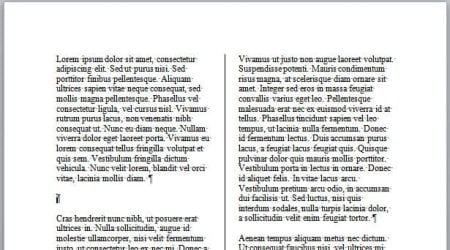
Can you please help me to format text in MS Word document? The text is divided in two columns and I want to insert an image in the text, but I want to make the image a bit larger so it can occupy more space in the left column.

Please have a look at the attached picture.

Thank you.
 

Attachments
  • Untitled.png
    Untitled.png
    137.6 KB · Views: 7

My Computer My Computer

Computer type
PC/Desktop
Computer Manufacturer/Model Number
Dell T5500
OS
Windows 7 64 vir
It's not clear what you really want. If you want to resize the image, just click on it. There should be rectangles in the mid-points of the sides, top and bottom. Drag any of those, as appropriate, to change the size.
 

My Computer My Computer

Computer type
Laptop
Computer Manufacturer/Model Number
Dell M6500 Precision Work Station
OS
Windows 7 Pro SP1 64 bit
Memory
8 GB
Screen Resolution
1920x
Internet Speed
30 Mbps
Antivirus
Norton Security
Browser
IE 11
I want to place an image to occupy the whole right column and only a part of the left column. If I try to just resize the image, whole block of the text left moves.
 

My Computer My Computer

Computer type
PC/Desktop
Computer Manufacturer/Model Number
Dell T5500
OS
Windows 7 64 vir
I assume you have a two (more more) column page format and you have inserted your document text. Now you want to insert an image somewhere in the body text, of any column, then resize the image so it spands across a column divider (pic is wider than the column width). Easy to do but takes multiple steps.


Starting point.
1 2columndoc.JPG


Click on desired insert location then press ENTER to insert a carriage return (line break).
2 InsertPoint+Return.JPG


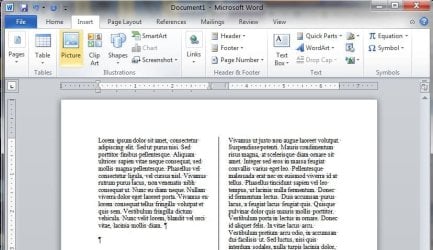
On the menu bar/tool ribbon, click on the Insert tab then the Picture icon.
3b SelectPicture.JPG


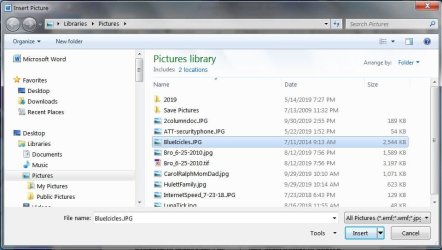
Navigate to your image, select it then click the INSERT button.
3 SelectPicture.JPG


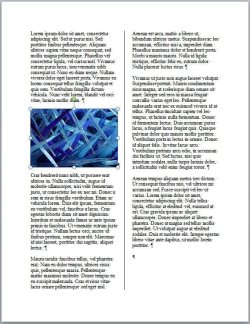
Your image will be inserted at the location you selected and should be the width of the column.
4 InsertedPictureDefaultSize.JPG


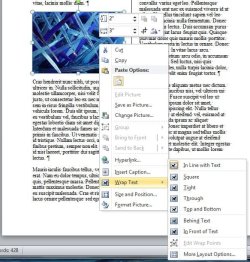
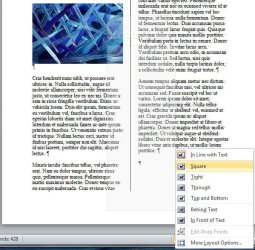
Now you set the image properties prior to resizing. Right click on the image, scroll down to Wrap Text, slide over to and click on Square.
5 SelectWrapText.JPG

6 SelectSquare.JPG


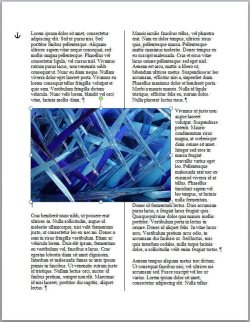
To resize the image, move your pointer to a corner where the pointer becomes a two headed diagonal arrow. Click-hold-drag-release to resize the image.
7 ResizePicture.JPG


Done.
 
Last edited:

My Computer My Computer

Computer type
PC/Desktop
Computer Manufacturer/Model Number
(7 different computers booting up to 10 systems)
OS
Linux Mint / XP / Win7 Home, Pro, Ultimate / Win8.1 / Win10
Other Info
Four desktops, two laptops, one notebook and one tablet
Beat me to it. :-)
 

My Computer My Computer

Computer type
Laptop
Computer Manufacturer/Model Number
Dell M6500 Precision Work Station
OS
Windows 7 Pro SP1 64 bit
Memory
8 GB
Screen Resolution
1920x
Internet Speed
30 Mbps
Antivirus
Norton Security
Browser
IE 11

My Computer My Computer

Computer type
PC/Desktop
Computer Manufacturer/Model Number
(7 different computers booting up to 10 systems)
OS
Linux Mint / XP / Win7 Home, Pro, Ultimate / Win8.1 / Win10
Other Info
Four desktops, two laptops, one notebook and one tablet
Back
Top