Thumbnail Previews - Enable or Disable

How to Enable or Disable Explorer Thumbnail Previews in Windows 7 and Windows 8

   Information
This tutorial will show you how to enable or disable thumbnail previews in Windows Explorer for all or specific users in Windows 7 and Windows 8.

   Note
Displaying thumbnails in Windows Explorer will require that Windows Photo Viewer is set as the default program with all of it's default associations (except .gif files) set with it as well.

If you disable thumbnail previews, then they will also not display in the preview pane in Windows 7 or Windows 8.

   Tip
If there are a lot of thumbnails in a Windows Explorer window, then it can slow down your computer while you wait for the thumbnails to load. If this happens, then disabling thumbnails will speed up how fast a Windows Explorer window will open by displaying only icons instead of thumbnails.

   Warning
When thumbnail previews is enabled, you will need to have the icon view size in the Windows Explorer window set to either Medium Icons, Large Icons, or Extra Large Icons to see a thumbnail of the file or folder.


EXAMPLE: Thumbnails Enabled in Windows Explorer

images.jpgFolder_ON.jpgImage_On.jpg
EXAMPLE: Thumbnails Disabled in Windows Explorer Folder_OFF.jpgImage_Off.jpg



OPTION ONE

To Enable or Disable Thumbnail Previews in Folder Options


NOTE: This option will only enable or disable thumbnails in your account. If this option is not available in Folder Options, then you will need to enable either OPTION THREE or OPTION FOUR below to enable for all users. 1. Open Folder Options in Windows 7 or Windows 8, and click/tap on the View tab. (see screenshot below) Folder_Options.jpg
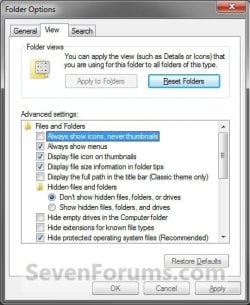
2. Do step 3 or 4 below for what you would like to do.

3. To Turn Off Thumbnails A) Check Always show icons, never thumbnails, and click/tap on OK. (See screenshot above)
4. To Turn On Thumbnails
NOTE: This is the default setting. A) Uncheck Always show icons, never thumbnails, and click/tap on OK. (See screenshot below step 2)


OPTION TWO

To Enable or Disable Thumbnail Previews in Visual Effects


NOTE: This option will only enable or disable thumbnails in your user account. 1. Open Visual Effects settings in Windows 7 or Windows 8. (see screenshot below) Visual_Effects.jpg
2. To Turn Off Thumbnails A) Uncheck Show thumbnails instead of icons, and click/tap on OK. (See screenshot above)
3. To Turn On Thumbnails
NOTE: This is the default setting. A) Check Show thumbnails instead of icons, and click/tap on OK. (See screenshot below step 1)
NOTE: If this option will not stay checked when you reopen this window, then you will need to enable either OPTION THREE or OPTION FOUR below.


OPTION THREE

To Enable or Disable Thumbnail Previews using a REG File

1. To Disable All Users Thumbnails
NOTE: This option will disable thumbnails for all users on the computer and overrides step 3 and 4 below. This is the same as doing OPTION FOUR with Group Policy. You must be logged in as an administrator to be able to do this option. A) Click/tap on the Download button below to download the file below, and go to step 5 below. Disable_Explorer_Thumbnails_All_Users.reg


Download


2. To Enable All Users Thumbnails
NOTE: This is the default setting. This option will enable thumbnails for all users on the computer and overrides step 3 and 4 below. This is the same as doing OPTION FOUR with Group Policy. You must be logged in as an administrator to be able to do this option. A) Click/tap on the Download button below to download the file below, and go to step 5 below. Enable_Explorer_Thumbnails_All_Users.reg

Download


3. To Disable Only Your Thumbnails
NOTE: This option will disable thumbnails for only the currently logged in user. This is the same as doing OPTION ONE or OPTION TWO above. A) Click/tap on the Download button below to download the file below, and go to step 5 below. Disable_Explorer_Thumbnails_Current_User.reg


Download


4. To Enable Only Your Thumbnails
NOTE: This is the default setting. This option will enable thumbnails for only the currently logged in user. This is the same as doing OPTION ONE or OPTION TWO above. A) Click/tap on the Download button below to download the file below, and go to step 5 below. Enable_Explorer_Thumbnails_Current_User.reg

Download


5. Save the .reg file to your desktop.

6. Double click/tap on the downloaded .reg file to merge it.

7. Click/tap on Run, Yes (UAC), Yes, and OK when prompted.

8. Log off and log on, or restart the computer to apply.

9. When finished, you can delete the downloaded .reg file if you like.


OPTION FOUR

To Enable or Disable Thumbnail Previews in Group Policy


NOTE: You must be logged in as an administrator to be able to do this option. 1. Open the all users, specific users or groups, or all users except administrators Local Group Policy Editor for how you want this policy applied.

2. In the left pane, click on the arrow to expand User Configuration, Administrative Templates, Windows Components, and Windows Explorer (Windows 7) or File Explorer (Windows 8). (see screenshot below) Group_Policy.jpg
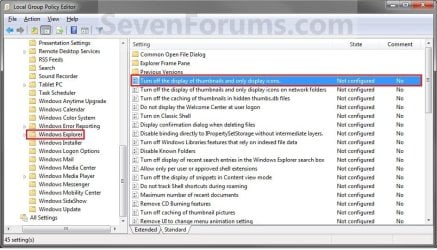
3. In the right pane of Windows Explorer (Windows 7) or File Explorer (Windows 8), double click/tap on Turn off the display of thumbnails and only display icons to edit it. (see screenshot above)

4. Do step 5 or 6 below for what you would like to do.

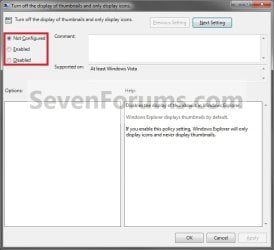
5. To Enable Thumbnails A) Select (dot) Not Configured or Disabled, and go to step 7 below. (see screenshot below step 7)
NOTE: Not Configured is the default setting.
6. To Disable Thumbnails A) Select (dot) Enabled, and go to step 7 below. (see screenshot below step 7)
7. Click/tap on OK. (See screenshot below) Poperties.jpg
8. Close the Local Group Policy Editor.
That's it,
Shawn


Attachments

Last edited:
help

is there a way to off thumbnail preview for folder and on for picture files like .jpg,.png,.bmp....
 

My Computer

OS
Windows 7 Ultimate x86
Hello Aerrow,

Turning off thumbnail previews as in the tutorial is a all or none setting.

For a folder, you could workaround this by changing the icon of that folder. It would then display that icon instead of the thumbnail preview.

For specific image files, you might be able to workaround this by setting some image viewing program that doesn't support Windows thumbnail previews as the default program with Open With to open those file extensions with instead of Windows Photo Viewer.

Hope this helps,
Shawn
 

My Computer

Computer type
PC/Desktop
Computer Manufacturer/Model Number
Self built custom
OS
64-bit Windows 11 Pro for Workstations
CPU
Intel i7-8700K OC'd to 5 GHz
Motherboard
ASUS ROG Maximus XI Formula Z390
Memory
64 GB (4x16GB) G.SKILL TridentZ RGB DDR4 3600 MHz
Graphics Card(s)
ASUS ROG-STRIX-GTX1080TI-O11G-GAMING
Sound Card
Integrated
Monitor(s) Displays
2 x Samsung Odyssey G7 27"
Screen Resolution
2560x1440
Hard Drives
1TB Samsung 990 PRO M.2,
4TB Samsung 990 PRO PRO M.2,
TerraMaster F8 SSD Plus NAS
PSU
Seasonic Prime Titanium 850W
Case
Thermaltake Core P3
Cooling
Corsair Hydro H115i
Keyboard
Logitech wireless K800
Mouse
Logitech MX Master 4
Internet Speed
2 Gb/s Download and 100 Mb/s Upload
Antivirus
Malwarebyte Anti-Malware Premium
Browser
Google Chrome
Other Info
Logitech Z625 speaker system,
Logitech BRIO 4K Pro webcam,
HP Color LaserJet Pro MFP M477fdn,
APC SMART-UPS RT 1000 XL - SURT1000XLI,
Galaxy S23 Plus phone
lol. i know tht
but changing icon everytime i creat a newfolder is a pain..
anyways.. thanks..
 

My Computer

OS
Windows 7 Ultimate x86
Sorry Aerrow. :(
 

My Computer

Computer type
PC/Desktop
Computer Manufacturer/Model Number
Self built custom
OS
64-bit Windows 11 Pro for Workstations
CPU
Intel i7-8700K OC'd to 5 GHz
Motherboard
ASUS ROG Maximus XI Formula Z390
Memory
64 GB (4x16GB) G.SKILL TridentZ RGB DDR4 3600 MHz
Graphics Card(s)
ASUS ROG-STRIX-GTX1080TI-O11G-GAMING
Sound Card
Integrated
Monitor(s) Displays
2 x Samsung Odyssey G7 27"
Screen Resolution
2560x1440
Hard Drives
1TB Samsung 990 PRO M.2,
4TB Samsung 990 PRO PRO M.2,
TerraMaster F8 SSD Plus NAS
PSU
Seasonic Prime Titanium 850W
Case
Thermaltake Core P3
Cooling
Corsair Hydro H115i
Keyboard
Logitech wireless K800
Mouse
Logitech MX Master 4
Internet Speed
2 Gb/s Download and 100 Mb/s Upload
Antivirus
Malwarebyte Anti-Malware Premium
Browser
Google Chrome
Other Info
Logitech Z625 speaker system,
Logitech BRIO 4K Pro webcam,
HP Color LaserJet Pro MFP M477fdn,
APC SMART-UPS RT 1000 XL - SURT1000XLI,
Galaxy S23 Plus phone
its ok.. i changed imageres.dll and tht kinda statisfied me .. i guess
thanks anyway ^^
 

My Computer

OS
Windows 7 Ultimate x86
I'm glad to hear that you found a workaround that will work for you. :)
 

My Computer

Computer type
PC/Desktop
Computer Manufacturer/Model Number
Self built custom
OS
64-bit Windows 11 Pro for Workstations
CPU
Intel i7-8700K OC'd to 5 GHz
Motherboard
ASUS ROG Maximus XI Formula Z390
Memory
64 GB (4x16GB) G.SKILL TridentZ RGB DDR4 3600 MHz
Graphics Card(s)
ASUS ROG-STRIX-GTX1080TI-O11G-GAMING
Sound Card
Integrated
Monitor(s) Displays
2 x Samsung Odyssey G7 27"
Screen Resolution
2560x1440
Hard Drives
1TB Samsung 990 PRO M.2,
4TB Samsung 990 PRO PRO M.2,
TerraMaster F8 SSD Plus NAS
PSU
Seasonic Prime Titanium 850W
Case
Thermaltake Core P3
Cooling
Corsair Hydro H115i
Keyboard
Logitech wireless K800
Mouse
Logitech MX Master 4
Internet Speed
2 Gb/s Download and 100 Mb/s Upload
Antivirus
Malwarebyte Anti-Malware Premium
Browser
Google Chrome
Other Info
Logitech Z625 speaker system,
Logitech BRIO 4K Pro webcam,
HP Color LaserJet Pro MFP M477fdn,
APC SMART-UPS RT 1000 XL - SURT1000XLI,
Galaxy S23 Plus phone
Hello Brink.

Turning off thumbnail previews as in the tutorial is a all or none setting.

Seeing thumbnails loading in small icons is a really, really sad sight and waste of processing power. Worse yet, while I have things well organized here, thumbnails come in handy when I have a bunch of sequential images with only some small differences but are a hindrance when trying to extract thumbnails of large images (TIF and high-rez JPGs) (seeing the address bar slowly filling up is kind of depressing, hahaha).

So there is no way to get closer to the XP behaviour (a hack or 3rd party app to display thumbnails on the fly, only when I select "View > Thumbnails\Large icons")?
 

My Computer

OS
Windows 7 Ultimate x64
Hello Daisensou, and welcome to Seven Forums.

Not by default in Windows 7. I'm sure that there may be some 3rd party image viewing apps out there that you can view the images like that in it instead. I don't use them, so I don't know of any off hand. You might post a new thread on what features you would like one to have in the Software forum area to see if someone may know of a program that may do it. :)
 

My Computer

Computer type
PC/Desktop
Computer Manufacturer/Model Number
Self built custom
OS
64-bit Windows 11 Pro for Workstations
CPU
Intel i7-8700K OC'd to 5 GHz
Motherboard
ASUS ROG Maximus XI Formula Z390
Memory
64 GB (4x16GB) G.SKILL TridentZ RGB DDR4 3600 MHz
Graphics Card(s)
ASUS ROG-STRIX-GTX1080TI-O11G-GAMING
Sound Card
Integrated
Monitor(s) Displays
2 x Samsung Odyssey G7 27"
Screen Resolution
2560x1440
Hard Drives
1TB Samsung 990 PRO M.2,
4TB Samsung 990 PRO PRO M.2,
TerraMaster F8 SSD Plus NAS
PSU
Seasonic Prime Titanium 850W
Case
Thermaltake Core P3
Cooling
Corsair Hydro H115i
Keyboard
Logitech wireless K800
Mouse
Logitech MX Master 4
Internet Speed
2 Gb/s Download and 100 Mb/s Upload
Antivirus
Malwarebyte Anti-Malware Premium
Browser
Google Chrome
Other Info
Logitech Z625 speaker system,
Logitech BRIO 4K Pro webcam,
HP Color LaserJet Pro MFP M477fdn,
APC SMART-UPS RT 1000 XL - SURT1000XLI,
Galaxy S23 Plus phone
SQUEEEEE! I think I did it!

It's not a "seamless" integration to the Explorer shell, but it's good enough!

Turns out IrfanView has a nice thumbnail mode (its icons are a relic from Windows 95, but the application sure is awesome, I guess ResHack can be used to "fix" the icons).

So... time to patch it up on Explorer, while there may be other ways to do it, I settled in using Classic Shell, this way I can add some custom buttons on top of the other goodies CS delivers.

The button uses this simple command: "PathToIrfanViewFolder\i_view32.exe" "%1 /thumbs"

*Well, if the command above doesn't work (aka nothing happens), change the %1 to %2, that'll probably fix it.

Clicking on it will launch IV in thumbnail mode pointing to the current folder, from there you can open the images with an external application (right click), but it seems to lack the ability to drag-n-drop to other applications :\

Anyway, I'm quite happy with the result, save for the drag-n-drop situation.

Thank you Brink for the tutorial in disabling Win7 native thumbnail support, hope this info end up being useful to other people.
 
Last edited:

My Computer

OS
Windows 7 Ultimate x64
That's great news Daisensou. Thank you for posting back with your results. :)
 

My Computer

Computer type
PC/Desktop
Computer Manufacturer/Model Number
Self built custom
OS
64-bit Windows 11 Pro for Workstations
CPU
Intel i7-8700K OC'd to 5 GHz
Motherboard
ASUS ROG Maximus XI Formula Z390
Memory
64 GB (4x16GB) G.SKILL TridentZ RGB DDR4 3600 MHz
Graphics Card(s)
ASUS ROG-STRIX-GTX1080TI-O11G-GAMING
Sound Card
Integrated
Monitor(s) Displays
2 x Samsung Odyssey G7 27"
Screen Resolution
2560x1440
Hard Drives
1TB Samsung 990 PRO M.2,
4TB Samsung 990 PRO PRO M.2,
TerraMaster F8 SSD Plus NAS
PSU
Seasonic Prime Titanium 850W
Case
Thermaltake Core P3
Cooling
Corsair Hydro H115i
Keyboard
Logitech wireless K800
Mouse
Logitech MX Master 4
Internet Speed
2 Gb/s Download and 100 Mb/s Upload
Antivirus
Malwarebyte Anti-Malware Premium
Browser
Google Chrome
Other Info
Logitech Z625 speaker system,
Logitech BRIO 4K Pro webcam,
HP Color LaserJet Pro MFP M477fdn,
APC SMART-UPS RT 1000 XL - SURT1000XLI,
Galaxy S23 Plus phone
The registry file option seems to work for current user only... And I don't think that all are correct... Maybe you need to check them.

Thanks for this useful tutorial.
 

My Computer

Computer Manufacturer/Model Number
Sony Vaio
OS
Windows 7 Home premium x64
CPU
Intel i5 520m at 2.4GHz(plus turbo mode at 2.9GHz)
Memory
4GB ddr3 1067
Graphics Card(s)
Nvidia 330m
Hello stsaerox,

Sorry about that. You were correct. One of the REG file links was incorrect. They have all been checked again and fixed.

Thank you for letting me know. :)

Shawn
 

My Computer

Computer type
PC/Desktop
Computer Manufacturer/Model Number
Self built custom
OS
64-bit Windows 11 Pro for Workstations
CPU
Intel i7-8700K OC'd to 5 GHz
Motherboard
ASUS ROG Maximus XI Formula Z390
Memory
64 GB (4x16GB) G.SKILL TridentZ RGB DDR4 3600 MHz
Graphics Card(s)
ASUS ROG-STRIX-GTX1080TI-O11G-GAMING
Sound Card
Integrated
Monitor(s) Displays
2 x Samsung Odyssey G7 27"
Screen Resolution
2560x1440
Hard Drives
1TB Samsung 990 PRO M.2,
4TB Samsung 990 PRO PRO M.2,
TerraMaster F8 SSD Plus NAS
PSU
Seasonic Prime Titanium 850W
Case
Thermaltake Core P3
Cooling
Corsair Hydro H115i
Keyboard
Logitech wireless K800
Mouse
Logitech MX Master 4
Internet Speed
2 Gb/s Download and 100 Mb/s Upload
Antivirus
Malwarebyte Anti-Malware Premium
Browser
Google Chrome
Other Info
Logitech Z625 speaker system,
Logitech BRIO 4K Pro webcam,
HP Color LaserJet Pro MFP M477fdn,
APC SMART-UPS RT 1000 XL - SURT1000XLI,
Galaxy S23 Plus phone
It's ok just wanted to let you know. Thank you for sharing your work. :)
 

My Computer

Computer Manufacturer/Model Number
Sony Vaio
OS
Windows 7 Home premium x64
CPU
Intel i5 520m at 2.4GHz(plus turbo mode at 2.9GHz)
Memory
4GB ddr3 1067
Graphics Card(s)
Nvidia 330m
I have been reading this tutorial and trying to get it to work for me for about an hour, but it is not doing what I want. I hope this is the right place...

My Problem: When viewing JPG's in a folder, I am trying to get Win7 Explorer to behave like my old WinXP did - ie, display the folder in thumbnail views (clearly, with no icons on each image), and then when I click on a photo to see it singly, to move to the next photo each time I hit ENTER or use an arrow forward. Sounds simple, but it has not been for me.

Following the instructions:
I am using WINDOWS PHOTO VIEWER as the default program.
Using OPTION ONE (on page 1 of this thread), I have set my FOLDER OPTIONS to UNCHECK "Always show icons, never thumbnails.)
I went into CONTROL PANEL, and under ATTACHED THUMBNAILS, checked the setting "Show thumbnails instead of icons.
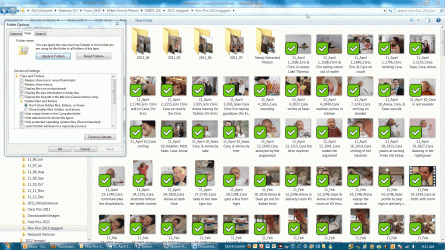
I can get everything I want, except the thumbnails showing in the Folder View have icons (large green boxes with white checks) over each image, making it practically useless. (I am attaching a screen print, which I hope shows my problem.)

In FOLDER OPTIONS, VIEW, ADVANCED SETTINGS, I have unchecked "Display File Icon on Thumbnails", which I thought should do the trick, but it makes no difference that I can see.

I have looked around other settings, but am afraid to try things I don't understand. (In trying to fix this small problem, my desktop and whole screen look seems to have changed, but I won’t ask for help on that. The change is subtle, and I am not even sure what it is. What ever happened to RIGHT CLICK to get explanations for settings?)

Anyway, I hope you can understand my problem on viewing thumbnails in a folder, and please help me!
Thanks!
 

Attachments

  • Folder of JPGs.gif
    Folder of JPGs.gif
    416.3 KB · Views: 617

My Computer

Computer Manufacturer/Model Number
Gateway Desktop DX4850-45
OS
Windows 7 Pro
CPU
6 gigs
Memory
1 TB
Monitor(s) Displays
Samsung 24" LED Monitor
Hello mbterry,

A feature in Norton 360 is responsible for the Tick mark (green box) and double arrow (blue box) overlay icons. Norton 360 v2 adds a feature called "Backup Status Indicators" which clearly identifies which files have been backed up, which files are pending backup and which are excluded from backup.

A check in a green box means the file’s backup is current, while a chevron (») character in a blue box indicates a file that’s been changed since its last backup. Files excluded from the backup set display a slash in a gray box.

If you don’t need the backup indicators feature you can turn it off by clicking Settings in the Norton 360 main window, unchecking the Backup Status Indicators check box and clicking Close.

Hope this helps,
Shawn
 

My Computer

Computer type
PC/Desktop
Computer Manufacturer/Model Number
Self built custom
OS
64-bit Windows 11 Pro for Workstations
CPU
Intel i7-8700K OC'd to 5 GHz
Motherboard
ASUS ROG Maximus XI Formula Z390
Memory
64 GB (4x16GB) G.SKILL TridentZ RGB DDR4 3600 MHz
Graphics Card(s)
ASUS ROG-STRIX-GTX1080TI-O11G-GAMING
Sound Card
Integrated
Monitor(s) Displays
2 x Samsung Odyssey G7 27"
Screen Resolution
2560x1440
Hard Drives
1TB Samsung 990 PRO M.2,
4TB Samsung 990 PRO PRO M.2,
TerraMaster F8 SSD Plus NAS
PSU
Seasonic Prime Titanium 850W
Case
Thermaltake Core P3
Cooling
Corsair Hydro H115i
Keyboard
Logitech wireless K800
Mouse
Logitech MX Master 4
Internet Speed
2 Gb/s Download and 100 Mb/s Upload
Antivirus
Malwarebyte Anti-Malware Premium
Browser
Google Chrome
Other Info
Logitech Z625 speaker system,
Logitech BRIO 4K Pro webcam,
HP Color LaserJet Pro MFP M477fdn,
APC SMART-UPS RT 1000 XL - SURT1000XLI,
Galaxy S23 Plus phone
Hi Shawn,
That did the trick!

COMMENT: i wasted a couple of hours dealing with this issue. I long for the days of WinXP, where everything worked and fixes were clear. As each individual application gets more complex, their interactions become exponentially more confusing. There must be advantages to updating software, other than bringing incremental income to the vendors, but there sure are a lot of disadvantages for the ordinary user. Being age 69, and my own personal IT Department, most days I think I will be happy to get comfortable in Win 7 before I die. I also hope I can stay in Win 7 until doomsday, as I can't take another version!

Thanks so much!!!
Mike
 

My Computer

Computer Manufacturer/Model Number
Gateway Desktop DX4850-45
OS
Windows 7 Pro
CPU
6 gigs
Memory
1 TB
Monitor(s) Displays
Samsung 24" LED Monitor
You're most welcome Mike. :)
 

My Computer

Computer type
PC/Desktop
Computer Manufacturer/Model Number
Self built custom
OS
64-bit Windows 11 Pro for Workstations
CPU
Intel i7-8700K OC'd to 5 GHz
Motherboard
ASUS ROG Maximus XI Formula Z390
Memory
64 GB (4x16GB) G.SKILL TridentZ RGB DDR4 3600 MHz
Graphics Card(s)
ASUS ROG-STRIX-GTX1080TI-O11G-GAMING
Sound Card
Integrated
Monitor(s) Displays
2 x Samsung Odyssey G7 27"
Screen Resolution
2560x1440
Hard Drives
1TB Samsung 990 PRO M.2,
4TB Samsung 990 PRO PRO M.2,
TerraMaster F8 SSD Plus NAS
PSU
Seasonic Prime Titanium 850W
Case
Thermaltake Core P3
Cooling
Corsair Hydro H115i
Keyboard
Logitech wireless K800
Mouse
Logitech MX Master 4
Internet Speed
2 Gb/s Download and 100 Mb/s Upload
Antivirus
Malwarebyte Anti-Malware Premium
Browser
Google Chrome
Other Info
Logitech Z625 speaker system,
Logitech BRIO 4K Pro webcam,
HP Color LaserJet Pro MFP M477fdn,
APC SMART-UPS RT 1000 XL - SURT1000XLI,
Galaxy S23 Plus phone
How to disable all other file icon previews (like docx, pptx, pdf.. ) except picture files?
 

My Computer

OS
Windows 7 Ultimate x64
Hello Rodery, and welcome to Seven Forums.

I'm sorry, but thumbnail previews can only be enabled or disable on all file extension types, and not just some and not others. :(
 

My Computer

Computer type
PC/Desktop
Computer Manufacturer/Model Number
Self built custom
OS
64-bit Windows 11 Pro for Workstations
CPU
Intel i7-8700K OC'd to 5 GHz
Motherboard
ASUS ROG Maximus XI Formula Z390
Memory
64 GB (4x16GB) G.SKILL TridentZ RGB DDR4 3600 MHz
Graphics Card(s)
ASUS ROG-STRIX-GTX1080TI-O11G-GAMING
Sound Card
Integrated
Monitor(s) Displays
2 x Samsung Odyssey G7 27"
Screen Resolution
2560x1440
Hard Drives
1TB Samsung 990 PRO M.2,
4TB Samsung 990 PRO PRO M.2,
TerraMaster F8 SSD Plus NAS
PSU
Seasonic Prime Titanium 850W
Case
Thermaltake Core P3
Cooling
Corsair Hydro H115i
Keyboard
Logitech wireless K800
Mouse
Logitech MX Master 4
Internet Speed
2 Gb/s Download and 100 Mb/s Upload
Antivirus
Malwarebyte Anti-Malware Premium
Browser
Google Chrome
Other Info
Logitech Z625 speaker system,
Logitech BRIO 4K Pro webcam,
HP Color LaserJet Pro MFP M477fdn,
APC SMART-UPS RT 1000 XL - SURT1000XLI,
Galaxy S23 Plus phone
Back
Top