Thumbnail Previews - Enable or Disable

How to Enable or Disable Explorer Thumbnail Previews in Windows 7 and Windows 8

   Information
This tutorial will show you how to enable or disable thumbnail previews in Windows Explorer for all or specific users in Windows 7 and Windows 8.

   Note
Displaying thumbnails in Windows Explorer will require that Windows Photo Viewer is set as the default program with all of it's default associations (except .gif files) set with it as well.

If you disable thumbnail previews, then they will also not display in the preview pane in Windows 7 or Windows 8.

   Tip
If there are a lot of thumbnails in a Windows Explorer window, then it can slow down your computer while you wait for the thumbnails to load. If this happens, then disabling thumbnails will speed up how fast a Windows Explorer window will open by displaying only icons instead of thumbnails.

   Warning
When thumbnail previews is enabled, you will need to have the icon view size in the Windows Explorer window set to either Medium Icons, Large Icons, or Extra Large Icons to see a thumbnail of the file or folder.


EXAMPLE: Thumbnails Enabled in Windows Explorer

images.jpgFolder_ON.jpgImage_On.jpg
EXAMPLE: Thumbnails Disabled in Windows Explorer Folder_OFF.jpgImage_Off.jpg



OPTION ONE

To Enable or Disable Thumbnail Previews in Folder Options


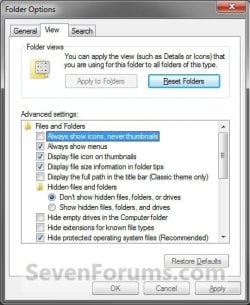
NOTE: This option will only enable or disable thumbnails in your account. If this option is not available in Folder Options, then you will need to enable either OPTION THREE or OPTION FOUR below to enable for all users. 1. Open Folder Options in Windows 7 or Windows 8, and click/tap on the View tab. (see screenshot below) Folder_Options.jpg
2. Do step 3 or 4 below for what you would like to do.

3. To Turn Off Thumbnails A) Check Always show icons, never thumbnails, and click/tap on OK. (See screenshot above)
4. To Turn On Thumbnails
NOTE: This is the default setting. A) Uncheck Always show icons, never thumbnails, and click/tap on OK. (See screenshot below step 2)


OPTION TWO

To Enable or Disable Thumbnail Previews in Visual Effects


NOTE: This option will only enable or disable thumbnails in your user account. 1. Open Visual Effects settings in Windows 7 or Windows 8. (see screenshot below) Visual_Effects.jpg
2. To Turn Off Thumbnails A) Uncheck Show thumbnails instead of icons, and click/tap on OK. (See screenshot above)
3. To Turn On Thumbnails
NOTE: This is the default setting. A) Check Show thumbnails instead of icons, and click/tap on OK. (See screenshot below step 1)
NOTE: If this option will not stay checked when you reopen this window, then you will need to enable either OPTION THREE or OPTION FOUR below.


OPTION THREE

To Enable or Disable Thumbnail Previews using a REG File

1. To Disable All Users Thumbnails
NOTE: This option will disable thumbnails for all users on the computer and overrides step 3 and 4 below. This is the same as doing OPTION FOUR with Group Policy. You must be logged in as an administrator to be able to do this option. A) Click/tap on the Download button below to download the file below, and go to step 5 below. Disable_Explorer_Thumbnails_All_Users.reg


Download


2. To Enable All Users Thumbnails
NOTE: This is the default setting. This option will enable thumbnails for all users on the computer and overrides step 3 and 4 below. This is the same as doing OPTION FOUR with Group Policy. You must be logged in as an administrator to be able to do this option. A) Click/tap on the Download button below to download the file below, and go to step 5 below. Enable_Explorer_Thumbnails_All_Users.reg

Download


3. To Disable Only Your Thumbnails
NOTE: This option will disable thumbnails for only the currently logged in user. This is the same as doing OPTION ONE or OPTION TWO above. A) Click/tap on the Download button below to download the file below, and go to step 5 below. Disable_Explorer_Thumbnails_Current_User.reg


Download


4. To Enable Only Your Thumbnails
NOTE: This is the default setting. This option will enable thumbnails for only the currently logged in user. This is the same as doing OPTION ONE or OPTION TWO above. A) Click/tap on the Download button below to download the file below, and go to step 5 below. Enable_Explorer_Thumbnails_Current_User.reg

Download


5. Save the .reg file to your desktop.

6. Double click/tap on the downloaded .reg file to merge it.

7. Click/tap on Run, Yes (UAC), Yes, and OK when prompted.

8. Log off and log on, or restart the computer to apply.

9. When finished, you can delete the downloaded .reg file if you like.


OPTION FOUR

To Enable or Disable Thumbnail Previews in Group Policy


NOTE: You must be logged in as an administrator to be able to do this option. 1. Open the all users, specific users or groups, or all users except administrators Local Group Policy Editor for how you want this policy applied.

2. In the left pane, click on the arrow to expand User Configuration, Administrative Templates, Windows Components, and Windows Explorer (Windows 7) or File Explorer (Windows 8). (see screenshot below) Group_Policy.jpg
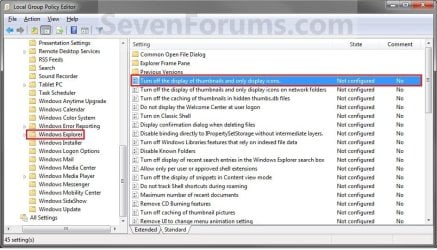
3. In the right pane of Windows Explorer (Windows 7) or File Explorer (Windows 8), double click/tap on Turn off the display of thumbnails and only display icons to edit it. (see screenshot above)

4. Do step 5 or 6 below for what you would like to do.

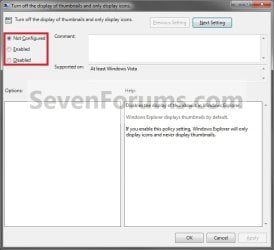
5. To Enable Thumbnails A) Select (dot) Not Configured or Disabled, and go to step 7 below. (see screenshot below step 7)
NOTE: Not Configured is the default setting.
6. To Disable Thumbnails A) Select (dot) Enabled, and go to step 7 below. (see screenshot below step 7)
7. Click/tap on OK. (See screenshot below) Poperties.jpg
8. Close the Local Group Policy Editor.
That's it,
Shawn


Attachments

Last edited:
I just formatted my computer and found that my preview thumbnails does not work at all.

When the cursor were on the icon of task bar, i did not see the preview. Instead, I got the view that is like a box. May I know, how do I get back the preview? I checked on the folder view and followed through out, but still getting the box..
 

My Computer

OS
Window 7 Ultimate 64 bit Retail
CPU
Intel Core 2 Quad Q6600 @ 2400MHz
Motherboard
DFI LanParty DK35
Memory
4 x 1Gb Corsair
Graphics Card(s)
XFX 8800GT AlphaDog Edition Overclock
Sound Card
M-Audio Delta 66
Monitor(s) Displays
Dell 24" Ultrasharp
Hard Drives
1x 250Gb, 2x 500Gb, 1x 1TB
PSU
Antec 600w
Case
Cooler Master
Cooling
Thermal Right 120 Extreme
Keyboard
Logitech Wave Pro
Mouse
Logitech Wave Pro
Internet Speed
10mbps
Hello Boon,

It sounds like you are talking about taskbar thumbnail previews instead.

Could you post a screenshot to see if anything may stand out for why?
 

My Computer

Computer type
PC/Desktop
Computer Manufacturer/Model Number
Self built custom
OS
64-bit Windows 11 Pro for Workstations
CPU
Intel i7-8700K OC'd to 5 GHz
Motherboard
ASUS ROG Maximus XI Formula Z390
Memory
64 GB (4x16GB) G.SKILL TridentZ RGB DDR4 3600 MHz
Graphics Card(s)
ASUS ROG-STRIX-GTX1080TI-O11G-GAMING
Sound Card
Integrated
Monitor(s) Displays
2 x Samsung Odyssey G7 27"
Screen Resolution
2560x1440
Hard Drives
1TB Samsung 990 PRO M.2,
4TB Samsung 990 PRO PRO M.2,
TerraMaster F8 SSD Plus NAS
PSU
Seasonic Prime Titanium 850W
Case
Thermaltake Core P3
Cooling
Corsair Hydro H115i
Keyboard
Logitech wireless K800
Mouse
Logitech MX Master 4
Internet Speed
2 Gb/s Download and 100 Mb/s Upload
Antivirus
Malwarebyte Anti-Malware Premium
Browser
Google Chrome
Other Info
Logitech Z625 speaker system,
Logitech BRIO 4K Pro webcam,
HP Color LaserJet Pro MFP M477fdn,
APC SMART-UPS RT 1000 XL - SURT1000XLI,
Galaxy S23 Plus phone
Taken from other thread:
45406d1262551736t-taskbar-thumbnail-previews-enable-disable-basic_theme.jpg


I have the same situation as this.
Is it because of the theme?

Please advise
 

My Computer

OS
Window 7 Ultimate 64 bit Retail
CPU
Intel Core 2 Quad Q6600 @ 2400MHz
Motherboard
DFI LanParty DK35
Memory
4 x 1Gb Corsair
Graphics Card(s)
XFX 8800GT AlphaDog Edition Overclock
Sound Card
M-Audio Delta 66
Monitor(s) Displays
Dell 24" Ultrasharp
Hard Drives
1x 250Gb, 2x 500Gb, 1x 1TB
PSU
Antec 600w
Case
Cooler Master
Cooling
Thermal Right 120 Extreme
Keyboard
Logitech Wave Pro
Mouse
Logitech Wave Pro
Internet Speed
10mbps
Boon,

Did you try the options in the tutorial link in my post above to see if you could enable the taskbar thumbnail previews?
 

My Computer

Computer type
PC/Desktop
Computer Manufacturer/Model Number
Self built custom
OS
64-bit Windows 11 Pro for Workstations
CPU
Intel i7-8700K OC'd to 5 GHz
Motherboard
ASUS ROG Maximus XI Formula Z390
Memory
64 GB (4x16GB) G.SKILL TridentZ RGB DDR4 3600 MHz
Graphics Card(s)
ASUS ROG-STRIX-GTX1080TI-O11G-GAMING
Sound Card
Integrated
Monitor(s) Displays
2 x Samsung Odyssey G7 27"
Screen Resolution
2560x1440
Hard Drives
1TB Samsung 990 PRO M.2,
4TB Samsung 990 PRO PRO M.2,
TerraMaster F8 SSD Plus NAS
PSU
Seasonic Prime Titanium 850W
Case
Thermaltake Core P3
Cooling
Corsair Hydro H115i
Keyboard
Logitech wireless K800
Mouse
Logitech MX Master 4
Internet Speed
2 Gb/s Download and 100 Mb/s Upload
Antivirus
Malwarebyte Anti-Malware Premium
Browser
Google Chrome
Other Info
Logitech Z625 speaker system,
Logitech BRIO 4K Pro webcam,
HP Color LaserJet Pro MFP M477fdn,
APC SMART-UPS RT 1000 XL - SURT1000XLI,
Galaxy S23 Plus phone
Ah! I managed to get that when I selected the theme.
Now at least, something good tho. =0)
 

My Computer

OS
Window 7 Ultimate 64 bit Retail
CPU
Intel Core 2 Quad Q6600 @ 2400MHz
Motherboard
DFI LanParty DK35
Memory
4 x 1Gb Corsair
Graphics Card(s)
XFX 8800GT AlphaDog Edition Overclock
Sound Card
M-Audio Delta 66
Monitor(s) Displays
Dell 24" Ultrasharp
Hard Drives
1x 250Gb, 2x 500Gb, 1x 1TB
PSU
Antec 600w
Case
Cooler Master
Cooling
Thermal Right 120 Extreme
Keyboard
Logitech Wave Pro
Mouse
Logitech Wave Pro
Internet Speed
10mbps
Great news. :)
 

My Computer

Computer type
PC/Desktop
Computer Manufacturer/Model Number
Self built custom
OS
64-bit Windows 11 Pro for Workstations
CPU
Intel i7-8700K OC'd to 5 GHz
Motherboard
ASUS ROG Maximus XI Formula Z390
Memory
64 GB (4x16GB) G.SKILL TridentZ RGB DDR4 3600 MHz
Graphics Card(s)
ASUS ROG-STRIX-GTX1080TI-O11G-GAMING
Sound Card
Integrated
Monitor(s) Displays
2 x Samsung Odyssey G7 27"
Screen Resolution
2560x1440
Hard Drives
1TB Samsung 990 PRO M.2,
4TB Samsung 990 PRO PRO M.2,
TerraMaster F8 SSD Plus NAS
PSU
Seasonic Prime Titanium 850W
Case
Thermaltake Core P3
Cooling
Corsair Hydro H115i
Keyboard
Logitech wireless K800
Mouse
Logitech MX Master 4
Internet Speed
2 Gb/s Download and 100 Mb/s Upload
Antivirus
Malwarebyte Anti-Malware Premium
Browser
Google Chrome
Other Info
Logitech Z625 speaker system,
Logitech BRIO 4K Pro webcam,
HP Color LaserJet Pro MFP M477fdn,
APC SMART-UPS RT 1000 XL - SURT1000XLI,
Galaxy S23 Plus phone
hi Brink

is there any way to change the thumbnail preview for quick preview instead of going to the mention folders options ?
if its available please let me know how to do that appreciate it
 

My Computer

Computer type
PC/Desktop
Computer Manufacturer/Model Number
Custom build
OS
Windows 7 Ultimate 64 Bit Sp1
CPU
Intel Quad Core Q9650
Motherboard
Asus P5G41T-MLX
Memory
Kingston DDR 3 8GB 1333 Mhz
Graphics Card(s)
Gigabyte 5450 1Gb DDR3
Sound Card
Mobo Built
Monitor(s) Displays
Dell 24 wm
Screen Resolution
1080 P
Hard Drives
2 Tb Sata Drive
PSU
Coolermatser GX750
Case
Cooler Master Casing
Cooling
Normal
Hello Simon,

I'm not sure of what you mean, but you could use any of the other OPTIONS in the tutorial to enable or disable thumbnail previews. Could you give more details on what you mean if this is not what you meant?
 

My Computer

Computer type
PC/Desktop
Computer Manufacturer/Model Number
Self built custom
OS
64-bit Windows 11 Pro for Workstations
CPU
Intel i7-8700K OC'd to 5 GHz
Motherboard
ASUS ROG Maximus XI Formula Z390
Memory
64 GB (4x16GB) G.SKILL TridentZ RGB DDR4 3600 MHz
Graphics Card(s)
ASUS ROG-STRIX-GTX1080TI-O11G-GAMING
Sound Card
Integrated
Monitor(s) Displays
2 x Samsung Odyssey G7 27"
Screen Resolution
2560x1440
Hard Drives
1TB Samsung 990 PRO M.2,
4TB Samsung 990 PRO PRO M.2,
TerraMaster F8 SSD Plus NAS
PSU
Seasonic Prime Titanium 850W
Case
Thermaltake Core P3
Cooling
Corsair Hydro H115i
Keyboard
Logitech wireless K800
Mouse
Logitech MX Master 4
Internet Speed
2 Gb/s Download and 100 Mb/s Upload
Antivirus
Malwarebyte Anti-Malware Premium
Browser
Google Chrome
Other Info
Logitech Z625 speaker system,
Logitech BRIO 4K Pro webcam,
HP Color LaserJet Pro MFP M477fdn,
APC SMART-UPS RT 1000 XL - SURT1000XLI,
Galaxy S23 Plus phone
Option One (as shown with check marked items in thumbnail)
BTW: Find 'Folder Options' in control panel with icon view - top right.

---> THEN right click inside folder and click VIEW and choose EITHER: Extra Large, Large or Medium Icons to size thumbnails...

Worked for me!
:D
 

My Computer

OS
Windows 7 Home Premium 32bit
This is what I did and it fix my problem.

Click on "START"
Click on "All Programs"
Click on "Accessories"
Click on "Windows Explorer"
Click on "TOOLS"
Click on "Folder Options"
Click on "View"
at the top you should see "Always Show Icons" Never Thumbnails <UN-CLICK THIS> and that should fix the problem..
 

My Computer

OS
Windows/Ubuntu
JPG Thumbnail Cache

awesome article brink
simply awesome thank you......
 

My Computer

OS
Windows 7 Professional x64
You're welcome Skumar, and welcome to Seven Forums. :)
 

My Computer

Computer type
PC/Desktop
Computer Manufacturer/Model Number
Self built custom
OS
64-bit Windows 11 Pro for Workstations
CPU
Intel i7-8700K OC'd to 5 GHz
Motherboard
ASUS ROG Maximus XI Formula Z390
Memory
64 GB (4x16GB) G.SKILL TridentZ RGB DDR4 3600 MHz
Graphics Card(s)
ASUS ROG-STRIX-GTX1080TI-O11G-GAMING
Sound Card
Integrated
Monitor(s) Displays
2 x Samsung Odyssey G7 27"
Screen Resolution
2560x1440
Hard Drives
1TB Samsung 990 PRO M.2,
4TB Samsung 990 PRO PRO M.2,
TerraMaster F8 SSD Plus NAS
PSU
Seasonic Prime Titanium 850W
Case
Thermaltake Core P3
Cooling
Corsair Hydro H115i
Keyboard
Logitech wireless K800
Mouse
Logitech MX Master 4
Internet Speed
2 Gb/s Download and 100 Mb/s Upload
Antivirus
Malwarebyte Anti-Malware Premium
Browser
Google Chrome
Other Info
Logitech Z625 speaker system,
Logitech BRIO 4K Pro webcam,
HP Color LaserJet Pro MFP M477fdn,
APC SMART-UPS RT 1000 XL - SURT1000XLI,
Galaxy S23 Plus phone
thanks for so much info, helped me :)
 

My Computer

OS
Windows 7 Ultimate
CPU
Intel Core 2 Duo E4500
Motherboard
Gigabyte
Memory
2GB DDR2
Graphics Card(s)
ATI HD 4850 512MB
Monitor(s) Displays
IBM LCD
PSU
Cooler Master
Glad it could help SteeLx. :)
 

My Computer

Computer type
PC/Desktop
Computer Manufacturer/Model Number
Self built custom
OS
64-bit Windows 11 Pro for Workstations
CPU
Intel i7-8700K OC'd to 5 GHz
Motherboard
ASUS ROG Maximus XI Formula Z390
Memory
64 GB (4x16GB) G.SKILL TridentZ RGB DDR4 3600 MHz
Graphics Card(s)
ASUS ROG-STRIX-GTX1080TI-O11G-GAMING
Sound Card
Integrated
Monitor(s) Displays
2 x Samsung Odyssey G7 27"
Screen Resolution
2560x1440
Hard Drives
1TB Samsung 990 PRO M.2,
4TB Samsung 990 PRO PRO M.2,
TerraMaster F8 SSD Plus NAS
PSU
Seasonic Prime Titanium 850W
Case
Thermaltake Core P3
Cooling
Corsair Hydro H115i
Keyboard
Logitech wireless K800
Mouse
Logitech MX Master 4
Internet Speed
2 Gb/s Download and 100 Mb/s Upload
Antivirus
Malwarebyte Anti-Malware Premium
Browser
Google Chrome
Other Info
Logitech Z625 speaker system,
Logitech BRIO 4K Pro webcam,
HP Color LaserJet Pro MFP M477fdn,
APC SMART-UPS RT 1000 XL - SURT1000XLI,
Galaxy S23 Plus phone
Desktop Thumbnail.

Its disable thumbnail view in all explorer and Desktop too!
I want to disable only desktop icon thumbnail view [desktop icon is in icon mode but show preview of files like thumbnail view mode! how I can disable desktop thumbnail view only but view any other thumbnails?
 

My Computer

OS
win 7 x64
Hello Tom, and welcome to Seven Forums.

Unfortunately, thumbnail previews is an all or none setting. :(
 

My Computer

Computer type
PC/Desktop
Computer Manufacturer/Model Number
Self built custom
OS
64-bit Windows 11 Pro for Workstations
CPU
Intel i7-8700K OC'd to 5 GHz
Motherboard
ASUS ROG Maximus XI Formula Z390
Memory
64 GB (4x16GB) G.SKILL TridentZ RGB DDR4 3600 MHz
Graphics Card(s)
ASUS ROG-STRIX-GTX1080TI-O11G-GAMING
Sound Card
Integrated
Monitor(s) Displays
2 x Samsung Odyssey G7 27"
Screen Resolution
2560x1440
Hard Drives
1TB Samsung 990 PRO M.2,
4TB Samsung 990 PRO PRO M.2,
TerraMaster F8 SSD Plus NAS
PSU
Seasonic Prime Titanium 850W
Case
Thermaltake Core P3
Cooling
Corsair Hydro H115i
Keyboard
Logitech wireless K800
Mouse
Logitech MX Master 4
Internet Speed
2 Gb/s Download and 100 Mb/s Upload
Antivirus
Malwarebyte Anti-Malware Premium
Browser
Google Chrome
Other Info
Logitech Z625 speaker system,
Logitech BRIO 4K Pro webcam,
HP Color LaserJet Pro MFP M477fdn,
APC SMART-UPS RT 1000 XL - SURT1000XLI,
Galaxy S23 Plus phone
Yep, thumbnail previews work on the desktop as well. You could test it by placing an image file on the desktop.
 

My Computer

Computer type
PC/Desktop
Computer Manufacturer/Model Number
Self built custom
OS
64-bit Windows 11 Pro for Workstations
CPU
Intel i7-8700K OC'd to 5 GHz
Motherboard
ASUS ROG Maximus XI Formula Z390
Memory
64 GB (4x16GB) G.SKILL TridentZ RGB DDR4 3600 MHz
Graphics Card(s)
ASUS ROG-STRIX-GTX1080TI-O11G-GAMING
Sound Card
Integrated
Monitor(s) Displays
2 x Samsung Odyssey G7 27"
Screen Resolution
2560x1440
Hard Drives
1TB Samsung 990 PRO M.2,
4TB Samsung 990 PRO PRO M.2,
TerraMaster F8 SSD Plus NAS
PSU
Seasonic Prime Titanium 850W
Case
Thermaltake Core P3
Cooling
Corsair Hydro H115i
Keyboard
Logitech wireless K800
Mouse
Logitech MX Master 4
Internet Speed
2 Gb/s Download and 100 Mb/s Upload
Antivirus
Malwarebyte Anti-Malware Premium
Browser
Google Chrome
Other Info
Logitech Z625 speaker system,
Logitech BRIO 4K Pro webcam,
HP Color LaserJet Pro MFP M477fdn,
APC SMART-UPS RT 1000 XL - SURT1000XLI,
Galaxy S23 Plus phone
Tried everything

So about 4 days ago I lost most but not all of my video thumbnails after uninstalling McAfee total protection. I have done everything to get them back from checking the folder options to changing the redegit... I have uninstalled and re-installed haali, ffdshow and reset everything to default. Nothing works.Everything plays just fine. I am however a person with OCD and cannot have a mix of thumbnails and icons. I attempted to clean the cache and everything I have ever read on how to fix it and it's not fixed. I am a 50 yr old woman who is basic computer literate but anything more gets easily lost. Why would a system just stop showing all the thumbnails and only do some... I have a series with 24 episodes and only 3 show the rest are icons and they are all the same format.
 

My Computer

Computer type
PC/Desktop
Computer Manufacturer/Model Number
HP Omni
OS
win7
I have a series with 24 episodes and only 3 show the rest are icons and they are all the same format.


what format are they?
 

My Computer

Computer Manufacturer/Model Number
Hewlett packard/p6512uk
OS
Microsoft Windows 7 Home Premium 64-bit 7600
CPU
IIx4 amd athelon 635 processor
Motherboard
FOXCONN 2AA9
Memory
2x2gb
Graphics Card(s)
ati radeon HD 5450
Sound Card
(1) Realtek High Definition Audio (2) AMD High Definition
Monitor(s) Displays
samsung lcd tv 32"
Screen Resolution
1360x 768
Hard Drives
(1) WDC WD10 01FAES-60Z2A0 SATA Disk Device (2) Maxtor OneTouch USB Device (3) ST310003 33AS USB Device (4) WD My Book 1111 USB Device
PSU
?
Cooling
air!
Keyboard
wireless hp
Mouse
wireless Hp,optical
Internet Speed
1.10mb/s
Antivirus
MSE
Browser
Firefox
Back
Top