Tile View Icon Size

S3V3NSTAR

New member
Hello Friends, I* am new here & i really don't know which section is good for my topic so posting here.

I only want to change Icon size in tile view of explorer. I know there is more view like miedium, large icons but i don't want that coz i want same structure like Tile view.. Folder Icon, Folder name in front of icon & then space between Another Icon.

I only want to change Tile view icon size bit large so is any one know here how to do that ?
 

My Computer

OS
Windows 7 Ultimate x64
Hi,

You can change the default icon sizes via the Registry

Click on Start, In the search box, Type regedit then press enter.
Browse too: HKEY_CURRENT_USER -Control Panel -Desktop - windows Metrics

Under Shell Icon Size (default Value should be 32) you can change this alter the Icon Size.
Perhaps try 50, Then restart your pc, See if your happy with the size. If not, Go back and alter acordingly
 

My Computer

Computer Manufacturer/Model Number
Cooler Master
OS
Windows 7 Home Premium 64 Bit
CPU
Core I7 1155 3.4GHZ
Memory
8GB DDR 1600
Hard Drives
64 GB SSD - OS
1TB - DATA
PSU
340 Watt Corsair
Case
Cooler Master
Cooling
Cooler Master
Thanks for ur reply bro.. but i already done that & its increasing size of other explorer items. I founf this above solution on some forum so its really not the perfect solution.

I only want to increase the size of folder icons in Tile View Only.
 

My Computer

OS
Windows 7 Ultimate x64
Strange I tried the reg change just to see and it didn't seem to have any effect on my system.:huh:

I do know of one way though but it involves editing "C:\Windows\System32\ExplorerFrame.dll". Read this post and this post for info on how to modify System32 dll files and use Reshack, take note of the warnings, taking ownership and closing Explorer to replace the file as these are all important for this file. All info you need, except the info below, should be there but you can read though this thread for more info.

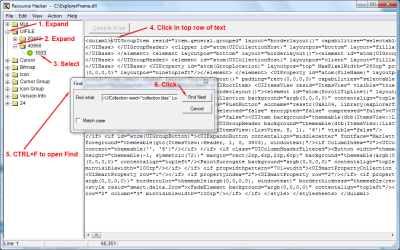
Once you know the risks and how to recover if things go wrong open ExplorerFrame.dll in Reshack. Browse to "UIFILE > 40960 > 1033" on the left. Should display a block of text on the right when you click "1033".

Click the start of the text and press CTRL+F and search for
Code:
<UICollection resid="collection.tiles" LogicalImageSize=[B]"48"[/B]
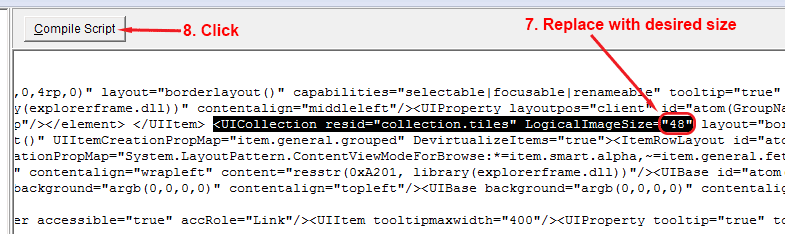
Replace 48 with a desired size, I would start with 64 then work from there.

Also note not all 3rd party programs will have a compatible icon for this trick so the icon will stay the same size and you'll just get more white space around it.
 

My Computer

Computer Manufacturer/Model Number
Self built
OS
Windows 7 Ultimate x64
CPU
Intel Pentium Dual Core E5200 2.5GHz (3.77GHz OC)
Motherboard
Asus P5Q-E
Memory
Corsair 4GB DDR2 (4x1GB CM2X1024-6400C4)
Graphics Card(s)
Palit GeForce GTS 250 (1024MB)
Sound Card
On Board (ADI AD2000B 8ch HD)
Monitor(s) Displays
Samsung 32in LCD TV
Screen Resolution
1360x768
Hard Drives
2 x 1TB Samsung 103SJ (Raid0)
2 x External 500GB Samsung 502IJ (NexStar 3 HD Enclosures)
PSU
550W Antec Neo HE 550
Case
Antec P180
Cooling
Xigmatex Red Scorpion CPU Cooler. 3x120mm Fans
Keyboard
Logitech MX5000 Laser (Combo)
Mouse
Logitech MX5000 Laser (Combo)
Internet Speed
ADSL2+ (avg 10 Mbps Down, 0.80 Mbps up)
Other Info
Gigabyte GN-WP01GS 54g Wireless Lan Card
See this is the link i have previously found for te above solution which is not working...

Code:
[URL="http://www.neowin.net/forum/topic/701228-change-icon-size-for-listdetailmosaictile-view-in-explorer-for-xp/"]link[/URL]
I am using custom folder icons for my folders so i really want to look my folder icons cool in tile view with little big size.

I try medium/large icon view but those views are really messy means don't have any space between 2 folders as well folder name is not in front of folder so i really want to use tile view only for easy & clean customization.

@Duzzy : ur way is really looking tough & i am really not that professional ;)

Thanks for reply... still i am trying every possible way. I hope we will get the exact answer soon.
 

My Computer

OS
Windows 7 Ultimate x64
I missed the fact you only wanted to increase the folder icons, my way will increase icons for folders and files, but it works and only effects the Tiles view.

If you decide you want to go my way I can guide you a little. I was just being lazy and didn't want to type all the warnings and everything else since it was all in the other threads, but if you want I can sum it here tomorrow or the next day.
 

My Computer

Computer Manufacturer/Model Number
Self built
OS
Windows 7 Ultimate x64
CPU
Intel Pentium Dual Core E5200 2.5GHz (3.77GHz OC)
Motherboard
Asus P5Q-E
Memory
Corsair 4GB DDR2 (4x1GB CM2X1024-6400C4)
Graphics Card(s)
Palit GeForce GTS 250 (1024MB)
Sound Card
On Board (ADI AD2000B 8ch HD)
Monitor(s) Displays
Samsung 32in LCD TV
Screen Resolution
1360x768
Hard Drives
2 x 1TB Samsung 103SJ (Raid0)
2 x External 500GB Samsung 502IJ (NexStar 3 HD Enclosures)
PSU
550W Antec Neo HE 550
Case
Antec P180
Cooling
Xigmatex Red Scorpion CPU Cooler. 3x120mm Fans
Keyboard
Logitech MX5000 Laser (Combo)
Mouse
Logitech MX5000 Laser (Combo)
Internet Speed
ADSL2+ (avg 10 Mbps Down, 0.80 Mbps up)
Other Info
Gigabyte GN-WP01GS 54g Wireless Lan Card
Ohk... but if file icons are also increasing then isn't that going to looks odd ? Or may be blurry ? coz about folder icons i have created quite large size so icons going to look nice & sharper even in large size but i don't know about the other fie icon sizes & it's not possible to me to create icon for every file type.

Ohk if u post ur trick but i doubt i am going to do that all stuff coz i have imp files in my pc & i really don't want to mess with window files as i am not that professional to handle errors so if its straight forward & less risky which not going to crash the window then i will love to here that trick from you.

Thanks for great help bro.
 

My Computer

OS
Windows 7 Ultimate x64
Important Info
   Information
You need to create 2 copies of "C:\Windows\System32\ExplorerFrame.dll", one in a safe location as a backup and the 2nd one will be the one you modify.

Learn how to copy the backed up file back to it's original location replacing the modified file if anything goes wrong. Here is a couple of pages that might help,

Copy & Paste - in Windows Recovery Console
Peppermint3 - Create Live CD/DVD/USB To Use For Emergency Backup

In the Peppermint3 tutorial follow step A and B. Step C will show you how to open the File Manager to copy the files. Ubuntu is another Linux distro that I believe is popular.

As your not familiar with this type of stuff after backing up the file and taking ownership of the file in the original location I would recommend using either method to try and copy the backed up file over the original one before replacing with your modified one. This way you can confirm that you can replace the file before anything goes wrong.

Also if something does go wrong you may have to reset the computer using the button on the case so don't have any other programs running when you replace the files.

That's the most important info, knowing how to recover from a failed mod.


To modify "ExplorerFrame.dll" open the 2nd copy in Resource Hacker (Reshack), on the left expand UIFILE, then expand 40960 and then select 1033. Click the start of the text on the right and press CTRL+F and search for
Code:
<UICollection resid="collection.tiles" LogicalImageSize=[B]"48"[/B]
Replace 48 with a desired size and then click Compile Script. I would start with the size 64 then work from there.

Now just click File > Save.

ExplorerFrameReshack.png

ExplorerFrameReshack2.png

Now Take Ownership of "C:\Windows\System32\ExplorerFrame.dll" if you havn't already. If you don't know how here is one way that makes it easy - http://www.sevenforums.com/tutorials/1911-take-ownership-shortcut.html

Open an Elevated Command Prompt and use the following commands to replace the file
Code:
taskkill /F /IM Explorer.exe
xcopy /vqy "[YOUR MODDED FILE PATH]\ExplorerFrame.dll" "C:\Windows\System32\*.*"
explorer
If Explorer fails to start then before closing cmd it's usally possible to copy the backed file using the xcopy cmd above replacing "[YOUR MODDED FILE PATH]\ExplorerFrame.dll" with the path to your backup if not you will need to recover the file using one of the methods linked to in the Important Info and then try again.

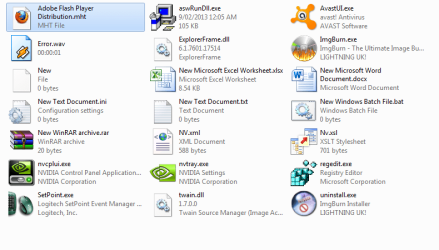
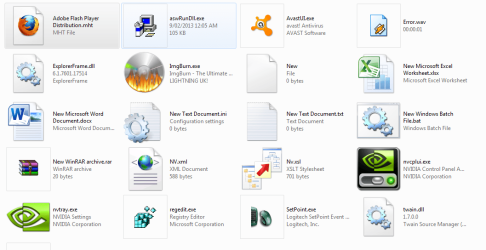
Below are a couple of examples of different icons, default, 64 and 96. Default folder looks good, I forgot to give an example of that.

TilesDefault.png

Tiles64.png

Tiles96.png
 
Last edited by a moderator:

My Computer

Computer Manufacturer/Model Number
Self built
OS
Windows 7 Ultimate x64
CPU
Intel Pentium Dual Core E5200 2.5GHz (3.77GHz OC)
Motherboard
Asus P5Q-E
Memory
Corsair 4GB DDR2 (4x1GB CM2X1024-6400C4)
Graphics Card(s)
Palit GeForce GTS 250 (1024MB)
Sound Card
On Board (ADI AD2000B 8ch HD)
Monitor(s) Displays
Samsung 32in LCD TV
Screen Resolution
1360x768
Hard Drives
2 x 1TB Samsung 103SJ (Raid0)
2 x External 500GB Samsung 502IJ (NexStar 3 HD Enclosures)
PSU
550W Antec Neo HE 550
Case
Antec P180
Cooling
Xigmatex Red Scorpion CPU Cooler. 3x120mm Fans
Keyboard
Logitech MX5000 Laser (Combo)
Mouse
Logitech MX5000 Laser (Combo)
Internet Speed
ADSL2+ (avg 10 Mbps Down, 0.80 Mbps up)
Other Info
Gigabyte GN-WP01GS 54g Wireless Lan Card
wow... Great this looks promising but i am not going to try it now. I really need some time to prepare for this as i don't want to mess everything in hurry.

Ok so after just reading this i have 1 question. As par ur solution we are editing the icon size which increases file and folder icons in tile we so is there any possibility that we add something to this file which going to change only folder size without changing the
<UICollection resid="collection.tiles" LogicalImageSize="48"

Means as i know we are adding our custom made folder for win 7 just by adding string value in registry so so what if add somethink like this ??

<UICollection resid="collection.tiles" LogicalImageSize="48"
<UICollection resid="collection.tiles" LogicalFolderSize="64"
Hmm i think that's not going to work as it says image size & not FileSize. Still if possible try something new as u r too good in this :)

Thanks for this promising solution. I will surely going to use this even with big file icons if they look not blurry. Thanks again bro.
 

My Computer

OS
Windows 7 Ultimate x64
I tried a number of things in Reshack with this file but I think your asking something that is beyond possible without re-writing a number of Windows core files.

I'm not actually that good, most of my info comes from Google where the real pros have already played around and have given enough info for me to work with.
 

My Computer

Computer Manufacturer/Model Number
Self built
OS
Windows 7 Ultimate x64
CPU
Intel Pentium Dual Core E5200 2.5GHz (3.77GHz OC)
Motherboard
Asus P5Q-E
Memory
Corsair 4GB DDR2 (4x1GB CM2X1024-6400C4)
Graphics Card(s)
Palit GeForce GTS 250 (1024MB)
Sound Card
On Board (ADI AD2000B 8ch HD)
Monitor(s) Displays
Samsung 32in LCD TV
Screen Resolution
1360x768
Hard Drives
2 x 1TB Samsung 103SJ (Raid0)
2 x External 500GB Samsung 502IJ (NexStar 3 HD Enclosures)
PSU
550W Antec Neo HE 550
Case
Antec P180
Cooling
Xigmatex Red Scorpion CPU Cooler. 3x120mm Fans
Keyboard
Logitech MX5000 Laser (Combo)
Mouse
Logitech MX5000 Laser (Combo)
Internet Speed
ADSL2+ (avg 10 Mbps Down, 0.80 Mbps up)
Other Info
Gigabyte GN-WP01GS 54g Wireless Lan Card
Ohk.. ya actually this solution is good then other solutions.

I am given the above solution to my friend who is quite good in programming stuff so he is trying now. I will post if we find something good :)

That's ok, still finding the right stuff on Google & then help the others is a big thing too.. Cheers to you for that.
 

My Computer

OS
Windows 7 Ultimate x64
Hello, I know this is an old post, but is there a way to do this with Windows 10 64bit?

dropping the mentioned file into resource hacker displays byte data only. I had previously done this with Windows 7 and I know it's a silly little mod but one I rather liked.

Thanks.
 

My Computer

Computer type
PC/Desktop
OS
Windows 10 pro 64bit
Thank you very much for this tutorial. I was able to set the size of the icons in tile mode to 32. But now I need to move the icon text to bottom of the icons and center align them.
Please Help me to find this option.
 

My Computer

Computer type
Laptop
Computer Manufacturer/Model Number
HP
OS
Windows 98 & Windows 7
CPU
Core I 5
Motherboard
I will P4 2002
Graphics Card(s)
NVIDIA 740M
Sound Card
Sound Blaster
Monitor(s) Displays
CTX SVGA CRT 1998 Monitor
Screen Resolution
1280*1024
Hard Drives
Maxtore
Antivirus
NOD32
Browser
Firefox
Back
Top