TP-Link AC1750 wireless card

Deano13

New member
Local time
1:45 AM
Messages
5
First off, hello!!

I'm having issues with installing a wireless card into my PC, its a TP-Link AC1750 which is apparently compatible with Win 7, I installed the card in and turned the PC on, hey presto it detected the card and started installing... then all of a sudden, "wireless card not detected... so I put the CD in and again not detecting there's a card in, although the little green light is glowing on the card itself. So I went to device manger and there's no card being detected only the LAN Ethernet... went on the tp website downloaded the driver, ran the installation, again can't install cannot detect the card... so tried over, took out booted up shut down plugged card in booted up same as above.... possibly a faulty card?
 

My Computer

Computer type
PC/Desktop
Computer Manufacturer/Model Number
Alienware
OS
Windows 7 home x64
Did you rebooted after the software and / or driver installation?
It can be two things:
- The card isn't inserted right on the PCIe slot. Have a close look.
- As it was detected and now it isn't, it can be a hardware fault.
 

My Computers

System One System Two

  • Computer type
    PC/Desktop
    Computer Manufacturer/Model Number
    custom build
    OS
    Windows 7 HP 64
    CPU
    i5 6600K - 800MHz to 4200MHz
    Motherboard
    GA-Z170-HD3P
    Memory
    4+4G GSkill DDR4 3000
    Graphics Card(s)
    IG - Intel 530
    Monitor(s) Displays
    Samsung 226BW
    Screen Resolution
    1680x1050
    Hard Drives
    (1) -1 SM951 – 128GB M.2 AHCI PCIe SSD drive for Windows 7 and Lubuntu
    (2) -1 WD SATA 3 - 1T for Data
    (3) -1 WD SATA 3 - 1T for backup
    PSU
    Thermaltake 450W TR2 gold
    Keyboard
    Old and good Chicony mechanical keyboard
    Mouse
    Logitech mX performance - 9 buttons (had to disable some)
    Internet Speed
    500Mb/s
    Browser
    Firefox 64
    Other Info
    TinyWall firewall
  • Computer type
    Laptop
    System Manufacturer/Model Number
    Asus Q550LF
    OS
    Windows 7 Pro
    CPU
    i7-4500U 800MHz to 3.0GHz
    Motherboard
    Asus Q550LF
    Memory
    (4+4)G DDR3 1600
    Graphics Card(s)
    IG intel 4400 + NVIDIA GeForce GT 745M
    Sound Card
    Realtek
    Monitor(s) Displays
    LG Display LP156WF4-SPH1
    Screen Resolution
    1920 x 1080
    Hard Drives
    BX500 120G SSD for Windows and programs +
    1T HDD for data
    Internet Speed
    500 Mb/s
    Browser
    Firefox
    Other Info
    TinyWall firewall
It never did install, upon start up it detected but failed install.

Think I'm going to take it back as I'm pretty sure it's a faulty Card.
 

My Computer

Computer type
PC/Desktop
Computer Manufacturer/Model Number
Alienware
OS
Windows 7 home x64
Hi

Did you read the instruction before installing.

Some hardware required the necessary drivers to be installed then it can insert to use.
 

My Computer

Computer type
Laptop
Computer Manufacturer/Model Number
Toshiba L630 and L735
OS
Windows 7 x64
Hard Drives
240 GB SSD
Hi,

Yes, it states to insert the card first and see if windows picks up and installs, if not then to insert the cd and install the driver.

As stated I can't install or download any drivers as it dosent detect a card, there's no site of it in device manager under networking or "unknown devices" it's like it's not there.
 

My Computer

Computer type
PC/Desktop
Computer Manufacturer/Model Number
Alienware
OS
Windows 7 home x64
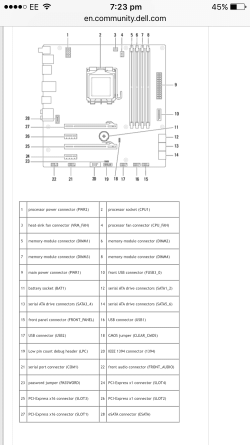
This is my motherboard, I have gcard plugged into 27 which covers the 26 slot. My wireless card is or was plugged into 24.
 

Attachments

  • IMG_8237.PNG
    IMG_8237.PNG
    146.7 KB · Views: 2

My Computer

Computer type
PC/Desktop
Computer Manufacturer/Model Number
Alienware
OS
Windows 7 home x64
Hi

Do understand that what you are installing is the Wireless Receiver.

You need the router &or combo router/modem (with wireless), that is a Transmitter on frequency either 2.4GHz or 5GHz.

Setup of the connection;
Go to Control Panel\Network and Internet\Network and Sharing Center
On the left, click on the "Change adapter settings"

Once inside, you should be able to see this TP-Link AC1750 icon.
Then click on TP-Link AC1750 Icon (Wireless Network Connection).

Right click and at the top, you can see either Enable = Off or Disable = On Toggle on & off.

1. If it say "Enable", you need to click on to be enable to connect and received you wireless signal from the router/modem.
2. Click on the Status, you can see what is the connection speed as 1Gbps.
3. Most router do have 2 SSID mainly for wireless connection.
4. Click on the Wireless Signal Icon (refer to #7), you can select either 2.4GHz or 5GHz <---- for better & stable connection.
5. Check on the router for the correct SSID for 5GHz and password; refer to 5.1.
5.1. If you did not change any setting on SSID & password names, most router default as available on the router (either behind or bottom).
5.2. As i mentioned #3 on having 2 SSID, each for 2.4GHz and 5GHz. Do note password is same for both.
6. Once connection thru wireless, you can connect to internet to surf, games, video, etc.
7. On the right side of taskbar, you will see the Signal Icon (not found, then click up arrow, for hidden icons)

Do note that there is no need to go to the Device Management to check for this.


Eric.
 
Last edited:

My Computer

Computer type
Laptop
Computer Manufacturer/Model Number
Toshiba L630 and L735
OS
Windows 7 x64
Hard Drives
240 GB SSD
Hi

Do understand that what you are installing is the Wireless Receiver.

You need the router &or combo router/modem (with wireless), that is a Transmitter on frequency either 2.4GHz or 5GHz.

Setup of the connection;
Go to Control Panel\Network and Internet\Network and Sharing Center
On the left, click on the "Change adapter settings"

Once inside, you should be able to see this TP-Link AC1750 icon.
Then click on TP-Link AC1750 Icon (Wireless Network Connection).

Right click and at the top, you can see either Enable = Off or Disable = On Toggle on & off.

1. If it say "Enable", you need to click on to be enable to connect and received you wireless signal from the router/modem.
2. Click on the Status, you can see what is the connection speed as 1Gbps.
3. Most router do have 2 SSID mainly for wireless connection.
4. Click on the Wireless Signal Icon (refer to #7), you can select either 2.4GHz or 5GHz <---- for better & stable connection.
5. Check on the router for the correct SSID for 5GHz and password; refer to 5.1.
5.1. If you did not change any setting on SSID & password names, most router default as available on the router (either behind or bottom).
5.2. As i mentioned #3 on having 2 SSID, each for 2.4GHz and 5GHz. Do note password is same for both.
6. Once connection thru wireless, you can connect to internet to surf, games, video, etc.
7. On the right side of taskbar, you will see the Signal Icon (not found, then click up arrow, for hidden icons)

Do note that there is no need to go to the Device Management to check for this.


Eric.

Hi,

What you said is correct if I could install the driver, its like I have not plugged anything in, I'm taking the card back as I'm sure it's fautly.
 

My Computer

Computer type
PC/Desktop
Computer Manufacturer/Model Number
Alienware
OS
Windows 7 home x64
Hi

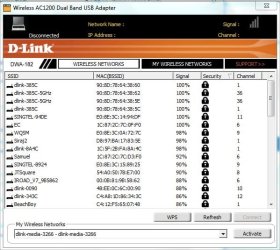
The pictures attached will show you the adapter connection icon.

If you install correctly, there will be the adapter connection icon.
Also the selection of SSID to connect to.

I did purchase a wifi USB 3 Wireless AC 1200 Dual Band USB Adapter
After using the CD to install, i can see the wifi USB icon in the right side of the taskbar.

The windows pop-up and select the SSID and activated.
As wireless SSID required password, input and connected.

My setup.
Current i do not required, as i bought it Jan 2016, more on testing and try out.
As my laptop wireless max 300Mbps and thinking that this wireless adapter can boost to a better speed.
But in reality it cannot as it use my laptop network adapter.

But in May 2016, i did participate in this Autoroaming trial, hence with 2 routers.
One router connect to ONT (fibre modem) and the other as wireless repeater router, in my room with a wall.
Then i found out that i can connect directly to have 500Mbps as my subscribe fibre broadband.


Picture 1: Adapter Display in Control Panel\Network and Internet\Network Connections

Picture 2: USB Adapter program - Selection of wireless SSID to connect. Yours should have this to connect.

Picture 3: Adapter Status. The speed is internal, not to ISP. Also include max 1Gbps.


Eric.
 

Attachments

  • Router_USB3.JPG
    Router_USB3.JPG
    79.7 KB · Views: 8
  • Router_USB3_Adapter.JPG
    Router_USB3_Adapter.JPG
    59.3 KB · Views: 0
  • Router_USB3_Main_ONT.JPG
    Router_USB3_Main_ONT.JPG
    36.5 KB · Views: 8

My Computer

Computer type
Laptop
Computer Manufacturer/Model Number
Toshiba L630 and L735
OS
Windows 7 x64
Hard Drives
240 GB SSD
Back
Top