
Information
TRUECRYPT is a free open source application that allows you to encrypt files, folders, partitions or even entire physical drives. It is a very useful alternative to Windows Bitlocker Drive Encryption, which is only available in Windows 7 Ultimate.
Truecrypt's basic mode of operation is to encrypt all data and free space within a nominated container/volume using well established encryption algorithms and user-defined passwords or key files. The container with the encrypted data is accessed by mounting the container as a drive using the Truecrypt service.
Update 29/05/2014 : the current status of Truecrypt Development is unknown. Please refer to this blog for some background : akselvoll.net: How to securely download TrueCrypt 7.1a
:warn:Truecrypt does not have a 'backdoor' so its vital to pick a password that is easily remembered.
Truecrypt's basic mode of operation is to encrypt all data and free space within a nominated container/volume using well established encryption algorithms and user-defined passwords or key files. The container with the encrypted data is accessed by mounting the container as a drive using the Truecrypt service.
Update 29/05/2014 : the current status of Truecrypt Development is unknown. Please refer to this blog for some background : akselvoll.net: How to securely download TrueCrypt 7.1a
:warn:Truecrypt does not have a 'backdoor' so its vital to pick a password that is easily remembered.
Tip
If this is your first time working with encryption, then I strongly encourage you to create an unencrypted backup of your data prior to attempting this tutorial.
:note: Installation:
Click here to download Truecrypt.
Install Truecrypt to the location of your choice as you would any other application using the installation wizard. When prompted, choose the Install mode as shown below.
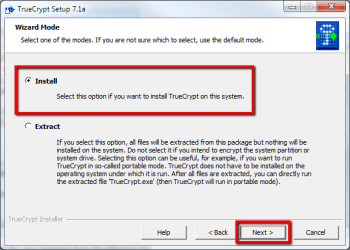
Ignore the donation screen and tutorial screen once installation is complete.
I've structured this tutorial to allow you to follow the practical steps I have implemented to:
- Encrypt a folder and it's contents, and
- Work (add/remove/modify files) with this encrypted folder on a daily basis.
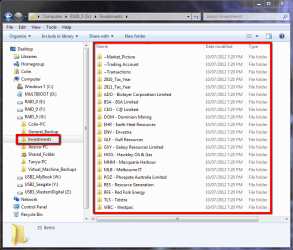
The goal is to encrypt the \Investments folder and it's contents.
Note
Once a folder is encrypted, TRUECRYPT refers to this folder as a 'container' or 'volume'. This nomenclature is used to distinguish between an unencrypted folder, and one that has been encrypted, and I have kept with this nomenclature throughout this tutorial to avoid confusion:
- Folder = unencrypted folder visible in Windows Explorer
- Container/volume = encrypted folder visible via TRUECRYPT only
Step 1 - Creating an Encrypted Container
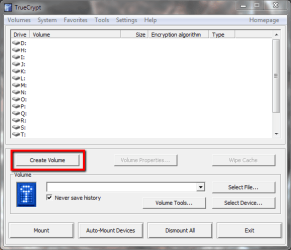
Open TRUECRYPT, and select Create Volume as shown below.
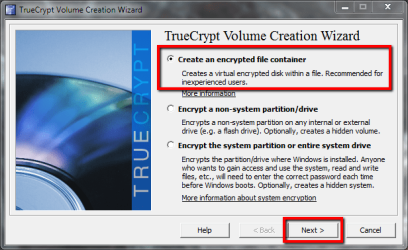
The Volume Creation Wizard will open and display 3 choices - the Create an encrypted file container is the default choice, and the one used to encrypt data folders. Ensure the first option is selected and then click Next.
Warning
The other two choices are used to encrypt entire system and non-system partitions. I recommend you steer clear of these as they are unforgiving if mistakes are made, or the encryption header information is corrupted. We have seen one case here of encryption headers being corrupted with the result that the entire partition has been permanently lost. You have been warned!
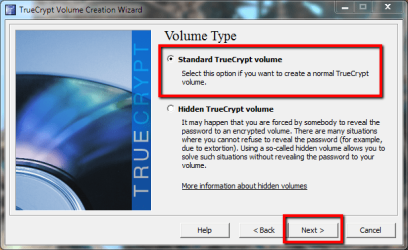
Select Standard TrueCrypt volume from the Volume Type panel, and click Next.
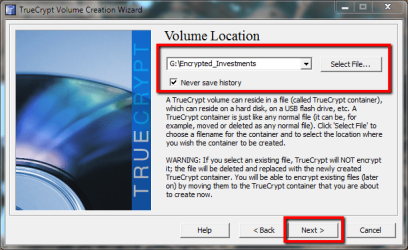
In the Volume Location panel, specify the name of the encrypted container you wish to create - you can use the Select file button to browse to an existing empty folder, or type the location and name of the container you want to create. In this example, I have nominated to create a container on my G: drive called Encrypted_Investments. Click Next to continue.
Warning
Do not select an existing folder with your data files as TrueCrypt will over-write these files. Always create a new container, to which you will copy & paste your files you want to encrypt at a later stage. This is the safest method of creating an encrypted container.
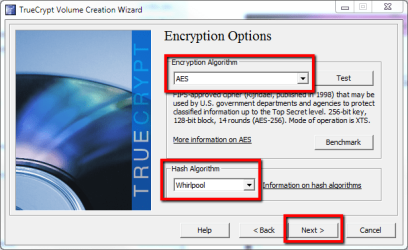
The Encryption Options panel will be opened, allowing you to select the Encryption Algorithm and HASH Algorithm. Both of these options are used to securely encrypt your data.
Note
In layman's terms : the encryption algorithm is a cipher that determines how your your 'readable' data is transformed into an 'unreadable' format. The HASH algorithm is used to create a random key that authenticates any attempts at accessing the encrypted data container. A detailed discussion on encryption, ciphers and HASH algorithms is beyond the scope of this tutorial, but you can read more about this here.
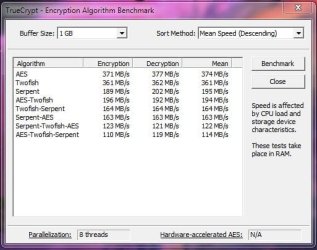
There are several choices of encryption algorithm available, including AES, Serpent, Twofish and combinations of the three. The choice of algorithm dicatates the speed at which encryption occurs - the image below shows the benchmarks for each algorithm for a 1GB container:
For this example, I have used AES encryption (robust, widely used, fast and low memory overhead) and Whirlpool HASH algorithms - select these options, and then click Next.
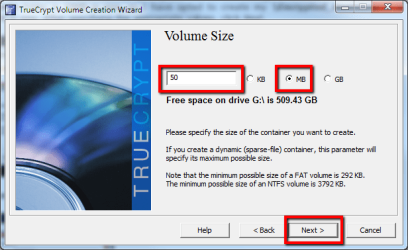
In the Volume Size panel that opens, you need to specify the size of the encrypted container you wish to create. My \Investments folder is 29MB in size, so I have opted to create my \Encrypted_Investment container (volume) 50MB in size. After specifying the appropriate values, click Next.
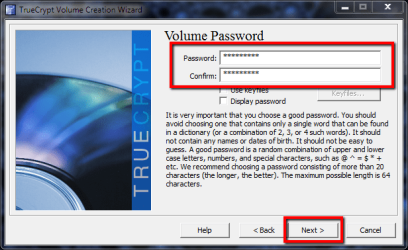
In the Volume Password panel, specify a password and then click Next.
Warning
Be sure to use an easily remembered password - Truecrypt has no 'backdoor' functionality, so if you forget the password then you will NOT be able to decrypt the encrypted data.It will be as good as lost - permanently.
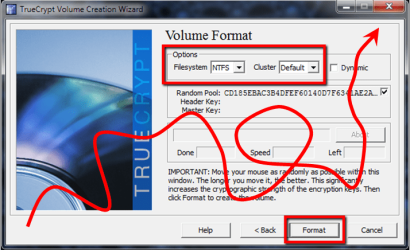
In the Format Volume panel, you need to specify the format of the encrypted volume (in my case I used NTFS and left the Cluster size as a default). This panel is also where the HASH algorithm you selected is used to randomise the encryption.
You do this by moving your mouse in a random pattern across the panel (shown as the red trace in the image below). As you do this, the Random Pool values on the panel change. The longer and more random the mouse movements, the stronger the encryption. Once you have finished that, click Format to create the encrypted container/volume.
Tip
If your encrypted data is likely to grow in size as you use it then you should also select 'Dynamic' and nominate a container/volume size large enough for future additions. This option will use the minimum amount of physical disk space required for the current contents of the container. The physical size of the container can only increase up to the maximum value that is specified by the user during the volume creation process.
Progress of the encryption will be displayed, and once complete you will need to allow TRUECRYPT to write the changes by clicking Yes on the Windows UAC pop-up panel.

A confirmation message will be displayed as shown below.

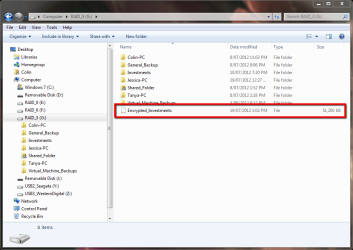
The encrypted container/volume appears in my G: drive as shown below. Windows treats this container as it would any normal file - it can be deleted, copied, backed-up and moved around just like any other file.
Click Next to create another encrypted volume, or Exit to return to the main TRUECRYPT panel.
Step 2 - Working with the Encrypted Container
Working with an encrypted containers/volumes requires you to mount the encrypted container/volume that you created previously.
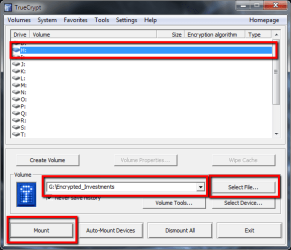
From the main TRUECRYPT panel, select an available drive letter, then use Select File to browse and pick the container you created in step 1. Click on Mount, as shown below as shown below.
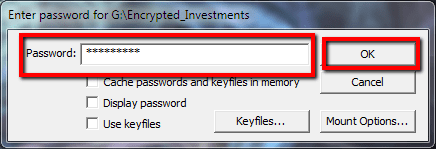
Now enter the password you used to create the encrypted container in step 1, and click OK.
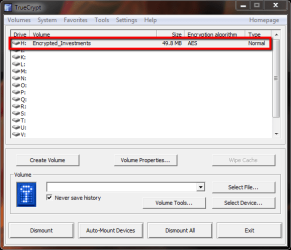
The main TRUECRYPT panel will now show the mounted container/volume, size and encryption algorithm used.
Tip
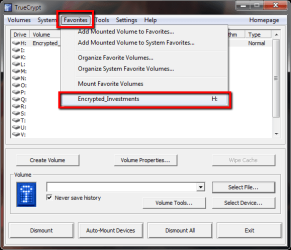
Use the Favorites menu bar to add your mounter volumes to the favorites list. When you next decide to mount volumes, they are then easily accessible from the Favorites menu as shown below.
The mounted volume will also now be visible in Windows Explorer, although at this stage it is empty because there have been no files copied into it yet. Once you drag files into the mounted container/volume, it looks like this.
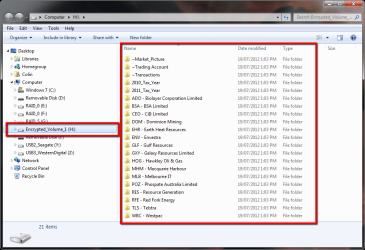
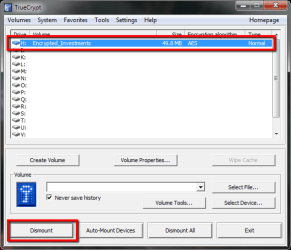
You can now work with these files as you normal would. If you no longer require the encrypted data to be mounted, highlight the mounted volume, and then select Dismount.
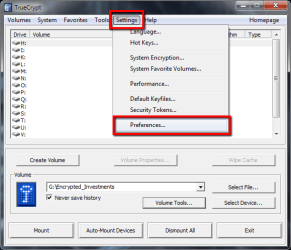
A smarter way to work with TRUECRYPT, is to have it automatically start the TRUECRYPT service. To do this, select Settings > Preferences from the main TRUECRYPT panel, as shown below.
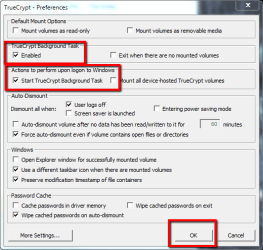
Now place check marks in the Truecrypt background task items as shown below.
Each time you boot your computer to Windows, the TRUECRYPT service will start and a Truecrypt icon will be placed in your task bar. You can access all the TRUECRYPT functionality, and mount/dismount volumes far more easily, as shown below.
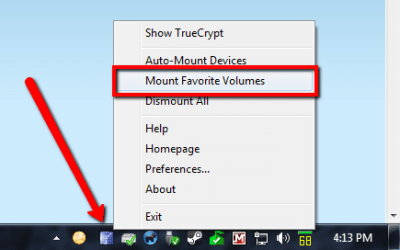
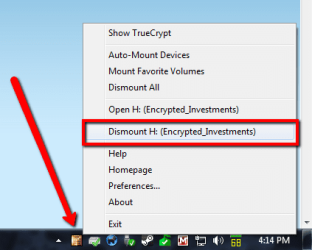
Tip
When no encrypted containers are mounted, the TRUECRYPT icon is blue. When an encrypted container/volume is mounted, the icon is brown.
Step 3 - Disaster Recovery
There are steps you can take to mitigate against losing the information within the encrypted container/volume:
- Use an easily remember password - if you forget the password, then it is impossible to decrypt the contents of the container.
- Backup the unmounted container just like any other data file, using the backup strategy of your choice.
- Create a backup of the volume header information - this backup header allows you to mount and recover the encrypted data if the original header information of the encrypted container becomes corrupted.
1. Dismount any encrypted containers/volumes, and from the main TRUECRYPT panel, use the Select File button to browse to the encrypted container, and then select the Volume Tools option, as shown below.
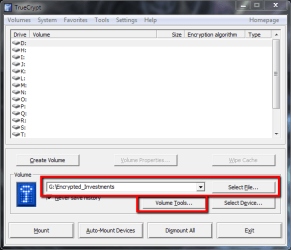
2. From the Volume Tools context menu, select Backup volume header. Note the information panel and click OK. You will be prompted to enter your password that you used when you created the encrypted container/volume. You will now be prompted to confirm whether your encrypted container/volume contains a hidden volume. The answer is NO, so you should select the middle option as shown below.

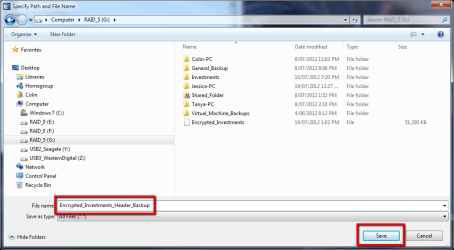
3. Click Yes on the confirmation panel pop-up. In the Explorer Windows that opens, specify a location and name for the header backup file and click Save, as shown below.
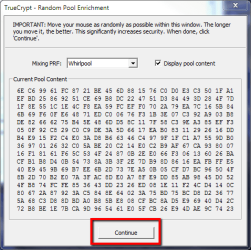
4. Within the Random Pool Enrichment window that opens, move your mouse in random patterns within the window to encrypt the contents of the backup header file, and click Continue.
5. Once the volume header backup confirmation panel has been displayed, click OK.
The header backup file has now been created - you should also backup this file using your usual backing up procedures.
To recover a corrupted TRUECRYPT container, please refer this tutorial:
http://www.sevenforums.com/tutorials/242003-truecrypt-recover-corrupt-container.html#post2018347
There you have it : a basic introduction to data encryption using TRUECRYPT.
Note
Special thanks to Derek who tested this tutorial for me.
Regards,
Golden
Last edited:


