
Solved Two Active Partitions - No errors yet, but is this a problem?

LaurieD227

New member
Power User
VIP
Local time
3:03 PM
Messages
133
Location
Central Colorado
My new laptop (Win7 Pro SP1 64 bit) is configured as follows:

- Drive 1 (C) is a single partition SSD Drive that contains the Operating System and other programs
(I don't see any sign of a separate 100MB System Partition, so I think all the boot files are included in this C partition)
- Drive 0 is an HDD partitioned into 3 partitions (E, F, M), intended as data partitions
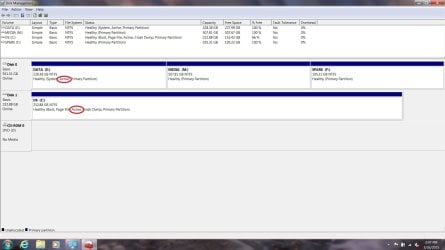
I have attached a screen shot of my current Disk Management setup to illustrate.

The SSD drive is Disk 1 and the HDD is Disk 0 - and the machine came that way from the manufacturer, so I plan to leave it that way unless there is some compelling reason to try to get my SSD drive to be Drive 0.


Here's my issue:

Somehow, both the C drive and the E partition are marked Active
- my guess is that the E partition is marked Active because it contains the partition table for the HDD. (It has NEVER had an operating system installed on it, nor any other program files, but it shows 408MB used)

Do I need to mark the E partition as Inactive?


I've read several threads - some say yes I need to change this and others say no it's not a problem. Still others say it might be a problem if I have to repair/restore my machine. Since I know almost nothing about this, I would really like to get advice from people who understand this stuff.

I have also read the Mark Active/Mark Inactive tutorials elsewhere in this forum, so I have an idea of what it will take if I do need to do it
http://www.sevenforums.com/tutorials/197157-partition-mark-inactive.html

So - recommendations anyone?
 

Attachments
  • 2 Active Partitions2.jpg
    2 Active Partitions2.jpg
    114.2 KB · Views: 19

My Computer

Computer type
Laptop
Computer Manufacturer/Model Number
ProStar Model P157SM-A
OS
Windows 7 Professional 64 bit SP 1
CPU
Intel Core i7-4710 MQ
Motherboard
No info
Memory
16 GB
Graphics Card(s)
NVIDIA GeForce GTX 870M
Hard Drives
256 GB Samsung SSD
1TB 7200 RPM Hard Drive
Antivirus
Norton Internet Security
Browser
Internet Explorer and Mozilla Firefox
If you mark E inactive, Windows will not boot.

Unless you know what you`re doing, leave it alone.

Only C should be marked Active and have the System files on it.

I find it hard to believe that a new laptop came in that condition.


You see, it`s a simple matter of unplugging Disk 0, then running startup repair with the Windows 7 install DVD up to 3x, to write the system files to the C partition. But this does not always work.

If you really, really wanted it fixed correctly and are not confident, take it to a professional, if not just leave it be.

C should also be showing as Disk 0, not Disk 1. You can switch the hard drives to see if that will correct it, once again not absolutely necessary.
 

My Computer

Computer type
PC/Desktop
Computer Manufacturer/Model Number
Skylake Special #666
OS
Windows 10 Pro x64
CPU
Intel Core i7 6700K
Motherboard
Asus Sabertooth Z170 Mark 1
Memory
GSkill TridentZ RGB 16GB 3600 16-16-16-36
Graphics Card(s)
EVGA GTX 980 Ti SC x2
Sound Card
Realtek High Definition
Monitor(s) Displays
AOC G2460PG
Screen Resolution
1920 x 1080 144Hz
Hard Drives
Samsung 860 Pro 256GB, Seagate Barracuda 4TB x2
PSU
EVGA 1000 P2, EVGA White Custom Braided Cables
Case
Corsair Vengeance C70 Gunmetal Black
Cooling
Corsair H100i v2, Corsair ML120 x2, Thermal Grizzly Kryonaut
Keyboard
Logitech G910 Orion Spectrum
Mouse
Logitech G700s
Internet Speed
Verizon Fios Quantum Gateway 75/75
Antivirus
Windows Defender, Malwarebytes Free 3.8.3
Browser
Chrome
Other Info
Corsair SP120 x4, LG Blu-ray Drive, Durabrand HT-395 100 Watt Dolby Digital Amp, Corsair H2100 Wireless 7.1 Headset
AddRAM -

Based on your feedback (thank you BTW), I probably need to clarify a couple of things.

1) When the laptop first arrived, the SSD (C) already contained the operating system (as it still does).
The HDD (E) consisted of one huge partition, and it was not "active" as far as I recall. I believe things changed when I split it into 3 partitions. It never had the operating system files on it. So, blame me not the manufacturer :p

2) I am a little bit confused by your advice regarding unplugging Disk 0 and running startup repair:

All the operating system files are already on C, so I cannot move them there from E or from anywhere else. It would seem that there is no reason to run startup repair if that's what one is trying to accomplish.

All E currently has on it is a small hidden file area that is 400MB in size - about the size of a partition table, although I guess it's possible there could be some other file there.

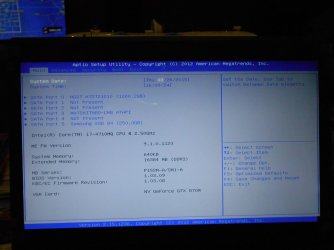
3) I believe that the reason for the SSD disk not showing as Disk 0 is due to the SATA port where it is physically connected
-The HDD is connected to SATA Port 0
-The DVD drive is connected to SATA Port 3
-The SSD is connected to SATA Port 5
I have to assume the manufacturer attached those drives to those ports for a reason - maybe due to the physical architecture of the laptop case, since it is designed to hold two SSD drives and two HDD drives.

4) The laptop currently boots fine with C as Drive 1 not Drive 0, and with both partitions marked as "active."
I agree that having C as Drive 1 is odd, but it seems to be harmless as long as I handle the "active/inactive" status appropriately. (And I really do NOT want to start rearranging my hardware unless there is no choice.)

That's why I'm asking my original question: will I encounter problems if I leave both C and E as "active"?
 

Attachments

  • System Arch.jpg
    System Arch.jpg
    157.5 KB · Views: 7

My Computer

Computer type
Laptop
Computer Manufacturer/Model Number
ProStar Model P157SM-A
OS
Windows 7 Professional 64 bit SP 1
CPU
Intel Core i7-4710 MQ
Motherboard
No info
Memory
16 GB
Graphics Card(s)
NVIDIA GeForce GTX 870M
Hard Drives
256 GB Samsung SSD
1TB 7200 RPM Hard Drive
Antivirus
Norton Internet Security
Browser
Internet Explorer and Mozilla Firefox
I did blame you :)

Yes, the operating system files are on C, but not the boot system files, they are on E, as you can clearly see.

Go ahead, unplug Disk 0, does windows still boot ?

Right there in your bios pic it shows the ssd on port 5, it should be on port 0.

The OS drive (if only 1 OS is installed) is supposed to be on sata port 0


Answer = no you will not have any problems if you leave it the way it is, that is your choice.

"I am a little bit confused by your advice regarding unplugging Disk 0 and running startup repair:"

If you are confused on this, you should read up on what startup repair is and does :)

It`s all in the tutorials.
 

My Computer

Computer type
PC/Desktop
Computer Manufacturer/Model Number
Skylake Special #666
OS
Windows 10 Pro x64
CPU
Intel Core i7 6700K
Motherboard
Asus Sabertooth Z170 Mark 1
Memory
GSkill TridentZ RGB 16GB 3600 16-16-16-36
Graphics Card(s)
EVGA GTX 980 Ti SC x2
Sound Card
Realtek High Definition
Monitor(s) Displays
AOC G2460PG
Screen Resolution
1920 x 1080 144Hz
Hard Drives
Samsung 860 Pro 256GB, Seagate Barracuda 4TB x2
PSU
EVGA 1000 P2, EVGA White Custom Braided Cables
Case
Corsair Vengeance C70 Gunmetal Black
Cooling
Corsair H100i v2, Corsair ML120 x2, Thermal Grizzly Kryonaut
Keyboard
Logitech G910 Orion Spectrum
Mouse
Logitech G700s
Internet Speed
Verizon Fios Quantum Gateway 75/75
Antivirus
Windows Defender, Malwarebytes Free 3.8.3
Browser
Chrome
Other Info
Corsair SP120 x4, LG Blu-ray Drive, Durabrand HT-395 100 Watt Dolby Digital Amp, Corsair H2100 Wireless 7.1 Headset
The E partition should be inactive. And don't get confused by what disk management shows regarding disk 0 and disk 1. That is not necessarily how the ports are allocated. DM has it's own way of naming drives. But it does not really matter to which port the drives are allocated. It is the boot sequence that counts.

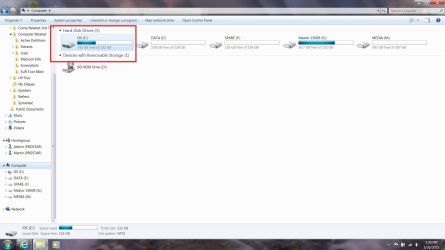
Look into Computer whether C has this itty bitty system flag - see picture
 

Attachments

  • 2015-03-26_2129.png
    2015-03-26_2129.png
    4.1 KB · Views: 46

My Computer

Computer Manufacturer/Model Number
HP, Dell, Gateway, Toshiba - 4 laptops and 2 desktops
OS
Vista, Windows7, Mint Mate, Zorin, Windows 8
CPU
from 1.6GHz Duo to i7
Monitor(s) Displays
2x HP w2207
Hard Drives
5x HDD, 7x SSD, 12x Externals
Keyboard
with trackball - no mices
Mouse
Trackball mice
Internet Speed
DSL 6000
Brian, you seem to be seeing something that I don't see. How do you figure that the bootmgr is on E ? Is it my poor eyes.
 

My Computer

Computer Manufacturer/Model Number
HP, Dell, Gateway, Toshiba - 4 laptops and 2 desktops
OS
Vista, Windows7, Mint Mate, Zorin, Windows 8
CPU
from 1.6GHz Duo to i7
Monitor(s) Displays
2x HP w2207
Hard Drives
5x HDD, 7x SSD, 12x Externals
Keyboard
with trackball - no mices
Mouse
Trackball mice
Internet Speed
DSL 6000
The system files are on E, not C Wolfgang, look at his shot of DM again.

They belong on C.

Example:
 
Last edited:

My Computer

Computer type
PC/Desktop
Computer Manufacturer/Model Number
Skylake Special #666
OS
Windows 10 Pro x64
CPU
Intel Core i7 6700K
Motherboard
Asus Sabertooth Z170 Mark 1
Memory
GSkill TridentZ RGB 16GB 3600 16-16-16-36
Graphics Card(s)
EVGA GTX 980 Ti SC x2
Sound Card
Realtek High Definition
Monitor(s) Displays
AOC G2460PG
Screen Resolution
1920 x 1080 144Hz
Hard Drives
Samsung 860 Pro 256GB, Seagate Barracuda 4TB x2
PSU
EVGA 1000 P2, EVGA White Custom Braided Cables
Case
Corsair Vengeance C70 Gunmetal Black
Cooling
Corsair H100i v2, Corsair ML120 x2, Thermal Grizzly Kryonaut
Keyboard
Logitech G910 Orion Spectrum
Mouse
Logitech G700s
Internet Speed
Verizon Fios Quantum Gateway 75/75
Antivirus
Windows Defender, Malwarebytes Free 3.8.3
Browser
Chrome
Other Info
Corsair SP120 x4, LG Blu-ray Drive, Durabrand HT-395 100 Watt Dolby Digital Amp, Corsair H2100 Wireless 7.1 Headset
Wolfgang, my C drive icon shows the itty bitty system flag.


However, I think I see what Brian is seeing - the E Partition says "Healthy (System, Active, Primary Partition)" while the C Drive says "Healthy (Boot, Page File, Active, Crash Dump, Primary Partition)"

I missed that the first time around - sorry!
 

Attachments

  • Boot Drive.jpg
    Boot Drive.jpg
    97.8 KB · Views: 8

My Computer

Computer type
Laptop
Computer Manufacturer/Model Number
ProStar Model P157SM-A
OS
Windows 7 Professional 64 bit SP 1
CPU
Intel Core i7-4710 MQ
Motherboard
No info
Memory
16 GB
Graphics Card(s)
NVIDIA GeForce GTX 870M
Hard Drives
256 GB Samsung SSD
1TB 7200 RPM Hard Drive
Antivirus
Norton Internet Security
Browser
Internet Explorer and Mozilla Firefox
That is a windows flag, It just confirms that windows is on that drive, not what we consider the system flag.

That shot has nothing to do with what we are discussing.
 

My Computer

Computer type
PC/Desktop
Computer Manufacturer/Model Number
Skylake Special #666
OS
Windows 10 Pro x64
CPU
Intel Core i7 6700K
Motherboard
Asus Sabertooth Z170 Mark 1
Memory
GSkill TridentZ RGB 16GB 3600 16-16-16-36
Graphics Card(s)
EVGA GTX 980 Ti SC x2
Sound Card
Realtek High Definition
Monitor(s) Displays
AOC G2460PG
Screen Resolution
1920 x 1080 144Hz
Hard Drives
Samsung 860 Pro 256GB, Seagate Barracuda 4TB x2
PSU
EVGA 1000 P2, EVGA White Custom Braided Cables
Case
Corsair Vengeance C70 Gunmetal Black
Cooling
Corsair H100i v2, Corsair ML120 x2, Thermal Grizzly Kryonaut
Keyboard
Logitech G910 Orion Spectrum
Mouse
Logitech G700s
Internet Speed
Verizon Fios Quantum Gateway 75/75
Antivirus
Windows Defender, Malwarebytes Free 3.8.3
Browser
Chrome
Other Info
Corsair SP120 x4, LG Blu-ray Drive, Durabrand HT-395 100 Watt Dolby Digital Amp, Corsair H2100 Wireless 7.1 Headset
Sounds like a simple error of some kind when you repartitioned the 1TB HDD. It should be harmless. You could make it inactive or disconnect the drive and see if the machine still boots. The way I see it, the boot files are on the SSD, so there shouldn't be any problem.

What might be interesting is to check the boot device order in BIOS. Possibly the machine is looking for boot files in E, not finding them, and then defaulting to the actual Windows install on C. Not a big deal - you might be losing .5s in boot time. But if you ever go multiboot it will matter which drive has priority.
 

My Computer

Computer type
PC/Desktop
Computer Manufacturer/Model Number
dell precision t3400 tower
OS
Linux Lite 3.2 x64; Windows 7, 8.1
CPU
Core2Duo 2.4
Memory
6GB ddr2
Graphics Card(s)
nVidia
Hard Drives
120gb SSD, 1TB HD, 2TB HD; sata II
Internet Speed
12/2
Browser
Vivaldi, Slimjet (Chromium) x64

My Computer

Computer Manufacturer/Model Number
HP, Dell, Gateway, Toshiba - 4 laptops and 2 desktops
OS
Vista, Windows7, Mint Mate, Zorin, Windows 8
CPU
from 1.6GHz Duo to i7
Monitor(s) Displays
2x HP w2207
Hard Drives
5x HDD, 7x SSD, 12x Externals
Keyboard
with trackball - no mices
Mouse
Trackball mice
Internet Speed
DSL 6000
I feel certain this wasn't like this when I first got the machine.

I added Norton, Malwarebytes, and my Windows Updates, and later I added Quicken and MS Office (plus updates) and created my data partitions. Finally, I did a System Image using Windows Backup/Restore.

Somewhere, somehow in that process the System files got added or moved to my E partition. I have no clue how.

If I need to try to undo this I'd rather do so sooner than later, since I haven't moved all my data from my old laptop yet.
 

My Computer

Computer type
Laptop
Computer Manufacturer/Model Number
ProStar Model P157SM-A
OS
Windows 7 Professional 64 bit SP 1
CPU
Intel Core i7-4710 MQ
Motherboard
No info
Memory
16 GB
Graphics Card(s)
NVIDIA GeForce GTX 870M
Hard Drives
256 GB Samsung SSD
1TB 7200 RPM Hard Drive
Antivirus
Norton Internet Security
Browser
Internet Explorer and Mozilla Firefox
Exactly what I said already, you pull disk 0 first and see if windows boots, if it does then you can put Disk 0 back in and mark it inactive.

The OP doesn`t care one way or the other, so once again, unless you know what you`re doing, leave it alone.

If the ssd boots own it`s own you move it to sata port 0, put the data drive wherever and you`re done.

If you have the machine open you might as well fix it right.
 

My Computer

Computer type
PC/Desktop
Computer Manufacturer/Model Number
Skylake Special #666
OS
Windows 10 Pro x64
CPU
Intel Core i7 6700K
Motherboard
Asus Sabertooth Z170 Mark 1
Memory
GSkill TridentZ RGB 16GB 3600 16-16-16-36
Graphics Card(s)
EVGA GTX 980 Ti SC x2
Sound Card
Realtek High Definition
Monitor(s) Displays
AOC G2460PG
Screen Resolution
1920 x 1080 144Hz
Hard Drives
Samsung 860 Pro 256GB, Seagate Barracuda 4TB x2
PSU
EVGA 1000 P2, EVGA White Custom Braided Cables
Case
Corsair Vengeance C70 Gunmetal Black
Cooling
Corsair H100i v2, Corsair ML120 x2, Thermal Grizzly Kryonaut
Keyboard
Logitech G910 Orion Spectrum
Mouse
Logitech G700s
Internet Speed
Verizon Fios Quantum Gateway 75/75
Antivirus
Windows Defender, Malwarebytes Free 3.8.3
Browser
Chrome
Other Info
Corsair SP120 x4, LG Blu-ray Drive, Durabrand HT-395 100 Watt Dolby Digital Amp, Corsair H2100 Wireless 7.1 Headset
That is a windows flag, not what we consider the system flag.

That shot has nothing to do with what we are discussing.

Yep, I know. I had added that shot in response to Wolfgang's post.

It was afterwards that I saw the "System" phrase in the description of E and realized what you were seeing.


And it's "her" screen shots not "his" :D - I need a smiley with different features, darn it!
 

My Computer

Computer type
Laptop
Computer Manufacturer/Model Number
ProStar Model P157SM-A
OS
Windows 7 Professional 64 bit SP 1
CPU
Intel Core i7-4710 MQ
Motherboard
No info
Memory
16 GB
Graphics Card(s)
NVIDIA GeForce GTX 870M
Hard Drives
256 GB Samsung SSD
1TB 7200 RPM Hard Drive
Antivirus
Norton Internet Security
Browser
Internet Explorer and Mozilla Firefox
Greg it`s a laptop, there are no cables, aren`t you paying attention :shock:
 

My Computer

Computer type
PC/Desktop
Computer Manufacturer/Model Number
Skylake Special #666
OS
Windows 10 Pro x64
CPU
Intel Core i7 6700K
Motherboard
Asus Sabertooth Z170 Mark 1
Memory
GSkill TridentZ RGB 16GB 3600 16-16-16-36
Graphics Card(s)
EVGA GTX 980 Ti SC x2
Sound Card
Realtek High Definition
Monitor(s) Displays
AOC G2460PG
Screen Resolution
1920 x 1080 144Hz
Hard Drives
Samsung 860 Pro 256GB, Seagate Barracuda 4TB x2
PSU
EVGA 1000 P2, EVGA White Custom Braided Cables
Case
Corsair Vengeance C70 Gunmetal Black
Cooling
Corsair H100i v2, Corsair ML120 x2, Thermal Grizzly Kryonaut
Keyboard
Logitech G910 Orion Spectrum
Mouse
Logitech G700s
Internet Speed
Verizon Fios Quantum Gateway 75/75
Antivirus
Windows Defender, Malwarebytes Free 3.8.3
Browser
Chrome
Other Info
Corsair SP120 x4, LG Blu-ray Drive, Durabrand HT-395 100 Watt Dolby Digital Amp, Corsair H2100 Wireless 7.1 Headset
Sounds like a simple error of some kind when you repartitioned the 1TB HDD. It should be harmless. You could make it inactive or disconnect the drive and see if the machine still boots. The way I see it, the boot files are on the SSD, so there shouldn't be any problem.

What might be interesting is to check the boot device order in BIOS. Possibly the machine is looking for boot files in E, not finding them, and then defaulting to the actual Windows install on C. Not a big deal - you might be losing .5s in boot time. But if you ever go multiboot it will matter which drive has priority.

I have seen the boot order in BIOS. What it looks like to me is that it first looks for the DVD drive, then the HDD, and then defaults to the C drive. That's how it came.

I'm thinking I may do a backup or at least create a restore point, and then see if I can use Wolfgang's post to move the system files to C. Afterwards, if necessary I can undo and redo my partitions, and maybe this time use Partition Wizard rather than Disk Management to do so.

I'd like to keep the separation of system files on C and data files on the spinning drive a clean separation.
 

My Computer

Computer type
Laptop
Computer Manufacturer/Model Number
ProStar Model P157SM-A
OS
Windows 7 Professional 64 bit SP 1
CPU
Intel Core i7-4710 MQ
Motherboard
No info
Memory
16 GB
Graphics Card(s)
NVIDIA GeForce GTX 870M
Hard Drives
256 GB Samsung SSD
1TB 7200 RPM Hard Drive
Antivirus
Norton Internet Security
Browser
Internet Explorer and Mozilla Firefox
That's the way to go.. But if that boot order (CD/DVD, HDD, SSD) has been there from day1, then the bootmgr was on the HDD from day1. If you copy it to C as per my tutorial, that should be OK then. I would then change the boot order and set the SSD as #2.
 

My Computer

Computer Manufacturer/Model Number
HP, Dell, Gateway, Toshiba - 4 laptops and 2 desktops
OS
Vista, Windows7, Mint Mate, Zorin, Windows 8
CPU
from 1.6GHz Duo to i7
Monitor(s) Displays
2x HP w2207
Hard Drives
5x HDD, 7x SSD, 12x Externals
Keyboard
with trackball - no mices
Mouse
Trackball mice
Internet Speed
DSL 6000
You are totally confused, windows files are on C and your data is on the hard drive it will stay there, don`t worry about that.

Before you do anything, just pull Disk 0 and see if windows boots, if it does, you won`t have to do anything but put the SSD on Sata Port 0 and you`ll be fine :banghead:

If that works you don`t have to re partition your data drive, it will be fine and the system files magically disappear after you mark it inactive :)

When fixed right your boot order in the bios should be...

1st DVD drive
2nd SSD
3rd disabled
4th disabled
5th disabled.
 

My Computer

Computer type
PC/Desktop
Computer Manufacturer/Model Number
Skylake Special #666
OS
Windows 10 Pro x64
CPU
Intel Core i7 6700K
Motherboard
Asus Sabertooth Z170 Mark 1
Memory
GSkill TridentZ RGB 16GB 3600 16-16-16-36
Graphics Card(s)
EVGA GTX 980 Ti SC x2
Sound Card
Realtek High Definition
Monitor(s) Displays
AOC G2460PG
Screen Resolution
1920 x 1080 144Hz
Hard Drives
Samsung 860 Pro 256GB, Seagate Barracuda 4TB x2
PSU
EVGA 1000 P2, EVGA White Custom Braided Cables
Case
Corsair Vengeance C70 Gunmetal Black
Cooling
Corsair H100i v2, Corsair ML120 x2, Thermal Grizzly Kryonaut
Keyboard
Logitech G910 Orion Spectrum
Mouse
Logitech G700s
Internet Speed
Verizon Fios Quantum Gateway 75/75
Antivirus
Windows Defender, Malwarebytes Free 3.8.3
Browser
Chrome
Other Info
Corsair SP120 x4, LG Blu-ray Drive, Durabrand HT-395 100 Watt Dolby Digital Amp, Corsair H2100 Wireless 7.1 Headset
In addition to moving the Bootmgr - Move to C:\ with EasyBCD - Windows 7 Forums
I would swap the data cables so that C drive becomes DISK0 so that this can't happen again.

Make sure the WIn7 drive remains first to boot in BIOS setup.

The System drive gets derailed to a preceding primary partition when you run Startup Repairs or reinstall. For this reason it's best to have the OS drive in first position.

Do the System files get moved to the earliest primary partition when you run SFC or CHKDSK?

I did run those, because I wanted to be sure I hadn't caused any errors while I was adding all my updates

(I had an earlier thread where the pending 200+ Windows updates that needed to be applied to this machine when I first got it caused a cascade of errors that even some of the experts on this board hadn't seen, and I wound up having the factory reimage my machine for me rather than try to unscramble them.)

I guess I could check to see what it would take to make my SSD drive become Drive 0 - I'm sure I cannot physically move it within the laptop case, and I can't see myself trying to mess around disconnecting cables and so forth. I have swapped out hard drives in past laptops, so I guess I could pull the HDD out if necessary.
 

My Computer

Computer type
Laptop
Computer Manufacturer/Model Number
ProStar Model P157SM-A
OS
Windows 7 Professional 64 bit SP 1
CPU
Intel Core i7-4710 MQ
Motherboard
No info
Memory
16 GB
Graphics Card(s)
NVIDIA GeForce GTX 870M
Hard Drives
256 GB Samsung SSD
1TB 7200 RPM Hard Drive
Antivirus
Norton Internet Security
Browser
Internet Explorer and Mozilla Firefox
Back
Top