
Two "Shrink" questions

Sesitos

New member
Local time
6:15 PM
Messages
19
Okie-doke. I'm ready to make my first image (gonna give it a whirl with Macrium). I've emptied out my C drive to about where I want it (to limit the size of the image), and am ready to shrink the C drive down accordingly. (I want (with all future growth/expansion and "temporary" file stuff in mind), to have the C Drive be about 112 GB, when done.) Then of course I want to regain the "shrunk" space by allocating it to another partition on that HDD.
Right now, C drive is around 352 GB, which will (post-shrink) yeild about 240 GB to be functionally regained by re-allocation.
Problem is, I can apparently only shrink it by several hundred megabytes (which ain't worth the aggravation), according to computer management (CM):
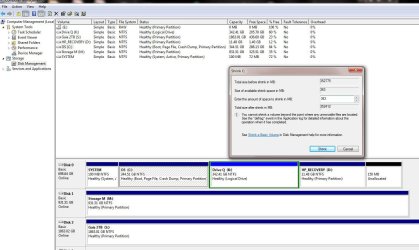
Shrink C.JPG

Question 1A: Does this actually make sense (given that there's now 288 GB of free space on C Drive)?
Question 1B: If I cannot shrink C via CM, is it possible to do the contemplated shrink by another program, or another means?

Question 2: Assuming that the shrink issue, above, is solvable as I would like it to be, I also would like to shrink the corresponding C Drive on the HDD that I cloned from the original C drive which came with my system (& which is referenced/discussed above). I made this clone shortly after buying the system and installing "my basic programs". Again, assuming that it is meaningfully shrinkable, should I be able to do so without having that clone installed so that its OS is running (rather than the OS on the (original) drive that's in there now)? In other words (and this may be a ridiculously silly question), is there any danger in shrinking a drive that has an OS on it, if that self-same OS is not in operation (but is, rather, e.g., sitting on an external usb-accessed HDD)?

Thanks much, in advance, for any illumination in this regard. (& I understand that resolving the shrinkage problem should not delay my creating my first disk image (since I've already winnowed C down to where I want it); it's just that now that I'm coming to grapple with this subject, I thought I'd get everything related squared away at the same time. . . .)
 

My Computer

Computer Manufacturer/Model Number
HP 6510-f
OS
Windows 7 Home Premium 64bit
CPU
AMD Athlon II x4 630 2.8 GH
Memory
4 gb
Ii looks like you or someone else deleted the HP tools (now unallocated) partition to make a logical partition.

Tread carefully. You can only have a maximum of 4 primary partitions for a basic type disk. After that you need to be careful you don't change your disk to a dynamic type. You do not want this.

You can do what you want to do by extending the extended (logical) partition. This is marked by the green box. Within the extended partition you can have many logical partitions and avoid converting the disk to dynamic. A well regarded program to use is the bootable Partition Wizard.

This doesn't look like an emergency so I would recommend a bit of reading on the topic beforehand. There is plenty of material on this forum.
 

My Computer

Computer type
PC/Desktop
Computer Manufacturer/Model Number
Own build
OS
Windows 7x64 Home Premium SP1
CPU
Intel i7 2600k
Motherboard
ASUS P8Z68 Deluxe
Memory
G.Skill Ripjaws (DDR3-1600) 2x4GB
Graphics Card(s)
Nvidia GeForce GTS 450; Intel HD Graphics 3000(GT2+)
Monitor(s) Displays
Dell Ultrasharp IPS panel U2311H, Samsung SyncMaster P2350
Screen Resolution
1920x1080
Hard Drives
Samsung 850 Pro SSD 256GB, Samsung SSD 840 120GB, Seagates 1TB Barracuda ST31000528AS x2
PSU
Seasonic M12II 520W
Case
Lian Li Lancool PC-K60
Cooling
Case: 1x120mm, 3x140mm CPU: Hyper 212+
Keyboard
Logitech MK520 (wireless)
Mouse
Logitech MK520
Internet Speed
6-7 Mbps
Antivirus
Norton Security Premium, Malwarebytes on 2 (MSE on 3rd PC)
Browser
FireFox
Other Info
Audio: Logitech Z523 2.1
You can use free Partition Wizard bootable CD to safely shrink C, as it will move System Files that aren't running in boot mode. Back up your files whenever you do any partitioning or repair operation.

As you already have an Extended Logical partition, you can resize it to the left using PW CD to take up the shrink space, or create a new Logical subpartition in that space.

You dont' need to worry about accidentally converting to Dynamic since you already have Extended Logical which can grow and shrink to any size and/or add/delete as many subpartitions as there are letters remaining to issue.

It's tempting to move the Recovery partition over to take up the 150mb Unallocated at the end of drive, but I wouldn't since it could lose it's hotkey to run from boot - which is the most stable way to run Recovery.

Be sure to make your Recovery Disks if you haven't already as a backup to restore to factory condition: http://h20331.www2.hp.com/hpsub/cache/312352-0-0-225-121.html
 
Given you already have an extended partition Windows disk management shouldn't allow a dynamic conversion.
However, the last response indicates all partitioning software will prevent a dynamic conversion.
I'm still not so sure.

Your unallocated space at the end of the disk is so small I, wouldn't touch it. Absorbing it into the recovery partition would achieve nothing positive.
 

My Computer

Computer type
PC/Desktop
Computer Manufacturer/Model Number
Own build
OS
Windows 7x64 Home Premium SP1
CPU
Intel i7 2600k
Motherboard
ASUS P8Z68 Deluxe
Memory
G.Skill Ripjaws (DDR3-1600) 2x4GB
Graphics Card(s)
Nvidia GeForce GTS 450; Intel HD Graphics 3000(GT2+)
Monitor(s) Displays
Dell Ultrasharp IPS panel U2311H, Samsung SyncMaster P2350
Screen Resolution
1920x1080
Hard Drives
Samsung 850 Pro SSD 256GB, Samsung SSD 840 120GB, Seagates 1TB Barracuda ST31000528AS x2
PSU
Seasonic M12II 520W
Case
Lian Li Lancool PC-K60
Cooling
Case: 1x120mm, 3x140mm CPU: Hyper 212+
Keyboard
Logitech MK520 (wireless)
Mouse
Logitech MK520
Internet Speed
6-7 Mbps
Antivirus
Norton Security Premium, Malwarebytes on 2 (MSE on 3rd PC)
Browser
FireFox
Other Info
Audio: Logitech Z523 2.1
Many thanks for the advice and pointers, mjf & gregrocker. I'll do my recovery discs later this evening, and, then follow that up with the first image-making, and round it out with a "shrink".

Now I understand that I do the "shrink" via the bootable PartitionW CD. As to the 2d question, though, what's the answer - or is it really too silly of a question to even pose? :D

That is, if that HDD -- which has the cloned C (& D, etc.) drive(s) on it -- is sitting in my usb dock and attached to the computer via usb, can I run the Partition Wizard program I've installed onto the computer (i.e., not the bootable CD]) on it to effectively shrink its (the cloned) C Drive, without concern that it will foul up that cloned C Drive?
 

My Computer

Computer Manufacturer/Model Number
HP 6510-f
OS
Windows 7 Home Premium 64bit
CPU
AMD Athlon II x4 630 2.8 GH
Memory
4 gb
No, use the PW boot disk and plug in any OS HD using SATA or IDE cables. Win7 should not be run via USB, even for partitioning operations.
 
Pardon my poor communication skills, but I think we're not on the same page as regards this "2d question".

The question presumes that:

(1) I've got a HDD (called "Harry") attached to my computer via usb. We will call both my computer and its HDD "Sam".
(2) Harry has several partitions on it, including partitions which are the clones of Sam's OS, as of several months ago.
(3) I want to shrink those cloned partitions on Harry.
(4) The OS on Sam will be running during this operation, not the OS on Harry.

The question asks this (perhaps unnecessarily and/or foolishly):

(A) Can Sam, while running Windows, run regular (not the boot CD, but rather the "Windows installed") PW on Harry, to "shrink" those cloned partitions (on Harry), notwithstanding the fact that those partitions contain an OS (albeit one which will not be not running at the time of the "shrinkage").

Thanks again.
 

My Computer

Computer Manufacturer/Model Number
HP 6510-f
OS
Windows 7 Home Premium 64bit
CPU
AMD Athlon II x4 630 2.8 GH
Memory
4 gb
Sesitos,
You are asking can you do a partition operation on an external HDD rather than your current running OS drive using the installed miniTool.

Yes in theory. My experience is that irrespective of what is on the external HDD you are best to perform "major" partition operations using the bootable Partition Wizard. The installed MiniTool (v5.2) has crashed more than once on me performing this type of operation.

The new version 6 may have overcome this problem.
 

My Computer

Computer type
PC/Desktop
Computer Manufacturer/Model Number
Own build
OS
Windows 7x64 Home Premium SP1
CPU
Intel i7 2600k
Motherboard
ASUS P8Z68 Deluxe
Memory
G.Skill Ripjaws (DDR3-1600) 2x4GB
Graphics Card(s)
Nvidia GeForce GTS 450; Intel HD Graphics 3000(GT2+)
Monitor(s) Displays
Dell Ultrasharp IPS panel U2311H, Samsung SyncMaster P2350
Screen Resolution
1920x1080
Hard Drives
Samsung 850 Pro SSD 256GB, Samsung SSD 840 120GB, Seagates 1TB Barracuda ST31000528AS x2
PSU
Seasonic M12II 520W
Case
Lian Li Lancool PC-K60
Cooling
Case: 1x120mm, 3x140mm CPU: Hyper 212+
Keyboard
Logitech MK520 (wireless)
Mouse
Logitech MK520
Internet Speed
6-7 Mbps
Antivirus
Norton Security Premium, Malwarebytes on 2 (MSE on 3rd PC)
Browser
FireFox
Other Info
Audio: Logitech Z523 2.1
Thanks, folks.

Well well. I'm feeling pretty "adult". I did my recovery discs, did the Macrium install and burned the Macrium rescue disc and disc imaged the MBR as well as the OS. Everything seemed to go swimmingly.
(And fast!!: @ 61 Gb of OS (w/ resultant image of 33.5 GB) took @ 21 minutes to image from one internal SATA HDD to another. Heck, I just recently backed up a folder of 136 GB under the same configuration (InSata to InSata) under a simple backup program without compression (KLS), and it took just an hour)

Having, thus, my "safety" OS image, I confirmed that my system "recognized" the Macrium rescue disc, whereupon I used Partition Wizard (bootable) to re-size the C drive downwards, and reallocate the remainder to a data partition. With some trepidiation I rebooted . . . and the damn thing seems to work just fine.

So, I then re-imaged the OS (and the MBR, just for safety's sake - curiously (?) there was a 3 bit difference between the two MBR images) on its now-shrunken partition.

The next step is to repartition the "cloned" HDD, again with bootable PWizard, having first taken a "safety" image of its OS and MBR. Assuming that the repartitioning and reallocation go as well on that drive as they did previously, I should be able, should I not,
[The Question:]

To restore onto (the usb attached) CLONEDRIVE ("Harry", per previous post) the 2d (post-partition) OS disc image that I made for/from C-"in-my-computer"-DRIVE ("Sam", of previous post) ??

(And then, after testing out "Harry", by temporarily mounting it internally (and assuming a satisfactory test), I can delete the safety image I made of Harry's OS.)
Well, that's what I think, anyway. (Oh, yeah - I know I should backup/copy the disc images to another drive as well, and will do so promptly - before I forget how to act like an adult [which never lasts long, unfortunately].)

Thanks so much, again. And of course, if you have any further words of wisdom, I would be happy to hear them.
 

My Computer

Computer Manufacturer/Model Number
HP 6510-f
OS
Windows 7 Home Premium 64bit
CPU
AMD Athlon II x4 630 2.8 GH
Memory
4 gb
(A) Can Sam, while running Windows, run regular (not the boot CD, but rather the "Windows installed") PW on Harry, to "shrink" those cloned partitions (on Harry), notwithstanding the fact that those partitions contain an OS (albeit one which will not be not running at the time of the "shrinkage").

I believe PW is portable so SAM O.S. may well launch and run Harry PW,
and that may well be able to adjust some HARRY partitions.

I guess that SAM O.S. may declare "file in use" at any attempt to shrink the Harry partition holding PW, and if the attempt was allowed and data was shifted by 1000 tracks, what happens if PW launches a procedure/API/WhatNot that moves the instructions of PW itself and when the procedure completes and returns control to PW it is not there to resume control.

I fear this is not going to end well ! ! !

N.B. Once P.W. running under XP damaged the partition table and lost all 7 or 8 partitions.
Fortunately I had the P.W. Boot CD and the Partition Recover Wizard did a good job.

I far prefer to use P.W. installed on C:\ so that it is certain to defer for a reboot any effect on C:\.

P.W. does warn that other applications should be closed.
It never failed previously but I decided Comodo had intercepted something suspicous on the Internet.
Since that incident I now switch Comodo to a configuration that totally blocks the Internet and disables all A.V. and Defense+ protection, and it was not failed since.
 

My Computer

Computer Manufacturer/Model Number
ASUSTeK Computer INC. M3A32-MVP DELUXE (CPU 1)
OS
Windows 7 Ultimate 64 bit SP1 x64
CPU
AMD Phenom X4 9500
Motherboard
ASUSTeK M3A32-MVP Deluxe (CPU 1)
Memory
8 GB
Graphics Card(s)
ATI Radeon HD 4600 Series
Sound Card
AMD High Definition Audio Device
Monitor(s) Displays
SyncMaster (1680x1050@60Hz)
Hard Drives
59GB OCZ-VERTEX2 ATA Device
+
977GB SAMSUNG HD103SJ ATA Device
+
625GB WDC WD6401AALS-00L3B2 ATA Device
Use the PW boot disk. It never fails.

I did so (used the PW boot disk) to shrink my C OS and will do likewise to shrink the N OS (CLONE Drive's OS). I expect everything to go swimmingly, again, but will report back any untoward results or (quasi-)interesting occurences.

Thanks so much to everyone. The help on offer here has both aided me directly with the tasks-at-hand, and eased my mind at the same time.
 

My Computer

Computer Manufacturer/Model Number
HP 6510-f
OS
Windows 7 Home Premium 64bit
CPU
AMD Athlon II x4 630 2.8 GH
Memory
4 gb
Back
Top