Unable to boot Windows 7 Home Premium 64bit dv6 using recovery disk

naresh123

New member
Local time
3:10 AM
Messages
5
Hello,
I have a HP dv6 that I force shutdown. Upon reboot, it asks me to do a Windows diagnostic and if I select that option, all I see is a blue screen (not the blue screen of death) and nothing else happens.

No progress bar, nothing...a DOS window did appear and disappear in a flash at the beginning.

Now, I had installed Ubuntu (through wubi, I think), and if I choose that OS option while booting, it boots up just fine. I can even see my Windows folders, files, etc., through Ubuntu file manager, though I can't copy, open of course.

Now, I have my 5 CD-R system recovery disks that I'd burned at the beginning.

I changed the boot order to CD in the BIOS, popped in recovery disk 1 and I see the two progress bars "Windows loading files" and then the blue screen appears again and nothing else does.

Thinking my recovery disks were corrupt, I plugged disk 1 into an Acer with the same Windows 7 Home Premium OS. When I attempted to boot my Acer from the HP recovery disk, I got a nice window with a message saying that this laptop is not supported by the recovery disk and to contact HP support.

So, the recovery disks are fine.

I'm not sure what else to do.

Any help will be appreciated.
 

My Computer My Computer

At a glance

Windows 7 Home Premium 64-bit
Computer type
PC/Desktop
Computer Manufacturer/Model Number
HP dv6
OS
Windows 7 Home Premium 64-bit
Try running chkdsk from a booted Win 7 install DVD or flash drive.

How to run chkdsk or System File Checker (SFC) from the Recovery Console

  • Boot your Vista or Windows 7 installation DVD
  • When you see "Press any key to boot from CD or DVD", press Enter
  • At the "Install Windows" screen, click on Repair your computer at lower left
  • At the System Recovery Options screen, make note of the drive letter assigned to your boot drive (normally C:) and click Next
  • At the Chose a Recovery Tool window, click on Command Prompt. You will be sitting at X:\Sources directory
  • Run chkdsk or SFC
  • If you did not note the drive letter of your boot disk, you can enter bcdedit and look at the osdevice line to see what it is.
  • For chkdsk, type chkdsk c: /r and press Enter (use the letter from above if not C:).
  • For sfc, type sfc /scannow /offbootdir=c:\ /offwindir=c:\windows and press Enter (use the letter from above)

Let either run to completion undisturbed.

Vista or Windows 7: If you don't have a install DVD, you can download a legal copy here:
Windows 7 Direct Download Links
Windows Vista Direct Download Links

Make sure you get the same version you have installed: 32 or 64 bit; Home Premium, Pro or Ultimate.
 

My Computer My Computer

At a glance

Windows 10 Pro X64Intel Quad Core i7-4770 @ 3.4Ghz16.0GB PC3-12800 DDR3 SDRAM 1600 MHzIntel Integrated HD Graphics
Computer type
PC/Desktop
Computer Manufacturer/Model Number
Lenovo IdeaCenter 450
OS
Windows 10 Pro X64
CPU
Intel Quad Core i7-4770 @ 3.4Ghz
Memory
16.0GB PC3-12800 DDR3 SDRAM 1600 MHz
Graphics Card(s)
Intel Integrated HD Graphics
Sound Card
Realtek HD Audio
Monitor(s) Displays
HP 22" LCD
Screen Resolution
1680 x 1050
Hard Drives
250GB Samsung EVO SATA-3 SSD
2TB Seagate ST2000DM001 SATA-2
1.5TB Seagate ST3150041AS SATA
Keyboard
Dell USB
Mouse
Lenovo USB
Internet Speed
Cable via Road Runner 3MB Upload, 30MB Download
Antivirus
Windows Defender, MBAM Pro, MBAE
Browser
Seamonkey
Other Info
UEFI/GPT
PLDS DVD-RW DH16AERSH
Thanks for the information. I guess I was too impatient, and I went and bought the Windows Easy RE from neosmart. Initially it looked good, because the automatic repair said it had found an incomplete update and it rolled it back.

It did its checks, rewrote the MBR etc etc.

But thereafter with a reboot, I get the BSOD with "Unmountable boot volume"

So I went a bit crazy and tried everything that was suggested out there...
1. Chkdsk says there were no errors.
2. Tried everything in here https://neosmart.net/wiki/recoverin...Two_Manually_Repairing_the_Windows_Bootloader including the "holocaust" option where I rebuild the bcd.
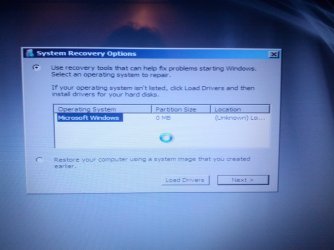
3. Created a System repair disc for windows 7 64 bit ...when I ask it to repair, it gets stuck in the system recovery for ever, as shown in the attached image.
4. I even decided, the heck with it, I'll reinstall. But even there it gets stuck in the "Setup is starting" phase for ever.

The files are all there on C: I can browse them when I use Easy RE's Linux based file manager.
 

Attachments

  • IMG_20140223_182613.jpg
    IMG_20140223_182613.jpg
    590.3 KB · Views: 1

My Computer My Computer

At a glance

Windows 7 Home Premium 64-bit
Computer type
PC/Desktop
Computer Manufacturer/Model Number
HP dv6
OS
Windows 7 Home Premium 64-bit
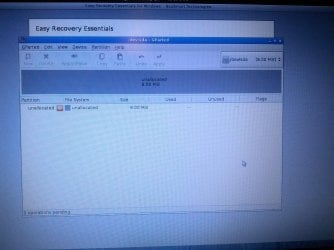
Also, this is what gparted shows
 

Attachments

  • gparted.jpg
    gparted.jpg
    734.8 KB · Views: 1

My Computer My Computer

At a glance

Windows 7 Home Premium 64-bit
Computer type
PC/Desktop
Computer Manufacturer/Model Number
HP dv6
OS
Windows 7 Home Premium 64-bit
So, I think I'm at a situation where the Windows boot loader is messed up. I followed the bcdedit related steps to add the path to winload.exe, but while booting, it cannot find Windows\System32\winload.exe.

I visited C: and sure enough there's no trace of the familiar file system . But when I boot using the EasyRE and browse using the file manager, I see the familiar directory structure, include Windows\System32\winload.exe

Was my assumption that C: is my boot drive wrong? I have no other partitions...
 

My Computer My Computer

At a glance

Windows 7 Home Premium 64-bit
Computer type
PC/Desktop
Computer Manufacturer/Model Number
HP dv6
OS
Windows 7 Home Premium 64-bit
Thanks for the information. I guess I was too impatient, and I went and bought the Windows Easy RE from neosmart. Initially it looked good, because the automatic repair said it had found an incomplete update and it rolled it back.

It did its checks, rewrote the MBR etc etc.

But thereafter with a reboot, I get the BSOD with "Unmountable boot volume"

So I went a bit crazy and tried everything that was suggested out there...
1. Chkdsk says there were no errors.
2. Tried everything in here https://neosmart.net/wiki/recoverin...Two_Manually_Repairing_the_Windows_Bootloader including the "holocaust" option where I rebuild the bcd.
3. Created a System repair disc for windows 7 64 bit ...when I ask it to repair, it gets stuck in the system recovery for ever, as shown in the attached image.
4. I even decided, the heck with it, I'll reinstall. But even there it gets stuck in the "Setup is starting" phase for ever.

The files are all there on C: I can browse them when I use Easy RE's Linux based file manager.

Have you tried posting on the Neosmart forum?

https://neosmart.net/forums/

OR

Requesting assistance from Customer Support?

https://neosmart.net/wiki/easyre/support/
 
Last edited:

My Computer My Computer

At a glance

Windows 7 Professional x64Intel i5 quad processor16 GBRadeon HD 5770
Computer type
PC/Desktop
Computer Manufacturer/Model Number
Custom Built
OS
Windows 7 Professional x64
CPU
Intel i5 quad processor
Motherboard
DP67BG
Memory
16 GB
Graphics Card(s)
Radeon HD 5770
Sound Card
Realtek High Definition Audio
Monitor(s) Displays
Samsung SyncMaster
Screen Resolution
1920X1080
Hard Drives
WD 2TB (SATA Internal)
WD 1TB (USB External)
PSU
Corsair GS800
Case
Tower (Generic)
Cooling
3 Internal Fans
Keyboard
MS Wireless
Mouse
MS Optical Wired
Internet Speed
54 mbps
Antivirus
Emsisoft
Browser
IE-Version 9, Palemoon-Version 24.2.0
I did email NeoSmart technical support, but I haven't heard back yet from them.

While it's possible the EasyRE cure either uncovered another problem in my messed up system, or caused it, fact of the matter is, that I'm faced with what seems to be a familiar problem:
0xc000000f missing or corrupt winload.exe

I guess I need help to recreate my boot loader, bcd, etc. such that I can get out of this. As I said, the file system seems to be fine, chkdsk doesn't report any problems.

I did try the bcdedit umpteen times to create a new BCD store from scratch and point it to my partition=C: , file: Windows\System32\winload.exe.

I even substituted a healthy winload.exe from another windows 7 home premium 64 bit install. Still no dice.
 

My Computer My Computer

At a glance

Windows 7 Home Premium 64-bit
Computer type
PC/Desktop
Computer Manufacturer/Model Number
HP dv6
OS
Windows 7 Home Premium 64-bit
Back
Top