Solved Unknown box appears on screen, won't go away.

Sonamsopmist

New member
Local time
11:33 AM
Messages
7
Hello, I face a problem on windows7 laptop. A small box appears on the desktop screen.
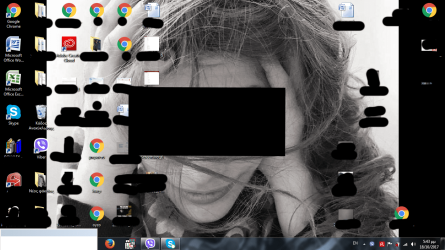
It is actually my sisters device, I asked her to capture the screen and send it to me so I can post it. The box look like a blank window, its on the bottom left, covering the start button. Sometimes it doesn't appear at all, but when it does, it doesn't go away, I tried checking task manager for anything unusual, but the only thing that caught my attention is "atieclxx.exe", most likely irrelevant to the issue. It' doesn't look like a splash nor one of those ransomware windows. Any solutions?
Attaching screenshot. For discretion, I' ve covered parts of the image with black patches.
I 've never encountered this problem on my win7 devices.
Thanks in advance.


Update: Solved, It was avira. Got rid of it and installed ESET. Thanks to lehnerus2000 for suggesting Process Explorer.
 

Attachments
  • Untitled.png
    Untitled.png
    390.2 KB · Views: 2
Last edited:

My Computer My Computer

At a glance

Windows 7 Home Premium 32bit
Computer type
Laptop
OS
Windows 7 Home Premium 32bit
I would try the following in order listed:

1. Right click the TaskBar and see if it is checked "Locked." If so left click to uncheck it to see if it fixes the issue.
2. Right click the TaskBar, left click "Properties", then click "Customize", then "Restore Default Icon Behaviors" to see if the issue is resolved.
3. Right click the TaskBar, left click Properties, then click the "Start Menu" Tab, then click "Customize" then click "Use Default Settings" to see if the issue is resolved.

Good luck and let us know how it turns out.
 
Last edited:

My Computer My Computer

At a glance

win 7
OS
win 7
Welcome to the Forum

When the small box appears on the desktop screen, launch task manager (Ctrl+Shift+Esc) and on the Applications tab and Services try to see if there is a program that could be the owner of the box.

Do a system file check
Open a CMD window and type
sfc /scannow
 

My Computers My Computers

  • At a glance

    Windows 7 HP 64i5 6600K - 800MHz to 4200MHz4+4G GSkill DDR4 3000IG - Intel 530
    Computer type
    PC/Desktop
    Computer Manufacturer/Model Number
    custom build
    OS
    Windows 7 HP 64
    CPU
    i5 6600K - 800MHz to 4200MHz
    Motherboard
    GA-Z170-HD3P
    Memory
    4+4G GSkill DDR4 3000
    Graphics Card(s)
    IG - Intel 530
    Monitor(s) Displays
    Samsung 226BW
    Screen Resolution
    1680x1050
    Hard Drives
    (1) -1 SM951 – 128GB M.2 AHCI PCIe SSD drive for Windows 7 and Lubuntu
    (2) -1 WD SATA 3 - 1T for Data
    (3) -1 WD SATA 3 - 1T for backup
    PSU
    Thermaltake 450W TR2 gold
    Keyboard
    Old and good Chicony mechanical keyboard
    Mouse
    Logitech mX performance - 9 buttons (had to disable some)
    Internet Speed
    500Mb/s
    Browser
    Firefox 64
    Other Info
    TinyWall firewall
  • At a glance

    Windows 7 Proi7-4500U 800MHz to 3.0GHz(4+4)G DDR3 1600IG intel 4400 + NVIDIA GeForce GT 745M
    Computer type
    Laptop
    System Manufacturer/Model Number
    Asus Q550LF
    OS
    Windows 7 Pro
    CPU
    i7-4500U 800MHz to 3.0GHz
    Motherboard
    Asus Q550LF
    Memory
    (4+4)G DDR3 1600
    Graphics Card(s)
    IG intel 4400 + NVIDIA GeForce GT 745M
    Sound Card
    Realtek
    Monitor(s) Displays
    LG Display LP156WF4-SPH1
    Screen Resolution
    1920 x 1080
    Hard Drives
    BX500 120G SSD for Windows and programs +
    1T HDD for data
    Internet Speed
    500 Mb/s
    Browser
    Firefox
    Other Info
    TinyWall firewall
I tried all 3, no fruit whatsoever
 

My Computer My Computer

At a glance

Windows 7 Home Premium 32bit
Computer type
Laptop
OS
Windows 7 Home Premium 32bit
I would try the following in order listed:

1. Right click the TaskBar and see if it is checked "Locked." If so left click to uncheck it to see if it fixes the issue.
2. Right click the TaskBar, left click "Properties", then click "Customize", then "Restore Default Icon Behaviors" to see if the issue is resolved.
3. Right click the TaskBar, left click Properties, then click the "Start Menu" Tab, then click "Customize" then click "Use Default Settings" to see if the issue is resolved.

Good luck and let us know how it turns out.

I tried all 3, apparently the box is not a TaskBar issue.
 

My Computer My Computer

At a glance

Windows 7 Home Premium 32bit
Computer type
Laptop
OS
Windows 7 Home Premium 32bit
Did you do what I suggested on post #3?
 

My Computers My Computers

  • At a glance

    Windows 7 HP 64i5 6600K - 800MHz to 4200MHz4+4G GSkill DDR4 3000IG - Intel 530
    Computer type
    PC/Desktop
    Computer Manufacturer/Model Number
    custom build
    OS
    Windows 7 HP 64
    CPU
    i5 6600K - 800MHz to 4200MHz
    Motherboard
    GA-Z170-HD3P
    Memory
    4+4G GSkill DDR4 3000
    Graphics Card(s)
    IG - Intel 530
    Monitor(s) Displays
    Samsung 226BW
    Screen Resolution
    1680x1050
    Hard Drives
    (1) -1 SM951 – 128GB M.2 AHCI PCIe SSD drive for Windows 7 and Lubuntu
    (2) -1 WD SATA 3 - 1T for Data
    (3) -1 WD SATA 3 - 1T for backup
    PSU
    Thermaltake 450W TR2 gold
    Keyboard
    Old and good Chicony mechanical keyboard
    Mouse
    Logitech mX performance - 9 buttons (had to disable some)
    Internet Speed
    500Mb/s
    Browser
    Firefox 64
    Other Info
    TinyWall firewall
  • At a glance

    Windows 7 Proi7-4500U 800MHz to 3.0GHz(4+4)G DDR3 1600IG intel 4400 + NVIDIA GeForce GT 745M
    Computer type
    Laptop
    System Manufacturer/Model Number
    Asus Q550LF
    OS
    Windows 7 Pro
    CPU
    i7-4500U 800MHz to 3.0GHz
    Motherboard
    Asus Q550LF
    Memory
    (4+4)G DDR3 1600
    Graphics Card(s)
    IG intel 4400 + NVIDIA GeForce GT 745M
    Sound Card
    Realtek
    Monitor(s) Displays
    LG Display LP156WF4-SPH1
    Screen Resolution
    1920 x 1080
    Hard Drives
    BX500 120G SSD for Windows and programs +
    1T HDD for data
    Internet Speed
    500 Mb/s
    Browser
    Firefox
    Other Info
    TinyWall firewall
Process Explorer

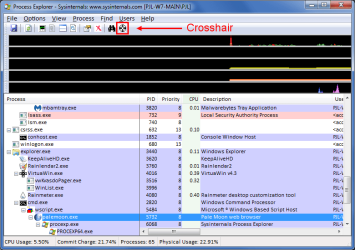
Process Explorer has a tool that you can use to identify the process associated with a window.

You can download it from here:
https://docs.microsoft.com/en-us/sysinternals/downloads/process-explorer
PrEx - Download.png
It's a portable program (i.e. it doesn't install and you can run it from a USB stick). :)

  1. Run the exe file (or unpack the zip file and then run the exe)
  2. Drag the Crosshair icon over the mystery window and "drop it"
  3. Check which process is highlighted
PrEx - Find Process (Cropped).png
My screenshot shows that I dropped the Crosshair on the Pale Moon window.
 

My Computer My Computer

At a glance

W7 Ultimate SP1, LM19.2 MATE, W10 Home 1703, ...AMD Phenom II x6 1100T, 3.3 GHz12GB DDR3 1333 G-Skill (4GB x 2), G-Skill (2G...NVIDIA GeForce GTX 660
Computer type
PC/Desktop
Computer Manufacturer/Model Number
n/a
OS
W7 Ultimate SP1, LM19.2 MATE, W10 Home 1703, W10 Pro 1703 VM, #All 64 bit
CPU
AMD Phenom II x6 1100T, 3.3 GHz
Motherboard
ASUS M4A88T-M/USB3 (AM3)
Memory
12GB DDR3 1333 G-Skill (4GB x 2), G-Skill (2GB x 2)
Graphics Card(s)
NVIDIA GeForce GTX 660
Sound Card
Realtek?
Monitor(s) Displays
Samsung S23B350
Screen Resolution
1920x1080
Hard Drives
WD Green 2TB (SATA), WD Green 3TB (SATA), WD Blue 4TB (SATA), WD Blue 6TB (SATA)
PSU
Cooler Master
Case
Antec GX300 Tower
Cooling
3x Antec TRICOOL 120mm Fans
Mouse
Wired Optical
Internet Speed
DSL
Antivirus
Avast
Browser
Pale Moon (64 bit)
Other Info
2018-12-27 Upgraded HDDs
2015-12-10 Upgraded case, graphics card, storage
2015-08-15 Upgraded motherboard & RAM
2015-07-15 Upgraded LM17.1 to LM17.2
Back
Top