unsetting read only flag on folder does not stick

Anderson2

New member
Power User
Local time
11:17 PM
Messages
188
A program I am running needs to access files in its folder but cannot do so because they are read only. The folder is in my Program Files (x86) folder.

When I go to the program folder and check its properties I find that it is read only. Even though I unselect the read only flag, click on Apply, say yes to all the files in the folder, and approve the admin permission to proceed, and then click on OK, when I relook at it my change to unselect read only did not stick.

What am I doing wrong?

Thanks
 

My Computer

OS
Windows 7
Thank you for helping.

Tried it but the folder remains read only. Weird. App works with "run as admin" but that does not explain why the attribute will not change. Is this related to UAC?

Thanks again.

Edit: I also checked and I am the owner of that folder and gave myself full control.
 
Last edited:

My Computer

OS
Windows 7

My Computer

Computer type
PC/Desktop
Computer Manufacturer/Model Number
Self built custom
OS
64-bit Windows 11 Pro for Workstations
CPU
Intel i7-8700K OC'd to 5 GHz
Motherboard
ASUS ROG Maximus XI Formula Z390
Memory
64 GB (4x16GB) G.SKILL TridentZ RGB DDR4 3600 MHz
Graphics Card(s)
ASUS ROG-STRIX-GTX1080TI-O11G-GAMING
Sound Card
Integrated
Monitor(s) Displays
2 x Samsung Odyssey G7 27"
Screen Resolution
2560x1440
Hard Drives
1TB Samsung 990 PRO M.2,
4TB Samsung 990 PRO PRO M.2,
TerraMaster F8 SSD Plus NAS
PSU
Seasonic Prime Titanium 850W
Case
Thermaltake Core P3
Cooling
Corsair Hydro H115i
Keyboard
Logitech wireless K800
Mouse
Logitech MX Master 4
Internet Speed
2 Gb/s Download and 100 Mb/s Upload
Antivirus
Malwarebyte Anti-Malware Premium
Browser
Google Chrome
Other Info
Logitech Z625 speaker system,
Logitech BRIO 4K Pro webcam,
HP Color LaserJet Pro MFP M477fdn,
APC SMART-UPS RT 1000 XL - SURT1000XLI,
Galaxy S23 Plus phone
Folders do not have Readonly, the checkbox in the properties only effects files.
The problem you are facing is Program Files is a protected directory and unauthorized writting to this directory without running as Admin is redirected to:
Code:
C:\Users\[username]\AppData\Local\VirtualStore

An application, however, should not be writing to Program Files.
 

My Computer

Computer type
PC/Desktop
Computer Manufacturer/Model Number
Alienware Aurora ALX R4
OS
Windows 10 Pro (x64)
CPU
Intel Core i7-3930K (3.2GHz - 4.5GHz)
Motherboard
Alienware Aurora-R4 x79
Memory
4x Samsung 4GB PC3-12800 DDR3 (16GB 1600MHz)
Graphics Card(s)
Nvidia Geforce GTX 690
Sound Card
SteelSeries Siberia Elite
Monitor(s) Displays
Dell UltraSharp U3011
Screen Resolution
2560x1600
Hard Drives
Samsung 850 Pro 256 GB, Seagate 1TB Desktop Hybrid HDD, 2x Western Digital 4TB Green HDD
PSU
875W Some Dell PSU <.<
Case
Alienware Aurora ALX
Cooling
Custom Liquid Cooling (EK CPU & GPU blocks) dual EK 480RAD
Keyboard
Logitech G710+ Mechanical
Mouse
Logitech G700s
Internet Speed
Verizon Fios (50 mbps average)
Other Info
Server: Intel NUC D54250WYK: i5-4250U, 16GB, 256 GB mSATA, Windows Server 2012 R2
Thank you all. I appreciate the help.
 

My Computer

OS
Windows 7
Actually, the reason why you believe that the "Read Only" attribute change does not stick, is that when displayed for folders, the checkbox is usually filled in, which is a visual cue that the files within the folder may either be readonly or not, or a combination of the two states.

If the check box is clear, then the readonly attribute is off. If a checkmark is visible, then the attribute is set.

Also, what you should be doing is looking to update your program to a Vista/Windows 7 compatible version. NO program, regardless of it function, should be saving configuration or user data in a sub-folder of "Program Files" or "Program Files (x86)". When an application does this, it's a sign of a lazy (or worse) programmer.
 

My Computer

Computer type
PC/Desktop
Computer Manufacturer/Model Number
Virtual Machine
OS
Windows 7 Professional 32-bit SP1
CPU
AMD A4/A6
Motherboard
Intel Corporation 440BX Desktop Reference Platform
Memory
3.00GB EDO
Graphics Card(s)
VMware SVGA 3D
Sound Card
High Definition Audio Device
Monitor(s) Displays
Generic Non-PnP Monitor on VMware SVGA 3D
Screen Resolution
1440x900
Hard Drives
1 x 60GB VMware Virtual SATA Hard Drive ATA Device
Antivirus
Kaspersky Total Security
Hi Dzomlija,

I'm developing programs for WinXP but now I need to create an application for Windows 7.
After reading above posts and my own experiences, writing and deleting files under Program Files sub-folder has issues.
And you also mention that we should not write under Program Files sub-folder.
However, if we must choose another location except Program Files, I can't think of another location in win 7 folder structures.

Can you suggest me where should I save then?? (I don't have any offence. I just need a guide on that cuz i'm new to win7 and its folder structures)

or should I save my temp files under the location mentioned by logicearth?
C:\Users\[username]\AppData\Local\VirtualStore

Thanks.
 

My Computer

OS
Windows 7 Home Premium
Always save to "My Documents" for Windows XP and "Documents" for Windows 7. Temp files should always be saved to: %temp% = (C:\Users\<username>\AppData\Local\Temp) in Windows 7. It is universal so it will work in Windows XP or Windows 7
 

My Computer

Computer type
PC/Desktop
Computer Manufacturer/Model Number
Dell OP7010
OS
Windows 7 Enterprise (x64); Windows Server 2008 R2 (x64)
Memory
16GB
Monitor(s) Displays
4 Dell 24" LCD
Screen Resolution
1280x1024
Keyboard
Dell
Mouse
Dell Optical
Internet Speed
40meg

My Computer

Computer type
PC/Desktop
Computer Manufacturer/Model Number
Alienware Aurora ALX R4
OS
Windows 10 Pro (x64)
CPU
Intel Core i7-3930K (3.2GHz - 4.5GHz)
Motherboard
Alienware Aurora-R4 x79
Memory
4x Samsung 4GB PC3-12800 DDR3 (16GB 1600MHz)
Graphics Card(s)
Nvidia Geforce GTX 690
Sound Card
SteelSeries Siberia Elite
Monitor(s) Displays
Dell UltraSharp U3011
Screen Resolution
2560x1600
Hard Drives
Samsung 850 Pro 256 GB, Seagate 1TB Desktop Hybrid HDD, 2x Western Digital 4TB Green HDD
PSU
875W Some Dell PSU <.<
Case
Alienware Aurora ALX
Cooling
Custom Liquid Cooling (EK CPU & GPU blocks) dual EK 480RAD
Keyboard
Logitech G710+ Mechanical
Mouse
Logitech G700s
Internet Speed
Verizon Fios (50 mbps average)
Other Info
Server: Intel NUC D54250WYK: i5-4250U, 16GB, 256 GB mSATA, Windows Server 2012 R2
All the folders in Windows 7, as in Vista and XP, are read only. You cannot change this attribute. You can untick the box, as suggested, but, even on an empty folder, if you reopen the properties, you will find it is read only again. Windows Explorer ignores this attribute.
You can read up on the function here:
You cannot view or change the Read-only or the System attributes of folders in Windows Server 2003, in Windows XP, in Windows Vista or in Windows 7
Fwiw. Applications often write to their own folder in Program files.
 

My Computer

Computer Manufacturer/Model Number
Three desktops and one laptop with good specs..
OS
Vista and now 7 in 32 and 64 bit.
All the folders in Windows 7, as in Vista and XP, are read only. You cannot change this attribute. You can untick the box, as suggested, but, even on an empty folder, if you reopen the properties, you will find it is read only again. Windows Explorer ignores this attribute.
You can read up on the function here:
You cannot view or change the Read-only or the System attributes of folders in Windows Server 2003, in Windows XP, in Windows Vista or in Windows 7
Fwiw. Applications often write to their own folder in Program files.
Thanks Davehc. That seems to be the problem I am having with several programs I installed in W7. So, what is the recommended work around for all these pre-W7 programs that as you note often write back to their own program folders.

Someone suggested installing them to a folder created outside Program Files (x86). Is that the solution? Or is it an ownership problem?

Thanks again.
 

My Computer

OS
Windows 7
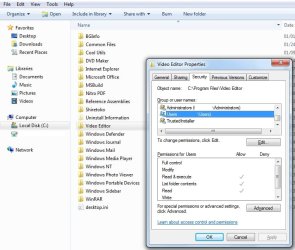
@Anderson2: I would just set the permissions on the folder for the installed software. Say you install a software called "Video Editor" and it is an old Windows 98 software so it installs on Windows 7 in the C:/Program Files folder as C:/Program Files/Video Editor. Typically C:/Program Files is for x64 software and C:/Program Files (x86) is for x86 software. Video Editor is a 32bit software so it installed in the wrong place because the installer does not know about Windows 7 and Windows 7 did not understand the installer and could not re-direct it. Because the software is old I would not try to force it into the C:/Program Files (x86) folder because it may not work well or correctly. What you need to do is set the permissions on the Video Editor folder for the USERS group to Modify. That way the software can modify the settings in the Video Editor folder. See screen shot.
 

Attachments

  • VideoEdit.jpg
    VideoEdit.jpg
    64.4 KB · Views: 189

My Computer

Computer type
PC/Desktop
Computer Manufacturer/Model Number
Dell OP7010
OS
Windows 7 Enterprise (x64); Windows Server 2008 R2 (x64)
Memory
16GB
Monitor(s) Displays
4 Dell 24" LCD
Screen Resolution
1280x1024
Keyboard
Dell
Mouse
Dell Optical
Internet Speed
40meg
Can you suggest me where should I save then?? (I don't have any offence. I just need a guide on that cuz i'm new to win7 and its folder structures)
The Old New Thing : What's the difference between My Documents and Application Data?

In Windows Vista and Seven, Application Data is C:\Users\[username]\AppData\Roaming
While Local Settings is C:\Users\[username]\AppData\Local

Hi logicearth,
Thanks for ur info.
[Sorry, I didn't mean to interrupt this post.]
Thanks for all.
 

My Computer

OS
Windows 7 Home Premium
Thank you WindowsStar. Appreciate the advice.
 

My Computer

OS
Windows 7
Back
Top