Upgraded main HDD and now a secondary HDD is showing Unallocated

kemble

New member
Local time
9:45 PM
Messages
3
Windows 7 Ultimate 64-bit

As the title says... I tend to upgrade my Main C Drive which currently is a 256GB Samsung SSD 840 Series once every 6-12 months or so for performance as the price of SSD's come down. I have 3 other HDD's in my computer that always stay the same and are all WD 1TB (D, E, and F). However, with this last upgrade, one of my HDD's decided to become a PITA and is now unrecognized according to Computer Management.

According to Computer Management, Disk 1 is "Unknown", Not Initialized, and Unallocated.
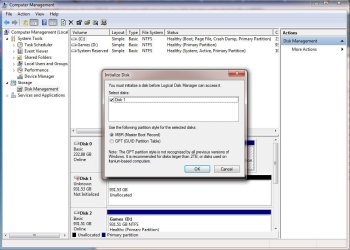
unallocated.jpg
It looks as if I need to initialize the disk but I'm scared to. Do I have to initialize and if so, which option do I choose?

I have many years of personal files and pictures on this particular drive.

Please help me with the steps I need to take to recover my data on this HDD.

Many Thanks in advance !!!
 
Last edited:

My Computer My Computer

At a glance

Windows 7 Ultimate 64-bit
Computer type
PC/Desktop
Computer Manufacturer/Model Number
Custom Build
OS
Windows 7 Ultimate 64-bit
Hello kemble. Welcome to the forum

Do not initialize the disk if you want to recover your data. Doing so will overwrite the file system and make this much more difficult.

I assume the old 1TB HDD had the OS on it?
Do you know if it was initialized as MBR or GPT?
The new SSD: was that initialized as MBR or SSD?
When you installed W7 on the SSD, did you disconnect both 1TB drives while doing so?

Please post a pic of Disk Management without the initialize window blocking the view. Expand it so we can read everything.
 

My Computer My Computer

At a glance

Windows 7 64 Bit Home Premium SP1i7-3820GSkill F3-14900CL9Q - 16GBEVGA GeForce GTX660 - Driver 352.86
Computer type
PC/Desktop
Computer Manufacturer/Model Number
Home Built - Jan 2013
OS
Windows 7 64 Bit Home Premium SP1
CPU
i7-3820
Motherboard
Asus P9X79-PRO - Bios 4608
Memory
GSkill F3-14900CL9Q - 16GB
Graphics Card(s)
EVGA GeForce GTX660 - Driver 352.86
Sound Card
On board Realtek ALC898
Monitor(s) Displays
Acer S271HL
Screen Resolution
1920 x 1080
Hard Drives
#1- Samsung 840 Pro Series
#2- Western Digital WD1002FAEX Sata3 Black
#3- Western Digital WD1002FAEX Sata3 Black
PSU
Corsair CMPSU-850TX-V2 - 850 watt (by Seasonic)
Case
Corsair Obsidian 550D
Cooling
Standard 3 120mm case fans, Cooler Master Hyper 212 EVO
Keyboard
MS KC-0405
Mouse
Intellimouse 5-button
Internet Speed
56 Mbits/Sec (on a good day)
Antivirus
Avast & Malwarebytes
Browser
Firefox
Other Info
Asus DVD - DRW-24B1ST 24X
The old 1TB did not have an OS on it. It was, and always has been, a secondary HDD that is used for personal word docs, excel docs, pictures, etc. I'm not sure if it was initialized as MBR or GPT.

The SSD, I'm 99% positive it was initialized as MBR.

I'm not sure not 100% sure if both hard drives were plugged in or not when I installed W7 on the new SSD. I think they were and it only recognized one of the two.

unallocated2.jpg


I have searched your site and have tried a few different things from this thread: http://www.sevenforums.com/hardware-devices/288692-disk-1-unknown-not-initialized-unallocated.html but no luck.
I tried the MiniTool Partition Wizard Home Edition and it shows up as "Bad Disk".
mini.jpg
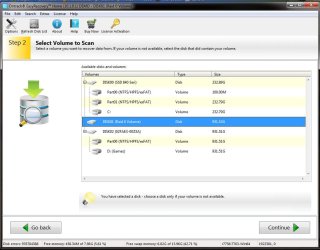
I did the Partition Recovery Wizard and ran both a Quick Scan and a Full Scan and neither of them found anything.

I tried the Power Data Recovery tool as well:
Damaged Partition Recovery shows nothing
Lost Partition Recovery shows the HDD but when the scan was run zero results were found.
Digital Media Recovery shows the HDD but when the scan was run zero results were found.

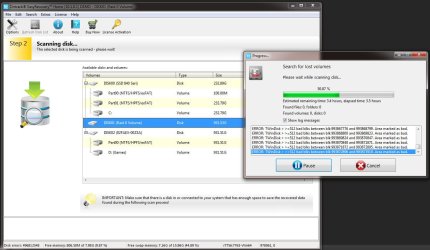
I downloaded Ontrack Easy Recovery Home and am currently performing a scan. It detected the HDD and is searching for lost volumes as I write this. It's been scanning for 3.5 hours and shows at 49% complete. In the logs it shows thousands of lines saying: "ERROR:TWinDisk > >=512 bad blks between blk 97xxxxxxx and 97xxxxxxx. Area marked as bad".

ontrack.jpg

Funny how it shows that the HDD is a Raid 0 when the HDD was never in a Raid setup.

I'm assuming that when this scan is done it will tell me I need to purchase their $80 license to fix my HDD. Do you think I should ?
 

My Computer My Computer

At a glance

Windows 7 Ultimate 64-bit
Computer type
PC/Desktop
Computer Manufacturer/Model Number
Custom Build
OS
Windows 7 Ultimate 64-bit
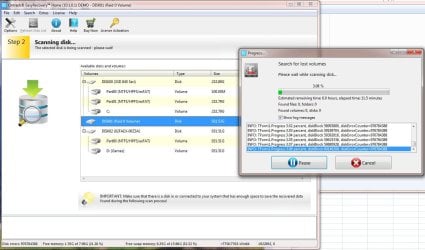
Finished the scan. Was no report, nothing for me to look at, nothing to tell me what to do, no new steps to take, just went right back to the main screen ????
ontrackdone.jpg


Ran it a second time, this time the errors were different:
ontrackround2.jpg

Scan completed... Same result as 1st scan: no report, nothing for me to look at, nothing to tell me what to do, no new steps to take, just went right back to the main screen ????
 

My Computer My Computer

At a glance

Windows 7 Ultimate 64-bit
Computer type
PC/Desktop
Computer Manufacturer/Model Number
Custom Build
OS
Windows 7 Ultimate 64-bit
Turn off your computer and swap the cables between your two 1TB drives. You say you were upgrading a drive in the computer and thus I suspect a possibility of physical damage and could be causing data transfer errors. Have you tried HD Tune ( HD Tune website free trial) to check the drive for SMART errors and can you post the results?
 

My Computer My Computer

At a glance

Windows 7 Home Premium 64bitIntel Core i5-2430M (Quad thread/dual core @ ...Kingston 6GB (4GB+2GB) DDR3 1333MHznVidia GeForce GT 540M 1GB DDR3
Computer type
Laptop
Computer Manufacturer/Model Number
Acer Aspire 5830TG-6614
OS
Windows 7 Home Premium 64bit
CPU
Intel Core i5-2430M (Quad thread/dual core @ 2.4-3GHz)
Memory
Kingston 6GB (4GB+2GB) DDR3 1333MHz
Graphics Card(s)
nVidia GeForce GT 540M 1GB DDR3
Screen Resolution
1366x768
Hard Drives
Toshiba 640GB 5400RPM 8MB Buffer
Antivirus
Avast Free
Browser
Chrome
I like herqulees suggestions. Can't hurt, might help.

All indications (and some excellent tests BTW) are that the drive has gone bad. This could be because it has actually gone bad, or because of a connectivity problem. So double check all the connections, try to plug it into different SATA ports, try different power connectors, everything.

The drive is recognized by the system, otherwise it would not show up in Disk Management. I bet if you went into the BIOS you would see it there too.
The problem may be with the basic file system. As in there is none. The data is all probably still on the disk, but no way to put the puzzle together.

One thing I suggest is to use Partition Wizard and the "Rebuild MBR" option on the drive. But the "Bad Drive" description does not give me much hope that will be possible.

Another program a lot of people here have used to recover data from bad drives is RECUVA. You might give that a try too.
 

My Computer My Computer

At a glance

Windows 7 64 Bit Home Premium SP1i7-3820GSkill F3-14900CL9Q - 16GBEVGA GeForce GTX660 - Driver 352.86
Computer type
PC/Desktop
Computer Manufacturer/Model Number
Home Built - Jan 2013
OS
Windows 7 64 Bit Home Premium SP1
CPU
i7-3820
Motherboard
Asus P9X79-PRO - Bios 4608
Memory
GSkill F3-14900CL9Q - 16GB
Graphics Card(s)
EVGA GeForce GTX660 - Driver 352.86
Sound Card
On board Realtek ALC898
Monitor(s) Displays
Acer S271HL
Screen Resolution
1920 x 1080
Hard Drives
#1- Samsung 840 Pro Series
#2- Western Digital WD1002FAEX Sata3 Black
#3- Western Digital WD1002FAEX Sata3 Black
PSU
Corsair CMPSU-850TX-V2 - 850 watt (by Seasonic)
Case
Corsair Obsidian 550D
Cooling
Standard 3 120mm case fans, Cooler Master Hyper 212 EVO
Keyboard
MS KC-0405
Mouse
Intellimouse 5-button
Internet Speed
56 Mbits/Sec (on a good day)
Antivirus
Avast & Malwarebytes
Browser
Firefox
Other Info
Asus DVD - DRW-24B1ST 24X
I like herqulees suggestions. Can't hurt, might help.

All indications (and some excellent tests BTW) are that the drive has gone bad. This could be because it has actually gone bad, or because of a connectivity problem. So double check all the connections, try to plug it into different SATA ports, try different power connectors, everything.

The drive is recognized by the system, otherwise it would not show up in Disk Management. I bet if you went into the BIOS you would see it there too.
The problem may be with the basic file system. As in there is none. The data is all probably still on the disk, but no way to put the puzzle together.

One thing I suggest is to use Partition Wizard and the "Rebuild MBR" option on the drive. But the "Bad Drive" description does not give me much hope that will be possible.

Another program a lot of people here have used to recover data from bad drives is RECUVA. You might give that a try too.

I was going to suggest Recuva too as I use it myself but am not sure it supports scanning whole drives? As in I think it can only scan drives that have an assigned letter. I have nothing to test that theory on though.
I know some good ways to dig the data back off the hard drive, assuming the drive is still capable of basic operation, but all require Linux/Ubuntu (using the dd command) and a lot of storage space (1TB in this case) to copy the disk sector by sector to another storage medium before the drive suffers any more damage, that way you have a clone to recover your files from and/or you can figure out what went wrong on the clone and apply the fix to the hard drive, taking out any further risk of data loss. If you are interested I can instruct you through the process, but it will be lengthy and as I said you will need a free 1TB of space to do the job.
 

My Computer My Computer

At a glance

Windows 7 Home Premium 64bitIntel Core i5-2430M (Quad thread/dual core @ ...Kingston 6GB (4GB+2GB) DDR3 1333MHznVidia GeForce GT 540M 1GB DDR3
Computer type
Laptop
Computer Manufacturer/Model Number
Acer Aspire 5830TG-6614
OS
Windows 7 Home Premium 64bit
CPU
Intel Core i5-2430M (Quad thread/dual core @ 2.4-3GHz)
Memory
Kingston 6GB (4GB+2GB) DDR3 1333MHz
Graphics Card(s)
nVidia GeForce GT 540M 1GB DDR3
Screen Resolution
1366x768
Hard Drives
Toshiba 640GB 5400RPM 8MB Buffer
Antivirus
Avast Free
Browser
Chrome
Hi Kemble,

You said that you have three "other" drives. But all your screenshots show only two "other" drives.:)

Never mind. I take there are only two other identical drives.

Before you go on to try any data recovery:

There is a remote possibility of the two identical drives suffering from what is known as "signature collision" which can only happen when those are connected simultaneously.

To exclude this possibility, try connecting only one drive at a time and check.

EDIT: First swap the SATA cables to both the identical drives as pointed by herqulees and check ( A damaged/not-properly seated SATA cable can create this problem) before trying this one-at-a-time check.
 
Last edited:

My Computer My Computer

At a glance

Windows 7 Home Premium 32 bit
OS
Windows 7 Home Premium 32 bit
Back
Top