Used minitools partition wizard with strange results... Need advice..

swtcorrado

New member
Local time
9:42 PM
Messages
6
First off, long time reader first time poster...

The plan was to partition my hd and run a 32bit version of xp along with win7 64. I tried using the partitioning utility that's bundled with win7 without any luck due to unmovable files. So I head to the internets for advice and minitools get a lot of thumbs up. I had 30gig free on my 320gig hd so I thought a 20gig partition would be plenty for what I was planning to use it for. I go through the steps in minitools, click apply and receive a notice stating that drive c: is in use and that a restart would be require to complete the actions (not verbatim). So I click restart, the system restarts and minitools loads up a dos looking utility and begins the process. It doesn't get very far before a notice pops up stating something like "cant proceed, disk too fragmented, press any key to restart" (again not verbatim).

I restarted and windows boots up fine. My c: drive states its 0% fragmented but the real problem is that now I only have 10 gig free from my 30gig, my drive is stating it's 20 gig smaller, and there isnon partitioned drive F:!!!

Where did my gigs go?!?!? It's like minitools has designated the space for the partition without partitioning. I want my gigs back!! Please help:confused:
 

My Computer My Computer

At a glance

windows 7 64
Computer Manufacturer/Model Number
hp hdx16
OS
windows 7 64
Please post a snip of your Disk Management for us to see:

"Before we make any specific recommendations will you please post a snip/screen-shot of the entire Windows disk management drive map with a full description as to which drive/partition is which, so we can see what you have going on as there may be a fairly simple way to resolve the situation.

In the Windows start menu right click computer and click manage, in the left pane of the "Computer Management" window that opens click disk management and post a maximized snip of that."
 

My Computer My Computer

At a glance

Windows 7 Pro x64 SP1AMD Phenom II x6 1090T Black Edition 3.2GHzPatriot G ‘Sector 5’ Edition 8GB (2 x 4GB) 16...
Computer type
PC/Desktop
OS
Windows 7 Pro x64 SP1
CPU
AMD Phenom II x6 1090T Black Edition 3.2GHz
Motherboard
ASUS M4A88TD-V EVO/USB3
Memory
Patriot G ‘Sector 5’ Edition 8GB (2 x 4GB) 1600MHz
Sound Card
(onboard) Realtek® ALC 892 8-Channel High Definition Audio
Monitor(s) Displays
ViewSonic VX2253 22"
Screen Resolution
1920x1080
Hard Drives
Transcend SSD720 2.5" SATAIII 64GB SSD; Western Digital Caviar Green WD20EARS 2TB 64MB 3.5" HDD
LG WH10LS30 10X Blu-ray Burner with LightScribe
PSU
CORSAIR TX Series 950W ATX12V 80 Plus Bronze
Case
Cooler Master HAF X NVidia Edition; 5 Green LED Fans!
Cooling
CORSAIR A70 120mm Dual-Fan
Keyboard
Verbatim 97472 Mini Wireless Slim
Mouse
bundled Verbatim 97472 Wireless
Antivirus
Avast
Browser
Chrome
Other Info
Ultraportable/Desktop Replacement Laptop:
circa Oct 2006,
Dell XPS M1210,
Windows 7 Professional 32-bit,
Intel Core 2 Duo T7200 2.0GHz,
3.25 (4) GB of RAM,
NVidia GeForce Go 7400,
500GB Seagate Momentus 7200RPM HDD
So here's a snippet, but it's stating I only have 298gb when it should be closer to 320. I probably wouldn't have noticed a problem except my free space on drive c: happened to be reduced by the amount I requested the new partition to be, but no new partition:(. I'm scratching my head on this one:sarc:
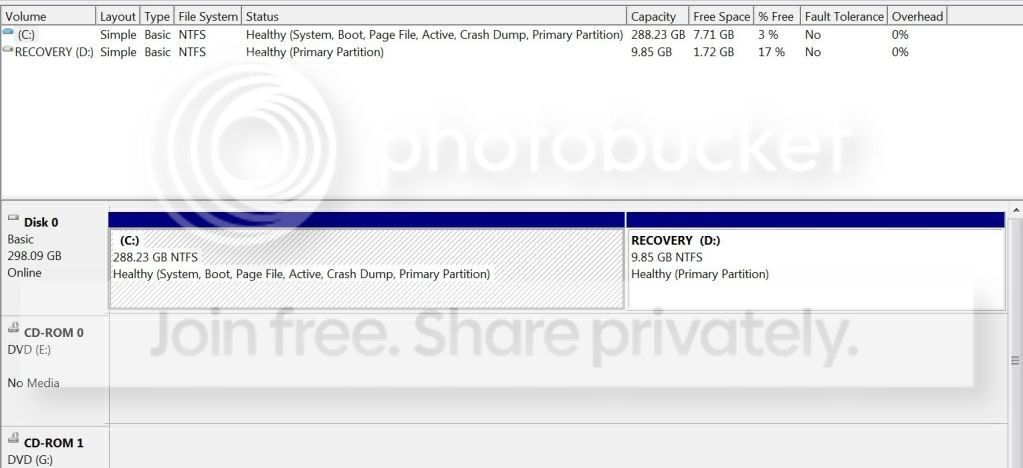
diskmanagement.jpg
 

My Computer My Computer

At a glance

windows 7 64
Computer Manufacturer/Model Number
hp hdx16
OS
windows 7 64
Ok, I might be going crazy and the numbers are playing tricks on me. Your right the drive size does match, I totally jumped the gun there. But I'm sure I had 28-30gb free before I tried the partition, in fact I'm positive. If you have ever used minitools you know that when you go to re size your drive it pops up with a window with a graphic, a bar representing the drive size with a shaded blue area representing how much space you have used. There's arrows on either side and as you drag them back and forth they reduce the overall size of the partition. Below there's a text box that shows you exactly how much your allocating to the new partition. I had 30gb, I allocated 20gb leaving just under 10gb free space. I clicked apply went through the motions, was informed the process couldn't complete. Now I have less than 8gb remaining with no partition. This is so weird:huh:.
 

My Computer My Computer

At a glance

windows 7 64
Computer Manufacturer/Model Number
hp hdx16
OS
windows 7 64
There would have been no need to lock the C: drive or reboot just to make a new partition in your unallocated space...I think what you really did (without realizing) is you resized the C: drive to use up the left-over space so C: itself is bigger now.

I just read your posts again and now I understand what you were attempting to do. This is weird indeed...in your screenshot, all the numbers look right. I don't know how your C: partition can suddenly be so full as to have less than 8GB free...maybe the NTFS filesystem no longer matches the partition size. Somehow that minitools thing must have messed things up.

You can use Disk Management or another partition editor such as EASEUS Partition Master Home Edition to shrink C: and regain free space for an XP partition.

After that, there really isn't anything more to be done - at this point you could restart and boot from the XP setup CD and simply ask it to install to the unallocated space (it will create a new partition on its own).

You'll run into the problem of making Windows 7 unbootable however, since the XP setup doesn't know about 7 and won't set up a dualboot for you. So you'll have to fix that with other tools after XP is installed, and that's a whole different story...
 

My Computer My Computer

At a glance

Windows 7 Professional SP1 32-bitIntel Core 2 Duo E6600 2.4GHz4GB DDR2-667 (4x1GB in dual-channel config)nVidia GeForce 9800 GT
Computer type
PC/Desktop
Computer Manufacturer/Model Number
Custom-built
OS
Windows 7 Professional SP1 32-bit
CPU
Intel Core 2 Duo E6600 2.4GHz
Motherboard
Asus PL5D2
Memory
4GB DDR2-667 (4x1GB in dual-channel config)
Graphics Card(s)
nVidia GeForce 9800 GT
Sound Card
Creative X-Fi XtremeMusic
Monitor(s) Displays
Acer P236H
Screen Resolution
1920x1200 (DVI)
Hard Drives
OCZ SSD Vertex Plus 60GB SATA (Firmware 3.55), 64MB cache
Hitachi HD321KJ SATA, 320GB, 7200rpm, 16MB cache
PSU
Antec TruePower 2.0
Case
Cooler Master Centurion
Cooling
Too many fans
Keyboard
Standard
Mouse
Microsoft wireless optical mouse
Internet Speed
AT&T U-verse (18mbit/sec)
Antivirus
Microsoft Security Essentials
Browser
Firefox
Other Info
Other devices:
Compaq CQ-60 laptop
Google Nexus 7 (2012) tablet
Nvidia SHIELD tablet (US/LTE)
Hardkernel ODROID-XU single-board computer (Samsung Exynos 5420)
So strange, it's like minitools allocated the space so it can't be used by drive c: but drive c: still shows it contains the same volume but 20gig is being used that wasn't before. I've been searching for some type of file management software that will show me what my memory allocation is being used for. I figured a 20gig file would pop up and I could simple delete it and all would be well.

No such luck so far. I'm guessing that minitools at some point allocated the space but because the partitioning process didn't complete it didn't finish rewriting the volume and left the 20gig in some sort of written state where the c: drive shows it as being used.

If someone has any idea on how to locate this block of space I'd appreciate it. I'm starting to think it isn't a complete block but probably several with a strange alphanumeric file name which I'll just assume is some system file or files- sorry just thinking out loud there with the last part;)
 

My Computer My Computer

At a glance

windows 7 64
Computer Manufacturer/Model Number
hp hdx16
OS
windows 7 64
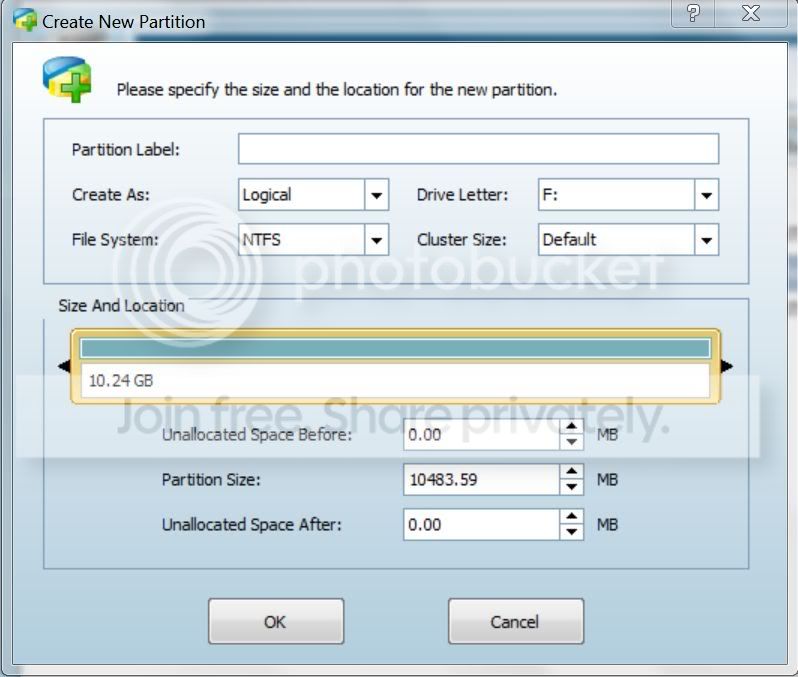
Just a quick thought, after I resized c: volume to create the unallocated 20gb I clicked on create+ icon to create the partition. Under "create as" I selected "primary" not "logical". I figured c:\ and d:\ are both primary and so should this one. I think this is where I might of goofed.

createpartition.jpg


Do you think this might be my issue? If so how do I fix it? The sad thing is I had to google "logical drive" because I didn't know what it meant. Now I'm thinking I should have selected the latter. Oh well, you live, you learn.
 

My Computer My Computer

At a glance

windows 7 64
Computer Manufacturer/Model Number
hp hdx16
OS
windows 7 64
I'm guessing that minitools at some point allocated the space but because the partitioning process didn't complete it didn't finish rewriting the volume and left the 20gig in some sort of written state where the c: drive shows it as being used.

That's exactly what I'm thinking too. Here's what I would try before anything else:

Step 1.

Open a command prompt and type chkdsk /f /v C: - Windows will tell you that the drive is locked, do you want to schedule a check upon restarting - answer 'Y'. Then reboot and let chkdsk do its thing at boot time.

After that see if it reclaimed the lost space. If not, proceed with:

Step 2.

Again, open a command prompt and type diskpart. When Diskpart has started it will provide you with its own command prompt.

Now type list disk - your main harddisk will probably show up first in the list as disk 0. Verify that this is so and then type select disk 0 (or whichever number your HD actually is).

Next, type list partition to list the partitions on this disk. You get the idea, you need to select the C: partition now. Assuming it's the first one, type select partition 1.

Now type extend filesystem. This will check if the NTFS filesystem matches the size of the partition it occupies, and if not, extend it to fill the partition.

(I haven't done an 'extend' on a running system partition before, so I don't know if diskpart might refuse the command at this point. If it does then you'll have to boot from your Windows setup DVD or some other kind of boot disc and run diskpart from there instead.)

Now you can exit Diskpart by, not surprisingly, typing exit, then close the command window.

Let me know if either of these steps resulted in recovering the lost space. :)
 

My Computer My Computer

At a glance

Windows 7 Professional SP1 32-bitIntel Core 2 Duo E6600 2.4GHz4GB DDR2-667 (4x1GB in dual-channel config)nVidia GeForce 9800 GT
Computer type
PC/Desktop
Computer Manufacturer/Model Number
Custom-built
OS
Windows 7 Professional SP1 32-bit
CPU
Intel Core 2 Duo E6600 2.4GHz
Motherboard
Asus PL5D2
Memory
4GB DDR2-667 (4x1GB in dual-channel config)
Graphics Card(s)
nVidia GeForce 9800 GT
Sound Card
Creative X-Fi XtremeMusic
Monitor(s) Displays
Acer P236H
Screen Resolution
1920x1200 (DVI)
Hard Drives
OCZ SSD Vertex Plus 60GB SATA (Firmware 3.55), 64MB cache
Hitachi HD321KJ SATA, 320GB, 7200rpm, 16MB cache
PSU
Antec TruePower 2.0
Case
Cooler Master Centurion
Cooling
Too many fans
Keyboard
Standard
Mouse
Microsoft wireless optical mouse
Internet Speed
AT&T U-verse (18mbit/sec)
Antivirus
Microsoft Security Essentials
Browser
Firefox
Other Info
Other devices:
Compaq CQ-60 laptop
Google Nexus 7 (2012) tablet
Nvidia SHIELD tablet (US/LTE)
Hardkernel ODROID-XU single-board computer (Samsung Exynos 5420)
Cheers man, some good suggestions there. I'll check it out and get back with you. End of the week is crazy with family. Saturdays the day!!
 

My Computer My Computer

At a glance

windows 7 64
Computer Manufacturer/Model Number
hp hdx16
OS
windows 7 64
Back
Top