
User Account - Delete

How to Delete a User Account in Windows 7 and Windows 8


   Information
This tutorial will show you different ways on how to delete a user account or domain user account in Windows 7 and Windows 8/8.1.

You must be logged in as an administrator to be able to delete a user account.

   Warning


  • You will not be able to delete a user account that is logged in. It must be logged off first.
  • Do not delete all administrator accounts on the computer. You need to have at least one administrator account created on the computer.
  • Before deleting the user account, be sure to backup anything that you do not want to lose in it's C:\Users\(user-name) profile folder and subfolders.


OPTION ONE

To Delete an User Account in Control Panel "User Accounts"


1. Open the Control Panel (icons view) in Windows 7 or Windows 8, and click/tap on the User Accounts icon.

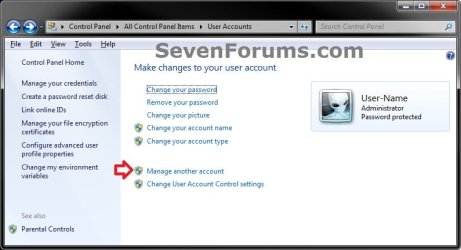
2. Click/tap on the Manage another account link. (see screenshot below)
User-Accounts-1.jpg
3. If prompted by UAC, then click/tap on Yes.

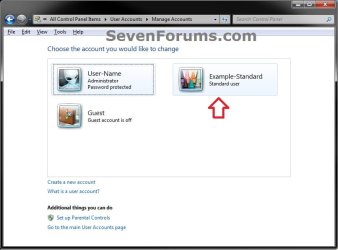
4. Click/tap on the user account (ex: Example-Standard) that you want to delete. (see screenshot below)
User-Accounts-2.jpg
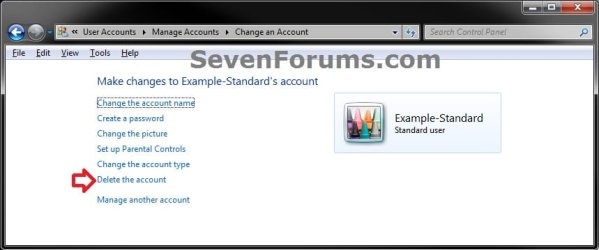
5. Click/tap on the Delete the account link. (see screenshot below)
User-Accounts-3.jpg
6. Click/tap on the Delete Files button. (see screenshot below)
User-Accounts-4.jpg
7. Click/tap on the Delete Account button. (see screenshot below)
User-Accounts-5.jpg
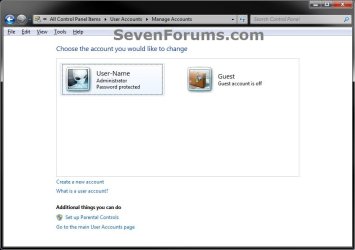
8. The user account and it's C:\Users\(user-name) profile folder has now been deleted.
User-Accounts-6.jpg
9. When finished, you can close the User Accounts window.


OPTION TWO

To Delete an User Account in "Local Users and Groups"


1. Open Local Users and Groups, and click/tap on the Users folder in the left pane to open it. (see screenshot below)
NOTE: In Windows 8, "Local Users and Groups" is only available in the Windows 8 Pro and Enterprise editions.
lusrmgr-1.jpg
2. In the middle pane of Users, right click or press and hold on the user account (ex: Example-Standard) that you want to delete, and click/tap on Delete. (see screenshot below)
lusrmgr-2.jpg
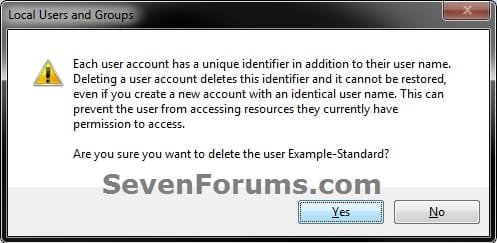
3. Click/tap on Yes. (see screenshot below)
lusrmgr-3.jpg
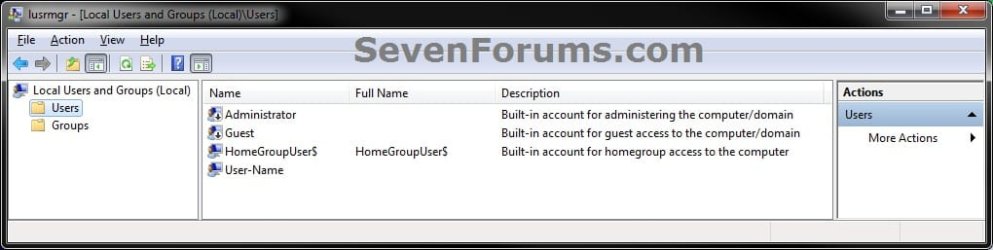
4. The user account has been deleted. When finished, close the Local Users and Groups window. (see screenshot below)
lusrmgr-4.jpg
5. In Windows Explorer (Windows 7) or File Explorer (Windows 8), navigate to the deleted user account's C:\Users\(user-name) profile folder (ex: Example-Standard), right click or press and hold on it, click/tap on Delete, and approve. (see screenshot below)
Delete_User_Folder.jpg


OPTION THREE

To Delete an User Account in an "Elevated Command Prompt"


NOTE: This option will use the net user command to delete an user account with.
1. Open an elevated command prompt in Windows 7 or Windows 8.

2. Do either step 3 or 4 below for how you need to delete the user account.

3. To Delete a User Account
A) In the elevated command prompt, type the command below, and press Enter. (see screenshot below)

   Note
Substitute UserName in the command below with the user name of the user account (ex: Example-Standard) within quotes that you want to delete.

If this is a Microsoft account in Windows 8 that you want to delete, then you would need to substitute UserName in the command below with the name of it's C:\Users\(user-name) profile folder instead.


net user "UserName" /delete
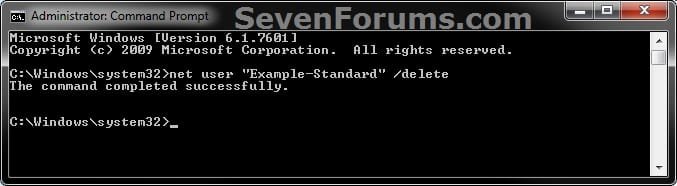
CMD-1.jpg
B) Go to step 5.
4. To Delete a User Account on a Domain
NOTE: This is for only if your computer is on a domain.
A) In the elevated command prompt, type the command below, and press Enter. (see screenshot below)

   Note
Substitute UserName in the command below with the user name of the user account (ex: Example-Standard) within quotes that you want to delete.

If this is a Microsoft account in Windows 8 that you want to delete, then you would need to substitute UserName in the command below with the name of it's C:\Users\(user-name) profile folder instead.


net user "UserName" /delete /domain
B) Go to step 5.
5. The user account has now been deleted. When finished, close the elevated command prompt.

6. In Windows Explorer, navigate to this user account's C:\Users\(user-name) profile folder (ex: Example-Standard), right click or press and hold on it, click/tap on Delete, and approve. (see screenshot below)
Delete_User_Folder.jpg


OPTION FOUR

To Delete an User Account in "Advanced User Accounts" (netplwiz)


1. Press the Windows+R keys to open the Run dialog, type netplwiz in the search box, and press Enter.

2. If prompted by UAC, then click/tap on Yes.

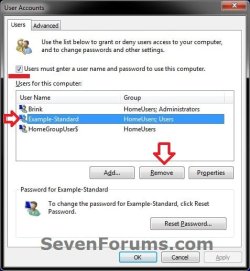
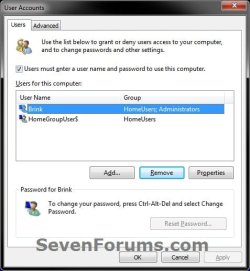
3. Check the Users must enter a user name and password to use this computer box. (see screenshot below)
netplwiz-1.jpg
4. Select (highlight) the user name (ex: Example-Standard) of the user account that you want to delete, and click/tap on the Remove button. (see screenshot above)

5. Click/tap on Yes to approve. (see screenshot below)
netplwiz-2.jpg
6. If you had a user account set to be logged on automatically at startup, then you will need to set this again.

7. When finished, click/tap on OK. (see screenshot below)
netplwiz-3.jpg
8. The user account has now been deleted.

9. In Windows Explorer, navigate to this user account's C:\Users\(user-name) profile folder (ex: Example-Standard), right click or press and hold on it, click/tap on Delete, and approve. (see screenshot below)
Delete_User_Folder.jpg


OPTION FIVE

To Delete an User Account in PC settings


NOTE: This option is only available in Windows 8.1 and Windows RT 8.1.
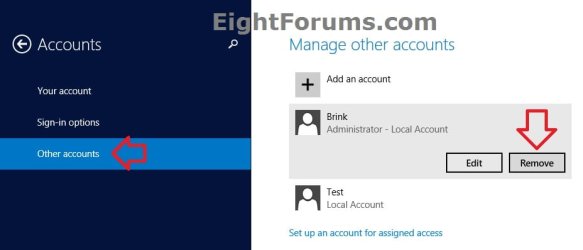
1. Open PC settings, and click/tap on Accounts on the left side. (see screenshot below)
PC-settings_remove-1.jpg
2. Click/tap on Other accounts on the left side of PC settings, click/tap on the account (ex: Brink) you want to remove on the right side, and click/tap on Remove. (see screenshot below)
NOTE: Only local accounts will be listed here. You will need to use one of the other options above instead to remove a Microsoft account.
PC-settings_remove-1.jpg
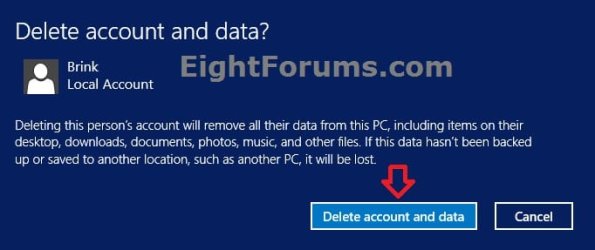
3. Click/tap on Delete account and data. (see screenshot below)
PC-settings_remove-2.jpg
4. After a short moment, you will now see the account has been removed. (see screenshot below)
PC-settings_remove-3.jpg
5. When finished, you can close PC settings if you like.
That's it,
Shawn


Attachments

  • PC-settings-1.jpg
    PC-settings-1.jpg
    45.3 KB · Views: 6
Last edited:
really thanks........:huh:
 

My Computer

Computer type
PC/Desktop
OS
windows 7 32bit
Old user name still showing in expanded C drive tree

I am trying to help a friend who has bought a one year old laptop form a friend of his who is unable because of health to continue using it.
It has W8 which I have upgraded to W8.1 plus the latest update.

Before looking in this forum I had used his Microsoft ID to switch from the old user's local account, and the local account to his name. (Having written this I realise that my memory of detail here may not be exact, as I did not note what I did.)
I transferred all the folders from the old user name (Ian and Joan) to the new one (Jim).

The old user name is still in the drive C list, and although the folder shows as empty, if I try to delete it, there is a whole lot of folders shown being deleted- apparently the ones I had transferred- so the deletion was cancelled.

A further complication is that when I have sought, when downloading, to save to Downloads I get a message that this can not be done - do you want to save in Ian and Joan instead. If I click yes, and subsequently go to File Explorer I can move the downloaded program file to "Jim". (I also found that OneDrive was in the Ian and Joan folder, so I have moved that across.)


I think that leaving the Ian and Joan empty folder is only untidy, but the inability to directly save a download is a problem.

Can you suggest what I might try, please. And also, do you think I may have created any problems?
 

My Computer

Computer Manufacturer/Model Number
Dell Vostro 3500
OS
W7 64bit
CPU
i5
Motherboard
Dell
Memory
4GBG
Graphics Card(s)
inbuilt
Sound Card
inbuilt
Monitor(s) Displays
laptop
Hard Drives
320G
Case
laptop

My Computer

Computer type
PC/Desktop
Computer Manufacturer/Model Number
Self built custom
OS
64-bit Windows 11 Pro for Workstations
CPU
Intel i7-8700K OC'd to 5 GHz
Motherboard
ASUS ROG Maximus XI Formula Z390
Memory
64 GB (4x16GB) G.SKILL TridentZ RGB DDR4 3600 MHz
Graphics Card(s)
ASUS ROG-STRIX-GTX1080TI-O11G-GAMING
Sound Card
Integrated
Monitor(s) Displays
2 x Samsung Odyssey G7 27"
Screen Resolution
2560x1440
Hard Drives
1TB Samsung 990 PRO M.2,
4TB Samsung 990 PRO PRO M.2,
TerraMaster F8 SSD Plus NAS
PSU
Seasonic Prime Titanium 850W
Case
Thermaltake Core P3
Cooling
Corsair Hydro H115i
Keyboard
Logitech wireless K800
Mouse
Logitech MX Master 4
Internet Speed
2 Gb/s Download and 100 Mb/s Upload
Antivirus
Malwarebyte Anti-Malware Premium
Browser
Google Chrome
Other Info
Logitech Z625 speaker system,
Logitech BRIO 4K Pro webcam,
HP Color LaserJet Pro MFP M477fdn,
APC SMART-UPS RT 1000 XL - SURT1000XLI,
Galaxy S23 Plus phone
Thank you for your posted reply.

I have followed Option 1. The operating system is W8.1 with update 1, the home version.

Step 6 - there is no other account shown, only the Add a User box. This was selected. As the previous Ian & Joan account was local, I then went to step 9. I created two administrator accounts - one for Ian & Joan (as this was not showing anywhere in user accounts) and also one for Jim.

Checked Users in the C drive tree - Ian & Joan and Jim showed as before, but there was also a new Jim2. Returned to the user screen and removed Ian & Joan. Checked C drive again - Ian & Joan was still there.

Tried to download and save to Downloads, but again got the message that "the account did not have permission to save to that location - would you like to save to Ian & Joan instead".

This could be used a the location for such saved files, or after saving there such files could be moved to Downloads,

However, if there is this limitation I wonder if there are some others. It does seem that I have not removed Ian & Joan.

Would be grateful for advice.
 

My Computer

Computer Manufacturer/Model Number
Dell Vostro 3500
OS
W7 64bit
CPU
i5
Motherboard
Dell
Memory
4GBG
Graphics Card(s)
inbuilt
Sound Card
inbuilt
Monitor(s) Displays
laptop
Hard Drives
320G
Case
laptop
When you created the new accounts, did you use names that have not been used before?

After creating the new accounts, you would need to sign in to them to have their user folder created.

When finished, you should be able to delete the old accounts while signed in to one of the new administrator accounts.
 

My Computer

Computer type
PC/Desktop
Computer Manufacturer/Model Number
Self built custom
OS
64-bit Windows 11 Pro for Workstations
CPU
Intel i7-8700K OC'd to 5 GHz
Motherboard
ASUS ROG Maximus XI Formula Z390
Memory
64 GB (4x16GB) G.SKILL TridentZ RGB DDR4 3600 MHz
Graphics Card(s)
ASUS ROG-STRIX-GTX1080TI-O11G-GAMING
Sound Card
Integrated
Monitor(s) Displays
2 x Samsung Odyssey G7 27"
Screen Resolution
2560x1440
Hard Drives
1TB Samsung 990 PRO M.2,
4TB Samsung 990 PRO PRO M.2,
TerraMaster F8 SSD Plus NAS
PSU
Seasonic Prime Titanium 850W
Case
Thermaltake Core P3
Cooling
Corsair Hydro H115i
Keyboard
Logitech wireless K800
Mouse
Logitech MX Master 4
Internet Speed
2 Gb/s Download and 100 Mb/s Upload
Antivirus
Malwarebyte Anti-Malware Premium
Browser
Google Chrome
Other Info
Logitech Z625 speaker system,
Logitech BRIO 4K Pro webcam,
HP Color LaserJet Pro MFP M477fdn,
APC SMART-UPS RT 1000 XL - SURT1000XLI,
Galaxy S23 Plus phone
The account which I can't delete is Ian & Joan. It shows as an empty folder in C>users.

When I created the new account I used the same name. Then in C>users both "Ian & Joan" and "Ian & Joan Laptop" showed. I deleted the latter satisfactorily but the former still remained. This does not show in User Accounts, nor as a sign in option.

A further development is that the Jim Microsoft ID account now only opens as a limited account.

It seems that I have a mixed up situation.

I presume that the best solution is to use either of the recovery options - Refresh or Reinstall. The computer is a Samsung type 3, with a recovery drive partition on the hard drive.

Although I have now installed W8.1 with update 1 I presume that this action will result in reverting back to W8 (Home version).

If I choose reinstall I suppose that I will be able to set this up with the Jim profile, but that a refresh would still leave the need to uninstall the original Ian & Joan.
 

My Computer

Computer Manufacturer/Model Number
Dell Vostro 3500
OS
W7 64bit
CPU
i5
Motherboard
Dell
Memory
4GBG
Graphics Card(s)
inbuilt
Sound Card
inbuilt
Monitor(s) Displays
laptop
Hard Drives
320G
Case
laptop
That would be correct.

It would be easier to reinstall to start fresh, and create the accounts with the names you wanted if you don't mind reinstalling everything else.
 

My Computer

Computer type
PC/Desktop
Computer Manufacturer/Model Number
Self built custom
OS
64-bit Windows 11 Pro for Workstations
CPU
Intel i7-8700K OC'd to 5 GHz
Motherboard
ASUS ROG Maximus XI Formula Z390
Memory
64 GB (4x16GB) G.SKILL TridentZ RGB DDR4 3600 MHz
Graphics Card(s)
ASUS ROG-STRIX-GTX1080TI-O11G-GAMING
Sound Card
Integrated
Monitor(s) Displays
2 x Samsung Odyssey G7 27"
Screen Resolution
2560x1440
Hard Drives
1TB Samsung 990 PRO M.2,
4TB Samsung 990 PRO PRO M.2,
TerraMaster F8 SSD Plus NAS
PSU
Seasonic Prime Titanium 850W
Case
Thermaltake Core P3
Cooling
Corsair Hydro H115i
Keyboard
Logitech wireless K800
Mouse
Logitech MX Master 4
Internet Speed
2 Gb/s Download and 100 Mb/s Upload
Antivirus
Malwarebyte Anti-Malware Premium
Browser
Google Chrome
Other Info
Logitech Z625 speaker system,
Logitech BRIO 4K Pro webcam,
HP Color LaserJet Pro MFP M477fdn,
APC SMART-UPS RT 1000 XL - SURT1000XLI,
Galaxy S23 Plus phone
Thank for all your advice on this matter. I have now competed a reset and have only the one user - the present owner.

it did take some time, but this was mainly for downloading and installing updates and the upgrade to W8.1. The reset itself was only a half hour or so.
 

My Computer

Computer Manufacturer/Model Number
Dell Vostro 3500
OS
W7 64bit
CPU
i5
Motherboard
Dell
Memory
4GBG
Graphics Card(s)
inbuilt
Sound Card
inbuilt
Monitor(s) Displays
laptop
Hard Drives
320G
Case
laptop
You're most welcome. I'm glad you got it sorted. :)
 

My Computer

Computer type
PC/Desktop
Computer Manufacturer/Model Number
Self built custom
OS
64-bit Windows 11 Pro for Workstations
CPU
Intel i7-8700K OC'd to 5 GHz
Motherboard
ASUS ROG Maximus XI Formula Z390
Memory
64 GB (4x16GB) G.SKILL TridentZ RGB DDR4 3600 MHz
Graphics Card(s)
ASUS ROG-STRIX-GTX1080TI-O11G-GAMING
Sound Card
Integrated
Monitor(s) Displays
2 x Samsung Odyssey G7 27"
Screen Resolution
2560x1440
Hard Drives
1TB Samsung 990 PRO M.2,
4TB Samsung 990 PRO PRO M.2,
TerraMaster F8 SSD Plus NAS
PSU
Seasonic Prime Titanium 850W
Case
Thermaltake Core P3
Cooling
Corsair Hydro H115i
Keyboard
Logitech wireless K800
Mouse
Logitech MX Master 4
Internet Speed
2 Gb/s Download and 100 Mb/s Upload
Antivirus
Malwarebyte Anti-Malware Premium
Browser
Google Chrome
Other Info
Logitech Z625 speaker system,
Logitech BRIO 4K Pro webcam,
HP Color LaserJet Pro MFP M477fdn,
APC SMART-UPS RT 1000 XL - SURT1000XLI,
Galaxy S23 Plus phone
I am looking for a command line command to delete a Windows 7 user account from a PC in a workgroup, removing not only the user account but the associated profile C:\Users\username and (presumably) and registry entries associated with the user, just as Control Panel -> User Accounts does.

NET USER username /DELETE appears only to remove the user account, but not its files, etc.

I want to run this in a BATch file on a whole bunch of PCs, hence the request for a command line tool.

Thanks!
 

My Computer

OS
Windows 7 Pro 64-bit
   Warning
Users are advised to use the commands indicated in the tutorial rather than the command mentioned below.

JohnGray, there exists a WMI method that does exactly what you're after. The below command will delete all traces of the specified user account name, and will also permanently remove the user account's associated user profile folder. An Elevated Command Prompt must be used for this command.
Code:
wmic path Win32_UserProfile Where "LocalPath Like '%%\\[COLOR=red]Pyprohly[/COLOR]'" Delete

If you decide to delete a user account using the old Net User command, remnants of the user account will be left behind on the machine. This is evident when you try to recreate a user account using a name that once existed and was deleted using the Net User command: the user account profile folder will not be named the same name the user is.

For example, if you create a user account named 'Example', login to Example, logout, delete Example with the Net User command, then recreate the user account with the same name again, the user folder will not be "C:\Users\Example" but something similar to "C:\Users\Example.COMPUTERNAME-PC". Repeating the process once will result in Example's user profile folder being "C:\Users\Example.COMPUTERNAME-PC.000". Repeating again, the folder will be "C:\Users\Example.COMPUTERNAME-PC.001". Repeating another time, the folder will be "C:\Users\Example.COMPUTERNAME-PC.002", and so on.

If you are looking for a command that removes a user account like the Control Panel does, the above Wmic command is the closest you can get. It will permanently delete the user profile though, so be extremely careful.
 

My Computer

Computer type
PC/Desktop
OS
Windows 10, Windows 8.1 Pro, Windows 7 Professional, OS X El Capitan
Thank you very much! That looks exactly what I want.

Could you kindly confirm that the "like" verb requires an exact match, and thus the WMIC command would not also delete (in your example) a user name starting with Pyprohly, such as PyprohlysAccount - thanks again.

Oh, and if I am setting an environment variable to contain an account name, do I double the % signs in the command?
That is:
Code:
s[COLOR=red][COLOR=Black]et acct=[/COLOR]Pyprohly[/COLOR]
wmic path Win32_UserProfile Where "LocalPath Like '%%\\[COLOR=red]%%acct%%[/COLOR]'" Delete
:: or just
wmic path Win32_UserProfile Where "LocalPath Like '%%\\[COLOR=red]%acct%[/COLOR]'" Delete
 
Last edited:

My Computer

OS
Windows 7 Pro 64-bit
Could you kindly confirm that the "like" verb requires an exact match, and thus the WMIC command would not also delete (in your example) a user name starting with Pyprohly, such as PyprohlysAccount
In my example command, "Pyprohly" is being matched exactly, but it doesn't need to be. You may place wildcards on either side of "Pyprohly" so that matches are non-exact.

So what is the wildcard character I hear you say? I was reluctant to reveal what the wildcard character is, in concern that someone may be tempted to try out the command line below...

   Warning
The below command is NOT to be run. A certain permanent loss of personal files will result in doing so. (The below command line is copy paste proof for users' safety.)

Code:
wmic path Win32_UserProfile Where "LocalPath Like '%'" Delete
As you can see, the wildcard character is the percent symbol "%". N.B., the above command will only work on the Command Prompt. If using batch, the percent must be doubled. If you just always double the percent symbols here anyway, you'll have a command that works both on the Command Prompt as well as in batch files.


Oh, and if I am setting an environment variable to contain an account name, do I double the % signs in the command?
That is:
Code:
s[COLOR=red][COLOR=black]et acct=[/COLOR]Pyprohly[/COLOR]
wmic path Win32_UserProfile Where "LocalPath Like '%%\\[COLOR=red]%%acct%%[/COLOR]'" Delete
:: or just
wmic path Win32_UserProfile Where "LocalPath Like '%%\\[COLOR=red]%acct%[/COLOR]'" Delete
Well your first Wmic command will do a non-exact match of "acct" (because, in batch, double percent symbols cancel to yield a single literal percent symbol, which is the wildcard character in WMI queries), while your second Wmic command will do an exact match of "Pyprohly", which is probably the functionality you are after.


I forgot to mention, there is a caveat to this method of deleting user accounts: you actually need to specify the name of the user account's profile folder, rather than the name of the user account being deleted. Hence, I think you can work out why the need for "%%\\" is required, following the account name.
 

My Computer

Computer type
PC/Desktop
OS
Windows 10, Windows 8.1 Pro, Windows 7 Professional, OS X El Capitan
Thank you yet again. I find WMIC syntax rather opaque!
 

My Computer

OS
Windows 7 Pro 64-bit
Back
Top