Using Driver Verifier to identify issues with Drivers

verifier /query and verifier /querysettings

I'm using driver verifier and would like to look status so i used the command verifier /query and a DOS screen popped up and some lines when up and down the screen but it disappears too fast to read. Is there a way slow it down so it can be read?

I tried verifier /querysettings and the same thing happens.

Thanks in advance.
 

My Computer

Computer Manufacturer/Model Number
Custom
OS
Windows 7 Ultimate x64
CPU
Intel i7 920 (stock)
Motherboard
Asus P6X58D Premium
Memory
OCZ 2G X 3 OCZ3G1600LV6GK
Graphics Card(s)
Sapphire HD5970
Sound Card
HT Omega Claro
Monitor(s) Displays
LG LCD 23" W2353V-PF
Hard Drives
WD Velociraptor WD3000HLHX
Intel SSDSA2MH160G2R5 X25-M 160GB
PSU
OCZ OCZZ1000M 1000W
Case
Cooler Master RC-932-KKN1-GP
Cooling
Thermalright Veneomous-X CPU Heatsink
Hello,

Are you running that command from a command prompt or the Run dialog? Be sure to open a command prompt first (CMD into the start menu), and then run the verifier /query command.
 

My Computer

Computer Manufacturer/Model Number
Custom
OS
Windows 7 Professional x64
CPU
Intel i7 2600K OC'd @ 4620 MHz
Motherboard
Asus P8Z68-V Pro
Memory
16GB GSkill Sniper 2133 Mhz (4x4GB)
Graphics Card(s)
EVGA GeForce GTX 480 SuperClocked+
Sound Card
Realtek High Definition Audio
Monitor(s) Displays
2x Acer S273HLbmii 27"
Screen Resolution
2 x 1920x1080
Hard Drives
64GB Crucial M4 SSD

Storage: Hitachi 1TB 5400RPM, Samsung 1.5TB 5400RPM
PSU
Corsair HW Series 750w (modular)
Case
Cooler Master HAF 932 Advanced Blue Edition
Cooling
CM Hyper 212+ CPU cooler, 3x 230mm + 1x 140mm case fans
Keyboard
Logitech MK320 (wireless)
Mouse
Logitech MK320 (wireless)
Internet Speed
30 Mb/s : 2 Mb/s
Jonathan,

Yes, I'm running it from the command prompt. After typing the command and pressing enter the screen flashes and is then gone.

Any ideas on how to slow it down so I can read it?

Thanks,
 

My Computer

Computer Manufacturer/Model Number
Custom
OS
Windows 7 Ultimate x64
CPU
Intel i7 920 (stock)
Motherboard
Asus P6X58D Premium
Memory
OCZ 2G X 3 OCZ3G1600LV6GK
Graphics Card(s)
Sapphire HD5970
Sound Card
HT Omega Claro
Monitor(s) Displays
LG LCD 23" W2353V-PF
Hard Drives
WD Velociraptor WD3000HLHX
Intel SSDSA2MH160G2R5 X25-M 160GB
PSU
OCZ OCZZ1000M 1000W
Case
Cooler Master RC-932-KKN1-GP
Cooling
Thermalright Veneomous-X CPU Heatsink
Any ideas on how to slow it down so I can read it?

Try running this command instead:
Code:
verifier /query > 0 & notepad 0

It should output the info to a temp text document and open that document in notepad.
 

My Computer

OS
Windows 7 x64, Windows XP SP3, Fedora
reventon,

Yes, it opened notepad but it was blank. Again the screen scrolls a bunch of text and then disapears too fast to be read.
 

My Computer

Computer Manufacturer/Model Number
Custom
OS
Windows 7 Ultimate x64
CPU
Intel i7 920 (stock)
Motherboard
Asus P6X58D Premium
Memory
OCZ 2G X 3 OCZ3G1600LV6GK
Graphics Card(s)
Sapphire HD5970
Sound Card
HT Omega Claro
Monitor(s) Displays
LG LCD 23" W2353V-PF
Hard Drives
WD Velociraptor WD3000HLHX
Intel SSDSA2MH160G2R5 X25-M 160GB
PSU
OCZ OCZZ1000M 1000W
Case
Cooler Master RC-932-KKN1-GP
Cooling
Thermalright Veneomous-X CPU Heatsink
reventon,

Sweet! That worked. Now if I could only interpret what I'm reading :confused:

Thank you for you help.
 

My Computer

Computer Manufacturer/Model Number
Custom
OS
Windows 7 Ultimate x64
CPU
Intel i7 920 (stock)
Motherboard
Asus P6X58D Premium
Memory
OCZ 2G X 3 OCZ3G1600LV6GK
Graphics Card(s)
Sapphire HD5970
Sound Card
HT Omega Claro
Monitor(s) Displays
LG LCD 23" W2353V-PF
Hard Drives
WD Velociraptor WD3000HLHX
Intel SSDSA2MH160G2R5 X25-M 160GB
PSU
OCZ OCZZ1000M 1000W
Case
Cooler Master RC-932-KKN1-GP
Cooling
Thermalright Veneomous-X CPU Heatsink
Just hangs on login

Hee guys,

Thanks for your great post! I ran verifier but now, after login it just hangs/freezes. I can not get in to windows and look at the dump file. In safe mode nothing is logged.

How can I identify the bad driver? Please help.

Thanks in advance,

Bas from the Netherlands
 

My Computer

Computer Manufacturer/Model Number
dell e6420
OS
windows 7 x64
CPU
i3
Hee guys,

Thanks for your great post! I ran verifier but now, after login it just hangs/freezes. I can not get in to windows and look at the dump file. In safe mode nothing is logged.

How can I identify the bad driver? Please help.

Thanks in advance,

Bas from the Netherlands

Check event viewer?
 

My Computer

Computer Manufacturer/Model Number
HP Pavillion dv-7 1005 Tx
OS
Win 8 Release candidate 8400
CPU
[email protected]
Memory
4 gigs
Graphics Card(s)
Nvidia 9600M
Sound Card
HD built-in
Monitor(s) Displays
17" Wxga
Screen Resolution
1440x900
Cooling
none
Internet Speed
45Mb down 5Mb up
I checked the event viewer but not shure where to look for? I saw that some services not started but since I tried to boot a couple times in a row the same error should have been listed. But nothing like that....

What can I do?
 

My Computer

Computer Manufacturer/Model Number
dell e6420
OS
windows 7 x64
CPU
i3
I checked the event viewer but not shure where to look for? I saw that some services not started but since I tried to boot a couple times in a row the same error should have been listed. But nothing like that....

What can I do?


Sorry


To check for freezing/crashing you need to check several things.

Event viewer.

Type eventvwr in search and go to the windows log>application tab.
Look for errors. Errors have red in the left hand column. Then repeat the process in the system tab.

Look for errors that say app hang, or app crash, or anything related to the problem. (errors have red in the left hand column)

When you find them either take a screenshot of them and upload them to us, or note the event ID and source codes and look them up in google. If you cant find them in google tell us what they are.
 

My Computer

Computer Manufacturer/Model Number
HP Pavillion dv-7 1005 Tx
OS
Win 8 Release candidate 8400
CPU
[email protected]
Memory
4 gigs
Graphics Card(s)
Nvidia 9600M
Sound Card
HD built-in
Monitor(s) Displays
17" Wxga
Screen Resolution
1440x900
Cooling
none
Internet Speed
45Mb down 5Mb up
Mmm no errors of hangs during the time that I was using the verifier. Some errors but long before of after I used verifier. It still hangs on logon....

Thanks for your help in advance....
 

My Computer

Computer Manufacturer/Model Number
dell e6420
OS
windows 7 x64
CPU
i3
See if you can boot into Recovery using your Windows 7 DVD or the HDD Recovery partition and run Windows System Restore.
 

My Computer

OS
Windows 7 - Vista
After having to mention it numerous times in threads here, I feel it best to notify others here that in addition to turning off Low Resource Simulation as instructed in the article, it's best to do the same for IRP Logging and Force Pending I/O Requests.

IRP Logging is a very beneficial debugging check for Driver Verifier that will greatly enhance finding issues in I/O on a PC. However, the logs are not retained in crashdumps; they can only be accessed during a live kernel debugging session (that means hooking your PC to the troubled PC and running Windbg through that connection). All it will cause for those here at SF is unnecessary resource consumption (I've often seen this one check slow people's PCs to a crawl).

Force Pending I/O Requests should be off for the same reason Low Resource Simulation is turned off, in that it produces an artificially induced environment for drivers that can - and often will - cause false positives. It works by randomly grabbing I/O requests from drivers and forcing them to sit and wait. This is not a common scenario in a normal PC environment, but in certain situations (especially when resources are starting to be strained) it can pop up. Because it is such an uncommon occurrence, those who code drivers often do not code their drivers to expect this result, and can actually bug the driver out if it comes across it. That's why it's best to turn this off completely. While it has the potential to find bugs in drivers, it's a very risky venture and is best used in a testing environment.

Details on Driver Verifier settings are available here.
 
Last edited:

My Computer

OS
Windows 7 64-bit
After having to mention it numerous times in threads here, I feel it best to notify others here that in addition to turning off Low Resource Simulation as instructed in the article, it's best to do the same for IRP Logging and Force Pending I/O Requests.

IRP Logging is a very beneficial debugging check for Driver Verifier that will greatly enhance finding issues in I/O on a PC. However, the logs are not retained in crashdumps; they can only be accessed during a live kernel debugging session (that means hooking your PC to the troubled PC and running Windbg through that connection). All it will cause for those here at SF is unnecessary resource consumption (I've often seen this one check slow people's PCs to a crawl).

Force Pending I/O Requests should be off for the same reason Low Resource Simulation is turned off, in that it produces an artificially induced environment for drivers that can - and often will - cause false positives. It works by randomly grabbing I/O requests from drivers and forcing them to sit and wait. This is not a common scenario in a normal PC environment, but in certain situations (especially when resources are starting to be strained) it can pop up. Because it is such an uncommon occurrence, those who code drivers often do not code their drivers to expect this result, and can actually bug the driver out if it comes across it. That's why it's best to turn this off completely. While it has the potential to find bugs in drivers, it's a very risky venture and is best used in a testing environment.

Details on Driver Verifier settings are available here.

Thanks for the recommendation. I have updated the OP.
 

My Computer

Computer Manufacturer/Model Number
Samsung NP550P5C-S02IN
OS
Windows 7 Ultimate - 64-bit | Windows 8 Pro - 64-bit
CPU
Intel® Core™ i7 Processor 3,610QM (2.30Hz, 6MB L3 Cach
Memory
8 GB
Graphics Card(s)
NVIDIA® GeForce® GT 650M 2GB Graphics, Optimus™ techno
Sound Card
SoundAlive™ JBL 3 Speakers (With sub-Woofer)
Monitor(s) Displays
39.62cm (15.6) SuperBright 300nit HD+ LED Display
Screen Resolution
1,600 x 900, Anti-Reflective
Hard Drives
1TB S-ATA II Hard Drive (5,400RPM)
No prob, mate, just here to help. I'm sure this will be a relief for a lot of techs volunteering here, as I've often seem them going off course from false positives that DV has thrown at em cuz of the Force Pending I/O Requests especially. It's caught me offguard several times in the past but I'm making sure it won't happen again!
 

My Computer

OS
Windows 7 64-bit
Driver Verifier monitors kernel-mode drivers and graphics drivers to detect illegal function calls or actions that might corrupt the system. It can subject the drivers to a variety of stresses and tests to find improper behavior.

The Verifier utility, Verifier.exe, activates and monitors Driver Verifier. This utility is located in the %windir%\system32 directory of Windows.
There are two ways to use the Verifier utility.

  • Command line. To use Driver Verifier at the command-line, in a Command Prompt window, type verifier followed by at least one command-line parameter. Refer this link for more info Verifier Command Line
  • Driver Verifier Manager. To open the Driver Verifier Manager graphic user interface, in a Command Prompt window, type verifier. Refer this link for more info Driver Verifier Manager (Windows XP and later)
   Warning

  • Please don't follow these steps without the help/Recommendation of an expert
  • If the Driver Verifier finds a violation, it will result in a BSOD


Using Driver Verifier is an iffy proposition. Most times it'll crash and it'll tell you what the driver is. But sometimes it'll crash and won't tell you the driver. Other times it'll crash before you can log in to Windows. If you can't get to Safe Mode, then you'll have to resort to offline editing of the registry to disable Driver Verifier.

So, I'd suggest that you first backup your stuff and then make sure you've got access to another computer so you can contact us if problems arise. Then make a System Restore point (so you can restore the system using the Vista/Windows 7 Startup Repair feature).

Then, here's the procedure:


  1. Go to Start and type in "verifier" (without the quotes) and press Enter
  2. Select "Create custom settings (for code developers)" and click "Next"
  3. Select "Select individual settings from a full list" and click "Next"
  4. Select everything EXCEPT FOR "Low Resource Simulation", "IRP Logging" and "Force Pending I/O Requests" and click "Next"
  5. Select "Select driver names from a list" and click "Next"
  6. Then select all drivers NOT provided by Microsoft and click "Next"
  7. Select "Finish" on the next page.
Reboot the system and wait for it to crash to the Blue Screen. Continue to use your system normally, and if you know what causes the crash, do that repeatedly. The objective here is to get the system to crash because Driver Verifier is stressing the drivers out. If it doesn't crash for you, then let it run for at least 36 hours of continuous operation (an estimate on my part).

Reboot into Windows (after the crash) and turn off Driver Verifier by going back in and selecting "Delete existing settings" on the first page, then locate and zip up the memory dump file and upload it with your next post.

If you can't get into Windows because it crashes too soon, try it in Safe Mode.
If you can't get into Safe Mode, try using System Restore from your installation DVD to set the system back to the previous restore point that you created.
If that doesn't work, post back and we'll have to see about fixing the registry entry off-line.

Code:
Delete these registry keys to stop Driver Verifier from loading (works in XP, Vista, Win7):
Code:
 [FONT=Verdana]
        HKEY_LOCAL_MACHINE\SYSTEM\CurrentControlSet\Control\Session Manager\Memory Management\VerifyDrivers
        HKEY_LOCAL_MACHINE\SYSTEM\CurrentControlSet\Control\Session Manager\Memory Management\VerifyDriverLevel[/FONT]
Note: If Norton Antivirus is installed, do not enable Driver Verifier's Deadlock Detection because of the recommendations in Microsoft Knowledge Base article 325672.

Information provided by John (usasma)
Thanks to
Vir Gnarus for his recommendation here

For more information:


Using Driver Verifier to identify issues with Windows drivers for advanced users

Driver Verifier in Windows 7

Driver Verifier Options

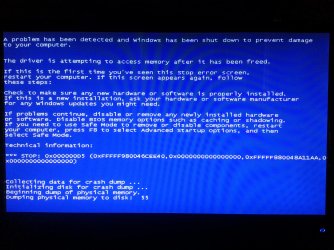
I followed these instructions to a T but when I try to boot windows I get this BSOD right after the loading screen.... What am I doing wrong?
 

Attachments

  • 20121028_134612.jpg
    20121028_134612.jpg
    810.4 KB · Views: 15

My Computer

OS
Windows 7 Ultimate x64
CPU
AMD Phenom II X6 1600T
Motherboard
MSI 870A-G46 (MS-7599)
Memory
8.00 GB Single-Channel DDR3 @ 666MHz (9-9-9-24)
Graphics Card(s)
AMD Radeon HD 6450
Monitor(s) Displays
ACER P205H
Screen Resolution
1600x900@60Hz
Hard Drives
932GB SAMSUNG HN-M101MBB
Keyboard
Apple Wireless Bluetooth Kayboard
Mouse
Microsoft USB Wheel Mouse Optical
Internet Speed
100mb/s Connection, Max Up: 3.5mb/s Max down: 715kb/s
The last paragraph answers this:

If you can't get into Windows because it crashes too soon, try it in Safe Mode.
If you can't get into Safe Mode, try using System Restore from your installation DVD to set the system back to the previous restore point that you created.
If that doesn't work, post back and we'll have to see about fixing the registry entry off-line.


My Computer

OS
Windows 7 64-bit
The last paragraph answers this:

If you can't get into Windows because it crashes too soon, try it in Safe Mode.
If you can't get into Safe Mode, try using System Restore from your installation DVD to set the system back to the previous restore point that you created.
If that doesn't work, post back and we'll have to see about fixing the registry entry off-line.


That's not the problem I'm having though..... I can boot safe mode, disable verifier, and boot normal mode just fine......

I want to know why that particular BSOD is showing up, because the people in the BSOD help thread I posted told me to run verifier and since it's giving BSOD they're saying I did something wrong(which I'm fairly sure I haven't) and won't help me until I "fix it" and keep giving me the same instructions on verifier that I'm already following -__- So any help as to why this particular BSOD is showing up would be greatly appreciated
 

My Computer

OS
Windows 7 Ultimate x64
CPU
AMD Phenom II X6 1600T
Motherboard
MSI 870A-G46 (MS-7599)
Memory
8.00 GB Single-Channel DDR3 @ 666MHz (9-9-9-24)
Graphics Card(s)
AMD Radeon HD 6450
Monitor(s) Displays
ACER P205H
Screen Resolution
1600x900@60Hz
Hard Drives
932GB SAMSUNG HN-M101MBB
Keyboard
Apple Wireless Bluetooth Kayboard
Mouse
Microsoft USB Wheel Mouse Optical
Internet Speed
100mb/s Connection, Max Up: 3.5mb/s Max down: 715kb/s
I'm not understanding why they're saying that. Driver Verifier is designed to cause BSODs by adding extra driver checks in Windows, making it more paranoid to possible bugs. The bugcheck code I see in that bluescreen snapshot you made does show a 0xC5 crash, which was made by Driver Verifier, meaning it found a driver doing something erroneous and it crashed the system in response. Often it may do this at startup when the driver loads because when the driver loads up it may already have a bug in the works, which DV will detect and respond. You'll want to go to the thread you made and post the resulting crashdumps from the crashes that DV made. Those DV-created crashdumps are more reliable than regular ones.
 

My Computer

OS
Windows 7 64-bit
Back
Top