Virtual Machine Hard Drive Space Questions

altek

New member
Member
Local time
9:04 AM
Messages
41
So, I am kind of new to virtual machines and I have been playing around with them with the basics the last few weeks, but I have a few related questions and I have been reading about VMs all over the web and I just can't understand all the stuff about 'virtual disks' and all that stuff. I have been playing with VMWare and Oracle's VirtualBox, doing basic creating VMs from ISOs (linux distros and what not), but recently I have been trying to play with some Windows VMs (XP, 7, 8) and it's a bit more difficult for me. For one thing, I had to download all the 32 bit versions because apparently my system dosen't support VMs for 64 bit VTs or something(?). Anyway, my question is when I create a VM in either Virtualization software, it creates a 'virtual disk' on my hard drive my native OS is on (Windows 7 64bit). A virtual disk, as I understand, is basically a virtual hard drive that the VM OS uses as a physical drive. So I am basically creating 'partitions' for these VMs on my 60gig SSD that my Windows 7 is on. Problem is, this takes up so much space, even if I use the dynamic expansion disk options, just using the amount of disk space needed and not a fixed space size. So these Windows VMs are like 8gigs+, I install 1-2 VMs and keep them configured on my machine so I don't have to install anytime I want to use them and my SSD is at max capacity. I have a 500gig 2nd storage drive. Is there a way to run the VMs off that drive, or just store the virtual disks there since I have a lot more space there? Or does it have to run on the same drive as my OS? Any suggestions on space conservation when it comes to VMs? Tips? Thanks.
 

My Computer

Computer Manufacturer/Model Number
Custom build desktop
OS
MS Windows 7 Professional 64-bit SP1
CPU
Intel Core i5-2500K
Motherboard
MSI P67A-G43 (B3)
Memory
G.SKILL Ripjaws Series 8GB (2 x 4GB) 240-Pin DDR3 SDRAM DDR3
Graphics Card(s)
EVGA 02G-P3-1568-KR 2047MB GeForce GTX 560 Ti (Fermi) 2GB
Sound Card
NVIDIA High Definition Audio
Monitor(s) Displays
LG TV (1920x1080@60Hz) Acer H233H (1920x1080@60Hz)
Screen Resolution
Resolution 1920 x 1080 x 59 hertz
Hard Drives
Crucial M4 CT064M4SSD2 2.5" 64GB SATA III (SSD)

Seagate Desktop USB Device 1 Terabyte
PSU
SeaSonic S12II 520 Bronze 520W ATX12V
Case
Thermaltake V4 Black Edition Gaming Chassis Mid Tower Steel
Keyboard
Logitech USB Keyboard
Mouse
Microsoft USB IntelliMouse Explorer 3.0
Other Info
Optical Drives
DTSOFT Virtual CdRom Device
ASUS DRW-24B1ST a ATA Device

My Computer

Computer type
Laptop
Computer Manufacturer/Model Number
HP ENVY 17-1150eg
OS
Windows 10 Pro x64 EN-GB
CPU
1.6 GHz Intel Core i7-720QM Processor
Memory
6 GB
Graphics Card(s)
ATI Mobility Radeon HD 5850 Graphics
Sound Card
Beats sound system with integrated subwoofer
Monitor(s) Displays
17" laptop display, 22" LED and 32" Full HD TV through HDMI
Screen Resolution
1600*900 (1), 1920*1080 (2&3)
Hard Drives
Internal: 2 x 500 GB SATA Hard Disk Drive 7200 rpm
External: 2TB for backups, 3TB USB3 network drive for media
Cooling
As Envy runs a bit warm, I have it on a Cooler Master pad
Keyboard
Logitech diNovo Media Desktop Laser (bluetooth)
Mouse
Logitech Performance Mouse MX
Internet Speed
50/10 Mbps VDSL
Antivirus
Windows Defender 4.3.9431.0
Browser
Maxthon 3.5.2., IE11
For VirtualBox, see this tutorial, Part 1 Step 9: http://www.sevenforums.com/tutorial...ndows-7-virtual-machine-using-virtualbox.html (VirtualBox has changed a bit since the tutorial was written but the principle to select the location for the VHD is the same).

In VMware there's a similar setting when creating a vm but as I do not use VMware, I am unable to tell what and where to look.

Kari
Thanks man! I'll look into this a little later then. So basically, I can run my VMware or VirtualBox on my OS drive and set the VM I am creating to have its virtual hard drive on my secondary storage drive? That is all I want to do. Sounds like this does the trick?
 

My Computer

Computer Manufacturer/Model Number
Custom build desktop
OS
MS Windows 7 Professional 64-bit SP1
CPU
Intel Core i5-2500K
Motherboard
MSI P67A-G43 (B3)
Memory
G.SKILL Ripjaws Series 8GB (2 x 4GB) 240-Pin DDR3 SDRAM DDR3
Graphics Card(s)
EVGA 02G-P3-1568-KR 2047MB GeForce GTX 560 Ti (Fermi) 2GB
Sound Card
NVIDIA High Definition Audio
Monitor(s) Displays
LG TV (1920x1080@60Hz) Acer H233H (1920x1080@60Hz)
Screen Resolution
Resolution 1920 x 1080 x 59 hertz
Hard Drives
Crucial M4 CT064M4SSD2 2.5" 64GB SATA III (SSD)

Seagate Desktop USB Device 1 Terabyte
PSU
SeaSonic S12II 520 Bronze 520W ATX12V
Case
Thermaltake V4 Black Edition Gaming Chassis Mid Tower Steel
Keyboard
Logitech USB Keyboard
Mouse
Microsoft USB IntelliMouse Explorer 3.0
Other Info
Optical Drives
DTSOFT Virtual CdRom Device
ASUS DRW-24B1ST a ATA Device
Sounds like this does the trick?

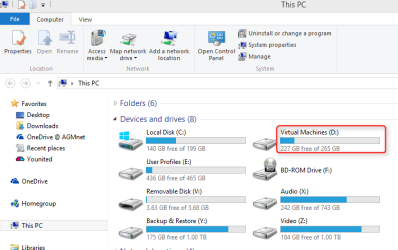
Yes. I use a dedicated drive to store all my virtual machines as the screenshot shows (just reinstalled, still quite empty):

2014-05-18_22h07_40.png
 

My Computer

Computer type
Laptop
Computer Manufacturer/Model Number
HP ENVY 17-1150eg
OS
Windows 10 Pro x64 EN-GB
CPU
1.6 GHz Intel Core i7-720QM Processor
Memory
6 GB
Graphics Card(s)
ATI Mobility Radeon HD 5850 Graphics
Sound Card
Beats sound system with integrated subwoofer
Monitor(s) Displays
17" laptop display, 22" LED and 32" Full HD TV through HDMI
Screen Resolution
1600*900 (1), 1920*1080 (2&3)
Hard Drives
Internal: 2 x 500 GB SATA Hard Disk Drive 7200 rpm
External: 2TB for backups, 3TB USB3 network drive for media
Cooling
As Envy runs a bit warm, I have it on a Cooler Master pad
Keyboard
Logitech diNovo Media Desktop Laser (bluetooth)
Mouse
Logitech Performance Mouse MX
Internet Speed
50/10 Mbps VDSL
Antivirus
Windows Defender 4.3.9431.0
Browser
Maxthon 3.5.2., IE11
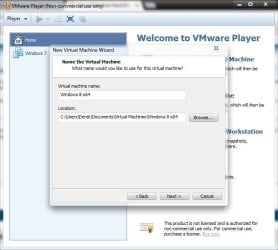
The VMware settings for what you want are when you reach this screen,

vmware.JPG

Just click the browse button to the location of your choice.
 

My Computer

Computer type
PC/Desktop
Computer Manufacturer/Model Number
Self Built
OS
Win 10 Pro x64
CPU
Intel I5-2500K @3.3GHz
Motherboard
Asrock P67 Extreme4
Memory
16GB G.Skill Ripjaws X (4x4GB)
Graphics Card(s)
EVGA GeForce 750 Ti SC 2GB
Sound Card
ASUS Xonar DG 5.1 Channels 24-bit 96KHz PCI Interface Sound
Monitor(s) Displays
auria eq2367
Screen Resolution
1920 x 1080
Hard Drives
250GB Samsung 850 EVO SSD
1TB WD Blue
1TB Hitachi
PSU
SeaSonic X 650W 80 Plus Gold
Case
Corsair Obsidian 750D
Cooling
Corsair H60, Three 140mm case fans
Keyboard
Logitech Wireless Keyboard K520
Mouse
Logitech Wireless Mouse M310
Internet Speed
Wave Broadband ~ 100 dn 5 up
Antivirus
Windows Defender, Malwarebytes Premium
Browser
Edge, IE11, Chrome
Other Info
Laptop specs: HP g7-1365dx /
CPU: AMD A6-3420M APU with Radeon(tm) HD Graphics /
RAM: Crucial 8Gb (2x4Gb) /
SSD: Crucial M4-CT128M4SSD2 ATA Device/ FW 000F /
GFX: AMD Radeon HD 6520G /
OS: Windows 10 Pro x64
For one thing, I had to download all the 32 bit versions because apparently my system dosen't support VMs for 64 bit VTs or something(?).

If you have the following:

  • Processor that supports VT-x
  • Motherboard with chipset that supports VT-d
  • Bios that supports VT-d
You need to enable Intel VT-x in your BIOS. Then you can run 64-bit VMs.
 

My Computer

Computer type
PC/Desktop
Computer Manufacturer/Model Number
Custom Build
OS
W7 Pro x64 SP1 | W10 Pro IP x64 | W8.1 Pro x64 VM | Linux Mint VM
CPU
i7-4790k @ 4GHz (4.4GHz Boost)
Motherboard
ASUS Sabertooth Z87 (BIOS Rev 2004)
Memory
16GB DDR3 Kingston HyperX Fury @ 1600MHz CL 9-9-9-27
Graphics Card(s)
EVGA GTX 980 Classified
Sound Card
Realtek Onboard
Monitor(s) Displays
Samsung S27D390
Screen Resolution
1920 x 1080
Hard Drives
240GB Intel 520 Series SSD |
Samsung 850 EVO 120GB SSD |
2TB WD Caviar Black |
2TB WD Caviar Green
PSU
Corsair HX850-80 Gold Modular
Case
Cooler Master Silencio 650
Cooling
Corsair H80i w/2 x Corsair SP120 | 2 x 120mm Noctua NF-S12B
Keyboard
Microsoft Sidewinder X4
Mouse
Gigabyte M6900 optical
Internet Speed
152mb
Antivirus
F-Secure
Browser
Firefox 38.0
Other Info
Backup Rig: Win 7 Pro 64-bit | AMD A10-5800k | ASUS F2A85-V Pro | 8GB Samsung DDR3 @1600MHz | 120GB Toshiba SDD | 2TB Seagate HDD | Cooler Master Silencio 550
Hi there

If you are installing a WINDOWS VM then you need to allow as much Virtual disk space as you would for a "Real" installation -- As with a REAL machine it's best to keep user DATA (documents, photos, video, music etc) SEPARATE from the main OS. You can either add extra virtual drive(s) (can be done AFTER installing the GUEST OS or you can SHARE drive(s) with the HOST).

Whether using VBOX or VMWARE install the additions (VBOX) or VMWARE TOOLS (VMware) on the GUEST after the first boot --this will fix things like proper video resolution, sound, mouse slowness etc etc.

For games / video enable the 3d / hardware acceleration settings too or sometimes video will be slow - especially on a laptop. This is usually a setting in the Virtual Machine's configuration file (.vmx in VMware - I don't use VBOX but there must be a similar config file too).

If you need to increase the size of the virtual HDD afterwards - you need to image the VM (just like on a REAL machine), delete the old virtual disk, create a new one (use Create virtual machine wizard) and then restore the image. You can boot an iso image -- it's all in the virtual machine settings.

I've seen people spend HOURS and HOURS deleting and totally re-installing a VM and applications with updates because they think they have to re-install again when they run out of space. !! Use FREE MACRIUM or any other disk imaging software you like. I use a commercial piece of software ACRONIS but there's a few choices out there. - some free ones too.

Some vm software has an "increase space" utility - but IMO take an image is always the best - then you've got a backup too !!!!.

Finally keep backups of your VM if you want to use it a lot. Just like you should do with a REAL machine. You can either copy all the VM files to an external HDD or use some disk imaging software like FREE macrium. VMware workstation also has "Clone Virtual Machine" -- but if you use this choose FULL CLONE not a LINKED CLONE.


Cheers
jimbo
 

My Computer

Computer type
PC/Desktop
Computer Manufacturer/Model Number
Custom built, several laptops HP/ASUS
OS
Linux CENTOS 7 / various Windows OS'es and servers
CPU
Intel i7 Intel i5
Memory
8GB, 16GB
Graphics Card(s)
On Motherboard
Sound Card
Realtek HD audio
Monitor(s) Displays
Apple Cinema display, Samsung LCD
Screen Resolution
1920 X 1080
Hard Drives
4 X 1TB SATA
Mouse
Toshiba wireless laser
Internet Speed
> 20MB up
Back
Top