Solved VirtualBox, W7 and SSD...

OppfinnarJocke

New member
Member
Local time
8:09 AM
Messages
69
On my W7x64pro host system I've managed to install Virtualbox and create a VM with W7x86pro guest. All seems to work fine, integration and all.

However, my host boots from an SSD, and would like to have the guest also to boot (or maybe "reside" is a better word) on the SSD for fast initialization. At the same time I do not want the guest to write extensively to the SSD, but to have the user files on a HD. This is the way I have my host set up; the SSD only holds applications and all (most) user files that get written often are on another drive (I have two 500GB HDs and one 120 GB SSD).

Does anyone have any hints on how to set this up for the guest?

PS VirtualBox runs rings around MS Virtual PC, by the way. On my system (AMD Phenom II x6), VPC is useless by comparison...
 

My Computer

OS
Win 7
Depending a little on what SSD you have, the amount of writes rumors on the web are greatly exaggerated.
For example the manufacturers rated total writes for a Intel X25-m are 182TB, average usage is 1 TB per year, even at 2TB per year it is good for 91 years.
The manufacturers rated total writes are around 25% of what some SSDs are getting in independent testing.

I've just started using VB and will look around for the answer to your question.
Just wanted to alleviate some of the myths about SSD writing.

Putting some of the guest files on the HDD won't affect the guest OS speed.

I put VB on my SSD and the entire OS file on my HDD, just testing different scenarios, and the guest OS opens pretty fast and everything else is very responsive, using 2GB RAM for the guest.
 

My Computer

Computer type
PC/Desktop
Computer Manufacturer/Model Number
76~2.0
OS
Windows 7 Ult x64 - SP1/ Windows 8 Pro x64
CPU
Intel Core i5-3570K 4.6GHz
Motherboard
Gigabyte GA-Z77X UD3H, f18
Memory
8GB (2X4GB) DDR3 1600 Corsair Vengeance CL8 1.5v
Graphics Card(s)
Sapphire HD 7770 Vapor-X OC 1GB DDR5
Sound Card
Onboard VIA VT2021
Monitor(s) Displays
22" LCD Dell
Screen Resolution
1680x1050
Hard Drives
Samsung 840Pro 128GB SSD,
Seagate Barracuda 500GB SATA2 7200rpm 32MB cache, Seagate Barracuda 1TB SATA2 7200rpm 32MB cache,
PSU
Corsair HX650W
Case
Cooler Master Storm Scout
Cooling
Corsair H80 2x12cm Noctua NF P12 , 2x14cm case fans
Keyboard
Logitech Wave
Mouse
CM Sentinel
Internet Speed
Dismal
Antivirus
Avast
Browser
Opera Next
Other Info
Haswell laptop: HP Envy 17t-j, i7-4700MQ, GeForce 740M 2GB DDR3, 17.3" Full HD 1920x1080, 16GB RAM, Samsung 840 Pro 128GB, 1TB Hitachi 7200 HDD,
Desktop: eSATA ports,
External eSATA Seagate 500GB SATA2 7200rpm,
External WD USB 500GB
You could always just install your core programs and such in the VM which resides on the SSD(which will also save precious space on that drive), and then map a network drive from your guest to your host machine to store data on.
 

My Computer

OS
.
Thanks for the responses.

As for SSD write limits, I don't worry.

But I successfully moved the VM to the SSD, and yes it improves boot speed significantly. Also, apps load quicker, that's for sure.

Here's what I did to move the VM. Rather simple really.

1. I copied the *.vdi to a dir on the SSD
2. I edited Users\<me>\VirtualBox VMs\<VM name>\<VM name>.vbox and changed the path of the VM to point to the new location
3. Started VB, and added to the VM a new virtual HD on my physical HD
4. Moved my user files, from within the guest, to the new virtual HD

Note that many web sites claim that you should edit .VirtualBox\VirtualBox.xml in point 2, but with VB 4.0.10 on W7x64, this is not true. You edit as described in point 2 above.

Make sure you edit a copy so you can safely restore everything to the original until you know that everything works.

Now, in the guest just as in the host, I only have programs on the SSD and all user writable data on physical HDs, just to alleviate write wear on the SSD (which is an Intel 320 series 120 GB, btw).
 

My Computer

OS
Win 7

My Computer

Computer type
PC/Desktop
Computer Manufacturer/Model Number
76~2.0
OS
Windows 7 Ult x64 - SP1/ Windows 8 Pro x64
CPU
Intel Core i5-3570K 4.6GHz
Motherboard
Gigabyte GA-Z77X UD3H, f18
Memory
8GB (2X4GB) DDR3 1600 Corsair Vengeance CL8 1.5v
Graphics Card(s)
Sapphire HD 7770 Vapor-X OC 1GB DDR5
Sound Card
Onboard VIA VT2021
Monitor(s) Displays
22" LCD Dell
Screen Resolution
1680x1050
Hard Drives
Samsung 840Pro 128GB SSD,
Seagate Barracuda 500GB SATA2 7200rpm 32MB cache, Seagate Barracuda 1TB SATA2 7200rpm 32MB cache,
PSU
Corsair HX650W
Case
Cooler Master Storm Scout
Cooling
Corsair H80 2x12cm Noctua NF P12 , 2x14cm case fans
Keyboard
Logitech Wave
Mouse
CM Sentinel
Internet Speed
Dismal
Antivirus
Avast
Browser
Opera Next
Other Info
Haswell laptop: HP Envy 17t-j, i7-4700MQ, GeForce 740M 2GB DDR3, 17.3" Full HD 1920x1080, 16GB RAM, Samsung 840 Pro 128GB, 1TB Hitachi 7200 HDD,
Desktop: eSATA ports,
External eSATA Seagate 500GB SATA2 7200rpm,
External WD USB 500GB
Hi there
For your SSD try this too :

You could set your VM so that writes aren't actually done to the disk until you close your session - I'm not sure about VBOX but there must be something in the configuration parameters of the vm about "Persistence".

Ensure that say the Virtual Machine's Paging file is on a real HDD as well -- in normal running with a sensible amount of RAM allocated to a VM you won't get much paging activity anyway.


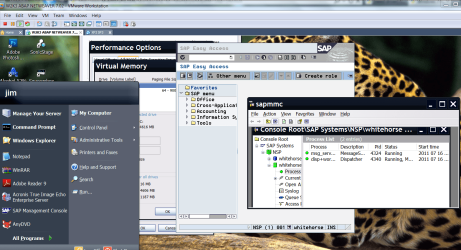
I'm running amongst others a W2K3 server 3072MB VM and it's only using 1100MB on its paging file when running a SAP test development trial system which is a quite intensive application -- otherwise it's paging file drops to 64 MB and is barely used.

Anybody who knows anything about SAP here will appreciate it's not a trivial application !!.

Pic enclosed.

This way you should get the best performance out of your VM and only commit the write to disk at the end of the vm session. Note that some temporary storage will be done on the HOST but that shouldn't be a problem as the host will schedule the I/O properly if it's not too busy.

As for separating OS and data on a VM -- no prob you can just set up two (or more) virtual disks just like as on a host machine. Set them up as Virtual SCSI devices for better performance.

Cheers
jimbo
 

Attachments

  • sap.png
    sap.png
    191.2 KB · Views: 230

My Computer

Computer type
PC/Desktop
Computer Manufacturer/Model Number
Custom built, several laptops HP/ASUS
OS
Linux CENTOS 7 / various Windows OS'es and servers
CPU
Intel i7 Intel i5
Memory
8GB, 16GB
Graphics Card(s)
On Motherboard
Sound Card
Realtek HD audio
Monitor(s) Displays
Apple Cinema display, Samsung LCD
Screen Resolution
1920 X 1080
Hard Drives
4 X 1TB SATA
Mouse
Toshiba wireless laser
Internet Speed
> 20MB up
You're welcome, it's a real eye opener.

So many sites talk about controlling as many writes as possible. A few sites have started to say it's not important, this proves it.
 

My Computer

Computer type
PC/Desktop
Computer Manufacturer/Model Number
76~2.0
OS
Windows 7 Ult x64 - SP1/ Windows 8 Pro x64
CPU
Intel Core i5-3570K 4.6GHz
Motherboard
Gigabyte GA-Z77X UD3H, f18
Memory
8GB (2X4GB) DDR3 1600 Corsair Vengeance CL8 1.5v
Graphics Card(s)
Sapphire HD 7770 Vapor-X OC 1GB DDR5
Sound Card
Onboard VIA VT2021
Monitor(s) Displays
22" LCD Dell
Screen Resolution
1680x1050
Hard Drives
Samsung 840Pro 128GB SSD,
Seagate Barracuda 500GB SATA2 7200rpm 32MB cache, Seagate Barracuda 1TB SATA2 7200rpm 32MB cache,
PSU
Corsair HX650W
Case
Cooler Master Storm Scout
Cooling
Corsair H80 2x12cm Noctua NF P12 , 2x14cm case fans
Keyboard
Logitech Wave
Mouse
CM Sentinel
Internet Speed
Dismal
Antivirus
Avast
Browser
Opera Next
Other Info
Haswell laptop: HP Envy 17t-j, i7-4700MQ, GeForce 740M 2GB DDR3, 17.3" Full HD 1920x1080, 16GB RAM, Samsung 840 Pro 128GB, 1TB Hitachi 7200 HDD,
Desktop: eSATA ports,
External eSATA Seagate 500GB SATA2 7200rpm,
External WD USB 500GB
Congrats on the editing, looks good.

Here is a link to an ongoing SSD endurance test, one of them is a Intel 320 40GB.
SSD Write Endurance 25nm Vs 34nm

Holy cow! :)
They're reporting things like "66.2 GB per day for 5 years".
OK, I'll stop worrying about write wear on my Intel 320...
Thanks
// MVHMF
As an owner of an Intel 320, this may be interesting for you: http://www.sevenforums.com/hardware-devices/175139-intel-confirms-bug-320-series-ssd.html
 

My Computer

Computer Manufacturer/Model Number
HP, Dell, Gateway, Toshiba - 4 laptops and 2 desktops
OS
Vista, Windows7, Mint Mate, Zorin, Windows 8
CPU
from 1.6GHz Duo to i7
Monitor(s) Displays
2x HP w2207
Hard Drives
5x HDD, 7x SSD, 12x Externals
Keyboard
with trackball - no mices
Mouse
Trackball mice
Internet Speed
DSL 6000

My Computer

OS
Win 7
Good idea, better safe than sorry.
 

My Computer

Computer type
PC/Desktop
Computer Manufacturer/Model Number
76~2.0
OS
Windows 7 Ult x64 - SP1/ Windows 8 Pro x64
CPU
Intel Core i5-3570K 4.6GHz
Motherboard
Gigabyte GA-Z77X UD3H, f18
Memory
8GB (2X4GB) DDR3 1600 Corsair Vengeance CL8 1.5v
Graphics Card(s)
Sapphire HD 7770 Vapor-X OC 1GB DDR5
Sound Card
Onboard VIA VT2021
Monitor(s) Displays
22" LCD Dell
Screen Resolution
1680x1050
Hard Drives
Samsung 840Pro 128GB SSD,
Seagate Barracuda 500GB SATA2 7200rpm 32MB cache, Seagate Barracuda 1TB SATA2 7200rpm 32MB cache,
PSU
Corsair HX650W
Case
Cooler Master Storm Scout
Cooling
Corsair H80 2x12cm Noctua NF P12 , 2x14cm case fans
Keyboard
Logitech Wave
Mouse
CM Sentinel
Internet Speed
Dismal
Antivirus
Avast
Browser
Opera Next
Other Info
Haswell laptop: HP Envy 17t-j, i7-4700MQ, GeForce 740M 2GB DDR3, 17.3" Full HD 1920x1080, 16GB RAM, Samsung 840 Pro 128GB, 1TB Hitachi 7200 HDD,
Desktop: eSATA ports,
External eSATA Seagate 500GB SATA2 7200rpm,
External WD USB 500GB
Frequent imaging is a good practice. Saves your bacon. Hopefully you did not use Windows7 imaging because that is iffy.
 

My Computer

Computer Manufacturer/Model Number
HP, Dell, Gateway, Toshiba - 4 laptops and 2 desktops
OS
Vista, Windows7, Mint Mate, Zorin, Windows 8
CPU
from 1.6GHz Duo to i7
Monitor(s) Displays
2x HP w2207
Hard Drives
5x HDD, 7x SSD, 12x Externals
Keyboard
with trackball - no mices
Mouse
Trackball mice
Internet Speed
DSL 6000
Frequent imaging is a good practice. Saves your bacon. Hopefully you did not use Windows7 imaging because that is iffy.

Oops... yes I do... Not a good idea?
During early installation of my system, I once did restore from an image made by W7, and that worked fine. Are you saying it cannot be trusted?
 

My Computer

OS
Win 7

My Computer

Computer Manufacturer/Model Number
HP, Dell, Gateway, Toshiba - 4 laptops and 2 desktops
OS
Vista, Windows7, Mint Mate, Zorin, Windows 8
CPU
from 1.6GHz Duo to i7
Monitor(s) Displays
2x HP w2207
Hard Drives
5x HDD, 7x SSD, 12x Externals
Keyboard
with trackball - no mices
Mouse
Trackball mice
Internet Speed
DSL 6000
Agree with whs, use Macrium Reflect.

Many problems with windows backup. Backup is not something you want to risk.
 

My Computer

Computer type
PC/Desktop
Computer Manufacturer/Model Number
76~2.0
OS
Windows 7 Ult x64 - SP1/ Windows 8 Pro x64
CPU
Intel Core i5-3570K 4.6GHz
Motherboard
Gigabyte GA-Z77X UD3H, f18
Memory
8GB (2X4GB) DDR3 1600 Corsair Vengeance CL8 1.5v
Graphics Card(s)
Sapphire HD 7770 Vapor-X OC 1GB DDR5
Sound Card
Onboard VIA VT2021
Monitor(s) Displays
22" LCD Dell
Screen Resolution
1680x1050
Hard Drives
Samsung 840Pro 128GB SSD,
Seagate Barracuda 500GB SATA2 7200rpm 32MB cache, Seagate Barracuda 1TB SATA2 7200rpm 32MB cache,
PSU
Corsair HX650W
Case
Cooler Master Storm Scout
Cooling
Corsair H80 2x12cm Noctua NF P12 , 2x14cm case fans
Keyboard
Logitech Wave
Mouse
CM Sentinel
Internet Speed
Dismal
Antivirus
Avast
Browser
Opera Next
Other Info
Haswell laptop: HP Envy 17t-j, i7-4700MQ, GeForce 740M 2GB DDR3, 17.3" Full HD 1920x1080, 16GB RAM, Samsung 840 Pro 128GB, 1TB Hitachi 7200 HDD,
Desktop: eSATA ports,
External eSATA Seagate 500GB SATA2 7200rpm,
External WD USB 500GB
Back
Top