
Volume Mixer Shortcut - Create

How to Create a "Volume Mixer" Shortcut in Vista, Windows 7, and Windows 8

   Information
This will show you how to create or download a Volume Mixer shortcut that opens the same Volume Mixer pop-up as when you click on the Volume system icon on the taskbar and click on the Mixer link at the bottom.


EXAMPLE: Volume Mixer
Volume-Mixer.jpg


OPTION ONE

To Download the "Volume Mixer" Shortcut


NOTE: This shortcut will open at the far right corner of the far right monitor. If you have more than one monitor, then you may wish to remove the location part in red in OPTION TWO below from this shortcut to have it open on your main display instead.
1. Click/tap on the Download button below to download the file below.
Volume_Mixer.zip

Download


2. Save the .zip file to your desktop.

3. Open the .zip file and extract the Volume Mixer shortcut to your desktop.

4. Unblock the Volume Mixer shortcut.

5. In Vista and Windows 7, you can now Pin to Taskbar (Windows 7 only) or Pin to Start Menu, add to Quick Launch, assign a keyboard shortcut to it, or move this shortcut to where you like for easy use.

6. In Windows 8, you can Pin to Taskbar on desktop, Pin to Start screen, add to Quick Launch, assign a keyboard shortcut to it, or move this shortcut to where you like for easy use.

6. When done, you can delete the downloaded .zip file on the desktop if you like, or save it to use again.


OPTION TWO

To Manually Create the "Volume Mixer" Shortcut


1. Right click or press and hold on an empty area on desktop, and click/tap on New and Shortcut.

2. Copy and paste the location you want below into the location area, and click/tap on the Next button. (see screenshot below)

NOTE: The location part in red below will cause it to open in the far right corner of the farthest right monitor. If you have more than one monitor, then you may wish to remove this part of the location to have it open on your main display instead.
(open above taskbar with space on right corner)
%windir%\System32\SndVol.exe -T 49490633
OR

(opens just above taskbar on right corner)
%windir%\System32\SndVol.exe -T 99490633

OR

(opens above taskbar on left corner)
%windir%\System32\SndVol.exe -T 76611119 0
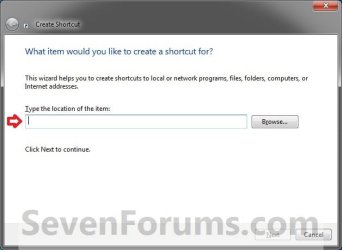
Step1.jpg
3. Type Volume Mixer for the name, and click/tap on the Finish button. (see screenshot below)
NOTE: You can name this anything you would like though.
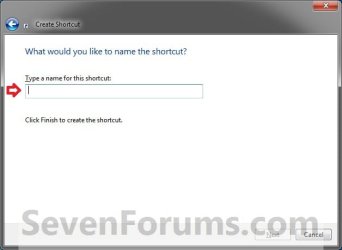
Step2.jpg
4. In Vista and Windows 7, you can now Pin to Taskbar (Windows 7 only) or Pin to Start Menu, add to Quick Launch, assign a keyboard shortcut to it, or move this shortcut to where you like for easy use.

5. In Windows 8, you can Pin to Taskbar on desktop, Pin to Start screen, add to Quick Launch, assign a keyboard shortcut to it, or move this shortcut to where you like for easy use.
That's it,
Shawn


Attachments

Last edited:
Wow, thanks!

I can't believe I've been using computers for so long and never knew this shortcut. Thanks, SevenForums, for the great tip today!
 

My Computer

Computer Manufacturer/Model Number
HP
OS
Windows 7 x64
You're most welcome Marjie, and welcome to Seven Forums. :)
 

My Computer

Computer type
PC/Desktop
Computer Manufacturer/Model Number
Self built custom
OS
64-bit Windows 11 Pro for Workstations
CPU
Intel i7-8700K OC'd to 5 GHz
Motherboard
ASUS ROG Maximus XI Formula Z390
Memory
64 GB (4x16GB) G.SKILL TridentZ RGB DDR4 3600 MHz
Graphics Card(s)
ASUS ROG-STRIX-GTX1080TI-O11G-GAMING
Sound Card
Integrated
Monitor(s) Displays
2 x Samsung Odyssey G7 27"
Screen Resolution
2560x1440
Hard Drives
1TB Samsung 990 PRO M.2,
4TB Samsung 990 PRO PRO M.2,
TerraMaster F8 SSD Plus NAS
PSU
Seasonic Prime Titanium 850W
Case
Thermaltake Core P3
Cooling
Corsair Hydro H115i
Keyboard
Logitech wireless K800
Mouse
Logitech MX Master 4
Internet Speed
2 Gb/s Download and 100 Mb/s Upload
Antivirus
Malwarebyte Anti-Malware Premium
Browser
Google Chrome
Other Info
Logitech Z625 speaker system,
Logitech BRIO 4K Pro webcam,
HP Color LaserJet Pro MFP M477fdn,
APC SMART-UPS RT 1000 XL - SURT1000XLI,
Galaxy S23 Plus phone
I`m using the sound mixer shortcut, but it opens on my third monitor.

If I use the taskbar mixer icon. it opens in the main monitor.

Anyway I can select which monitor it opens on?

Thanks.
 

My Computer

Computer Manufacturer/Model Number
Self Build
OS
Windows 7 64 Bit
CPU
Intel(R) Core(TM)2 CPU 6400 @ 2.13GHz
Motherboard
Gigabyte Technology Co., Ltd. G33-DS3R
Memory
5.99 GB
Graphics Card(s)
(1) Intel(R) G33/G31 Express Chipset Family (2) ATI Radeon
Sound Card
(1) High Definition Audio Device (2) High Definition Audio
Hello Lakes,

You could use the location without the red part to have it open on your main display, but it won't be at it's bottom right corner.

Hope this helps, :)
Shawn
 

My Computer

Computer type
PC/Desktop
Computer Manufacturer/Model Number
Self built custom
OS
64-bit Windows 11 Pro for Workstations
CPU
Intel i7-8700K OC'd to 5 GHz
Motherboard
ASUS ROG Maximus XI Formula Z390
Memory
64 GB (4x16GB) G.SKILL TridentZ RGB DDR4 3600 MHz
Graphics Card(s)
ASUS ROG-STRIX-GTX1080TI-O11G-GAMING
Sound Card
Integrated
Monitor(s) Displays
2 x Samsung Odyssey G7 27"
Screen Resolution
2560x1440
Hard Drives
1TB Samsung 990 PRO M.2,
4TB Samsung 990 PRO PRO M.2,
TerraMaster F8 SSD Plus NAS
PSU
Seasonic Prime Titanium 850W
Case
Thermaltake Core P3
Cooling
Corsair Hydro H115i
Keyboard
Logitech wireless K800
Mouse
Logitech MX Master 4
Internet Speed
2 Gb/s Download and 100 Mb/s Upload
Antivirus
Malwarebyte Anti-Malware Premium
Browser
Google Chrome
Other Info
Logitech Z625 speaker system,
Logitech BRIO 4K Pro webcam,
HP Color LaserJet Pro MFP M477fdn,
APC SMART-UPS RT 1000 XL - SURT1000XLI,
Galaxy S23 Plus phone
Thanks for the info, I`ll do that for now, does the -r set the position on a monitor?
 

My Computer

Computer Manufacturer/Model Number
Self Build
OS
Windows 7 64 Bit
CPU
Intel(R) Core(TM)2 CPU 6400 @ 2.13GHz
Motherboard
Gigabyte Technology Co., Ltd. G33-DS3R
Memory
5.99 GB
Graphics Card(s)
(1) Intel(R) G33/G31 Express Chipset Family (2) ATI Radeon
Sound Card
(1) High Definition Audio Device (2) High Definition Audio
Your welcome.

Yes, the numbers after the -r switch sets the X and Y position, but I'm not sure how to adjust it for only the main display.
 

My Computer

Computer type
PC/Desktop
Computer Manufacturer/Model Number
Self built custom
OS
64-bit Windows 11 Pro for Workstations
CPU
Intel i7-8700K OC'd to 5 GHz
Motherboard
ASUS ROG Maximus XI Formula Z390
Memory
64 GB (4x16GB) G.SKILL TridentZ RGB DDR4 3600 MHz
Graphics Card(s)
ASUS ROG-STRIX-GTX1080TI-O11G-GAMING
Sound Card
Integrated
Monitor(s) Displays
2 x Samsung Odyssey G7 27"
Screen Resolution
2560x1440
Hard Drives
1TB Samsung 990 PRO M.2,
4TB Samsung 990 PRO PRO M.2,
TerraMaster F8 SSD Plus NAS
PSU
Seasonic Prime Titanium 850W
Case
Thermaltake Core P3
Cooling
Corsair Hydro H115i
Keyboard
Logitech wireless K800
Mouse
Logitech MX Master 4
Internet Speed
2 Gb/s Download and 100 Mb/s Upload
Antivirus
Malwarebyte Anti-Malware Premium
Browser
Google Chrome
Other Info
Logitech Z625 speaker system,
Logitech BRIO 4K Pro webcam,
HP Color LaserJet Pro MFP M477fdn,
APC SMART-UPS RT 1000 XL - SURT1000XLI,
Galaxy S23 Plus phone
Ok, thanks.
 

My Computer

Computer Manufacturer/Model Number
Self Build
OS
Windows 7 64 Bit
CPU
Intel(R) Core(TM)2 CPU 6400 @ 2.13GHz
Motherboard
Gigabyte Technology Co., Ltd. G33-DS3R
Memory
5.99 GB
Graphics Card(s)
(1) Intel(R) G33/G31 Express Chipset Family (2) ATI Radeon
Sound Card
(1) High Definition Audio Device (2) High Definition Audio
quick question

Where can I get more information about the -t and -r stuff I have not been able to find anything of google about it.

Thanks in advanced
-Jake
 

My Computer

Computer type
PC/Desktop
OS
Massachusetts
Launch on right bottom corner of screen ?

Hello,

Thank you for shortcut but how to launch it at bottom right corner ?

Cheers.
 

My Computer

OS
Windows 7 64 bits
Hello,

Thank you for shortcut but how to launch it at bottom right corner ?

Cheers.

Hey mate,

It already does open at the bottom right corner slightly above the taskbar on the farthest right screen. :)
 

My Computer

Computer type
PC/Desktop
Computer Manufacturer/Model Number
Self built custom
OS
64-bit Windows 11 Pro for Workstations
CPU
Intel i7-8700K OC'd to 5 GHz
Motherboard
ASUS ROG Maximus XI Formula Z390
Memory
64 GB (4x16GB) G.SKILL TridentZ RGB DDR4 3600 MHz
Graphics Card(s)
ASUS ROG-STRIX-GTX1080TI-O11G-GAMING
Sound Card
Integrated
Monitor(s) Displays
2 x Samsung Odyssey G7 27"
Screen Resolution
2560x1440
Hard Drives
1TB Samsung 990 PRO M.2,
4TB Samsung 990 PRO PRO M.2,
TerraMaster F8 SSD Plus NAS
PSU
Seasonic Prime Titanium 850W
Case
Thermaltake Core P3
Cooling
Corsair Hydro H115i
Keyboard
Logitech wireless K800
Mouse
Logitech MX Master 4
Internet Speed
2 Gb/s Download and 100 Mb/s Upload
Antivirus
Malwarebyte Anti-Malware Premium
Browser
Google Chrome
Other Info
Logitech Z625 speaker system,
Logitech BRIO 4K Pro webcam,
HP Color LaserJet Pro MFP M477fdn,
APC SMART-UPS RT 1000 XL - SURT1000XLI,
Galaxy S23 Plus phone
Hello,

Thank you for shortcut but how to launch it at bottom right corner ?

Cheers.

-t 99490633 seems to make it go to the bottom right. (even if second screen is lower than primary, always above taskbar)
 

My Computer

Computer type
PC/Desktop
OS
Windows 8.1 x64
CPU
AMD PhenomIIx4 965
Graphics Card(s)
ATI Radeon HD 4890
Screen Resolution
3120x1920 (2 screens, 1080p-landscape+1200p-portrait)
Antivirus
Microsoft
Browser
Chome
Brink,

Thank you so much for the post. This is so helpful!!
Two questions that I have for you:
1) Is there any way to set another position, say top right?
2) If so, will this work with all shortcuts?
3) Also, is this only for the shortcut? (i.e. not the actual program off of the start menu)

Much Thanks,

T
 

My Computer

Computer type
Laptop
Computer Manufacturer/Model Number
Alienware
OS
Windows 7 Home Premium
Hello T, and welcome to Seven Forums. :)

I'm not sue what the numbers would be, but you could play with the numbers in red to adjust the position.

Yes, you could use the position for any shortcut, but it'll only work for where to open what the shortcut is for.
 

My Computer

Computer type
PC/Desktop
Computer Manufacturer/Model Number
Self built custom
OS
64-bit Windows 11 Pro for Workstations
CPU
Intel i7-8700K OC'd to 5 GHz
Motherboard
ASUS ROG Maximus XI Formula Z390
Memory
64 GB (4x16GB) G.SKILL TridentZ RGB DDR4 3600 MHz
Graphics Card(s)
ASUS ROG-STRIX-GTX1080TI-O11G-GAMING
Sound Card
Integrated
Monitor(s) Displays
2 x Samsung Odyssey G7 27"
Screen Resolution
2560x1440
Hard Drives
1TB Samsung 990 PRO M.2,
4TB Samsung 990 PRO PRO M.2,
TerraMaster F8 SSD Plus NAS
PSU
Seasonic Prime Titanium 850W
Case
Thermaltake Core P3
Cooling
Corsair Hydro H115i
Keyboard
Logitech wireless K800
Mouse
Logitech MX Master 4
Internet Speed
2 Gb/s Download and 100 Mb/s Upload
Antivirus
Malwarebyte Anti-Malware Premium
Browser
Google Chrome
Other Info
Logitech Z625 speaker system,
Logitech BRIO 4K Pro webcam,
HP Color LaserJet Pro MFP M477fdn,
APC SMART-UPS RT 1000 XL - SURT1000XLI,
Galaxy S23 Plus phone
Brink,

Your post was good so I had to join!
And thank you for the info!
 

My Computer

Computer type
Laptop
Computer Manufacturer/Model Number
Alienware
OS
Windows 7 Home Premium
How to get just the master volume?

This is very useful; thanks.

However, I would like to just invoke just the master volume that you get from
Code:
sndvol -f <number>
, but with a window that stays put. (With the -f option, the window goes away if you click somewhere else.) With the -t or -m options, you get volume controls for everything, for example each prog that wants to talk to the sound card, apparently.

More generally, I would like to know all the command line args to Sndvol? For example, so far I have seen -f, -m (used by the gui), and -t.

--peter
 

My Computer

Computer type
Laptop
Computer Manufacturer/Model Number
Lenovo T61p
OS
win 7 pro x64
CPU
T7700 Intel
Memory
4GB
This is very useful; thanks.

However, I would like to just invoke just the master volume that you get from
Code:
sndvol -f <number>
, but with a window that stays put. (With the -f option, the window goes away if you click somewhere else.) With the -t or -m options, you get volume controls for everything, for example each prog that wants to talk to the sound card, apparently.

More generally, I would like to know all the command line args to Sndvol? For example, so far I have seen -f, -m (used by the gui), and -t.

--peter


Hello Peter, :)

You might see if the volume shortcut in the tutorial below may work for you.

http://www.sevenforums.com/tutorials/198081-volume-shortcut-create.html
 

My Computer

Computer type
PC/Desktop
Computer Manufacturer/Model Number
Self built custom
OS
64-bit Windows 11 Pro for Workstations
CPU
Intel i7-8700K OC'd to 5 GHz
Motherboard
ASUS ROG Maximus XI Formula Z390
Memory
64 GB (4x16GB) G.SKILL TridentZ RGB DDR4 3600 MHz
Graphics Card(s)
ASUS ROG-STRIX-GTX1080TI-O11G-GAMING
Sound Card
Integrated
Monitor(s) Displays
2 x Samsung Odyssey G7 27"
Screen Resolution
2560x1440
Hard Drives
1TB Samsung 990 PRO M.2,
4TB Samsung 990 PRO PRO M.2,
TerraMaster F8 SSD Plus NAS
PSU
Seasonic Prime Titanium 850W
Case
Thermaltake Core P3
Cooling
Corsair Hydro H115i
Keyboard
Logitech wireless K800
Mouse
Logitech MX Master 4
Internet Speed
2 Gb/s Download and 100 Mb/s Upload
Antivirus
Malwarebyte Anti-Malware Premium
Browser
Google Chrome
Other Info
Logitech Z625 speaker system,
Logitech BRIO 4K Pro webcam,
HP Color LaserJet Pro MFP M477fdn,
APC SMART-UPS RT 1000 XL - SURT1000XLI,
Galaxy S23 Plus phone
Thanks, but no.

sndvol -f , as I was trying to say in my post, results in a window that disappears when you I click anywhere else -- it is transient. Also, it does not have decoration. so it cannot be manually moved if necessary. The numeric argument does put it in a more useful place for me, but the -f option is not the one I need.

--peter
 

My Computer

Computer type
Laptop
Computer Manufacturer/Model Number
Lenovo T61p
OS
win 7 pro x64
CPU
T7700 Intel
Memory
4GB
Back
Top