Wacom Tablet, ring round pen cursor

MBernard

New member
Member
Local time
4:00 AM
Messages
40
Location
Cambridge, UK
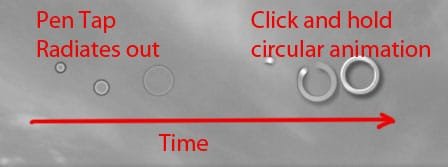
I use an Intuos Wacom Tablet in Photoshop CS4 x64, and I've been driven crazy by an animated ring that appears when I touch the pen tip to a menu or slider. It made my movements much less precise. E.g. when I tried to drag a slider a short distance (say, 100% opacity to 95%), the pen wouldn't grab the slider at first; and then it would make much too big an adjustment (100% to 50%...).

I've now tracked down the solution, posted on the EU Wacom forum 2 days ago:Wacom Forum - Wacom Europe GmbH | View topic - small annoying things on vista...

Here's what it says:

"Vista has the 'pen inking' from XP TabletPC edition integrated, allowing gesture and handwriting recognition. You can control the settings in a special control panel for this, called 'TabletPC Input' panel. [Pen and Touch, W7.]
*Disable 'Press and Hold' to remove that circle.*

"You could also disable the service 'TabletPC Input Service' or go to device manager, select Human Interface Devices' and disable WacomVirtualHID.*

"Then Vista does not see a pen devices and will not activate those features. The tablet will still work fine on desktop and in usual pressure sensitive applications."

I had already disabled the tablet PC in Services, but apparently that wasn't enough. I disabled Press & Hold, and the ring has vanished.

This is probably well known to Wacom/Photoshop users who migrated to Windows 7 from Vista, but I migrated from XPPro, and the info was tolerably hard to find online, so I'm posting it here in case anyone finds it useful.

Mary
 

My Computer

Computer Manufacturer/Model Number
self-built
OS
Windows 7x64 + XP Mode
CPU
i7-740
Motherboard
Asus P6T Deluxe
Memory
12 GB DDR3
Graphics Card(s)
Sapphire Radeon HD 4870
Sound Card
on board
Monitor(s) Displays
Eizo 30" CG301; Dell 20" 2007FP,
Screen Resolution
Eizo: 2560x1600; Dell: 1600x1024
Hard Drives
3 x WD Velociraptors, 320 GB
2 x Seagate Barracuda 1.5 GB
PSU
Zalman ZM850
Case
Coolermaster ATCS 840
Cooling
Swiftech H20-220 watercooling kit
Keyboard
Logitech G11
Mouse
Logitech cordless
Internet Speed
slow broadband
Thanks for the info! I have an old Wacom 12x12 tablet and am thinking of using it with Win7...
 

My Computer

Computer Manufacturer/Model Number
2 x home-brew
OS
Win 7 Ultimate 64-bit, Win7 N 32-bit, WHS
CPU
AMD 64 X2 3600+, AMD Phenom II X3 720BE
Motherboard
Gigabyte MA770-UD3, Gigabyte MA790GP-4UDH4, GA-890GPA-UDH3
Memory
4GB DDR2 OCZ dual-channel, 6GB DDR2 Corsair
Graphics Card(s)
Gigabyte HD 4850 on the dual-booter, built-in on others
Sound Card
2 x onboard
Monitor(s) Displays
LG Flatron W2353V
Screen Resolution
1920 x 1080
Hard Drives
Seagates, Samsung, WD
PSU
Corsair HX 620, Corsair 450, Kamariki et al.
Case
Lian Li PC-7F, Antec Sonata, Macase
Keyboard
Logitech diNovo Edge
Mouse
Logitech MX Revolution
Internet Speed
1500kb/s
Other Info
There's a few other PCs in my 'office', all older machines, running Ubuntu 9.10, Vista Ultimate and one surviving Windows ME machine (due to some old programs that I haven't moved...). I believe another 'veteran' still runs OpenSuse...
It's not a problem it's an option to duplicate right clicking by "click and hold".
 

My Computer

OS
7264x64/7260x86
Any idea on how to get rid of the splash mark on pen taps?
pen tap.JPG
 

My Computer

OS
windows 7
Yeah, there's a setting somewhere in the touch panel. I'm not on my touch computer right now, but I'll check later.
 

My Computer

OS
7264x64/7260x86
Anyone find out how to remove the splash animation yet? ive disabled all my mouse options and its still there when i use my pen. drivin my nuts.
 

My Computer

OS
windows 7
Anyone find out how to remove the splash animation yet? ive disabled all my mouse options and its still there when i use my pen. drivin my nuts.

it should be in your tablet pc options (you must install your touch/Pen drivers first to have this ability if recall)

i had it installed but it completly messed up my configuration so now im awaiting for either wacom or HP to fix this...;)
 

My Computer

Computer Manufacturer/Model Number
Tx2500z Tablet Pc/Homemade Server
OS
Windows 7 Ult x64(x2), HomePrem x32(x4), Server 08 (+VM), 08 R2 (VM) , SuSe 11.2 (VM), XP 32 (VM)
CPU
Turion X2 ultra (oh well came with laptop)/P4 @3.2 (yes P4)
Motherboard
IDK HP Motherboard / Intel DG965SS
Memory
OCZ Dual Channel 4GB kit/ 1gb Dual Channel
Graphics Card(s)
HD 3200 graphics /GMA x3100 (yay for intergrated!!)
Sound Card
Realtek HD Audio(mic working, well sort of)/Siig IC-70012
Monitor(s) Displays
built-in Hp 12" laptop screen/ Acer 19"
Screen Resolution
1280x800 /1440x900
Cooling
All Air Cooled
Mouse
Logi MX Rev. /MS Wheel Optical 1.1A /Logitech Optical Mouse
Internet Speed
College baby but its still routed through vpn to 1536k...
Other Info
love my wacom pen and pressure sensitivity...
wished it worked in 7, SUSE for that matter though
It's not a wacom issue. This same splashing graphic occurs for my Adesso tablet. It is a windows feature (setting? maybe, seems permanent to me). I can get it to disappear if I uninstall the tablet functionality.
as in --> Control panel--->Add remove programs --> Windows Components/ Turn windows features on and off---> Tablet PC components.

I consider this akin to killing the patient as it disables all windows tablet functionality such as inking in word/excel and the tablet input panel. I have yet to find a setting to turn this damn thing off.
 

My Computer

OS
windows 7
The ring and the splash will disappear if you change your tablet settings from "pen" to "mouse" mode after you install the wacom drivers.

My touch screen had a mouse/touch setting as well. Once I switched the "droplet" disappeared.

On my Wacom tablet, both disappeared because my pen has "buttons" on it to replicate the double click/right click.

So Install the drivers ->control panle -> Pen & Tablet Properties -> Tracking mode to Mouse instead of pen.
 

My Computer

OS
7264x64/7260x86
There is one small problem with that. I need the pen mode for my work. Try writing your name in mouse mode!

I have another update. I received an evaluation copy of the Wacom tablet. Very briefly the splashes came back... until I re enabled tablet mode. Ctrlpanel->Add/remove windows components-->Tablet PC components.

So now i have this situation
A) When Tablet PC components are installed
Adesso tablet experiences splash marks...
Wacom tablet does not...
B) When Tablet PC components are not installed
Wacom tablet experiences splash marks...
Adesso tablet does not...

Color that bizarre.
 

My Computer

OS
windows 7
That sucks, I haven't really used my tablet for writing purposes so I never noticed, heh.
 

My Computer

OS
7264x64/7260x86

My Computer

Computer Manufacturer/Model Number
tscoffee115
OS
tscoffee115
CPU
tscoffee115
Motherboard
tscoffee115
Memory
tscoffee115
Graphics Card(s)
tscoffee115
Sound Card
tscoffee115
Monitor(s) Displays
tscoffee115
Hard Drives
tscoffee115
PSU
tscoffee115
Case
tscoffee115
Cooling
tscoffee115
I found the registry locations responsible for these animations, which in previous versions were referred to as "Dynamic Pen Feedback." It's all controlled by WISP, the Windows Inking Services Platform, and there is a section which enumerates WISP settings which is mirrored in these three locations across the registry:
HKCU\Software\Microsoft\Wisp\Pen\SysEventParameters
HKUS\**\Software\Microsoft\Wisp\Pen\SysEventParameters
HKLM\SOFTWARE\Microsoft\Wisp\Pen\SysEventParameters

If you're new to working with the registry, and you don't know what that means, let me know and I'll make a deployable reg patch you can just double-click. No time tonight though. Anyway:

Concerning this topic, I think the only values that control the splash and other animations are Splash and UIFeedbackMode, which you should set to (decimal) 0. If you have UAC on it's going to give you fits, as usual, and likely one of those branches is going to tell you you don't have permission in any case, so you'll need to give yourself permission for that key.

Also interesting is how many other awful things the default WISP settings impart to pen functionality. I went through and set almost everything in those keys to 0, because on the desktop I never use handwriting input or Flicks and I sure don't need these settings confounding the rather delicate setup I impart through the Wacom driver and some applications like Painter which add yet another level of fine tweaking to the whole process.
Take a look at the (mostly) self-explanatory value names under those keys and you might notice that things like WaitTime and HoldMode may also be impacting the responsiveness of your tablet pen in various applications.
Also, I've noticed that by default (under \Wisp\MultiTouch) Win7 just assumes that you're using multitouch capabilities when you enable tablet functionality, which could cock things up royally for multiple-tool users.
 

My Computer

OS
Win7 Enterprise Trial (x64)
Great. I'll dig through keys when I have the time.
 

My Computer

OS
windows 7
Ok.
You know what, this just hit the top of my todo list. So I make screen captures for a living. I ended up getting rid of hte problem awhile back by clean installing windows. Just today the splash marks came back when I opened the input panel for the first time. I can't get rid of them. I need the inking tools so I can mark up word. But the cursor splashing is unacceptable for making screen recordings.

I tried going through and modifying the registry and did indeed hit a wall with UAC. I am the administrator/owner of this machine and i still can't figure out how to get around this nonsense. I can't earn money until this gets cleared up. Any help would be very much appreciated.

Mike.
 

My Computer

OS
windows 7
Well, unfortunately I disable UAC as about the first step after an install, so I'm not sure exactly where UAC will be interfering, but I can walk you through taking permissions manually for the reg branch you'll be modifying. It's really simple: you right-click on the key (the folder on the left pane containing the values on the right) and select Permissions, then click the Advanced button, go to the Ownership tab (I'm writing this from memory on an XP machine, so forgive me if my labels aren't accurate), and change the owner to your user account name. OK out of that, go back and grant full permissions to yourself, OK out of the window. You can then modify all the values; after you've done that close regedit, log off and log back in, all the changes shuld stick.

If that doesn't work, let me know, I'll hop on the Win7 machine and give precise instructions.
 

My Computer

OS
Win7 Enterprise Trial (x64)
Oh yeah, one other update, for those who, like me, set almost everything to zero and also use the Mouse Gestures add-on in IE8 - there may be some compatibility issues here as IE8 accesses those keys and if you use rocker gestures the rightclick menu gets triggered on a rocker gesture, which is annoying. I solved this (stopgap) by uninstalling Win7's Tablet PC components (again, I don't use the handwriting input on that machine), and all seems to be well, but until I have the time to go through and determine precisely what each value translates to, this is a pretty rare issue for a major fix so I'm not going to worry much about it.
 

My Computer

OS
Win7 Enterprise Trial (x64)
Thanks on the instructions for the permissions!

I went through and changed all the keys using the find and find next functions.

First I tried just the "Splash" and "UIFeedbackMode" keys. Setting all of those equal to 0, I rebooted, to no effect. The splash marks are still there.

Then I tried setting additional keys equal to 0. I haven't gotten through them all yet, but I still haven't managed to find the proper key. You sure it wasn't another key?
Mike
 

My Computer

OS
windows 7
  1. Open Local Group Policy Editor:Run... gpedit.msc
  2. Navigate to User Configuration - Administrative Templates - Windows Components - Tablet PC - Cursors
  3. Enable the Turn off pen feedback setting.
:shock: finally!!
 

My Computer

OS
Windows 7
Back
Top