Welcome Log On Text Message - Change

How to Change "Welcome" Text Message at Log On in Vista and Windows 7


   Information
This will show you how to change the Welcome text message you get after a user logs in to Windows 7 and Vista to any text message that you want it to say instead.

You can only do this tutorial while logged on as an administrator.

   Note
If you run a sfc /scannow command, then you will lose all changes made to the system file in the tutorial below since it and all other system files will be restored back to default by the command.


For Windows 7 Only:

   Warning
Making a mistake while modifying system files can render your Windows 7 installation unusable. To be safe, you should create a restore point before doing this tutorial in case you need to do a system restore at boot using the restore point to undo any mistakes that may be made.


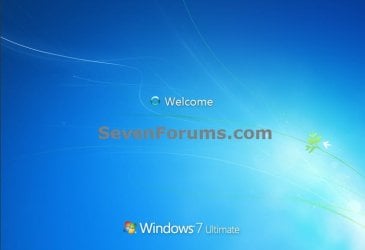
EXAMPLE: Default and Changed "Welcome" Text Message at Log OnDefault_Example.jpg

Changed_Example.jpg


OPTION ONE

Change "Welcome" Text Message at Log On

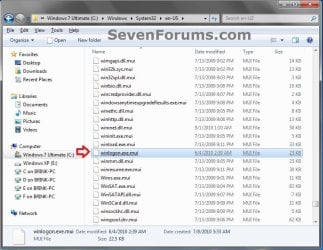
1. In Windows Explorer, navigate to C:\Windows\System32\en-US\winlogon.exe.mui. (see screenshot below)

   Note
The en-US folder is in English Windows 7 copies. If you have a non-English Windows 7 copy, then this folder will have a different name reflecting your language instead.The table below are a few of the most common ones.

Folder NameLanguage
da-DKDanish
en-GBEnglish-Great Britian
en-USEnglish-U.S.
fi-FIFinnish
fr-FRFrench
de-DEGerman
el-GRGreek
it-ITItalian
no-NONorwegian
es-ESSpanish
sv-SESwedish
Step1.jpg

2. Take ownership of the winlogon.exe.mui file with your user account, and set it's permissions to Allow your user account Full Control. Close Windows Explorer when finished.

3. Copy this winlogon.exe.mui file to your desktop.

4. If you have not already, download and install Resource Hacker.

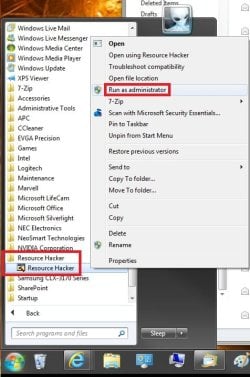
5. Right click on the Resource Hacker shortcut in Start Menu - All Programs, then click on Run as administrator. (see screenshot below)Start_Menu.jpg

6. If prompted by UAC, then click on Yes (Windows 7) or Continue (Vista).

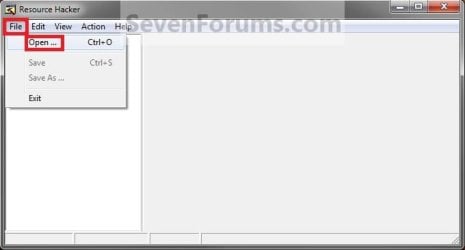
7. In Resource Hacker, click on File and Open. (see screenshot below)Step2.jpg

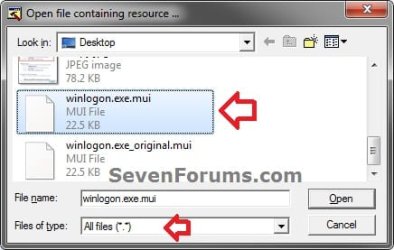
8. In Resource Hacker, select All Files (*.*) in the Files of type drop down box, navigate to and select the copied winlogon.exe.mui file on your desktop, then click on the Open button. (see screenshot below)Change_Step-3.jpg

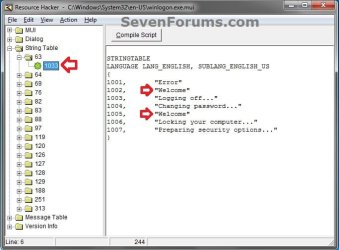
9. In the left pane of Resource Hacker, expand String Table, and 63, to 1033. (see screenshot below)Step4A.jpg

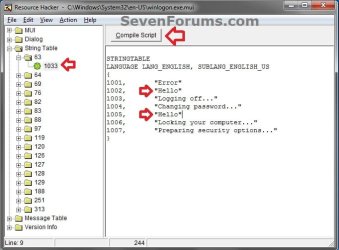
10. In the right pane of 1033, replace the Welcome text in quotes at both 1002 and 1005 locations with the text you want instead (ex: Hello) within quotes, then click on the Compile Script button. (see screenshot above and below)Step4B.jpg

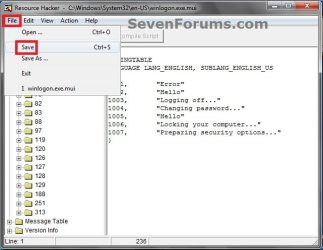
11. Click on File and Save, then close Resource Hacker. (see screenshot below)Step6.jpg

12. Copy the modified winlogon.exe.mui file on your Desktop, and Paste it into the C:\Windows\System32\en-US folder from step 1. (see screenshot below step 1)
NOTE: The en-US folder is in English Windows 7 copies. If you have a non-English Windows 7 copy, then this folder will have a different name reflecting your language instead.

13. Click on Copy and Replace. (see screenshot below)
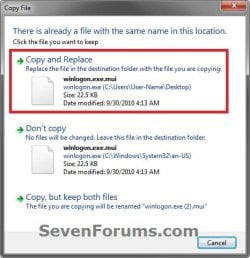
Copy.jpg

14. If prompted, click on Continue (UAC) and Yes to approve.

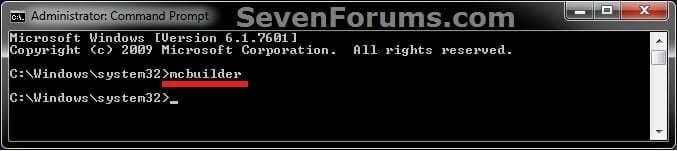
15. Open a elevated command prompt, type mcbuilder, press Enter, then close the command prompt. (see screenshot below)
NOTE: Thanks to Fimble for pointing this out.CMD.jpg

16. Restart the computer.

17. Restart the computer and log in to see the changes made.
NOTE: If this does not work for you in Windows 7, then see the NOTE box at the top of the tutorial.

18. You can delete the winlogon.exe_original.mui that ResHacker created if you like since you can easily do OPTION TWO below to restore the default settings.


OPTION TWO

Restore Default "Welcome" Text Message at Log On

1. Repeat OPTION ONE above, but type Welcome in both locations at step 10 instead.

That's it,
Shawn Brink


Last edited:
TheKooster,

See if turning off a Windows Feature (ex: Windows Gadget Platform), restart the computer, turn the Windows Feature back on again, and restart again may be able to toggle it to work again for you.
 

My Computer My Computer

Computer type
PC/Desktop
Computer Manufacturer/Model Number
Self built custom
OS
64-bit Windows 11 Pro for Workstations
CPU
Intel i7-8700K OC'd to 5 GHz
Motherboard
ASUS ROG Maximus XI Formula Z390
Memory
64 GB (4x16GB) G.SKILL TridentZ RGB DDR4 3600 MHz
Graphics Card(s)
ASUS ROG-STRIX-GTX1080TI-O11G-GAMING
Sound Card
Integrated
Monitor(s) Displays
2 x Samsung Odyssey G7 27"
Screen Resolution
2560x1440
Hard Drives
1TB Samsung 990 PRO M.2,
4TB Samsung 990 PRO PRO M.2,
TerraMaster F8 SSD Plus NAS
PSU
Seasonic Prime Titanium 850W
Case
Thermaltake Core P3
Cooling
Corsair Hydro H115i
Keyboard
Logitech wireless K800
Mouse
Logitech MX Master 4
Internet Speed
2 Gb/s Download and 100 Mb/s Upload
Antivirus
Malwarebyte Anti-Malware Premium
Browser
Google Chrome
Other Info
Logitech Z625 speaker system,
Logitech BRIO 4K Pro webcam,
HP Color LaserJet Pro MFP M477fdn,
APC SMART-UPS RT 1000 XL - SURT1000XLI,
Galaxy S23 Plus phone
I cannot get this to work followed the steps with no problems but no change in any of the texts...........

..........I followed all the steps and it still won't change the "Welcome" message............

I did this mod more months ago than I care to remember. I changed Welcome to Greetings!

I then swapped the files out. Rebooted. Waited with anticipation..... Welcome. :confused:

So I did the turn on / turn off a windows feature trick. Rebooted. Waited with anticipation..... Welcome. :confused:

I turned UAC back on as it gets switched off as soon as a fresh install is in and before the softwares start being loaded as I hate all the nags. (BTW I've always had my sidebar gadgets running). I then rebooted. Waited with anticipation..... Welcome. :confused:

I tried every trick and tweak I could find on the internet and I always rebooted. Waited with anticipation..... Welcome. :confused:

I gave up!

After about 6 months of thinking "It'll change when it's ready" and it still always greeting me with Welcome I forgot I'd even done the tweak.

I was messing about with another un-associated textual type tweak, pre SP1, and that didn't work either. I did some more goggling around and came across an apparent fix to get this new tweak to work.

HOLD YOUR BREATH!!

Open an Elevated Command Prompt or the Run... dialog.

Type in mcbuilder. When the Command window closes, reboot your PC.

I rebooted. I didn't wait with anticipation..... Greetings! :shock: :shock: :shock: :geek: :D :dinesh:

Well bu**er me! I nearly fell off me chair! It appears clearing the MUIcache allows the textual changes you have made actually take.

I've now tried this out with another couple of Guinea pigs and it worked both times there as well.

I've updated to SP1 and it has not affected the Greetings! screen either.

Hope that this helps stop more people from banging their head off their monitor in frustration!

HTH
Elmer
 
Last edited:

My Computer My Computer

OS
windows 7 ultimate
That's great news Fimble. Thank you for posting back with your results. :party:
 

My Computer My Computer

Computer type
PC/Desktop
Computer Manufacturer/Model Number
Self built custom
OS
64-bit Windows 11 Pro for Workstations
CPU
Intel i7-8700K OC'd to 5 GHz
Motherboard
ASUS ROG Maximus XI Formula Z390
Memory
64 GB (4x16GB) G.SKILL TridentZ RGB DDR4 3600 MHz
Graphics Card(s)
ASUS ROG-STRIX-GTX1080TI-O11G-GAMING
Sound Card
Integrated
Monitor(s) Displays
2 x Samsung Odyssey G7 27"
Screen Resolution
2560x1440
Hard Drives
1TB Samsung 990 PRO M.2,
4TB Samsung 990 PRO PRO M.2,
TerraMaster F8 SSD Plus NAS
PSU
Seasonic Prime Titanium 850W
Case
Thermaltake Core P3
Cooling
Corsair Hydro H115i
Keyboard
Logitech wireless K800
Mouse
Logitech MX Master 4
Internet Speed
2 Gb/s Download and 100 Mb/s Upload
Antivirus
Malwarebyte Anti-Malware Premium
Browser
Google Chrome
Other Info
Logitech Z625 speaker system,
Logitech BRIO 4K Pro webcam,
HP Color LaserJet Pro MFP M477fdn,
APC SMART-UPS RT 1000 XL - SURT1000XLI,
Galaxy S23 Plus phone
but what did you do *before* you did that little whatchamacallit?

i've successfully changed the shut down message, but i just can't find the stupid *file* the instructions tell me to change the wording in.

i've looked *very* carefully and even done several searches using the name of the file but not the extension, and the extension but not the name.

it just doesn't exist. i phoned tech support where i got my computer and asked if he could just email me that file, but i guess they forgot. i figured they would, because they know i have a legit windows copy because they sold it to me.

and darned if i remember what folder it should have been in to tweak my memory so i know what it was called, it's very similar to the name of the file you change the shut down text in is all i remember at the moment.

but i'm copying and pasting and saving your instructions in notepad. thank you.
 

My Computer My Computer

OS
windows 7

My Computer My Computer

Computer type
PC/Desktop
Computer Manufacturer/Model Number
Self built custom
OS
64-bit Windows 11 Pro for Workstations
CPU
Intel i7-8700K OC'd to 5 GHz
Motherboard
ASUS ROG Maximus XI Formula Z390
Memory
64 GB (4x16GB) G.SKILL TridentZ RGB DDR4 3600 MHz
Graphics Card(s)
ASUS ROG-STRIX-GTX1080TI-O11G-GAMING
Sound Card
Integrated
Monitor(s) Displays
2 x Samsung Odyssey G7 27"
Screen Resolution
2560x1440
Hard Drives
1TB Samsung 990 PRO M.2,
4TB Samsung 990 PRO PRO M.2,
TerraMaster F8 SSD Plus NAS
PSU
Seasonic Prime Titanium 850W
Case
Thermaltake Core P3
Cooling
Corsair Hydro H115i
Keyboard
Logitech wireless K800
Mouse
Logitech MX Master 4
Internet Speed
2 Gb/s Download and 100 Mb/s Upload
Antivirus
Malwarebyte Anti-Malware Premium
Browser
Google Chrome
Other Info
Logitech Z625 speaker system,
Logitech BRIO 4K Pro webcam,
HP Color LaserJet Pro MFP M477fdn,
APC SMART-UPS RT 1000 XL - SURT1000XLI,
Galaxy S23 Plus phone
thank you, i've got the shut down message changed. it's the logon one i'm having issues with.
maybe you can help me with this?

http://www.sevenforums.com/tutorials/126315-welcome-log-text-message-change.html

it says you edit the "winlogon.exe.mui" file - but that file does not exist on my computer. seriously. it just isn't here. can't find it using windows explorer (yes i have see hidden files set), can't find it with search, can't find it with resource hacker.
 

My Computer My Computer

OS
windows 7
Strange. It's not a hidden file, so that wouldn't matter. Double check the path to make sure that you are in the correct folder. Could you also post a screenshot of this area showing the full path in the address bar and where the file should be in Windows Explorer? I'll take a look at it to see if I may be able to spot anything that may be wrong.
 

My Computer My Computer

Computer type
PC/Desktop
Computer Manufacturer/Model Number
Self built custom
OS
64-bit Windows 11 Pro for Workstations
CPU
Intel i7-8700K OC'd to 5 GHz
Motherboard
ASUS ROG Maximus XI Formula Z390
Memory
64 GB (4x16GB) G.SKILL TridentZ RGB DDR4 3600 MHz
Graphics Card(s)
ASUS ROG-STRIX-GTX1080TI-O11G-GAMING
Sound Card
Integrated
Monitor(s) Displays
2 x Samsung Odyssey G7 27"
Screen Resolution
2560x1440
Hard Drives
1TB Samsung 990 PRO M.2,
4TB Samsung 990 PRO PRO M.2,
TerraMaster F8 SSD Plus NAS
PSU
Seasonic Prime Titanium 850W
Case
Thermaltake Core P3
Cooling
Corsair Hydro H115i
Keyboard
Logitech wireless K800
Mouse
Logitech MX Master 4
Internet Speed
2 Gb/s Download and 100 Mb/s Upload
Antivirus
Malwarebyte Anti-Malware Premium
Browser
Google Chrome
Other Info
Logitech Z625 speaker system,
Logitech BRIO 4K Pro webcam,
HP Color LaserJet Pro MFP M477fdn,
APC SMART-UPS RT 1000 XL - SURT1000XLI,
Galaxy S23 Plus phone
hello friends.

i have joined this fourms today only.i was trying to change the welcome message on my laptop.i am running windows 7 ultimate x64.
i am unable to gain full access to the winlogon file.
attached is the screenshot.

x3e80m.jpg


Please guide me what should i do?
 

My Computer My Computer

OS
Windows 7 Ultimate x64
Hello Gulshanrajput, and welcome to Seven Forums.

Since those options are grayed out, it looks like you needed to take ownership of the file with your user account first before you will be allowed to change it's permission settings.

Hope this helps,
Shawn
 

My Computer My Computer

Computer type
PC/Desktop
Computer Manufacturer/Model Number
Self built custom
OS
64-bit Windows 11 Pro for Workstations
CPU
Intel i7-8700K OC'd to 5 GHz
Motherboard
ASUS ROG Maximus XI Formula Z390
Memory
64 GB (4x16GB) G.SKILL TridentZ RGB DDR4 3600 MHz
Graphics Card(s)
ASUS ROG-STRIX-GTX1080TI-O11G-GAMING
Sound Card
Integrated
Monitor(s) Displays
2 x Samsung Odyssey G7 27"
Screen Resolution
2560x1440
Hard Drives
1TB Samsung 990 PRO M.2,
4TB Samsung 990 PRO PRO M.2,
TerraMaster F8 SSD Plus NAS
PSU
Seasonic Prime Titanium 850W
Case
Thermaltake Core P3
Cooling
Corsair Hydro H115i
Keyboard
Logitech wireless K800
Mouse
Logitech MX Master 4
Internet Speed
2 Gb/s Download and 100 Mb/s Upload
Antivirus
Malwarebyte Anti-Malware Premium
Browser
Google Chrome
Other Info
Logitech Z625 speaker system,
Logitech BRIO 4K Pro webcam,
HP Color LaserJet Pro MFP M477fdn,
APC SMART-UPS RT 1000 XL - SURT1000XLI,
Galaxy S23 Plus phone
I tried to follow the steps in the take ownership thread.
But seems like i am not the administrator on my computer lol but there are no other users too.
check the screenshot
22kim0.jpg


My Computer My Computer

OS
Windows 7 Ultimate x64
The command wasn't entered in the correct format, and you're not using a elevated command prompt (right click on command shortcut and click on run as administrator.

I would recommend to use Option Two in Method Two of that tutorial instead. It explains how to take ownership and grant yourself permission of the file. :)
 
Last edited:

My Computer My Computer

Computer type
PC/Desktop
Computer Manufacturer/Model Number
Self built custom
OS
64-bit Windows 11 Pro for Workstations
CPU
Intel i7-8700K OC'd to 5 GHz
Motherboard
ASUS ROG Maximus XI Formula Z390
Memory
64 GB (4x16GB) G.SKILL TridentZ RGB DDR4 3600 MHz
Graphics Card(s)
ASUS ROG-STRIX-GTX1080TI-O11G-GAMING
Sound Card
Integrated
Monitor(s) Displays
2 x Samsung Odyssey G7 27"
Screen Resolution
2560x1440
Hard Drives
1TB Samsung 990 PRO M.2,
4TB Samsung 990 PRO PRO M.2,
TerraMaster F8 SSD Plus NAS
PSU
Seasonic Prime Titanium 850W
Case
Thermaltake Core P3
Cooling
Corsair Hydro H115i
Keyboard
Logitech wireless K800
Mouse
Logitech MX Master 4
Internet Speed
2 Gb/s Download and 100 Mb/s Upload
Antivirus
Malwarebyte Anti-Malware Premium
Browser
Google Chrome
Other Info
Logitech Z625 speaker system,
Logitech BRIO 4K Pro webcam,
HP Color LaserJet Pro MFP M477fdn,
APC SMART-UPS RT 1000 XL - SURT1000XLI,
Galaxy S23 Plus phone
Thanks sir.
i did it right this time and it worked for me.
Thanks a ton.you are doing a great job.
 

My Computer My Computer

OS
Windows 7 Ultimate x64
You're most welcome Gulshanrajput. I'm happy to hear that you got it working. :)
 

My Computer My Computer

Computer type
PC/Desktop
Computer Manufacturer/Model Number
Self built custom
OS
64-bit Windows 11 Pro for Workstations
CPU
Intel i7-8700K OC'd to 5 GHz
Motherboard
ASUS ROG Maximus XI Formula Z390
Memory
64 GB (4x16GB) G.SKILL TridentZ RGB DDR4 3600 MHz
Graphics Card(s)
ASUS ROG-STRIX-GTX1080TI-O11G-GAMING
Sound Card
Integrated
Monitor(s) Displays
2 x Samsung Odyssey G7 27"
Screen Resolution
2560x1440
Hard Drives
1TB Samsung 990 PRO M.2,
4TB Samsung 990 PRO PRO M.2,
TerraMaster F8 SSD Plus NAS
PSU
Seasonic Prime Titanium 850W
Case
Thermaltake Core P3
Cooling
Corsair Hydro H115i
Keyboard
Logitech wireless K800
Mouse
Logitech MX Master 4
Internet Speed
2 Gb/s Download and 100 Mb/s Upload
Antivirus
Malwarebyte Anti-Malware Premium
Browser
Google Chrome
Other Info
Logitech Z625 speaker system,
Logitech BRIO 4K Pro webcam,
HP Color LaserJet Pro MFP M477fdn,
APC SMART-UPS RT 1000 XL - SURT1000XLI,
Galaxy S23 Plus phone

My Computer My Computer

Computer Manufacturer/Model Number
HP Pavilion a1328x
OS
Windows Home Premium 32 bit
CPU
Pentium 4- 3gHz
Motherboard
Asus
Memory
2 Gb
Graphics Card(s)
ATI 200
Monitor(s) Displays
HP vs17e
hi, i am new here..
So i hope you guys will go easy on me :)

First of all, i used the same tutorial last year, and i successfully changed them (when i was not a member yet)
but now there's another problem,

I wanna change it back to "Welcome", but it just doesnt seem to change anything
Did back the same steps,
I even tried clicking "Take File Ownership", but to no avail.

What could possibly be wrong here?
An answer would be much appreciated!

Thanks!
 

My Computer My Computer

OS
Windows 7 Ultimate x64
Hello Leon, and welcome to being a member of Seven Forums.

You might double check while trying again to see if you may have made a mistake or missed something in the steps.

Another option would be to use METHOD TWO in the tutorial below to run a SFC /SCANNOW command at boot to restore the winlogon.mui.exe file and all system files back to default.

SFC /SCANNOW : Run in Command Prompt at Boot

Hope this helps,
Shawn
 
Last edited:

My Computer My Computer

Computer type
PC/Desktop
Computer Manufacturer/Model Number
Self built custom
OS
64-bit Windows 11 Pro for Workstations
CPU
Intel i7-8700K OC'd to 5 GHz
Motherboard
ASUS ROG Maximus XI Formula Z390
Memory
64 GB (4x16GB) G.SKILL TridentZ RGB DDR4 3600 MHz
Graphics Card(s)
ASUS ROG-STRIX-GTX1080TI-O11G-GAMING
Sound Card
Integrated
Monitor(s) Displays
2 x Samsung Odyssey G7 27"
Screen Resolution
2560x1440
Hard Drives
1TB Samsung 990 PRO M.2,
4TB Samsung 990 PRO PRO M.2,
TerraMaster F8 SSD Plus NAS
PSU
Seasonic Prime Titanium 850W
Case
Thermaltake Core P3
Cooling
Corsair Hydro H115i
Keyboard
Logitech wireless K800
Mouse
Logitech MX Master 4
Internet Speed
2 Gb/s Download and 100 Mb/s Upload
Antivirus
Malwarebyte Anti-Malware Premium
Browser
Google Chrome
Other Info
Logitech Z625 speaker system,
Logitech BRIO 4K Pro webcam,
HP Color LaserJet Pro MFP M477fdn,
APC SMART-UPS RT 1000 XL - SURT1000XLI,
Galaxy S23 Plus phone
Hi Brink!

Thanks for repyling.
Hmm, I re-drag the winlogon.mui.exe to my desktop, checked with reshack.

It says "Welcome" for both lines.
But on boot, it still shows my custom welcome text instead of the original.

Is it due to a cached system file? (lol, im not a good computer guy)
 

My Computer My Computer

OS
Windows 7 Ultimate x64
If doing what's in the yellow TIP box at the bottom of the tutorial doesn't help, then doing the sfc scan from above should be able to reset the winlogon.mui.exe file back to default. :)
 

My Computer My Computer

Computer type
PC/Desktop
Computer Manufacturer/Model Number
Self built custom
OS
64-bit Windows 11 Pro for Workstations
CPU
Intel i7-8700K OC'd to 5 GHz
Motherboard
ASUS ROG Maximus XI Formula Z390
Memory
64 GB (4x16GB) G.SKILL TridentZ RGB DDR4 3600 MHz
Graphics Card(s)
ASUS ROG-STRIX-GTX1080TI-O11G-GAMING
Sound Card
Integrated
Monitor(s) Displays
2 x Samsung Odyssey G7 27"
Screen Resolution
2560x1440
Hard Drives
1TB Samsung 990 PRO M.2,
4TB Samsung 990 PRO PRO M.2,
TerraMaster F8 SSD Plus NAS
PSU
Seasonic Prime Titanium 850W
Case
Thermaltake Core P3
Cooling
Corsair Hydro H115i
Keyboard
Logitech wireless K800
Mouse
Logitech MX Master 4
Internet Speed
2 Gb/s Download and 100 Mb/s Upload
Antivirus
Malwarebyte Anti-Malware Premium
Browser
Google Chrome
Other Info
Logitech Z625 speaker system,
Logitech BRIO 4K Pro webcam,
HP Color LaserJet Pro MFP M477fdn,
APC SMART-UPS RT 1000 XL - SURT1000XLI,
Galaxy S23 Plus phone
Hi Brink,

Thanks! :D

Everything works now..

:refered to the yellow tip box :)
its funny that I did not notice that the whole night while reading the post multiple times..

Thank you!
 

My Computer My Computer

OS
Windows 7 Ultimate x64
You're most welcome Leon. I'm happy to hear that it's back for you now. :)
 

My Computer My Computer

Computer type
PC/Desktop
Computer Manufacturer/Model Number
Self built custom
OS
64-bit Windows 11 Pro for Workstations
CPU
Intel i7-8700K OC'd to 5 GHz
Motherboard
ASUS ROG Maximus XI Formula Z390
Memory
64 GB (4x16GB) G.SKILL TridentZ RGB DDR4 3600 MHz
Graphics Card(s)
ASUS ROG-STRIX-GTX1080TI-O11G-GAMING
Sound Card
Integrated
Monitor(s) Displays
2 x Samsung Odyssey G7 27"
Screen Resolution
2560x1440
Hard Drives
1TB Samsung 990 PRO M.2,
4TB Samsung 990 PRO PRO M.2,
TerraMaster F8 SSD Plus NAS
PSU
Seasonic Prime Titanium 850W
Case
Thermaltake Core P3
Cooling
Corsair Hydro H115i
Keyboard
Logitech wireless K800
Mouse
Logitech MX Master 4
Internet Speed
2 Gb/s Download and 100 Mb/s Upload
Antivirus
Malwarebyte Anti-Malware Premium
Browser
Google Chrome
Other Info
Logitech Z625 speaker system,
Logitech BRIO 4K Pro webcam,
HP Color LaserJet Pro MFP M477fdn,
APC SMART-UPS RT 1000 XL - SURT1000XLI,
Galaxy S23 Plus phone
Back
Top