Solved What exactly does a Windows system image backup save?

DavidOdden

New member
Local time
2:52 PM
Messages
18
My main question is what is actually saved when you run Windows backup to create a system image (assuming a generic Win7-64 pro installation). I don't know the proper terminology, but my concern is being able to recover the first two invisible partitions (the boot partition or whatever they call it, plus the OEM "recovery" partition), along with the C: drive with Windows etc. My related question is, is there any way to verify that stuff has been saved, e.g. where the heck is the backup (presumably contained in the read-only folder with the name of my computer on my external drive; or, it could be in the folder WindowsImageBackup that has a folder with the name of my computer...). I confess that I have multiple backups created by different programs and I'm not sure who made what. I'm just trying to understand the Windows utility: figuring out better backup methods would be next.
 

My Computer

Computer type
PC/Desktop
Computer Manufacturer/Model Number
Dell (Precision, Dimension), Vaio, IBM Thinkpad
OS
Win7-64 pro; XP

My Computer

Computer type
PC/Desktop
Computer Manufacturer/Model Number
Self built custom
OS
64-bit Windows 11 Pro for Workstations
CPU
Intel i7-8700K OC'd to 5 GHz
Motherboard
ASUS ROG Maximus XI Formula Z390
Memory
64 GB (4x16GB) G.SKILL TridentZ RGB DDR4 3600 MHz
Graphics Card(s)
ASUS ROG-STRIX-GTX1080TI-O11G-GAMING
Sound Card
Integrated
Monitor(s) Displays
2 x Samsung Odyssey G7 27"
Screen Resolution
2560x1440
Hard Drives
1TB Samsung 990 PRO M.2,
4TB Samsung 990 PRO PRO M.2,
TerraMaster F8 SSD Plus NAS
PSU
Seasonic Prime Titanium 850W
Case
Thermaltake Core P3
Cooling
Corsair Hydro H115i
Keyboard
Logitech wireless K800
Mouse
Logitech MX Master 4
Internet Speed
2 Gb/s Download and 100 Mb/s Upload
Antivirus
Malwarebyte Anti-Malware Premium
Browser
Google Chrome
Other Info
Logitech Z625 speaker system,
Logitech BRIO 4K Pro webcam,
HP Color LaserJet Pro MFP M477fdn,
APC SMART-UPS RT 1000 XL - SURT1000XLI,
Galaxy S23 Plus phone
Thanks for the pointer. There are still some murky details. The tutorial says that a system image is an exact copy of a drive, and would include all NTFS partitions with an operating system installed on it, plus the System Reserved partition. This possibly covers two of the three partitions, leaving out the Recovery partition. There is / was no option to exclude any of these partitions when I do a disk image.

On my Vaio, MMC reports that the first partition on Disk 0 is "Recovery", the second is "System Reserved" containing System (100MB) and the third is "C:" = Boot, Page File, Crash Dump, Primary Partition. However, on my Dell, it reports that the first partition is "OEM" (39 MB), the second is "Recovery" and the third is "C:" = Boot, Page File, Crash Dump, Primary Partition. No partition is identified as "System Reserved" and none is given the "System" property. The Dell does boot up and run normally. So I assume there's some subtle difference in how partition properties are identified between the two machines, and MMC doesn't identify my Dell as having a "system". But this make me wonder whether System Image might not have backed up the recovery partition or, in the case of the Dell, the (apparent) System Reserved partition (the 39 MB piece).

Is there any way to verify the actual contents of a supposed "system image"? (Apart from getting another drive, trying to restore to the new drive, and seeing if it works).
 

My Computer

Computer type
PC/Desktop
Computer Manufacturer/Model Number
Dell (Precision, Dimension), Vaio, IBM Thinkpad
OS
Win7-64 pro; XP
Correct. A system image is an exact clone of the Windows disk and any system disk with all their partitions.

Unfortunately, other than the successfully created message when it's finished creating the image, the only way to know 100% is to restore the image. This is one main reason why it's best to have a few different backup sources to be safe.
 

My Computer

Computer type
PC/Desktop
Computer Manufacturer/Model Number
Self built custom
OS
64-bit Windows 11 Pro for Workstations
CPU
Intel i7-8700K OC'd to 5 GHz
Motherboard
ASUS ROG Maximus XI Formula Z390
Memory
64 GB (4x16GB) G.SKILL TridentZ RGB DDR4 3600 MHz
Graphics Card(s)
ASUS ROG-STRIX-GTX1080TI-O11G-GAMING
Sound Card
Integrated
Monitor(s) Displays
2 x Samsung Odyssey G7 27"
Screen Resolution
2560x1440
Hard Drives
1TB Samsung 990 PRO M.2,
4TB Samsung 990 PRO PRO M.2,
TerraMaster F8 SSD Plus NAS
PSU
Seasonic Prime Titanium 850W
Case
Thermaltake Core P3
Cooling
Corsair Hydro H115i
Keyboard
Logitech wireless K800
Mouse
Logitech MX Master 4
Internet Speed
2 Gb/s Download and 100 Mb/s Upload
Antivirus
Malwarebyte Anti-Malware Premium
Browser
Google Chrome
Other Info
Logitech Z625 speaker system,
Logitech BRIO 4K Pro webcam,
HP Color LaserJet Pro MFP M477fdn,
APC SMART-UPS RT 1000 XL - SURT1000XLI,
Galaxy S23 Plus phone
My method might be helpful.

I use Windows 7 built in backup (clone) to a external and Macrium backup (clone) to a different partition on the same external.

I'm paranoid. If one doesn't work when needed the other should.
 

My Computer

Computer type
PC/Desktop
Computer Manufacturer/Model Number
Home made Desktop
OS
Windows 10 Pro. 64/ version 1709 Windows 7 Pro/64
CPU
Intel i7-6800K @ 4.3
Motherboard
ASUS X-99 Deluxe II
Memory
Corsair Platinum 16 gig @2400
Graphics Card(s)
EVGA GTX 1070 OC
Monitor(s) Displays
Asus 27" LED LCD/VE278Q
Screen Resolution
1920-1080 or 1280-720 HDMI
Hard Drives
INTEL SSD 730-240 Gb Sata 3.0/
PSU
EVGA Platium 1200W
Case
Phanteks Luxe Tempered Glass 8 fans/ one radiator
Cooling
XSPC/ Water Cooled CPU
Keyboard
Das 4 Professional
Mouse
Logitech M705/MX Anywhere 2-S
Internet Speed
100 mbits
Antivirus
Microsoft Security Essentials/ Malwarebytes Premium 3.0/ SAS
Browser
I.E. 11 default/Firefox/ ISP Time Warner Cable/Spectrum
Other Info
LG BluRay Burner/
Sound system-KLipsch-THX/
Icy Dock ssd Hot Swap bays.
I'm a bit more paranoid. I tried to migrate to an SSD from a spinning drive using Macrium, and while it seems to have made a copy on the SSD which will boot, the original HD got trashed in the process (error messages at the end of the operation; the system failed to function thereafter; quasi-booted, but told me that the copy of Windows wasn't genuine and basically didn't function). I'm letting that drive have a vacation while I stop sweating.
 

My Computer

Computer type
PC/Desktop
Computer Manufacturer/Model Number
Dell (Precision, Dimension), Vaio, IBM Thinkpad
OS
Win7-64 pro; XP
Hello David, :)

The tutorials below can give you more information about this. Please feel free to post any questions you may have after reading them.

http://www.sevenforums.com/tutorials/663-backup-complete-computer-create-image-backup.html

http://www.sevenforums.com/tutorials/675-system-image-recovery.html

I am looking for a totally unqualified answer to the following question: "Does a System Image made by Window 7's Backup and Restore routine definately, without question, result in all Programs on the C: drive being restored perfectly in such a way that they will immediately run exactly as before, including major programs such as Adobe Photoshop and MS Office?"

I have read both of the above tutorials. I have read several (about three I think) web pages on Microsoft's site. Two say programs are included, but one of them, on a separate page from the others, simply says "An Image backup will, by default, install only the programs required for Windows to run." The "by default" clearly requires the user to set something to achieve that, and what setting?

Also, there is another sevenforums tutorial:

http://www.sevenforums.com/tutorials/615-backup-user-system-files.html

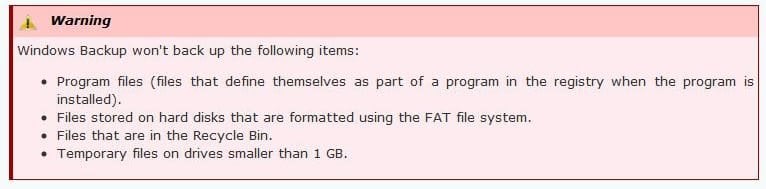
which states, in a pink warning panel just before the "Here's How" section, that programs will not be included in the procedure. Please see the attachment.

Finally, another senior member of seven forums said about a month or two ago, in reply to a query, that programs will not be included.

I am completing a backup routine for my machine and want to rely on Backup and Restore restoring my programs (if it can) so that they are capable of running as described in my question. In view of the apparent conflicts, it would be really helpful if you could clear up this question (above) once and for all on behalf of sevenforums, by saying what the answer is, hopefully without any qualifications (although explanations would be helpful).
 

Attachments

  • Warning.JPG
    Warning.JPG
    58.6 KB · Views: 1

My Computer

Computer type
PC/Desktop
Computer Manufacturer/Model Number
Gigabyte ATX case with 500 W power supply GZ-M1
OS
Windows 7 Home Premium 64bit
CPU
Intel Pentium Edition G3220 3.0 GHz
Motherboard
Gigabyte Socket 1150 MicroATX Mot Ultra Durable, GA-H81M-S2H
Memory
8 GB DDR3 1600 MHz DIMM
Graphics Card(s)
Not Known
Sound Card
Not known
Monitor(s) Displays
Samsung LS24D590 23.6"
Screen Resolution
1920 x 1080
Hard Drives
256 GB Solid State Drive (C: on which Windows 7 is installed)-
1 TB internal conventional HD (X:)-
Two WD "Elements" " 2TB USB drives as backups
PSU
500 W
Case
Gigabyte ATX case
Cooling
Several fans!
Keyboard
Accuratus 301 USB Compact, white.
Mouse
Microsoft Basic Optical Mouse v2.0, two-button, tethered
Internet Speed
10 to 12 Mb per second
Antivirus
Kaspersky Internet Security 2016, Malwarebytes (paid)
Browser
Firefox (ocassionally Safari)
Other Info
The 256 GB SSD (C:) also has Adobe Photoshop CS6 and InDesign CS6, MS Office, Adobe Lightroom, and other small programs.
Stevekir, I certainly can't give you an unqualified and trustworthy answer, but I think the primary distinction is between creating a system image, and "backing up". A simple "backup" by default only backs up a select subset of "user data" files, although you can override the default and select specific directories so that you cover everything on your C: drive. A system image is supposed to be "complete", though there is still the question of whether it will actually back up the first two invisible partitions. If you ask it to restore, you can select particular files or folders and by navigating through those folders, you can see what Windows claims to have backed up. Although I told it to back up everything, it backed up Program Files and Program Files (x86), but not Windows, Boot or various other system-type files. (That is, it did / did not judging from whether the relevant files and folders were available to restore, but I did not verify that it would successfully restore by doing so with an installed program). A possible test would be to download some program, install it, back it up, then uninstall it. However, I think that won't work, because programs often store junk in the register, and I believe the register is a set of don't-touch files buried under Windows -- which is not backed up.

For some programs, you can just restore the files and when you run it, it fixes whatever quandries it encounters regarding the register, but with for example Photoshop, you can't just copy from machine to machine. So I conclude that a "backup" is not particularly useful, and you have to go with system images. I inspected my recent System Image folder (having figured out how to parse the content on my drive) and there are three .VHD files that, judging from file size, could well correspond to the three partitions on my drive. However, someone is telling stories, because while Windows Explorer reports the size of the biggest VHD file to be 202 GB (the size of the used part of C), MMC tells me that that virtual disk is 286 GB (the total size of C). If one knew a way to meaningfully inspect the content of the VHD files, one might have a shot at verifying what was actually backed up via the system image option. Or... buy extra computers and drives, and perform the test.

 

My Computer

Computer type
PC/Desktop
Computer Manufacturer/Model Number
Dell (Precision, Dimension), Vaio, IBM Thinkpad
OS
Win7-64 pro; XP
Stevekir, I certainly can't give you an unqualified and trustworthy answer, but I think.........

Thanks.

Has anyone actually used a Backup and Restore System Image which has restored all programs to full working condition?
 

My Computer

Computer type
PC/Desktop
Computer Manufacturer/Model Number
Gigabyte ATX case with 500 W power supply GZ-M1
OS
Windows 7 Home Premium 64bit
CPU
Intel Pentium Edition G3220 3.0 GHz
Motherboard
Gigabyte Socket 1150 MicroATX Mot Ultra Durable, GA-H81M-S2H
Memory
8 GB DDR3 1600 MHz DIMM
Graphics Card(s)
Not Known
Sound Card
Not known
Monitor(s) Displays
Samsung LS24D590 23.6"
Screen Resolution
1920 x 1080
Hard Drives
256 GB Solid State Drive (C: on which Windows 7 is installed)-
1 TB internal conventional HD (X:)-
Two WD "Elements" " 2TB USB drives as backups
PSU
500 W
Case
Gigabyte ATX case
Cooling
Several fans!
Keyboard
Accuratus 301 USB Compact, white.
Mouse
Microsoft Basic Optical Mouse v2.0, two-button, tethered
Internet Speed
10 to 12 Mb per second
Antivirus
Kaspersky Internet Security 2016, Malwarebytes (paid)
Browser
Firefox (ocassionally Safari)
Other Info
The 256 GB SSD (C:) also has Adobe Photoshop CS6 and InDesign CS6, MS Office, Adobe Lightroom, and other small programs.
A small shred of additional info. You can run MSC, open the Disk Management add-on, and attach a VHD (as described here but it is important to not attach the file read-only -- otherwise, the content is so protected that you can't even see it). The disk will appear as a new drive and you can browse it, copy things etc. This way, you can see what files were actually backed up, and verify for example that C:\Windows was backed up, unlike with a normal backup. This also allows you to see the two invisible partitions (the system reserved and the recovery partitions), which will at least suggest that these partitions were backed up. For verifying your C: drive, you can do an item-by item comparison of what's in the backup vs. on your C: drive. For the invisible partitions, you can at least see that there is some directory structure with file names that are meaningful and which suggest that stuff that you'd expect in a recovery partition is actually there.

This is, BTW, useful because a complete system backup might contain things that were not backed up in a regular backup; but for various reasons, you might not want to restore the entire system. So this gives access to the content of a disk image. Completely restoring programs, manually, could be very tricky because it could take a lifetime to figure out where all of the required files are, including registry setting.

The only way to be completely certain that a backup "is correct" is to make a backup, stick in a fresh drive, recover to that drive, and see if everything still works.
 
Last edited by a moderator:

My Computer

Computer type
PC/Desktop
Computer Manufacturer/Model Number
Dell (Precision, Dimension), Vaio, IBM Thinkpad
OS
Win7-64 pro; XP
I am looking for a totally unqualified answer to the following question: "Does a System Image made by Window 7's Backup and Restore routine definately, without question, result in all Programs on the C: drive being restored perfectly in such a way that they will immediately run exactly as before, including major programs such as Adobe Photoshop and MS Office?"

Yes, a disk or system image is a complete snapshot at the instant you click 'make the backup'. Changes you make from that moment on (if you keep using the PC) will not be reflected in the backup currently being made.

When you restore the backup you get a fully working system exactly as it was at the instant you started.
 

My Computer

Computer type
Laptop
Computer Manufacturer/Model Number
Dell
OS
Windows 7 Professional x64
CPU
Intel Core i5 2430M (2.4GHz)
Memory
4096Mb 1333Mhz DDR3 SDRAM
Graphics Card(s)
Intel Integrated HD
Monitor(s) Displays
17.3 Inch HD Anti Glare
Screen Resolution
1600 x 900
Hard Drives
320Gb 7200rpm serial ATA
Keyboard
Illuminated standard
Mouse
Microsoft 3500
Internet Speed
40Mb
Antivirus
Security Essentials
Browser
IE11 x64
I'm now sufficiently satisfied that I have the answer: a system image (and only a system image) saves everything, at least as long as we're not dealing with dual-boot Linux / Win7 setups. There is still a question about whether a somewhat defective invisible partition would get saved, but that's a question for later (or, with any luck, never). Thanks to all for contributing to this thread.
 

My Computer

Computer type
PC/Desktop
Computer Manufacturer/Model Number
Dell (Precision, Dimension), Vaio, IBM Thinkpad
OS
Win7-64 pro; XP
My method might be helpful.

I use Windows 7 built in backup (clone) to a external and Macrium backup (clone) to a different partition on the same external.

I'm paranoid. If one doesn't work when needed the other should.
Your idea (the bold part) seems the only definitive way to confirm that the programs are included in a system image. To do that without going the whole hog and restoring my C: drive when I don't need to (some day perhaps but not now when the system is working well) I would like to go through one of Windows 7's Backup and Restore routines to restore that image to an external USB HD. (I know that Windows will not reliably boot from such a drive but that's not relevant at the moment.) I could then simply look at the restored files and see if my programs are included. Job done.

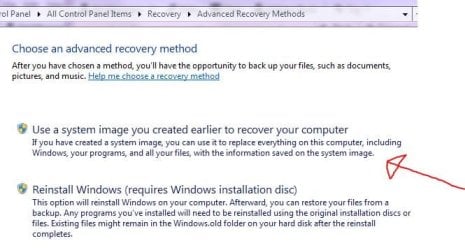
I have looked at the restore options but can't clearly see a way to make the restore to occur on that ext. HD, NOT the C: drive.

--- So how can I do that please? (From your post it looks like you have done that, but how?)

The attached image points to a likely candidate but I don't want to go too deeply into that for fear of it charging off and restoring on to my C:

--- Does it offer an option to restore to an external drive?

Thanks.
 

Attachments

  • Arrow.JPG
    Arrow.JPG
    56.5 KB · Views: 18

My Computer

Computer type
PC/Desktop
Computer Manufacturer/Model Number
Gigabyte ATX case with 500 W power supply GZ-M1
OS
Windows 7 Home Premium 64bit
CPU
Intel Pentium Edition G3220 3.0 GHz
Motherboard
Gigabyte Socket 1150 MicroATX Mot Ultra Durable, GA-H81M-S2H
Memory
8 GB DDR3 1600 MHz DIMM
Graphics Card(s)
Not Known
Sound Card
Not known
Monitor(s) Displays
Samsung LS24D590 23.6"
Screen Resolution
1920 x 1080
Hard Drives
256 GB Solid State Drive (C: on which Windows 7 is installed)-
1 TB internal conventional HD (X:)-
Two WD "Elements" " 2TB USB drives as backups
PSU
500 W
Case
Gigabyte ATX case
Cooling
Several fans!
Keyboard
Accuratus 301 USB Compact, white.
Mouse
Microsoft Basic Optical Mouse v2.0, two-button, tethered
Internet Speed
10 to 12 Mb per second
Antivirus
Kaspersky Internet Security 2016, Malwarebytes (paid)
Browser
Firefox (ocassionally Safari)
Other Info
The 256 GB SSD (C:) also has Adobe Photoshop CS6 and InDesign CS6, MS Office, Adobe Lightroom, and other small programs.
I'm not sure I understand you question but I will try to answer what I think your question is.

First off I don't use usb externals for back ups.
I use hot swap sata ssd's or eSata ssd's.

But to the best of my memory once you put a back up/clone on a external of any kind you can open it to see what data is stored in the backup/clone as long as your system recognizes the external drive. All information you have chosen to put on the external should be there and searchable.

To me a hot swap ssd clone is the best for me.
I can installed the clone ssd into a sata hot swap, change the boot order and boot the clone.
I have only had to do that once quite a while back.

Because I seldom have to get information off of a backup of any kind my 3 brain cell are limited on the subject.

If I haven't answered your question I'm sure Brink can post one of his millions of tutorial that will answer your question. Well maybe not million but he has a huge amount of tutorials and somehow remembers all of them. I use them often.
 

My Computer

Computer type
PC/Desktop
Computer Manufacturer/Model Number
Home made Desktop
OS
Windows 10 Pro. 64/ version 1709 Windows 7 Pro/64
CPU
Intel i7-6800K @ 4.3
Motherboard
ASUS X-99 Deluxe II
Memory
Corsair Platinum 16 gig @2400
Graphics Card(s)
EVGA GTX 1070 OC
Monitor(s) Displays
Asus 27" LED LCD/VE278Q
Screen Resolution
1920-1080 or 1280-720 HDMI
Hard Drives
INTEL SSD 730-240 Gb Sata 3.0/
PSU
EVGA Platium 1200W
Case
Phanteks Luxe Tempered Glass 8 fans/ one radiator
Cooling
XSPC/ Water Cooled CPU
Keyboard
Das 4 Professional
Mouse
Logitech M705/MX Anywhere 2-S
Internet Speed
100 mbits
Antivirus
Microsoft Security Essentials/ Malwarebytes Premium 3.0/ SAS
Browser
I.E. 11 default/Firefox/ ISP Time Warner Cable/Spectrum
Other Info
LG BluRay Burner/
Sound system-KLipsch-THX/
Icy Dock ssd Hot Swap bays.
I'm not sure I understand you question but I will try to answer what I think you question is.

First off I don't use usb externals for back ups.
I use hot swap sata ssd's or eSata ssd's.

But to the best of my memory once you put a back up/clone on a external of any kind you can open it to see what data is stored in the backup/clone as long as your system recognizes the external drive. All information you have chosen to put on the external should be there and searchable.
Thanks. That's very helpful.

My other concern was whether the routine (with the red arrowon my post) allowd me to specify an ext. USB drive as the place for the restore. I think your post answers that.
 

My Computer

Computer type
PC/Desktop
Computer Manufacturer/Model Number
Gigabyte ATX case with 500 W power supply GZ-M1
OS
Windows 7 Home Premium 64bit
CPU
Intel Pentium Edition G3220 3.0 GHz
Motherboard
Gigabyte Socket 1150 MicroATX Mot Ultra Durable, GA-H81M-S2H
Memory
8 GB DDR3 1600 MHz DIMM
Graphics Card(s)
Not Known
Sound Card
Not known
Monitor(s) Displays
Samsung LS24D590 23.6"
Screen Resolution
1920 x 1080
Hard Drives
256 GB Solid State Drive (C: on which Windows 7 is installed)-
1 TB internal conventional HD (X:)-
Two WD "Elements" " 2TB USB drives as backups
PSU
500 W
Case
Gigabyte ATX case
Cooling
Several fans!
Keyboard
Accuratus 301 USB Compact, white.
Mouse
Microsoft Basic Optical Mouse v2.0, two-button, tethered
Internet Speed
10 to 12 Mb per second
Antivirus
Kaspersky Internet Security 2016, Malwarebytes (paid)
Browser
Firefox (ocassionally Safari)
Other Info
The 256 GB SSD (C:) also has Adobe Photoshop CS6 and InDesign CS6, MS Office, Adobe Lightroom, and other small programs.
You can put your restore to any external your system will recognize. I would recommend a hard drive or ssd.
Flash thumb drives is no place for restore items in my opinion.
 

My Computer

Computer type
PC/Desktop
Computer Manufacturer/Model Number
Home made Desktop
OS
Windows 10 Pro. 64/ version 1709 Windows 7 Pro/64
CPU
Intel i7-6800K @ 4.3
Motherboard
ASUS X-99 Deluxe II
Memory
Corsair Platinum 16 gig @2400
Graphics Card(s)
EVGA GTX 1070 OC
Monitor(s) Displays
Asus 27" LED LCD/VE278Q
Screen Resolution
1920-1080 or 1280-720 HDMI
Hard Drives
INTEL SSD 730-240 Gb Sata 3.0/
PSU
EVGA Platium 1200W
Case
Phanteks Luxe Tempered Glass 8 fans/ one radiator
Cooling
XSPC/ Water Cooled CPU
Keyboard
Das 4 Professional
Mouse
Logitech M705/MX Anywhere 2-S
Internet Speed
100 mbits
Antivirus
Microsoft Security Essentials/ Malwarebytes Premium 3.0/ SAS
Browser
I.E. 11 default/Firefox/ ISP Time Warner Cable/Spectrum
Other Info
LG BluRay Burner/
Sound system-KLipsch-THX/
Icy Dock ssd Hot Swap bays.
You can put your restore to any external your system will recognize. I would recommend a hard drive or ssd.
Flash thumb drives is no place for restore items in my opinion.
Excellent. I will do that, then use the two sevenforums tutorials to look inside the image and look for the programs.
 

My Computer

Computer type
PC/Desktop
Computer Manufacturer/Model Number
Gigabyte ATX case with 500 W power supply GZ-M1
OS
Windows 7 Home Premium 64bit
CPU
Intel Pentium Edition G3220 3.0 GHz
Motherboard
Gigabyte Socket 1150 MicroATX Mot Ultra Durable, GA-H81M-S2H
Memory
8 GB DDR3 1600 MHz DIMM
Graphics Card(s)
Not Known
Sound Card
Not known
Monitor(s) Displays
Samsung LS24D590 23.6"
Screen Resolution
1920 x 1080
Hard Drives
256 GB Solid State Drive (C: on which Windows 7 is installed)-
1 TB internal conventional HD (X:)-
Two WD "Elements" " 2TB USB drives as backups
PSU
500 W
Case
Gigabyte ATX case
Cooling
Several fans!
Keyboard
Accuratus 301 USB Compact, white.
Mouse
Microsoft Basic Optical Mouse v2.0, two-button, tethered
Internet Speed
10 to 12 Mb per second
Antivirus
Kaspersky Internet Security 2016, Malwarebytes (paid)
Browser
Firefox (ocassionally Safari)
Other Info
The 256 GB SSD (C:) also has Adobe Photoshop CS6 and InDesign CS6, MS Office, Adobe Lightroom, and other small programs.
Correct. A system image is an exact clone of the Windows disk and any system disk with all their partitions.

Unfortunately, other than the successfully created message when it's finished creating the image, the only way to know 100% is to restore the image. This is one main reason why it's best to have a few different backup sources to be safe.

Browser cookies and password also backed up?
 
Last edited:

My Computer

Computer type
PC/Desktop
OS
win10
Yes they are.
 

My Computer

Computer type
Laptop
Computer Manufacturer/Model Number
Dell
OS
Windows 7 Professional x64
CPU
Intel Core i5 2430M (2.4GHz)
Memory
4096Mb 1333Mhz DDR3 SDRAM
Graphics Card(s)
Intel Integrated HD
Monitor(s) Displays
17.3 Inch HD Anti Glare
Screen Resolution
1600 x 900
Hard Drives
320Gb 7200rpm serial ATA
Keyboard
Illuminated standard
Mouse
Microsoft 3500
Internet Speed
40Mb
Antivirus
Security Essentials
Browser
IE11 x64
Back
Top