When Backup Runs, Windows Reports Backup Target Disk Removed

Corrected PC system

OK gentlemen, after the asprin kicked in, I went over the procedures that you gave me and came to the conclusion that it was a EBECK error.

I had pulled the plug on the wrong drive. I redid your procedures and my system is now configured correctly.

I will now try to do a backup of my system. Will let you know if it completes.

Thanks so much for your devoted attention to my problem.
 

Attachments

  • Corrected SYSTEM.jpg
    Corrected SYSTEM.jpg
    150.8 KB · Views: 11

My Computer My Computer

At a glance

Windows Professional 64 bit
OS
Windows Professional 64 bit
What is on the System drive besides the boot files now? Is it residue from a factory OEM preinstall that also included a Recovery partition at one time? Explore using Disk Mgmt after unhiding System Files in Control Panel>Folder Options>View.

If there is no longer a Recovery partition and the preinstalled factory OS has been clean reinstalled, you can clean up the boot partition and recover most of the space, slide C over to against it so it's in the preferred lower HD address, expand your data partition. All of this can be done using free Partition Wizard bootable CD's Resize function which never fails in hundreds of such operations we've helped with here.
 
Drives C:, D:, E: are all partions of my main boot drive which is a 2tb Hitachi.

Drive C: contains Windows 7 Pro
Drive D: contains some saved data files
Drive E contains the files system_partition.flg and Windows_7.flg.
Drive F: Is the 2nd internal drive with no data on it. ( A 1.5tb Western Digital)

There is 124.99 gb of unallocated space on the Hitachi drive that used to contain the image of the original install files. They are no longer there. I moved them to a drive that is not on the system.
You mentioned that I could merge the unallocated space back into either C: or D:?
 
Last edited:

My Computer My Computer

At a glance

Windows Professional 64 bit
OS
Windows Professional 64 bit
We should start with the System partition to see why it is 4gb when it only needs to be about 200mb. Please follow the steps I gave to Explore it and post back a screenshot of the maximized Explorer window of its contents.

Normally when it is this size it is or was a Recovery partition. If so, is there any reason to save it's contents besides the boot files? If not, we can help you carefully delete them and shrink the partition down, then move C over next to it.

You also have the choice to get rid of System patition recovering the System boot files into the Win7 partition itself, rather than mess with sorting through and deleting the files. This is what many prefer and there is no real downside as you can then move Win7 to the lower (left hand) HD address for faster reads.

But let us see what's on it, and tell us where it came from if you can.
 
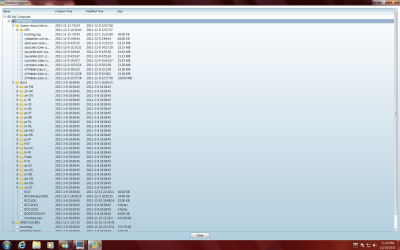
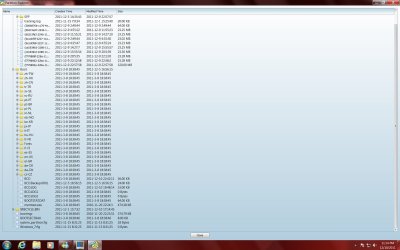
View hidden files is on. Went to Disk Management only saw 2 files.
system_partition.flg 1kb
windows_7.flg

Then I loaded Partitionwizard. Viewed System E: and there were more files there than I could not fit on one screen. It also showed almost 4 GB of information.
 

Attachments

  • System (E) use DM.jpg
    System (E) use DM.jpg
    70.7 KB · Views: 9
  • SystemE1 use part wiz.png
    SystemE1 use part wiz.png
    119.3 KB · Views: 5
  • SystemE2 use part wiz.jpg
    SystemE2 use part wiz.jpg
    184.5 KB · Views: 4

My Computer My Computer

At a glance

Windows Professional 64 bit
OS
Windows Professional 64 bit
Looks like it could be related to Recovery.

Did you say you moved the Recovery partition off the HD? Why did you do this?

If not what was on the 125gb? what other changes have you made on this new computer?

What is the computer make/model?
 
The 125gb partition contained the original OEM installation software. I did not want it on my system.

Some of the data that I am seeing looks like it has come from a second computer that I have. The second computer is networked to this computer. I use it to surf the net or do graphic design on it, when this computer is busy on another project.

This computer, which we are trying to clean up, is a SYX UG-10 4.6GHZ.

The other computer is a home made computer that my kids built from parts that they ordered. They no longer live with me.
 

My Computer My Computer

At a glance

Windows Professional 64 bit
OS
Windows Professional 64 bit
If you don't need the files on the 4gb System partition we can help you recover the System boot files into Win7 and resize it into the space. Here's how:

Back up a System Image and your files. Boot free Partition Wizard bootable CD, rightclick on C to Modify>Set to Active, click OK. Then click on HD to highlight it, from Disk tab select Rebuild MBR, Apply both steps. Reboot to see if Win7 starts.

If not boot into Win7 DVD Repair console or System Repair Disk you create now to run Startup Repair - Run 3 Separate Times until Win7 starts on its own.

Confirm C is now marked System Active in Disk Mgmt.

You have cut out the E partition and can run it this way for awhile to check performance, also delete the paging file on E so it recreates on C now that it is System. Moving Paging File to another Partition - Windows 7 Forums

Once these are confirmed boot back into PW CD, rightclick on E to Delete, click OK. Now rightclick on C to Resize, slide left grey border all the way to the left end of the HD, then slide the right grey border to where you want the partition to end, click OK, Apply both steps. Reboot. You may need to again Rebuild MBR and/or run Repairs after resizing over the boot sector.
 
Dang how do I make a Partition Wizzard bootable cd? I downloaded the Pwhe7.iso file. When I burnt the file to disk it copied the iso file to the disk, but that does not make it bootable. It is just like a zip file on my disk. The site does not give you any instructions on how to get this program on disk. Do I have to some how creat a bootable disk first then burn thes iso or zip file to the disk? Even then I will just have a zip file on my bootable disk. Duh! Me getting dumber and dumber.
 

My Computer My Computer

At a glance

Windows Professional 64 bit
OS
Windows Professional 64 bit
You have to burn the ISO to a Cd, not copy it. What always works for me is click on the ISO and windows burning utility should open. Click burn.
 

My Computers My Computers

  • At a glance

    Windows 11 ProRyzen 9 5900X32GB G Skill DDR4-3600EVGA RTX 3080 FTW 3 Ultra
    Computer type
    PC/Desktop
    Computer Manufacturer/Model Number
    ALWAYS UNDER CONSTRUCTION
    OS
    Windows 11 Pro
    CPU
    Ryzen 9 5900X
    Motherboard
    Asus X570 Crosshair Viii Hero
    Memory
    32GB G Skill DDR4-3600
    Graphics Card(s)
    EVGA RTX 3080 FTW 3 Ultra
    Sound Card
    On Board/Sennheiser PC37X Headset
    Monitor(s) Displays
    3 X Asus 27"
    Screen Resolution
    2560x1440
    Hard Drives
    2 X 1 TB NVME drives
    PSU
    EVGA 850
    Case
    Phanteks Eclipse P400A
    Cooling
    EVGA 280 AIO
    Keyboard
    Logitech G510s/ Logitech G13
    Mouse
    Logitech G502
    Internet Speed
    24/1
    Antivirus
    ESET/MBAM Pro/SAS Pro
    Browser
    Chrome/ Firefox/ Edge
  • At a glance

    Windows 11 ProIntel Ultra 9 288V32 GB LPDDR5X 8533
    Computer type
    Laptop
    System Manufacturer/Model Number
    Dell 16 Plus
    OS
    Windows 11 Pro
    CPU
    Intel Ultra 9 288V
    Memory
    32 GB LPDDR5X 8533
    Monitor(s) Displays
    16" Mini-LED HDR600 Touch 90 Hz
    Screen Resolution
    2560X1600
    Hard Drives
    1 TB NVME
When I click on the file I don't get windows burning utility. So I found a program "Cyberlink Power to Go" on this PC and was able to burn the iso to a disc. The disk does boot, so I am good to go to the next step. Keeping my fingers crossed.
 

My Computer My Computer

At a glance

Windows Professional 64 bit
OS
Windows Professional 64 bit
Follow the steps exactly. Do not guess but ask any questions to be absolutely clear on how to do each.

I put a pause in between the time you recover the System boot files into C and delete System partition to resize C into it's space so you can be sure it works fine and paging file changes to C when it is stopped and restarted. This assures that deleting System partition cannot be either catastrophic or irreversible.

You also should have your files and a System image backed up so you can start over.
 
Do I need the full version of Partition Wizard bootable CD? I booted into it and was able to activate Win 7 disk, but when I highlighted the drive and went to disk tab, all the options including Rebuild MBR were greyed out and not useable.
 

My Computer My Computer

At a glance

Windows Professional 64 bit
OS
Windows Professional 64 bit
No this is in the free version, but you must click on the Win7 HD first for Rebuild MBR to show up. If that fails then apply Mark Active first, then try clicking on HD, Rebuild MBR again.

If you can't get it to show up then go to the next step and run Startup Repair from WIn7 DVD Repair console or Repair CD up to 3 separate times with reboots until Win7 starts on its own and System flag is now on C.
 
Good grief, I think I have everything done correctly except for watching it for a few days before we delete the system partion and expand the windows partition.
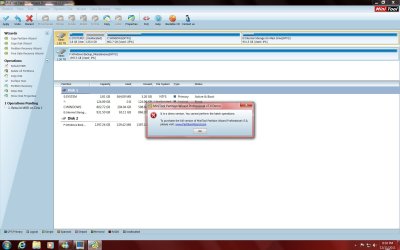
Attched are a few screen shots I got.
 

Attachments

  • PWerror.jpg
    PWerror.jpg
    155.1 KB · Views: 6
  • New view of Windows.jpg
    New view of Windows.jpg
    99.5 KB · Views: 2

My Computer My Computer

At a glance

Windows Professional 64 bit
OS
Windows Professional 64 bit
Looks like the paid Professional version of PW instead of the free bootable CD version which is at the bottom of the download list and says free Bootable CD. http://www.partitionwizard.com/download.html

If this is a separate installed version you can get full features by using PW Home Edition instead of the Pro demo version which is a paid version. Partitioning operations are safer when done from the boot CD, though.
 
Last edited:
I did not download the full paid version. I did not pay for anything. I used the FREE Partitionwizard Bootable CD program from the link that you gave. I did exactly as you instructed. I burnt the FREE Partitionwizard on to a disk. Booted from the CD. Pick on the Win7 partition and made it active told PW program to apply. Then picked on the Disk, went to the DISK tab and picked Rebuild MBR, told program to apply. Then booted from computer. It told me that it could not find a BMR so had to boot computer using Win7 disk and did the repair three times until computer finally booted. Then I stopped the paging file on the system drive E., so the paging file would rebuild in Win7, which it is doing now.
Then you told me to wait a few days to see how the computer behaves. Then delete the System disk E.
 

My Computer My Computer

At a glance

Windows Professional 64 bit
OS
Windows Professional 64 bit
I see. So are you using a different PW version in the screenshots you just posted? It is installed in WIn7 and says Pro demo version which doesn't allow full use of all features.

There is also a free installed version called Win7 Home from the downloads list which has full features, but we recommend using the boot CD as it will not fail on partitioning operations and has recue-ability whereas the installed version can fail.
 
Yes I do have a version of PW installed in Win7 on my computer. I did not use the PW installed in my Win7. I used the Free PW bootable cd to do all the procedures as per your instructions. I only used the PW installed on my PC to give you a screen shot of the Windows partition as it looks now showing the BMR and paging files are now on the Win7 partition.
 

My Computer My Computer

At a glance

Windows Professional 64 bit
OS
Windows Professional 64 bit
Can you post another screenshot of Disk Mgmt as the message box is blocking the crucial listings.

Is C marked System Active?
 
Back
Top