Where is "Advanced Search" in Explorer?

robertpri

New member
Local time
1:03 AM
Messages
46
After installing Win 7, I open Explorer but there is no Advanced Search options that I can find.

I have docs written in late 08 but cannot recall which folder [and I have many folders!]

I wanted to search all of C drive by *.doc and then enter a date range like every other version of Windows.

That feature is either gone, or I can't find it.

many thanks
 

My Computer My Computer

Computer Manufacturer/Model Number
Asus G50 and Toshiba L505
OS
Win 7 - 64 Pro
CPU
2.28
Motherboard
?- asus laptop
Memory
4 gb
Graphics Card(s)
? laptop
Sound Card
? laptop
Monitor(s) Displays
dual display, laptop and 24" Samsung
Hard Drives
two 250gb drives in laptop and one 250 Esata
PSU
laptop
Case
laptop
Cooling
laptop
In the upper right corner of Windows Explorer there should be a search box. Simply clicking inside that box produces a drop-down with advanced search options as links at the bottom of the drop-down:

SNAG-0058.jpg

edit: You can add multiple filter criteria by clicking each separate filter criterion and providing the value desired.

Sorry for the extra post but I thought it more illustrative if I included a shot of what your filter criteria might look like for the search example you gave:

SNAG-0059.jpg
 
Last edited by a moderator:

My Computer My Computer

Computer Manufacturer/Model Number
Dell Vostro 420
OS
Windows 7 Pro x64
CPU
3.00 GHz Intel Core2 Quad Q9650
Memory
4 GB
Graphics Card(s)
ATI Radeon HD 3400 Series
Monitor(s) Displays
DELL 2405FPW
Screen Resolution
1920x1200
Hard Drives
System: 80GB WDC WD800JD-22MSA1
Data: 500GB Hitachi HDP725050GLA360
Internet Speed
Verizon FiOS 20/5 mbps
Other Info
Computing is primarily business use with off-time troubleshooting practice: Remote desktop, scanning and producing invoices, some minor graphics work.
Wow, thanks for the illustration because MS took an ultra simple advanced search device and morphed it into a kludge. One of the search options is "a long time ago"

???? what the....?

It does show a calendar so after many clicks and lots of practice, I finally found "every file" made in the time frame I indicated, not just *.doc files. I got pictures, Excel, etc etc. I have yet to master this important ap, as I keep important files in various folders, then years later, forget which folder.

One interesting sidebar, which makes this thread very helpful to me! I asked for a search in the last two months of 2008, and WOW! I found my income tax filing and financial information that I had purposely put into a "hidden folder" program from ZDNet. It worked fine for years in XP and Vista--those files were truly hidden.

I really don't care for my kids and grandkids [I am 70] to have full access to my financial information so I used a hidden folder program.

BUT---Windows 7 displayed every one of those hidden files and I could open them!

So, back to ZDnet for a truly "hide folder" program that works with Win 7.

[any suggestions?]
 

My Computer My Computer

Computer Manufacturer/Model Number
Asus G50 and Toshiba L505
OS
Win 7 - 64 Pro
CPU
2.28
Motherboard
?- asus laptop
Memory
4 gb
Graphics Card(s)
? laptop
Sound Card
? laptop
Monitor(s) Displays
dual display, laptop and 24" Samsung
Hard Drives
two 250gb drives in laptop and one 250 Esata
PSU
laptop
Case
laptop
Cooling
laptop
Do you happen to have "view hidden files" enabled?
 

My Computer My Computer

Computer Manufacturer/Model Number
Dell XPS 15 L502x
OS
Windows 7 Ultimate x64 SP1
CPU
Core i7-2670QM
Memory
8GB DDR3 PC3-10600
Graphics Card(s)
Intel HD Graphics 3000 + GeForce GT 540M
Screen Resolution
1920x1080
Hard Drives
1TB 5400RPM Seagate
Regarding your "hidden" files, two recommendations:

1) Take a look at the search indexing options to exclude specific folders, if these "hidden" folders are appearing in the folder structure of the index.

Click the START orb and then type "Indexing Options" at the search bar there. Double-click or hit enter on the returned result to launch the Indexing Options:
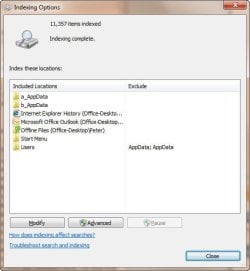
SNAG-0060.jpg

Once that windows opens, play around with the MODIFY button on your listed folders to see if your "hidden" folders are children of the folders listed. If so, you can specifically exclude them.

You can also exclude specific file extensions if your financial statements are in a format not used by other programs (*.doc or *.xls, for example).


2) (and more importantly) Consider encrypting your financial data instead of using ZDNet's quasi-hidden file app (I am not familiar with it but it seems it really is not hiding your files).

If you don't have Windows 7 Ultimate, you can use this free, open source utility called TrueCrypt, found at Truecrypt.org

This utility works well under Win7 and provides military-grade encryption to the masses. Easily installed, you simply create either a "File" container (a file to act as the encrypted repository for your files you desire to encrypt) or a partition container (an entire hard drive partition).

Once you create the container you mount it using the TrueCrypt interface whenever you must use the protected files. Mounting the container prompts you for a password that you assigned when you created the container, and then you interact with the encrypted files as you would any other drive on your computer (meaning that applications will see them as they would any file).

When done with the files, you unmount the encrypted container and the files REALLY disappear. Of course, this is only as good as your password selection, so don't be choosing your wife's maiden name as a pwd.

If you decide to follow this suggestion and need help getting started with TrueCrypt the software includes an excellent, screen-by-screen tutorial for getting up and running. However if that doesn't answer your questions post back here and I will be happy to assist.

 

My Computer My Computer

Computer Manufacturer/Model Number
Dell Vostro 420
OS
Windows 7 Pro x64
CPU
3.00 GHz Intel Core2 Quad Q9650
Memory
4 GB
Graphics Card(s)
ATI Radeon HD 3400 Series
Monitor(s) Displays
DELL 2405FPW
Screen Resolution
1920x1200
Hard Drives
System: 80GB WDC WD800JD-22MSA1
Data: 500GB Hitachi HDP725050GLA360
Internet Speed
Verizon FiOS 20/5 mbps
Other Info
Computing is primarily business use with off-time troubleshooting practice: Remote desktop, scanning and producing invoices, some minor graphics work.
Thank you, Peter for the link! I will work with that during college football games on Saturday.

Actually, the ZDnet thing worked fine for years in XP and Vista. I would create a dummy file. "bobbob.doc" and hide it within the program.

I then tried every Explorer and seach device I could find, and even some system explorer apps from third parties.

None could find that file.

Alas, Win 7 delves right into that folder.

thanks again, Truecrypt looks good.

bob
 

My Computer My Computer

Computer Manufacturer/Model Number
Asus G50 and Toshiba L505
OS
Win 7 - 64 Pro
CPU
2.28
Motherboard
?- asus laptop
Memory
4 gb
Graphics Card(s)
? laptop
Sound Card
? laptop
Monitor(s) Displays
dual display, laptop and 24" Samsung
Hard Drives
two 250gb drives in laptop and one 250 Esata
PSU
laptop
Case
laptop
Cooling
laptop
Back
Top