Solved Where is my system reserved partition,please ?

AA light

New member
Power User
Local time
4:31 AM
Messages
54
Hello all,

First of all, i am not that good in english ; therefore ,please try to understand what i try to explain.

I formerly install window xp in drive C , having reserved disk in drive D - 49.8 GB free of 49.9 GB in which I don’t install anything and no hidden file. I recently install window 7 in drive E and backup system partition (C and E ) separately .

However, During backup window 7 partition (E) by third party software, it suggest to backup reserve partition (automatically ticked in C letter partition). My question is where is the location of system reserved partition of window 7 in drive C and how to access to it also what is 0.1 GB in drive D , please?

One more query , what is the effect of installing window 7 in window? ie. clean install window xp and install window 7 from window XP. ( in case of inability to boot from optical drive or unsuccessfully create bootable usb)

Any information or suggestion will be appreciated.


Regards,
AA
 

My Computer My Computer

At a glance

Windows 7 Ultimate 32 bit , Window 7Intel(R) Core(TM) i5 CPUM 430 @ 2.27GHz, Inte...2.00 GB,NVIDIA GeForce 310M
Computer type
PC/Desktop
Computer Manufacturer/Model Number
Acer Aspire 4740G , Acer Aspire4930
OS
Windows 7 Ultimate 32 bit , Window 7
CPU
Intel(R) Core(TM) i5 CPUM 430 @ 2.27GHz, Intel core duo pro
Motherboard
Acer Aspire 4740 Acer Aspire4930
Memory
2.00 GB,
Graphics Card(s)
NVIDIA GeForce 310M
Sound Card
(1) Realtek High Definition Audio (2) NVIDIA High Definiti
Monitor(s) Displays
Mobile PC Display
Screen Resolution
1366x768
Hard Drives
WDC WD5000BEVT-22A0RT0 ATA Device , 500 GB
Mouse
TECFON

My Computer My Computer

At a glance

Windows 7 Home Premium 64bitIntel Core i3-32408GB DDR3 SDRAMEVGA GeForce GT 620
Computer type
PC/Desktop
Computer Manufacturer/Model Number
Dell Inspiron 660
OS
Windows 7 Home Premium 64bit
CPU
Intel Core i3-3240
Motherboard
Dell 084J0R
Memory
8GB DDR3 SDRAM
Graphics Card(s)
EVGA GeForce GT 620
Sound Card
Intel Panther Point PCH High Definition Audio
Monitor(s) Displays
Acer G205HV
Screen Resolution
1600 x 900
Hard Drives
Sandisk SSD 64GB SDSSDP064G
Seagate HDD 1TB ST1000DM003-1CH162
PSU
Dell 300W
Case
Dell Inspiron
Keyboard
Logitech Wireless K320/B350
Mouse
Microsoft
Internet Speed
25Mbps/4Mbps
Antivirus
Avast
Browser
Mozilla Firefox
Hello all,

First of all, i am not that good in english ; therefore ,please try to understand what i try to explain.

I formerly install window xp in drive C , having reserved disk in drive D - 49.8 GB free of 49.9 GB in which I don’t install anything and no hidden file. I recently install window 7 in drive E and backup system partition (C and E ) separately .

However, During backup window 7 partition (E) by third party software, it suggest to backup reserve partition (automatically ticked in C letter partition). My question is where is the location of system reserved partition of window 7 in drive C and how to access to it also what is 0.1 GB in drive D , please?

One more query , what is the effect of installing window 7 in window? ie. clean install window xp and install window 7 from window XP. ( in case of inability to boot from optical drive or unsuccessfully create bootable usb)

Any information or suggestion will be appreciated.
It's not entirely clear what your hard drive(s) look like. One hard drive with multiple partitions? Multiple hard drives, with multiple partitions?

It would allow us to better answer your questions if you will post a screenshot from DISKMGMT (both from WinXP and Win7, so that we can see what both OS's think) that shows your hard drive layout. Please maximize the window and spread the columns so that we can see all the text, before you take the screenshot.

Once we see what DISKMGMT sees, it will be possible to answer your questions accurately.


Just one observation, however. I'm guessing that your Win7 is probably 32-bit, and not 64-bit. Yes?

Also, I'm guessing you ran the 32-bit Win7 installation DVD while you were booted to 32-bit WinXP. This would explain how you ended up with Win7 installed on drive E (as seen by WinXP as well as Win7), and not on C from its own 64-bit perspective.

If you'd wanted to install 64-bit Win7 you could not have run the Win7 install while under 32-bit WinXP, but rather would have to have booted directly from the Win7 installation disc, and you would have ended up with 64-bit Win7 on the same physical "E" partition, but it would have been lettered C from Win7's perspective and E from WinXP's perspective.

Anyway, seeing both screenshots from DISKMGMT, from both WinXP and Win7, will answer all the speculation.


One other observation... when you install Win7 as a second Windows, with WinXP already installed as your first Windows, the Win7 boot manager files get placed into the "active" primary partition which is WinXP itself. Normally, in a standalone Win7 environment this would have been created as a small 100MB (i.e. .1GB) "System Reserved" partition. But with an already existing WinXP partition, there is no need for a true small System Reserved partition. The WinXP partition serves the same purpose since it's "active" and primary, and thus the Win7 boot manager files can go there.

So with WinXP already installed, that partition is "active" and thus where Win7 boot manager files go. That "active" partition is certainly crucial to the bootability of Win7, so your 3rd-party backup product is probably referring to your WinXP partition to include in your system backup when it points to "C" and pre-checks it. It's thinking that it must be System Reserved, but we know it's actually the WinXP partition. Nevertheless, it really IS pertinent for a system image backup, since it IS critical to restore in order to preserve the bootability of Win7 since that's where the Win7 boot manager files were placed that then allow you to boot to either WinXP or Win7.

Again, this suggests that Win7 sees itself on E and the WinXP "active" partition as C, again suggesting that you installed a 32-bit Win7 while booted to WinXP to read the Setup program on the Win7 installation disc.

I don't know what the .1GB in D could be. We'll look into that later.

Please post the two DISKMGMT screenshots.
 

My Computer My Computer

At a glance

Windows 7 Pro x64 (1), Win7 Pro X64 (2)i5-3350p 3.1Ghz/6MB-cache (1); E8400 3.0Ghz/6...8GB PC3-12800 DDR3 (1); 4GB PC3-10600 DDR3 (2)ATI HD7750 (1), (see TV cards); ATI R7 250 (2)
Computer type
PC/Desktop
Computer Manufacturer/Model Number
Home-built, two systems (1) and (2)
OS
Windows 7 Pro x64 (1), Win7 Pro X64 (2)
CPU
i5-3350p 3.1Ghz/6MB-cache (1); E8400 3.0Ghz/6MB-cache (2)
Motherboard
ASUS P8Z77-V Pro (1); ASUS P5Q3 (2)
Memory
8GB PC3-12800 DDR3 (1); 4GB PC3-10600 DDR3 (2)
Graphics Card(s)
ATI HD7750 (1), (see TV cards); ATI R7 250 (2)
Sound Card
Realtek ALC892 HD Audio (1); Realtek ALC1200 HD Audio (2)
Monitor(s) Displays
Eizo HD2441W LCD, Eizo S2433W (1); Eizo 24" S2433W (2)
Screen Resolution
1920x1200, 1920x1200 (1); 1920x1200 (2)
Hard Drives
(1) 1TB SATA-II (7200RPM), 2x2TB SATA-III (7200RPM), 250GB SATA-III (10000RPM) for OS; 2x2TB external USB 3.0

(2) 320GB SATA-II (7200RPM), 750GB SATA-II (7200RPM), 150GB SATA-II (10000RPM) for OS; 2TB external USB 3.0
PSU
Nesteq ECS-6001 600W (1); Nesteq ECS-5001 500W (2)
Case
Acousti-Case 360 (1) and (2)
Cooling
Noctua NH-U12P SE2 for CPU, 2x120mm case fans (1) and (2)
Keyboard
IBM PS/2 (1) and (2)
Mouse
Logitech MX Revolution wireless (1); Microsoft wired (2)
Internet Speed
100mbps down / 10mbps up
Antivirus
Microsoft Security Essentials; Malwarebyte Anti-Malware Pro
Browser
Firefox
Other Info
Ceton InfiniTV 4-tuner cablecard-enabled TV card as well as Hauppauge HVR-2250 OTA/ATSC 2-tuner TV card in (1), running under Win7 WMC
@Comp Cmndo thank you for the link yet, still have some problem since I do not have the Windows System Reserved or a System Primary partition completely separate from the Windows 7 partition , thank you anyway :)


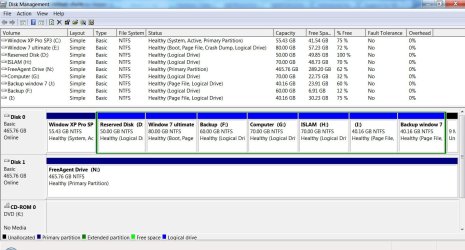
@ dsperber Please see disk management file disk management.jpg


You are right , I ran window 7 32 bit while booted in XP 32 bit. I partitioned the harddisk since I did clean install window XP and still prefer 32 bit system as I have 2 GB ram and most of applications are 32 bit support ; however I might consider 64 bit in the future.


Regarding
windows 7 boot manager files, where is exact location of the Windows 7 boot manager files in drive C , can I copy those files to window 7 (E) partition and backup both system partitions separately?


Likewise, what is the difference between installing window 7 from bootable dvd then select drive E and setup window 7 on XP then select drive E, please?

I don't know what the .1GB in D could be. We'll look into that later.


still need advice.


My Computer My Computer

At a glance

Windows 7 Ultimate 32 bit , Window 7Intel(R) Core(TM) i5 CPUM 430 @ 2.27GHz, Inte...2.00 GB,NVIDIA GeForce 310M
Computer type
PC/Desktop
Computer Manufacturer/Model Number
Acer Aspire 4740G , Acer Aspire4930
OS
Windows 7 Ultimate 32 bit , Window 7
CPU
Intel(R) Core(TM) i5 CPUM 430 @ 2.27GHz, Intel core duo pro
Motherboard
Acer Aspire 4740 Acer Aspire4930
Memory
2.00 GB,
Graphics Card(s)
NVIDIA GeForce 310M
Sound Card
(1) Realtek High Definition Audio (2) NVIDIA High Definiti
Monitor(s) Displays
Mobile PC Display
Screen Resolution
1366x768
Hard Drives
WDC WD5000BEVT-22A0RT0 ATA Device , 500 GB
Mouse
TECFON
Looking at Disk Management, you installed Win XP to the Acer Recovery Partition. (System Reserved)

Acer Empowering Technology > Acer eRecovery Management.
Acer Support - Answers, E-Mail, Chat - How can I restore my computer with the backup discs I created?
Manual how to use Acer eRecovery Management here:
ftp://ftp.support.acer-euro.com/notebook/empowering_technology/NB%20ET2%20user's%20guide/Acer%20eRecovery%20Management%20English.pdf

Have you tried pressing <Alt+F10> at boot up, to goto the Acer eRecovery Management.
Acer Support: Frequently Asked Questions list for How to use Acer eRecovery
You can Order Acer recovery disks from here:
https://secure.tx.acer.com/RCDB/Main.aspx?brand=acer
 

My Computer My Computer

At a glance

ME/XP/Vista/Win7
OS
ME/XP/Vista/Win7
@ theog thank you for suggestion and your link. Unfortunately , i didn't backup with e- recovery before i format and unlikely to order dvd now as i still have validated backup from other software.

To all,

according to disk management file , does the system have any problem with drive E ? (with boot , page file , crash dump logical drive)


Regarding
windows 7 boot manager files, where is exact location of the Windows 7 boot manager files in drive C , can I copy those files to window 7 (E) partition and backup both system partitions separately?

Likewise, what is the difference between installing window 7 from bootable dvd then select drive E and setup window 7 on XP then select drive E, please?

I don't know what the .1GB in D could be. We'll look into that later.


I still need suggestion , kindly help.

Thank you
 

My Computer My Computer

At a glance

Windows 7 Ultimate 32 bit , Window 7Intel(R) Core(TM) i5 CPUM 430 @ 2.27GHz, Inte...2.00 GB,NVIDIA GeForce 310M
Computer type
PC/Desktop
Computer Manufacturer/Model Number
Acer Aspire 4740G , Acer Aspire4930
OS
Windows 7 Ultimate 32 bit , Window 7
CPU
Intel(R) Core(TM) i5 CPUM 430 @ 2.27GHz, Intel core duo pro
Motherboard
Acer Aspire 4740 Acer Aspire4930
Memory
2.00 GB,
Graphics Card(s)
NVIDIA GeForce 310M
Sound Card
(1) Realtek High Definition Audio (2) NVIDIA High Definiti
Monitor(s) Displays
Mobile PC Display
Screen Resolution
1366x768
Hard Drives
WDC WD5000BEVT-22A0RT0 ATA Device , 500 GB
Mouse
TECFON
I formerly install window xp in drive C , having reserved disk in drive D - 49.8 GB free of 49.9 GB in which I don’t install anything and no hidden file. I recently install window 7 in drive E and backup system partition (C and E ) separately .

However, During backup window 7 partition (E) by third party software, it suggest to backup reserve partition (automatically ticked in C letter partition). My question is where is the location of system reserved partition of window 7 in drive C and how to access to it also what is 0.1 GB in drive D , please?
Ok. Things are much clearer with that screenshot of your hard drive.

It doesn't look like anything is wrong at all. As I'd guessed earlier and as you confirmed, you got Win7 installed to "E" (from both the point of view of WinXP and Win7) because you ran the Setup of 32-bit Win7 installation while booted to 32-bit WinXP. There's nothing wrong with this approach, and you now have a consistent drive lettering of C and E, from both WinXP and Win7. This really is a good thing, if you ask me... and is because of the way you did your Win7 install.

(Actually, if you'd not installed this way, and instead booted directly from the Win7 installation disc, you would have ended up with your Win7 partition lettered as C from Win7's point of view, and your WinXP partition would have gotten some other letter. Both partitions are still visible from both WinXP and Win7, but their letters are not the same in each world. Doing things the way you did, which again is only possible because both Windows are 32-bit and you ran Win7 Setup under WinXP, you now have C and E identical in both WinXP and Win7. This is obviously much more user-friendly.)

In your setup, as I also guessed, your WinXP partition is your "active" primary partition that the BIOS boots from, and where your Win7 install (added to your existing WinXP environment) placed its own boot manager files. I'm sure that the boot manager menu which appears when you boot the machine presents both (a) WinXP and (b) Win7, and this is coming from the Win7 boot manager files planted on the C-partition where WinXP lives, since it is the "active" primary partition.

Nothing wrong with any of this. And you have Win7 placed in one of your logical partitions. Again, nothing wrong with this.

So the one and only final question regards what your backup software referred to as your "System Reserved partition on drive C", and why it recommended that you back it up along with your Win7 E partition, and pre-checked it for you. As I guessed before, this is simply because normally in a standalone Win7 environment (with no other existing WinXP partition), there really would be a small 100MB primary System Reserved partition created by the standalone Win7 install. It would be marked as "active", the Win7 partition would be created as a second primary partition and Win7 would be installed there, and BOTH partitions really are crucial to your bootability if you need to restore the system image.

That's why the authors of that backup software discovered what they did... that your "active" partition (on C, in your case, where WinXP lives along with the boot manager files of Win7) is crucial to the bootability of Win7 and definitely needs to be part of a system image backup. In other words BOTH partitions really must be restored in case of disaster, since boot manager is in the "active" C and Win7 is in the second E partition.

I agree, the wording and reference to "system reserved partition C" may confuse you but it's honestly a legitimate need. You should go ahead and let that backup create a system image that includes BOTH your Win7 partition E as well as your WinXP partition C (which again, is "active" and where Win7's boot manager files live).

If it's any comfort to you, I have EXACTLY THE SAME SITUATION in my own two systems. Both of these had WinXP partitions (primary "active") when I added Win7 as a second partition (also "logical" partitions, like yours). And like you, every time I run a Win7 system image backup it includes both my partition for WinXP as well as my partition for Win7. I have no true "system reserved" partition, just as you don't.

You have no worries. Everything looks perfect. Just let that backup do what it wants, and include both C and E.


As far as D and its 150MB or so of content, can you show the contents with a screenshot from Windows Explorer? There might be a System Volume Information folder on it which is taking up that space.
 

My Computer My Computer

At a glance

Windows 7 Pro x64 (1), Win7 Pro X64 (2)i5-3350p 3.1Ghz/6MB-cache (1); E8400 3.0Ghz/6...8GB PC3-12800 DDR3 (1); 4GB PC3-10600 DDR3 (2)ATI HD7750 (1), (see TV cards); ATI R7 250 (2)
Computer type
PC/Desktop
Computer Manufacturer/Model Number
Home-built, two systems (1) and (2)
OS
Windows 7 Pro x64 (1), Win7 Pro X64 (2)
CPU
i5-3350p 3.1Ghz/6MB-cache (1); E8400 3.0Ghz/6MB-cache (2)
Motherboard
ASUS P8Z77-V Pro (1); ASUS P5Q3 (2)
Memory
8GB PC3-12800 DDR3 (1); 4GB PC3-10600 DDR3 (2)
Graphics Card(s)
ATI HD7750 (1), (see TV cards); ATI R7 250 (2)
Sound Card
Realtek ALC892 HD Audio (1); Realtek ALC1200 HD Audio (2)
Monitor(s) Displays
Eizo HD2441W LCD, Eizo S2433W (1); Eizo 24" S2433W (2)
Screen Resolution
1920x1200, 1920x1200 (1); 1920x1200 (2)
Hard Drives
(1) 1TB SATA-II (7200RPM), 2x2TB SATA-III (7200RPM), 250GB SATA-III (10000RPM) for OS; 2x2TB external USB 3.0

(2) 320GB SATA-II (7200RPM), 750GB SATA-II (7200RPM), 150GB SATA-II (10000RPM) for OS; 2TB external USB 3.0
PSU
Nesteq ECS-6001 600W (1); Nesteq ECS-5001 500W (2)
Case
Acousti-Case 360 (1) and (2)
Cooling
Noctua NH-U12P SE2 for CPU, 2x120mm case fans (1) and (2)
Keyboard
IBM PS/2 (1) and (2)
Mouse
Logitech MX Revolution wireless (1); Microsoft wired (2)
Internet Speed
100mbps down / 10mbps up
Antivirus
Microsoft Security Essentials; Malwarebyte Anti-Malware Pro
Browser
Firefox
Other Info
Ceton InfiniTV 4-tuner cablecard-enabled TV card as well as Hauppauge HVR-2250 OTA/ATSC 2-tuner TV card in (1), running under Win7 WMC
I think the best is to save all your data, clear this whole disk and reinstall Windows7. Right now you have a holy mess as far as I can tell.
 

My Computer My Computer

At a glance

Vista, Windows7, Mint Mate, Zorin, Windows 8from 1.6GHz Duo to i7
Computer Manufacturer/Model Number
HP, Dell, Gateway, Toshiba - 4 laptops and 2 desktops
OS
Vista, Windows7, Mint Mate, Zorin, Windows 8
CPU
from 1.6GHz Duo to i7
Monitor(s) Displays
2x HP w2207
Hard Drives
5x HDD, 7x SSD, 12x Externals
Keyboard
with trackball - no mices
Mouse
Trackball mice
Internet Speed
DSL 6000
I think the best is to save all your data, clear this whole disk and reinstall Windows7. Right now you have a holy mess as far as I can tell.

+1 :thumbsup:
 

My Computer My Computer

At a glance

ME/XP/Vista/Win7
OS
ME/XP/Vista/Win7
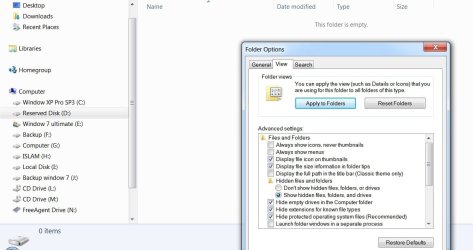
@ dsperber thank for suggestion, please see drive D as in attached file


drive D.jpg


boot menu certainly represents both window XP and window 7 also window xp partition is active primary partition that the BIOS boots from . A while ago, I did clean install window 7 and have 100 MB system reserved partition same as your information, yet current different situation (no 100 MB system reserved partition) confuses me.


and where your Win7 install (added to your existing WinXP environment) placed its own boot manager files.


means that it is possible to access to those boot manager files and copy to window 7 partition E so that the crucial files for bootability would be in the same partition , do I understand correctly ?

Normally, I use window partition (both xp and window 7) for installing applications only other documents would be stored in other drive this help prevent losing data on system failure.

Per your advice , to back up both partition at the same time, I am aware of times (it might take twice) and backup version during restoration. My machine recently failed and needed to try more than twice with different backup versions. Moreover, I have clean install backup version for window xp which could not be merged with current backup these are the reason why I ask about location and possibility to copy window 7 boot manager files to window 7 partition E and backup both system partitions separately.

please advise,

thank you


My Computer My Computer

At a glance

Windows 7 Ultimate 32 bit , Window 7Intel(R) Core(TM) i5 CPUM 430 @ 2.27GHz, Inte...2.00 GB,NVIDIA GeForce 310M
Computer type
PC/Desktop
Computer Manufacturer/Model Number
Acer Aspire 4740G , Acer Aspire4930
OS
Windows 7 Ultimate 32 bit , Window 7
CPU
Intel(R) Core(TM) i5 CPUM 430 @ 2.27GHz, Intel core duo pro
Motherboard
Acer Aspire 4740 Acer Aspire4930
Memory
2.00 GB,
Graphics Card(s)
NVIDIA GeForce 310M
Sound Card
(1) Realtek High Definition Audio (2) NVIDIA High Definiti
Monitor(s) Displays
Mobile PC Display
Screen Resolution
1366x768
Hard Drives
WDC WD5000BEVT-22A0RT0 ATA Device , 500 GB
Mouse
TECFON
@ dsperber thank for suggestion, please see drive D as in attached file

View attachment 171204
This shows "empty folder" for your D partition. Since your "view" setup has the "hide protected operating system files (recommended)" checked, that means there's nothing on your D-partition aside from possibly hidden operating system files.

My guess is still that you just have a "System Volume Information" folder on that drive, which is used if you need to restore drive contents or your environment from a "restore point" you have previously taken. Discussion of how to configure this (other than the Win7 default), control it, opt in or out for specific drives, well this is another subject and kind of off-topic here.

So if you un-check "hide protected operating system files" my guess is that you will see truly what's on D, and it will be a "System Volume Information" folder.

Nothing wrong in any of this. Your D partition is conceptually empty as far as user folders, files, and any data.


boot menu certainly represents both window XP and window 7 also window xp partition is active primary partition that the BIOS boots from.
Exactly as I expected. As I said earlier, this is all perfectly fine. No problem at all.

Sure, you have quite a number of partitions and all on one hard drive. You'd certain get improved performance if you had multiple drives (generally internal hard drives are used for this). Perhaps you have something like this planned for your large external drive.

But as far as your current dual-boot WinXP and Win7 setup, there is nothing wrong.


A while ago, I did clean install window 7 and have 100 MB system reserved partition same as your information, yet current different situation (no 100 MB system reserved partition) confuses me.
This is what I was trying to explain earlier. I'll try it again and restate the concept.

Booting any Windows OS requires an "active" primary partition on "hard drive #1" which is listed on the "boot device sequence" in the BIOS. This "active" primary partition is where the the boot manager files go (either from WinXP, which has its own version of Boot Manager, or from Win7 which has a slightly different version of Boot Manager).

Either of these two forms of Boot Manager supports a menu to select which of possibly multiple versions of Windows you really want to boot to at boot time. If the menu has only one target Windows, then there's no need to show the menu to you and the process simply goes directly to that version of Windows. If the menu has two or more target Windows listed then the menu WILL be shown to you (with one of them being the default, which will auto-boot after say 30 seconds if you do nothing) at boot time.

Now the actual target Windows system and related partition is a separate story. That Windows OS also must go somewhere, in some partition (either logical or primary, either one) on some hard drive. That can be the same hard drive as the "active" primary partition that the BIOS boots to, or it can be on a different hard drive. This is all configurable and you designate the target location when you install that particular Windows. But most importantly, the partition location for the target installed Windows is conceptually independent of that "active" primary partition which the BIOS boots to. However they can be the same partition too!

Now if you do a typical WinXP install in the usual standard way on a brand new completely empty hard drive and you create/format a target partition for WinXP during the install, then the WinXP installer will create it as primary and place the installed WinXP system inside this partition.

But it will also mark that partition "active" (so that the BIOS boots there) and will also place its own Boot Manager files in this same partition. So just one partition results from this kind of standard WinXP install (i.e. if you don't do anything "advanced"), and it's type primary and also marked "active". And it contains BOTH (a) the WinXP boot manager, and (b) the WinXP system itself. Also, in this initial setup the WinXP boot manager menu will have only one Windows listed... namely WinXP.

That's just how MS designed the WinXP default installation process, to put both (a) the WinXP boot manager, and (b) the installed WinXP system itself, into the very same primary "active" partition on "hard drive #1" per the BIOS. You actually have "advanced" control over this, but if you don't do anything unusual and take all the standard default options then this is what you'll get from a WinXP install.

The result of this at boot time is that the BIOS boots to this "active" primary WinXP partition, WinXP's boot manager is invoked, the menu is examined, only one Windows is discovered (i.e. WinXP), and boot manager then launches that WinXP... which happens to physically reside inside the very same "active" primary partition as the boot manager files live. Perfect. No problem.


Now, if you then install a Win7 system as a second version of Windows into this environment in which WinXP already exists as the first version of Windows (and thus there already is an "active" primary partition where an existing Boot Manager lives, as will be discovered by the Win7 installer when you start the process), all that is needed is for you to designate the target partition location for where you want the newly installed Win7 system partition to go. This Win7 target partition can either be another partition on the same drive as WinXP lives on, or it can be on a partition on a second drive somewhere. And this target partition can be primary or logical. It's all up to you, but wherever you decide to place it that information is used to update the boot manager menu back on the "active" primary partition where boot manager (invoked from the BIOS) lives.

So once you designate where you want your new Win7 to go as your second bootable Windows, the Win7 installer will actually replace the WinXP boot manager files on your current "active' primary WinXP partition with its own newer Win7 version of boot manager. It will also replace the existing "target Windows menu" (from WinXP) with the Win7 version of that same menu, to which the newly installed Win7 partition will have been added as a second target bootable Windows along with the existing WinXP. In fact, by default the original WinXP is shown on the new menu as "previously installed version of Windows". And the new Win7 item on the menu is also highlighted, since it's set up as the "default" which will auto-boot if you don't do anything at the keyboard for 30 seconds.


Now, the final installation option is when you simply install Win7 from scratch on a brand new empty hard drive. This is very similar to what happens when you install WinXP from scratch to a brand new empty hard drive... but not exactly the same.

The key difference is that with Win7, MS made a slight change to the notion of that "active" primary partition on "hard drive #1" for use by boot manager (booted to by the BIOS). The difference is that for an empty cold from-scratch situation where you take all the default options and not "advanced", they decided to create a small primary "System Reserved" partition of 100MB on that "hard drive #1", mark it "active", and place the Win7 boot manager files and menu into that small partition. And the actual Win7 system partition where the real Win7 lives... well that would be in a second primary partition on the same "hard drive #1".

And so you end up with TWO primary partitions on "hard drive #1", one the small 100MB "System Reserved" partition marked "active" and in which the Win7 boot manager files live. And the boot manager menu in that "System Reserved" partition points to the second primary partition on the same drive for the bootable Win7 itself, which is installed into that second large primary partition.


And that's why normally you do see a small "System Reserved" 100MB partition along with a second true Win7 partition, in situations where Win7 was installed from scratch as a single bootable Windows, with no "advanced" options taken.

But if Win7 is installed as a second bootable Windows into some target logical/primary partition on some hard drive somewhere, into an existing WinXP environment which is already present, then there is no reason for the Win7 installer to create that small primary "System Reserved" partition and mark it "active" just to put its boot manager files there.

Instead, the Win7 installer can simply use the existing primary "active" partition where WinXP lives for the same purpose. It just wants to put its boot manager files and menu into the "active" primary partition marked as "hard drive #1" in the BIOS, and the existing WinXP partition is exactly that... and therefore is perfectly acceptable for this purpose.

Thus there is no reason to create a small "System Reserved" partition in such a multi-boot environment with WinXP installed first and Win7 installed second, as your own multi-boot WinXP and Win7 environment clearly demonstrates.

So all that is needed to be done by the Win7 installer is to swap the old WinXP boot manager and boot menu in that partition with the new Win7 boot manager and boot menu... and we're done! BIOS still will boot to that "active"primary partition on "hard drive #1", the now present Win7 version of boot manager will be invoked and examine the menu and see TWO versions of Windows listed, and the rest of the story you know.


Hopefully this now makes clear why you see a difference between (a) Win7 installed into a single-Windows environment on a new drive, which will produce both a small primary "System Reserved" 100MB partition marked "active" and where Win7 boot manager will be placed, along with a second large primary partition in which Win7 will be placed, and (b) Win7 installed as a second Windows into an environment in which WinXP already exists in which case the WinXP "active" primary partition is used to hold the Win7 boot manager files and menu.

Note that there is an excellent 3rd-party product named EasyBCD which can make the management of the boot manager program files and menus (either from WinXP or from Win7) much more convenient and user-friendly, than if you use the Win7 standard method based on BCDEdit provided by Win. EasyBCD 2.1 is not free, but you can still get version 2.0 which is free and which works fine. Either is recommended to have in your "arsenal" of system tools.


means that it is possible to access to those boot manager files and copy to window 7 partition E so that the crucial files for bootability would be in the same partition , do I understand correctly?
Conceptually, that actually is true.

But in your case it's impossible, because your Win7 partition E is "logical" and the partition which the BIOS boots to and where boot manager files/menu must live must be "primary" and "active". You cannot mark a logical partition as "active" and thus you cannot boot to a "logical" partition.

Yes, you're absolutely correct that "system image" backups WILL be much larger, since both your WinXP "active/primary" partition must be backed up along with your "logical" Win7 partition, but there's nothing else that can really be done... since it is your WinXP partition which is "active" for the boot process.

However while this is required for a system integrity purpose, since both the Win7 partition and also the associated "active" partition (normally the small "System Reserved", but in your case WinXP) is part of the backup, in fact this will have a beneficial side-effect of also backing up your combined data and programs from both your Win7 and WinXP environments, anytime you do a Win7 system backup!

So just that you understand the consequence of this "system image" backup that really is imaging BOTH your Win7 and WinXP partitions since they're both part of overall bootable integrity, if you do have to restore from this "system image" you will truly be restoring BOTH partitions... from the contents of that particular "system image". There's no way to selectively restore (unless somehow your backup product allows that).


I know this has been somewhat lengthy, but I hope the information has been helpful and useful to you.
 

My Computer My Computer

At a glance

Windows 7 Pro x64 (1), Win7 Pro X64 (2)i5-3350p 3.1Ghz/6MB-cache (1); E8400 3.0Ghz/6...8GB PC3-12800 DDR3 (1); 4GB PC3-10600 DDR3 (2)ATI HD7750 (1), (see TV cards); ATI R7 250 (2)
Computer type
PC/Desktop
Computer Manufacturer/Model Number
Home-built, two systems (1) and (2)
OS
Windows 7 Pro x64 (1), Win7 Pro X64 (2)
CPU
i5-3350p 3.1Ghz/6MB-cache (1); E8400 3.0Ghz/6MB-cache (2)
Motherboard
ASUS P8Z77-V Pro (1); ASUS P5Q3 (2)
Memory
8GB PC3-12800 DDR3 (1); 4GB PC3-10600 DDR3 (2)
Graphics Card(s)
ATI HD7750 (1), (see TV cards); ATI R7 250 (2)
Sound Card
Realtek ALC892 HD Audio (1); Realtek ALC1200 HD Audio (2)
Monitor(s) Displays
Eizo HD2441W LCD, Eizo S2433W (1); Eizo 24" S2433W (2)
Screen Resolution
1920x1200, 1920x1200 (1); 1920x1200 (2)
Hard Drives
(1) 1TB SATA-II (7200RPM), 2x2TB SATA-III (7200RPM), 250GB SATA-III (10000RPM) for OS; 2x2TB external USB 3.0

(2) 320GB SATA-II (7200RPM), 750GB SATA-II (7200RPM), 150GB SATA-II (10000RPM) for OS; 2TB external USB 3.0
PSU
Nesteq ECS-6001 600W (1); Nesteq ECS-5001 500W (2)
Case
Acousti-Case 360 (1) and (2)
Cooling
Noctua NH-U12P SE2 for CPU, 2x120mm case fans (1) and (2)
Keyboard
IBM PS/2 (1) and (2)
Mouse
Logitech MX Revolution wireless (1); Microsoft wired (2)
Internet Speed
100mbps down / 10mbps up
Antivirus
Microsoft Security Essentials; Malwarebyte Anti-Malware Pro
Browser
Firefox
Other Info
Ceton InfiniTV 4-tuner cablecard-enabled TV card as well as Hauppauge HVR-2250 OTA/ATSC 2-tuner TV card in (1), running under Win7 WMC
Hello ,

@ dsperber thank you so much for valuable information, this helps myself clearer about system reserved partition- anyway I still have some query

Booting any Windows OS requires an "active" primary partition on "hard drive #1" which is listed on the "boot device sequence" in the BIOS. This "active" primary partition is where the the boot manager files go(either from WinXP, which has its own version of Boot Manager, or from Windows 7


Is it possible to move that “active” primary partition (on drive C) to other new created active primary partition?

actual target Windows system and related partition is a separate story That Windows OS also must go somewhere, in some partition (either logical or primary, either one) on some hard drive. That can be the same hard drive as the "active" primary partition that the BIOS boots to or... But most importantly, the partition location for the target installed Windows is conceptually independent of that "active" primary partition which the BIOS boots to


There for left individual (still active?) primary partition xp (drive C: ) , logical window 7 partition E , and have new created active primary partition.

Windows 7 installer will actually replace the WinXP boot manager files on your current "active' primary WinXP partition with its own newer Windows 7 version of boot manager. It will also replace the existing "target Windows menu" (from WinXP) with the Windows 7 version of that same menu, to which the newly installed Windows 7 partition will have been added as a second target bootable Windows along with the existing WinXP


Windows 7 installer can simply use the existing primary "active" partition where WinXP lives for the same purpose … no reason to create a small "System Reserved" partition in such a multi-boot environment …as your own multi-boot WinXP and Windows 7 environment clearly demonstrates.


But in your case it's impossible, because your Windows 7 partition E is "logical" and the partition which the BIOS boots to and where boot manager files/menu must live must be "primary" and "active". You cannot mark a logical partition as "active" and thus you cannot boot to a "logical" partition


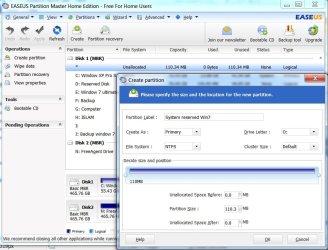
Is it possible to move those boot manager files and target window menu to other partition, for instance , I format the end of the volume drive J: which has already been backed up (do I really need to format it ? ) shrink it to create new small 100 MB primary NTFS partition (assuming drive letter O) using EASEUS Partition Master Home Edition – would it automatically mark new created primary partition as “active” ? , please see the attach file


EASEUS home user.jpg

Then move those boot management file to O: drive . When open the laptop , bios boot from active primary O : drive then active (still active?) primary XP partition C : continued by local window partition E.

Then, expectedly, during image backup, select C: and system reserved O: drive to backup XP partition similarly select E: and system reserved O: drive to backup window 7 partition , would it be possible? besides, would this attempt interferes current
multi-boot WinXP and Windows 7 environment or "active" primary partition marked as "hard drive #1" setting in the BIOS ?

Please kindly advise,

Thank you


My Computer My Computer

At a glance

Windows 7 Ultimate 32 bit , Window 7Intel(R) Core(TM) i5 CPUM 430 @ 2.27GHz, Inte...2.00 GB,NVIDIA GeForce 310M
Computer type
PC/Desktop
Computer Manufacturer/Model Number
Acer Aspire 4740G , Acer Aspire4930
OS
Windows 7 Ultimate 32 bit , Window 7
CPU
Intel(R) Core(TM) i5 CPUM 430 @ 2.27GHz, Intel core duo pro
Motherboard
Acer Aspire 4740 Acer Aspire4930
Memory
2.00 GB,
Graphics Card(s)
NVIDIA GeForce 310M
Sound Card
(1) Realtek High Definition Audio (2) NVIDIA High Definiti
Monitor(s) Displays
Mobile PC Display
Screen Resolution
1366x768
Hard Drives
WDC WD5000BEVT-22A0RT0 ATA Device , 500 GB
Mouse
TECFON

My Computer My Computer

At a glance

W 7 64-bit UltimateIntel Q9550 Yorkfield8GB Dominator 8500C5DATI : XFX 5870
Computer Manufacturer/Model Number
* BFK Customs *
OS
W 7 64-bit Ultimate
CPU
Intel Q9550 Yorkfield
Motherboard
ASUS P5Q Pro
Memory
8GB Dominator 8500C5D
Graphics Card(s)
ATI : XFX 5870
Sound Card
Realtek HD Audio 7-1
Monitor(s) Displays
1x 47" LCD HDMI & 3x 26" LCD HDMI
Screen Resolution
1920x1080P & 1920x1200
Hard Drives
1x 80GB Intel X25-M G2 SSD : 1x 500GB & 1x 640GB WD Caviar Black(s)
PSU
Corsair 620HX
Case
Cooler Master RC-690
Cooling
Tuniq Tower 120, 2x 140mm and 3x 120mm case fans
Keyboard
Microsoft 500
Mouse
Razer Diamondback 3G
Internet Speed
14 Mb/s
Other Info
1x Koutech 3Gb/s SATA HDD Hot Swap Rack
Is it possible to move that “active” primary partition (on drive C) to other new created active primary partition?
Yes.

Personally, I have no experience with Easeus. I have a great deal of experience with and confidence in Partition Wizard, which is free. I assume they are similar, but I would recommend you download and install Partition Wizard into both your WinXP and Win7 systems, which is extremely highly regarded for this type of work.

You should also download the ISO for the standalone Partition Wizard boot CD, and burn it. This is what you will want to boot to and be using when you do very basic and significant kinds of things such as manipulating your Win7 partition, which cannot be performed while actually booted into Win7.

I think you will discover that Partition Wizard and Easeus are very very similar, both in look and feel as well as in functions supported. But I myself would strongly urge the use of Partition Wizard.

Anyway, yes... you can create a new primary partition on the same hard drive (which is "hard drive #1" in the BIOS, where all of your partitions are right now). You currently only have one real primary partition allocated (the WinXP C partition) and you also have the "extended partition" (which is a primary partition) inside of which are all of your logical partitions.

So you can still create up to two more primary partition on this drive and remain within the maximum of 4 primary partitions allowed.

Furthermore, you CAN make the WinXP C partition "inactive" and then you can mark the new primary partition as "active". So if you make room for a small 100MB primary partition on the drive, you can do what you want... which is to create the equivalent of a "system reserved" partition.

And, to complete the process, you can actually INSTALL the Win7 boot manager files into the new 100MB partition using a terrific program named EasyBCD. It's free as well. Its "BCD repair" function and "change boot drive" sub-function does exactly what you want to do, namely to plant the Win7 boot manager files into a partition of your choice. It copies the boot manager menu from your existing boot partition over into the new boot partition, makes the new boot partition "active", and also doesn't delete anything from the original boot partition in case something goes wrong or you want to go back to the way it was.


Is it possible to move those boot manager files and target window menu to other partition,
for instance , I format the end of the volume drive J: which has already been backed up (do I really need to format it ? ) shrink it to create new small 100 MB primary NTFS partition (assuming drive letter O) using EASEUS Partition Master Home Edition – would it automatically mark new created primary partition as “active” ?Then move those boot management file to O: drive . When open the laptop , bios boot from active primary O : drive then active (still active?) primary XP partition C : continued by local window partition E.

Then, expectedly, during image backup, select C: and system reserved O: drive to backup XP partition similarly select E: and system reserved O: drive to backup window 7 partition , would it be possible? besides, would this attempt interferes current
multi-boot WinXP and Windows 7 environment or "active" primary partition marked as "hard drive #1" setting in the BIOS ?
Yes. This is possible as I describe above (see my suggested instructions below), but I think you will get an intuitive feel for what is involved here from my "recipe".

It is STRONGLY ADVISED that you have backups of all of your data, so that in the event of some disaster if you have to truly start over from scratch with an empty drive you can restore all of your data.

Also, I myself have never actually done what you're wanting to do. But the steps below are what I would do, if I were going to do what you want to do.

Myself, I really have no problem with leaving things exactly as they are on your system. What's the problem? The only "downside" is that you get both C and E in your system image backups. Is that so bad?


Anyway, if you install Partition Wizard and EasyBCD into Win7, here's what I think the general approach would be as follows (using both Partition Wizard and EasyBCD):

(1) You want to create 100MB of space at the upper-end of the hard drive since that seems like the easiest place to put it, for the new "system reserved" partition you're going to build. So to make room for it you'll have to shrink your last logical partition (J) by moving the right edge to the left. This will free up space on the right side, which will be added to the 9MB you already have free.

(2) Now create a new PRIMARY partition in that 100MB space. You should also assign a letter (temporarily anyway) say O, because EasyBCD will need a letter to designate the partition into which to place the Win7 boot manager files.

(3) Open EasyBCD and push the "BCD Backup/Repair" button. This dialog contains the "change boot partition" function which is EXACTLY what you are trying to do.

The HELP documentation for this function is described on the EasyBCD website page. But essentially, it will do the following:

When to change the boot partition:

  • If you want to delete the XP partition in a XP-Vista dual-boot where XP came first
  • If you want to move your boot files to a newer faster/larger hard drive
  • If you want to move the boot files away from a partition in preparation for deletion
Of course in your case you're simply wanting to create a "system reserved" manually, and use it for boot manager.

Upon selecting the "Change boot drive" you'll be prompted to select which letter you'd like to use as the new boot partition. When you confirm the selection, EasyBCD will automatically:
  • Install the BOOTMGR bootloader to the selected partition
  • Make the selected partition active
  • Install the bootloader to both the bootsector and the MBR of the selected partition
  • Copy all entries from the old boot partition to the newly-selected one
  • Update partition references to work with the new boot partition
So your existing boot manager menu (with both WinXP and Win7 on it) will be copied over to the new O partition.

So you push the "change boot drive", push the PERFORM FUNCTION button to get the dialog allowing you to select your O partition, select your new O partition as the target, and push the OK button. I've never done this myself, but it all appears to be exactly what you are trying to do.

I believe it should mark your new O partition as "active" and also mark your current boot partition as "inactive". But you can use Partition Wizard to double-check this, before you re-boot.

Note that this function of EasyBCD DOES NOT REMOVE THE BOOT MANAGER FILES FROM YOUR EXISTING BOOT PARTITION (i.e. within the WinXP partition). So in worst case, you can boot to the standalone PW CD, mark the new O partition as "inactive", re-mark the C partition as "active", and you should be right back where you started. That WinXP C partition will once again be your boot partition.

Proceed slowly and carefully. Be sure you have your data backed up, in case things go wildly wrong (which really is unlikely, but just in case).

Assuming this works, after coming up under Win7 I would "un-letter" the new O partition to make it look like a real system reserved partition would look, with no letter assigned. You don't need a letter on the "system reserved" boot partition, although it doesn't hurt anything. It's not going to be C and it's not going to be E, so who cares. Anyway, I would un-letter it myself. You could probably even "label" it to show "System Reserved", just for cosmetic completion.


Once again, this is all hypothetical in my mind. I've never actually done this, although everything described above is exactly what Partition Wizard can do, and exactly what EasyBCD's "change boot drive" function does.

Alternatively, you can do nothing... and just live with your WinXP C partition being your boot partition where boot manager also lives, and it gets backed up with E on a Win7 system image. Seems safe and secure to me. It works perfectly right now.
 
Last edited:

My Computer My Computer

At a glance

Windows 7 Pro x64 (1), Win7 Pro X64 (2)i5-3350p 3.1Ghz/6MB-cache (1); E8400 3.0Ghz/6...8GB PC3-12800 DDR3 (1); 4GB PC3-10600 DDR3 (2)ATI HD7750 (1), (see TV cards); ATI R7 250 (2)
Computer type
PC/Desktop
Computer Manufacturer/Model Number
Home-built, two systems (1) and (2)
OS
Windows 7 Pro x64 (1), Win7 Pro X64 (2)
CPU
i5-3350p 3.1Ghz/6MB-cache (1); E8400 3.0Ghz/6MB-cache (2)
Motherboard
ASUS P8Z77-V Pro (1); ASUS P5Q3 (2)
Memory
8GB PC3-12800 DDR3 (1); 4GB PC3-10600 DDR3 (2)
Graphics Card(s)
ATI HD7750 (1), (see TV cards); ATI R7 250 (2)
Sound Card
Realtek ALC892 HD Audio (1); Realtek ALC1200 HD Audio (2)
Monitor(s) Displays
Eizo HD2441W LCD, Eizo S2433W (1); Eizo 24" S2433W (2)
Screen Resolution
1920x1200, 1920x1200 (1); 1920x1200 (2)
Hard Drives
(1) 1TB SATA-II (7200RPM), 2x2TB SATA-III (7200RPM), 250GB SATA-III (10000RPM) for OS; 2x2TB external USB 3.0

(2) 320GB SATA-II (7200RPM), 750GB SATA-II (7200RPM), 150GB SATA-II (10000RPM) for OS; 2TB external USB 3.0
PSU
Nesteq ECS-6001 600W (1); Nesteq ECS-5001 500W (2)
Case
Acousti-Case 360 (1) and (2)
Cooling
Noctua NH-U12P SE2 for CPU, 2x120mm case fans (1) and (2)
Keyboard
IBM PS/2 (1) and (2)
Mouse
Logitech MX Revolution wireless (1); Microsoft wired (2)
Internet Speed
100mbps down / 10mbps up
Antivirus
Microsoft Security Essentials; Malwarebyte Anti-Malware Pro
Browser
Firefox
Other Info
Ceton InfiniTV 4-tuner cablecard-enabled TV card as well as Hauppauge HVR-2250 OTA/ATSC 2-tuner TV card in (1), running under Win7 WMC
@ dsperber , again thank you for recommendation

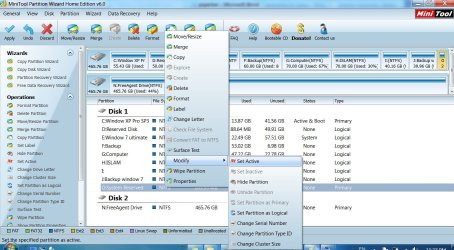
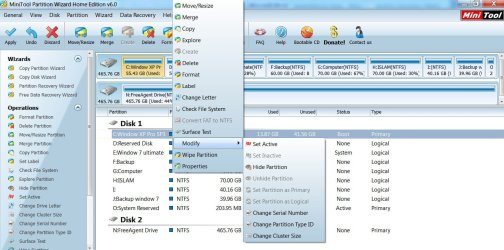
I followed your step yet set for 200 MB capacity. After create new primary partition and “ try to change boot drive” selecting “ perform” action , there is no O letter partition represents. Checking from PW O is still inactive primary while partition XP (C ) status is active& boot

Therefore, I try to set active O partition from PW , the O status change from none to active whilst C change to boot status and unable to set in active . please see in attach file


set active O.jpg

attempt to set C inactive.jpg


What should I do next ? Please note that I just try but didn’t apply yet ?

Please help clarify and confirm

Thank you,
 

My Computer My Computer

At a glance

Windows 7 Ultimate 32 bit , Window 7Intel(R) Core(TM) i5 CPUM 430 @ 2.27GHz, Inte...2.00 GB,NVIDIA GeForce 310M
Computer type
PC/Desktop
Computer Manufacturer/Model Number
Acer Aspire 4740G , Acer Aspire4930
OS
Windows 7 Ultimate 32 bit , Window 7
CPU
Intel(R) Core(TM) i5 CPUM 430 @ 2.27GHz, Intel core duo pro
Motherboard
Acer Aspire 4740 Acer Aspire4930
Memory
2.00 GB,
Graphics Card(s)
NVIDIA GeForce 310M
Sound Card
(1) Realtek High Definition Audio (2) NVIDIA High Definiti
Monitor(s) Displays
Mobile PC Display
Screen Resolution
1366x768
Hard Drives
WDC WD5000BEVT-22A0RT0 ATA Device , 500 GB
Mouse
TECFON
Win7 is booting from the XP partition which is required because it was the only Primary partition on the HD and Windows must have a Primary partition to place its boot files. There is no reason to change this unless you have performance problems.

HD can only have one Active partition which should be where your System boot files for any/all OS's on the HD reside, which is XP now. If you construct the SysReserved partition it needs to be Active, it might become System by running Startup Repair 3 times from booted DVD/Repair CD to write the boot files to it. Marking it Active will also steal the boot from XP until you add it back using EasyBCD from Win7, which is not a sure thing.

You won't have System Reserved partition issued when the disk is pre-partitioned. It is normal to place Win7 boot files on XP when Win7 is installed last for a Dual Boot.

However because you installed from XP and not by correctly booting the installer, Win7 does not show as C when booted into it as it would if done from booted installer.

Win7 backup will require you to include XP in the backup image since it holds the System boot files, however Macrium Reflect or Paragon 11 (or free premium Acronis if you have WD or Seagate HD) will allow you to break off the Win7 image, but it won't have it's boot files so will require marking Active and repairs to boot on its own later after reimaging.

If you have no performance problems you can leave it this way, but I would eventually clean reinstall following Method One here: Dual Boot Installation with Windows 7 and XP.
When installing XP first I would delete all partitions then create new Primary NTFS for XP using the XP CD and Primary for Win7 using the Win7 DVD. Finally make Extended Logical data partitions using Partition Wizard.

Even better would be to place the OS's on separate HD's if possible, unplug the other HD during install, after install plug both back in to boot choice of HD's using BIOS Boot Order or one-time BIOS Boot Menu key. This keeps OS/HD's independent to come and go as you please.
 
Last edited:
Looking at Disk Management, you installed Win XP to the Acer Recovery Partition. (System Reserved)

Acer Empowering Technology > Acer eRecovery Management.
Acer Support - Answers, E-Mail, Chat - How can I restore my computer with the backup discs I created?
Manual how to use Acer eRecovery Management here:
ftp://ftp.support.acer-euro.com/notebook/empowering_technology/NB%20ET2%20user's%20guide/Acer%20eRecovery%20Management%20English.pdf

Have you tried pressing <Alt+F10> at boot up, to goto the Acer eRecovery Management.
Acer Support: Frequently Asked Questions list for How to use Acer eRecovery
You can Order Acer recovery disks from here:
https://secure.tx.acer.com/RCDB/Main.aspx?brand=acer

I think the best is to save all your data, clear this whole disk and reinstall Windows7. Right now you have a holy mess as far as I can tell.

I think the best is to save all your data, clear this whole disk and reinstall Windows7. Right now you have a holy mess as far as I can tell.

+1 :thumbsup:


Also System Reserved needs to partition 1 to be ACTIVE, which would make the need to reinstall the OS's.
 
Last edited:

My Computer My Computer

At a glance

ME/XP/Vista/Win7
OS
ME/XP/Vista/Win7
I followed your step yet set for 200 MB capacity. After create new primary partition and “ try to change boot drive” selecting “ perform” action , there is no O letter partition represents.
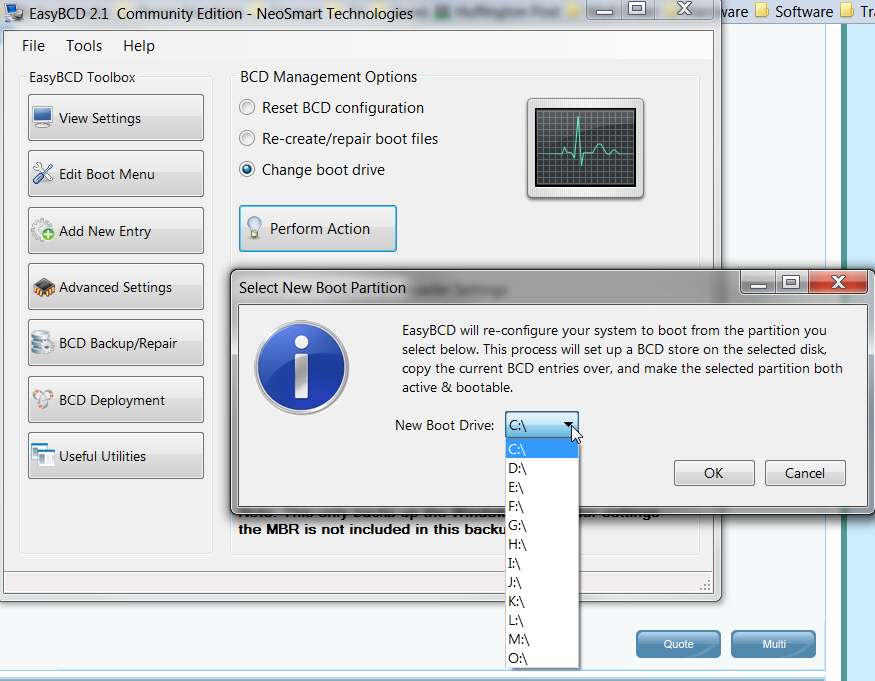
When you go into EasyBCD's repair function, and select "change boot drive", and push the "perform action" button, you get a new dialog with a dropdown to select the target drive letter which you want to become the new boot drive.

If you click on the dropdown arrow, you should see a complete list of all your partitions that currently exist. It should look like this:

easybcd.jpg


Are you saying you don't see your new O partition in this list?

Have you actually applied the Partition Wizard creation of your new O partition when you do this EasyBCD work?


Checking from PW O is still inactive primary while partition XP (C ) status is active& boot
Well of course, unless you actually select O as the new target boot partition and push OK and let EasyBCD change O to "active" (and, I'm guessing, making C "inactive" as well), you haven't changed anything. So if you didn't actually see or select O in the dialog to select the new boot partition and then push OK, well nothing's going to be changed from what it is right now. I'm sure EasyBCD will confirm everything if it really did something. If it did nothing then nothing's been changed.

So please confirm... you HAVE actually created that 200MB partition for real. It actually does exist now, and it is primary and not "active". And C is still "active+boot". In other words, everything is just about as it was before... except that you've shrunk J a little and created a new primary O partition of 200MB at the right end of the drive.

Can you please describe what happens when you check "change boot drive" and push the "perform action" button within EasyBCD. What is in the dropdown list of possible target partition drive letters for you to choose from??
 

My Computer My Computer

At a glance

Windows 7 Pro x64 (1), Win7 Pro X64 (2)i5-3350p 3.1Ghz/6MB-cache (1); E8400 3.0Ghz/6...8GB PC3-12800 DDR3 (1); 4GB PC3-10600 DDR3 (2)ATI HD7750 (1), (see TV cards); ATI R7 250 (2)
Computer type
PC/Desktop
Computer Manufacturer/Model Number
Home-built, two systems (1) and (2)
OS
Windows 7 Pro x64 (1), Win7 Pro X64 (2)
CPU
i5-3350p 3.1Ghz/6MB-cache (1); E8400 3.0Ghz/6MB-cache (2)
Motherboard
ASUS P8Z77-V Pro (1); ASUS P5Q3 (2)
Memory
8GB PC3-12800 DDR3 (1); 4GB PC3-10600 DDR3 (2)
Graphics Card(s)
ATI HD7750 (1), (see TV cards); ATI R7 250 (2)
Sound Card
Realtek ALC892 HD Audio (1); Realtek ALC1200 HD Audio (2)
Monitor(s) Displays
Eizo HD2441W LCD, Eizo S2433W (1); Eizo 24" S2433W (2)
Screen Resolution
1920x1200, 1920x1200 (1); 1920x1200 (2)
Hard Drives
(1) 1TB SATA-II (7200RPM), 2x2TB SATA-III (7200RPM), 250GB SATA-III (10000RPM) for OS; 2x2TB external USB 3.0

(2) 320GB SATA-II (7200RPM), 750GB SATA-II (7200RPM), 150GB SATA-II (10000RPM) for OS; 2TB external USB 3.0
PSU
Nesteq ECS-6001 600W (1); Nesteq ECS-5001 500W (2)
Case
Acousti-Case 360 (1) and (2)
Cooling
Noctua NH-U12P SE2 for CPU, 2x120mm case fans (1) and (2)
Keyboard
IBM PS/2 (1) and (2)
Mouse
Logitech MX Revolution wireless (1); Microsoft wired (2)
Internet Speed
100mbps down / 10mbps up
Antivirus
Microsoft Security Essentials; Malwarebyte Anti-Malware Pro
Browser
Firefox
Other Info
Ceton InfiniTV 4-tuner cablecard-enabled TV card as well as Hauppauge HVR-2250 OTA/ATSC 2-tuner TV card in (1), running under Win7 WMC
Win7 is booting from the XP partition which is required because it is the only Primary partition on the HD now, and Windows must have a Primary partition to place its boot files. There is no reason to change this unless you have performance problems.

HD can only have one Active partition which should be where your System boot files for any/all OS's on the HD reside, which is XP now. If you construct the SysReserved partition it needs to be Active, it might become System by running Startup Repair 3 times from booted DVD/Repair CD. Marking it Active will also steal the boot from XP until you add it back using EasyBCD from Win7, which is not a sure thing.

You won't have System Reserved partition issued when the disk is pre-partitioned. It is normal to place Win7 boot files on XP when Win7 is installed last for a Dual Boot.

However because you installed from XP and not by correctly booting the installer, Win7 does not show as C when booted into it as it would if done from booted installer.

Win7 backup will require you to include XP in the backup image since it holds the System boot files, however Macrium Reflect or Paragon 11 (or free premium Acronis if you have WD or Seagate HD) will allow you to break off the Win7 image, but it won't have it's boot files so will require marking Active and repairs to boot on its own later after reimaging.

If you have no performance problems you can leave it this way, but I would eventually clean reinstall following Method One here: Dual Boot Installation with Windows 7 and XP.
When installing XP first I would delete all partitions then create new Primary NTFS for XP using the XP CD and Primary for Win7 using the Win7 DVD. Finally make Extended Logical data partitions using Partition Wizard.

Even better would be to place the OS's on separate HD's if possible, unplug the other HD during install, after install plug both back in to boot choice of HD's using BIOS Boot Order or one-time BIOS Boot Menu key. This keeps OS/HD's independent to come and go as you please.

Looking at Disk Management, you installed Win XP to the Acer Recovery Partition. (System Reserved)

Acer Empowering Technology > Acer eRecovery Management.
Acer Support - Answers, E-Mail, Chat - How can I restore my computer with the backup discs I created?
Manual how to use Acer eRecovery Management here:
ftp://ftp.support.acer-euro.com/not...s guide/Acer eRecovery Management English.pdf

Have you tried pressing <Alt+F10> at boot up, to goto the Acer eRecovery Management.
Acer Support: Frequently Asked Questions list for How to use Acer eRecovery
You can Order Acer recovery disks from here:
https://secure.tx.acer.com/RCDB/Main.aspx?brand=acer

I think the best is to save all your data, clear this whole disk and reinstall Windows7. Right now you have a holy mess as far as I can tell.

I think the best is to save all your data, clear this whole disk and reinstall Windows7. Right now you have a holy mess as far as I can tell.

+1 :thumbsup:


Also System Reserved needs to partition 1 to be ACTIVE, which would make the need to reinstall the OS's.

I would think about reinstalling.
 

My Computer My Computer

At a glance

ME/XP/Vista/Win7
OS
ME/XP/Vista/Win7
I would think about reinstalling.
There is nothing wrong with his current setup (aside from the large number of partitions on one hard drive, but there's nothing technically wrong with this).

He's simply got a dual-boot system with WinXP installed first (to C), and then Win7 installed second (to E, because he ran SETUP for 32-bit Win7 from WinXP). But it works perfectly, with the WinXP "active" primary partition being the boot partition. And the WinXP partition is always C (to both WinXP and Win7) and the Win7 partition is always E (to both WinXP and Win7.) No problem with any of this. It's all perfect.

His Win7 boot manager menu (from the Win7 install) shows both WinXP and Win7. Perfect. He can boot to either Windows.

There is nothing wrong at all.

His only "complaint" is that when he runs his system image backup in Win7 it pre-checks C as well as E (since C is the "active+boot" partition), which of course is correct, but is referred to as the "system reserved" partition. But we all understand what is going on here, and it's simply the inclusion of the "active+boot" partition in a system image backup, along with the Win7 system partition. I have exactly the same setup on my own hard drive and see exactly the same 2-partitions checked in my own system image backups.

There's nothing wrong at all.

He has decided he'd like to have a REAL "system reserved" partition as "active+boot", instead of using WinXP. Then the partitions involved with the Win7 system image backup would be "system reserved" + Win7 (E), instead of WinXP (C) + Win 7 (E).

And that's what all of this recent discussion has been about... creating a 200MB primary partition (to be "system reserved", lettered O temporarily) with Partition Wizard, and then using EasyBCD to "change boot drive" to O and copy the boot manager menu over from C to O. EasyBCD will also change O to be "active", and presumably also change C to be "inactive" (in worst case, PW can be used to do this).

Should work fine. The drive is still "hard drive #1" in the BIOS, and the new O partition has been marked as "active" by EasyBCD, contains the 2-partition boot manager menu copied over from C, and has the Win7 boot manager installed into the MBR of O by EasyBCD. I'd then un-letter the partition so it doesn't show up in Win7, just to avoid confusion.
 

My Computer My Computer

At a glance

Windows 7 Pro x64 (1), Win7 Pro X64 (2)i5-3350p 3.1Ghz/6MB-cache (1); E8400 3.0Ghz/6...8GB PC3-12800 DDR3 (1); 4GB PC3-10600 DDR3 (2)ATI HD7750 (1), (see TV cards); ATI R7 250 (2)
Computer type
PC/Desktop
Computer Manufacturer/Model Number
Home-built, two systems (1) and (2)
OS
Windows 7 Pro x64 (1), Win7 Pro X64 (2)
CPU
i5-3350p 3.1Ghz/6MB-cache (1); E8400 3.0Ghz/6MB-cache (2)
Motherboard
ASUS P8Z77-V Pro (1); ASUS P5Q3 (2)
Memory
8GB PC3-12800 DDR3 (1); 4GB PC3-10600 DDR3 (2)
Graphics Card(s)
ATI HD7750 (1), (see TV cards); ATI R7 250 (2)
Sound Card
Realtek ALC892 HD Audio (1); Realtek ALC1200 HD Audio (2)
Monitor(s) Displays
Eizo HD2441W LCD, Eizo S2433W (1); Eizo 24" S2433W (2)
Screen Resolution
1920x1200, 1920x1200 (1); 1920x1200 (2)
Hard Drives
(1) 1TB SATA-II (7200RPM), 2x2TB SATA-III (7200RPM), 250GB SATA-III (10000RPM) for OS; 2x2TB external USB 3.0

(2) 320GB SATA-II (7200RPM), 750GB SATA-II (7200RPM), 150GB SATA-II (10000RPM) for OS; 2TB external USB 3.0
PSU
Nesteq ECS-6001 600W (1); Nesteq ECS-5001 500W (2)
Case
Acousti-Case 360 (1) and (2)
Cooling
Noctua NH-U12P SE2 for CPU, 2x120mm case fans (1) and (2)
Keyboard
IBM PS/2 (1) and (2)
Mouse
Logitech MX Revolution wireless (1); Microsoft wired (2)
Internet Speed
100mbps down / 10mbps up
Antivirus
Microsoft Security Essentials; Malwarebyte Anti-Malware Pro
Browser
Firefox
Other Info
Ceton InfiniTV 4-tuner cablecard-enabled TV card as well as Hauppauge HVR-2250 OTA/ATSC 2-tuner TV card in (1), running under Win7 WMC
Back
Top