Win 7 backup fails to complete

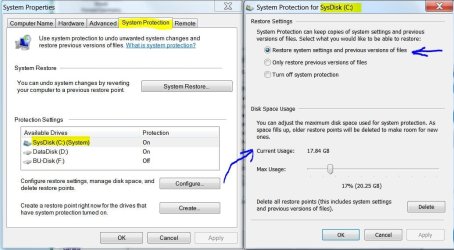
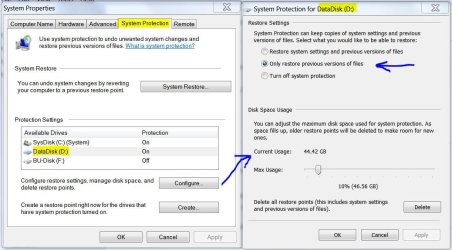
4% is pretty small for a system drive shadow copy. That's what Winsxs is and allows for system restore points. That's not part of system reserved. System reserved area has it's own shadow file(s) to allow repair of the boot sector and some system settings.

You can increase the size of the shadow copy file by changing the system properties. You also can turn it off but you better have another method to restore your system unless you enjoy reloading the OS on every problem.

Added: You don't need a shadow copy on a backup disk. That what the whole disk is for. ;)
 

Attachments

  • Shadow Copy Size-C.JPG
    Shadow Copy Size-C.JPG
    88 KB · Views: 1
  • Shadow Copy Size-D.JPG
    Shadow Copy Size-D.JPG
    88.8 KB · Views: 1

My Computer My Computer

Computer type
PC/Desktop
Computer Manufacturer/Model Number
Built 2/11/2011
OS
Windows 7 Pro-x64
CPU
i7-2600 3.4GHz - 3.8GHz Turbo
Motherboard
Intel DH67BL-B3
Memory
8Gb - 2x4GB, Muskin 991770 PC3-1333
Graphics Card(s)
Integrated Intel HD 2000
Sound Card
Integrated Intel 10.1 HD, RealTek ALC892
Monitor(s) Displays
Asus LCD VH222H, Haier HL24XSL2a
Screen Resolution
1920x1080, 1920x1080
Hard Drives
Crucial SSD C300-128Gb,
Western Digital WD5002AALX - 500Gb,
Western Digital WD7501AALS - 750Gb
PSU
Seasonic 650W 80+ Gold Modular
Case
Rosewill Defender
Cooling
Stock CPU, Four 120mm case fans, PCH fan added
Keyboard
Logitech EX100 Y-RBH94 Wireless
Mouse
Logitech EX100 M-RCE95 Wireless
Internet Speed
3.0/1.5 Mbs
Antivirus
Microsoft Security Essentials
Browser
Microsoft Internet Explorer 11
Other Info
Antec Veris Premier-Multimedia IR Station,
Cyber Accoustics-3602 Speakers,
AFT XM-5U Card Reader,
Hauppauge TV-HVR-2250,
Sony LX300 USB Turntable
Right, there is nothing for L.
So where's the missing 80 odd MB??
I know I made (a reliable?) backup with True Image, but I'd like to resolve this if I can.


carwiz; said:
4% is pretty small for a system drive shadow copy.
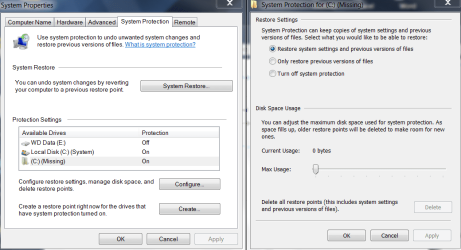
Are you saying that MS Backup failed because the 4% shadowfile allocation is too small and I should increase it - to what? 've done a dummy run and get these.

Why is it showing (c:)(missing)? I've named the system reserved partition L: but that's not showing up here.
 

Attachments

  • Capture 1.PNG
    Capture 1.PNG
    39.4 KB · Views: 1
  • Capture 2.PNG
    Capture 2.PNG
    36.2 KB · Views: 1

My Computer My Computer

Computer type
PC/Desktop
Computer Manufacturer/Model Number
LENOVO ThinkCentre M92p
OS
Windows 7 Pro 64
CPU
i7-3770
Motherboard
LENOVO MAHOBAY
Memory
8 GB
Graphics Card(s)
on board
Hard Drives
256 GB SSD primary and 1 TB for data
Antivirus
Norton
Browser
IE

My Computer My Computer

Computer Manufacturer/Model Number
HP, Dell, Gateway, Toshiba - 4 laptops and 2 desktops
OS
Vista, Windows7, Mint Mate, Zorin, Windows 8
CPU
from 1.6GHz Duo to i7
Monitor(s) Displays
2x HP w2207
Hard Drives
5x HDD, 7x SSD, 12x Externals
Keyboard
with trackball - no mices
Mouse
Trackball mice
Internet Speed
DSL 6000
How did you do this? Disk Manager has Expand Volume greyed out even after shrinking the c: partition to make room.

To see if it's the USN Journal taking up your space, per a Microsoft chap:

Microsoft Chap said:
Assume that your System Reserved partition is F:
1. Lauch cmd -> Run as Administrator
2. Fsutil usn queryjournal F:
This will output the settings of the USN journal.
3. Check the Maximum size field. This gives you the space used (in bytes in hex) by the USN journal on the volume.
4. Open calc and set in hex mode and paste the value.
5. Change mode to decimal and divide by 1048576 (ie. 1024 * 1024) to get the number of MB.
6. If you see this to be anything of the order of 30 MB, backup will fail owing to lack of space.

And to answer your question, also per Microsoft chaps:

Other Microsoft Chap said:
If the System reserved partition cannot be extended using Disk Management because of lack of contigous space adjacent to it, creating a new system volume is the workaround. Here are the steps to move the system volume to any other volume:

1. Choose where you want to have your system volume. Few things you need to keep in mind:
a. System volume can only be created on a primary partition of MBR disk.
b. If system volume & boot volume are together, then BitLocker feature cannot be used to encrypt volumes on your machine.
2. Suggest creating a new volume (say F: ) on the same disk that contains the boot partition of size of about 490 MB (be careful to keep it less than 500 MB).
3. Assuming Windows 7 is installed on C: on your machine. From an elevated command-prompt run: bcdboot.exe /s C:\Windows /s F:.
4. From elevated command-prompt run: DISKPART
5. From the disk part command-prompt:
DISKPART> select volume F
DISKPART> active


Now you can reboot your machine and F: will become the system volume. You can undo this by repeating the same steps using the original system volume (you have to assign drive-letter to it) to revert to your previous configuration.

Source.
 

My Computer My Computer

Computer type
PC/Desktop
OS
Windows 7 Professional 32bit
Stay away from the "System Reserved" partition. It shouldn't have a drive letter and it should not be on your backup disk unless you're creating an image. The only place it should appear is on your boot disk. Don't confuse System Protection space (Winsxs) with the System Reserved area. They have nothing to do with each other. If you're using imaging software to create backups then don't use Windows Backup. You can't use both to the same disk. Choose one or the other.

What partition are you "missing" 80MB? If it's the system reserved area, I've already shown that there are more hidden files in the partition than you can see with Windows Explorer. As such, don't touch it. It has it's own "backup". See post #7.
 

My Computer My Computer

Computer type
PC/Desktop
Computer Manufacturer/Model Number
Built 2/11/2011
OS
Windows 7 Pro-x64
CPU
i7-2600 3.4GHz - 3.8GHz Turbo
Motherboard
Intel DH67BL-B3
Memory
8Gb - 2x4GB, Muskin 991770 PC3-1333
Graphics Card(s)
Integrated Intel HD 2000
Sound Card
Integrated Intel 10.1 HD, RealTek ALC892
Monitor(s) Displays
Asus LCD VH222H, Haier HL24XSL2a
Screen Resolution
1920x1080, 1920x1080
Hard Drives
Crucial SSD C300-128Gb,
Western Digital WD5002AALX - 500Gb,
Western Digital WD7501AALS - 750Gb
PSU
Seasonic 650W 80+ Gold Modular
Case
Rosewill Defender
Cooling
Stock CPU, Four 120mm case fans, PCH fan added
Keyboard
Logitech EX100 Y-RBH94 Wireless
Mouse
Logitech EX100 M-RCE95 Wireless
Internet Speed
3.0/1.5 Mbs
Antivirus
Microsoft Security Essentials
Browser
Microsoft Internet Explorer 11
Other Info
Antec Veris Premier-Multimedia IR Station,
Cyber Accoustics-3602 Speakers,
AFT XM-5U Card Reader,
Hauppauge TV-HVR-2250,
Sony LX300 USB Turntable
carwiz; said:
Stay away from the "System Reserved" partition. It shouldn't have a drive letter and it should not be on your backup disk unless you're creating an image. The only place it should appear is on your boot disk. Don't confuse System Protection space (Winsxs) with the System Reserved area. They have nothing to do with each other. If you're using imaging software to create backups then don't use Windows Backup. You can't use both to the same disk. Choose one or the other.

What partition are you "missing" 80MB? If it's the system reserved area, I've already shown that there are more hidden files in the partition than you can see with Windows Explorer. As such, don't touch it. It has it's own "backup". See post #7.

I agree completely about not touching the System Reserved partition. The reason I gave it a drive letter was to see what was filling it up, but I couldn't see it anyway. How did you get the listing in your earlier post?

I managed to make a backup with Acronics so I should be happy with it, but I'm concerned that the almost full system reserved will give me trouble down the line as it did with MS Backup and with Macrium Select as well. I tried to expand it with Disk Management but couldn't. See post 21. I've checked the old c: disk that I cloned to the ssd and the system reserved was only 30% used, with 70MB free. The only new stuff is the Samsung Magician software for the ssd, Macrium Reflect and the video editor. How can I find out if any of these are filling up the reserved area other than by unistalling them, which never takes everything out anyway. Maybe I should start from scratch again and check at every step.

I'm a bit confused with your comments about not creating an image and backup on the same disk. Doesn't the first backup need a system image to restore from? The default MS Backup setting is "Files in selected folders and system image". I've been lucky enough to never have lost a system disk and have to do a complete restore. I always assumed you had to boot up from a system recovery disk and restore from a backup that had the system image as well as user data. Have I got it wrong?

Thanks for your comments.
 

My Computer My Computer

Computer type
PC/Desktop
Computer Manufacturer/Model Number
LENOVO ThinkCentre M92p
OS
Windows 7 Pro 64
CPU
i7-3770
Motherboard
LENOVO MAHOBAY
Memory
8 GB
Graphics Card(s)
on board
Hard Drives
256 GB SSD primary and 1 TB for data
Antivirus
Norton
Browser
IE
Turn off system protection of the "missing" disk
 

My Computer My Computer

Computer type
Laptop
Computer Manufacturer/Model Number
ACER ASPIRE 5742G
OS
Microsoft Windows 7 Home Premium 64-bits 7601 Multiprocessor Free Service Pack 1
CPU
Intel(R) Core(TM) i3 CPU M 370 @ 2.40GHz
Motherboard
Acer Aspire 5742G
Memory
4,00 GB
Graphics Card(s)
ATI Mobility Radeon HD 5400 Series
Sound Card
(1) AMD High Definition Audio Device (2) Realtek High Defi
Screen Resolution
1366 x 768 x 32 bits (4294967296 colors) @ 60 Hz
Hard Drives
WDC WD5000BEVT-22ZAT0
I'm a bit confused with your comments about not creating an image and backup on the same disk. Doesn't the first backup need a system image to restore from? The default MS Backup setting is "Files in selected folders and system image". I've been lucky enough to never have lost a system disk and have to do a complete restore. I always assumed you had to boot up from a system recovery disk and restore from a backup that had the system image as well as user data. Have I got it wrong?

From what I read, I believe he means that if you're using Acronis there's no reason to use Windows Backup as well. They're doing the same thing, at any rate.

I can't speak for Acronis, but the process of restoring from a Windows image backup is booting from the recovery disk and finding your .vhd file on the backup HD. The system does the rest and your computer should be right back to what it was like when you took the image. The user data is on the image. Everything on the disk you imaged is. It's basically a compressed clone.

For instance, Windows .vhd image files actually let you "mount" the image -- which shows you a virtual representation of your exact drive at the time the image was taken. I can mount a backup image I've done and use Explorer the same way I do with my actual C: looking through user profiles, Program Files, etc. (of course, there won't be any new files / changes that happened after I made the image).

So all you need is the image. The file backups just give you another way to quickly restore specific files -- they're not needed to complete a restore from image (if that's what you were getting at). For instance, say I delete a file and want to restore it -- I could use file backups to grab the file from when I backed up and bring it back.

At any rate, if you're worried about your System Reserved partition read through the thread linked on the bottom of post 24 -- I quoted the Microsoft Employees solution, but it's always better to read these things for yourself. Second post on the link.
 

My Computer My Computer

Computer type
PC/Desktop
OS
Windows 7 Professional 32bit
@absc
I can't see your disk management report/screenshot. If your system reserved partition is filling beyond 50% then Windows imaging is likely to fail. This is what you could try
http://www.sevenforums.com/tutorials/230477-backup-error-0x81000019-fix.html
Windows imaging has worked fine for me but it is a bit more restrictive and some just don't like it. I recommend using 2 imaging software packages and personally use Windows inbuilt imaging and (free) Macrium Reflect.
 

My Computer My Computer

Computer type
PC/Desktop
Computer Manufacturer/Model Number
Own build
OS
Windows 7x64 Home Premium SP1
CPU
Intel i7 2600k
Motherboard
ASUS P8Z68 Deluxe
Memory
G.Skill Ripjaws (DDR3-1600) 2x4GB
Graphics Card(s)
Nvidia GeForce GTS 450; Intel HD Graphics 3000(GT2+)
Monitor(s) Displays
Dell Ultrasharp IPS panel U2311H, Samsung SyncMaster P2350
Screen Resolution
1920x1080
Hard Drives
Samsung 850 Pro SSD 256GB, Samsung SSD 840 120GB, Seagates 1TB Barracuda ST31000528AS x2
PSU
Seasonic M12II 520W
Case
Lian Li Lancool PC-K60
Cooling
Case: 1x120mm, 3x140mm CPU: Hyper 212+
Keyboard
Logitech MK520 (wireless)
Mouse
Logitech MK520
Internet Speed
6-7 Mbps
Antivirus
Norton Security Premium, Malwarebytes on 2 (MSE on 3rd PC)
Browser
FireFox
Other Info
Audio: Logitech Z523 2.1
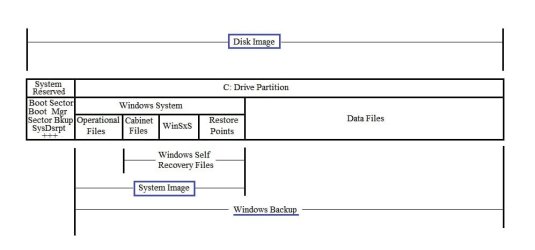
@ ABSC - I made a drawing to help you understand the difference between a Disk Image, a System Image and a Windows Backup and how they compare to one another when used for a backup and restore process. Included in the drawing are Windows' own recovery files. How the backup "images" are handled vary by the designer of the backup software but when discussing a "Disk Image", it commonly refers to an exact copy the entire disk regardless of any partitions.
 

Attachments

  • System Disk.jpg
    System Disk.jpg
    24.7 KB · Views: 1

My Computer My Computer

Computer type
PC/Desktop
Computer Manufacturer/Model Number
Built 2/11/2011
OS
Windows 7 Pro-x64
CPU
i7-2600 3.4GHz - 3.8GHz Turbo
Motherboard
Intel DH67BL-B3
Memory
8Gb - 2x4GB, Muskin 991770 PC3-1333
Graphics Card(s)
Integrated Intel HD 2000
Sound Card
Integrated Intel 10.1 HD, RealTek ALC892
Monitor(s) Displays
Asus LCD VH222H, Haier HL24XSL2a
Screen Resolution
1920x1080, 1920x1080
Hard Drives
Crucial SSD C300-128Gb,
Western Digital WD5002AALX - 500Gb,
Western Digital WD7501AALS - 750Gb
PSU
Seasonic 650W 80+ Gold Modular
Case
Rosewill Defender
Cooling
Stock CPU, Four 120mm case fans, PCH fan added
Keyboard
Logitech EX100 Y-RBH94 Wireless
Mouse
Logitech EX100 M-RCE95 Wireless
Internet Speed
3.0/1.5 Mbs
Antivirus
Microsoft Security Essentials
Browser
Microsoft Internet Explorer 11
Other Info
Antec Veris Premier-Multimedia IR Station,
Cyber Accoustics-3602 Speakers,
AFT XM-5U Card Reader,
Hauppauge TV-HVR-2250,
Sony LX300 USB Turntable
I don't want to get bogged down in semantics but a Windows System image will image all of the C: drive excluding some unnecessary things like pagefile contents. This will include system reserved and all your data on the OS (C: ) partition. In fact if you have a system reserved partition Windows inbuilt system imaging will insist that it be included.
See Backup and Restore > Create a System Image.
Windows system image is not to be confused with a restore point which personally I don't rely on.
 

My Computer My Computer

Computer type
PC/Desktop
Computer Manufacturer/Model Number
Own build
OS
Windows 7x64 Home Premium SP1
CPU
Intel i7 2600k
Motherboard
ASUS P8Z68 Deluxe
Memory
G.Skill Ripjaws (DDR3-1600) 2x4GB
Graphics Card(s)
Nvidia GeForce GTS 450; Intel HD Graphics 3000(GT2+)
Monitor(s) Displays
Dell Ultrasharp IPS panel U2311H, Samsung SyncMaster P2350
Screen Resolution
1920x1080
Hard Drives
Samsung 850 Pro SSD 256GB, Samsung SSD 840 120GB, Seagates 1TB Barracuda ST31000528AS x2
PSU
Seasonic M12II 520W
Case
Lian Li Lancool PC-K60
Cooling
Case: 1x120mm, 3x140mm CPU: Hyper 212+
Keyboard
Logitech MK520 (wireless)
Mouse
Logitech MK520
Internet Speed
6-7 Mbps
Antivirus
Norton Security Premium, Malwarebytes on 2 (MSE on 3rd PC)
Browser
FireFox
Other Info
Audio: Logitech Z523 2.1
carwiz; said:
I made a drawing to help you understand

Thanks heaps for the time and effort you put into this. It's essentially as I thought but I'm surprised that System reserved is not included in the System Image. So why does MS Backup skip making a System Image if System Reserved is too full?

BillDing; said:
Quote: Originally Posted by Other Microsoft Chap
Thanks for the reference. It's been both illuminating and daunting to pore through this huge thread to see how many others much more knowledgeable than I have struggled with the same problem and the number of fixes that work in some cases but not others.

I'm going to sift through and try some of them, but regrettably I'll have to put it off until the new year as I have visitors staying over Christmas and New Year and I won't have much time to try things or rebuild the system if I break something.

I'll post again then.

Merry Christmas and Happy New Year.
 

My Computer My Computer

Computer type
PC/Desktop
Computer Manufacturer/Model Number
LENOVO ThinkCentre M92p
OS
Windows 7 Pro 64
CPU
i7-3770
Motherboard
LENOVO MAHOBAY
Memory
8 GB
Graphics Card(s)
on board
Hard Drives
256 GB SSD primary and 1 TB for data
Antivirus
Norton
Browser
IE
carwiz; said:
I made a drawing to help you understand

Thanks heaps for the time and effort you put into this. It's essentially as I thought but I'm surprised that System reserved is not included in the System Image. So why does MS Backup skip making a System Image if System Reserved is too full?
As I stated in my earlier post.....System reserved is included in a Windows System Image along with all necessary information on your operating system partition including your personal data and software.
A Windows system image will fail when system reserved gets too full because it needs up to ~50MB for shadow storage. Sometimes the OS doesn't delete these temporary files in system reserved (Journal files) in a timely fashion in which case you can consider:
http://www.sevenforums.com/tutorials/230477-backup-error-0x81000019-fix.html
 
Last edited:

My Computer My Computer

Computer type
PC/Desktop
Computer Manufacturer/Model Number
Own build
OS
Windows 7x64 Home Premium SP1
CPU
Intel i7 2600k
Motherboard
ASUS P8Z68 Deluxe
Memory
G.Skill Ripjaws (DDR3-1600) 2x4GB
Graphics Card(s)
Nvidia GeForce GTS 450; Intel HD Graphics 3000(GT2+)
Monitor(s) Displays
Dell Ultrasharp IPS panel U2311H, Samsung SyncMaster P2350
Screen Resolution
1920x1080
Hard Drives
Samsung 850 Pro SSD 256GB, Samsung SSD 840 120GB, Seagates 1TB Barracuda ST31000528AS x2
PSU
Seasonic M12II 520W
Case
Lian Li Lancool PC-K60
Cooling
Case: 1x120mm, 3x140mm CPU: Hyper 212+
Keyboard
Logitech MK520 (wireless)
Mouse
Logitech MK520
Internet Speed
6-7 Mbps
Antivirus
Norton Security Premium, Malwarebytes on 2 (MSE on 3rd PC)
Browser
FireFox
Other Info
Audio: Logitech Z523 2.1
Back
Top