Solved Win 7 plus Win 7 on 2 partitions?

Adrian -

To expand C to the right, burn free Partition Wizard bootable CD using ImgBurn at 4x speed with Verify: Free Download Magic Partition Manager Software - Partition Wizard Online
ImgBurn - Free software downloads and software reviews - CNET Download.com

Back up your files externally, boot PW CD, rightclick D, select Resize, drag left grey border to right to make as much space as you'd like to add to C, OK.

Now rightclick C to Resize, drag right grey border to right to take up the space you made, OK, Apply all steps.

If you want to save doing this until just before you do the reinstall, you only need to Resize D left border since you'll be deleting C and Recovery partition to create a new partition there using the Custom install Drive Options I showed you earlier.

Be sure to delete the paging file from other HD. I would keep it on C since it will be big enough.

Thanks Greg, I am reasonable comfortable with resizing partitions and have created a bootable CD just now for the Partition Wizard prog. Seems very similar to the methodology employed by several such programs.

Question - the total size of my existing Win 7 OS and all apps is just 35Gb on my other drive/partition. What would be a sensible (smallest) size be for the new C: partition in that case? I will keep the page file on C: as you suggest. I obviously don't want to waste space, my drives are actually twin 300Gb ones, not 500Gb as I originally said.

Thanks
Adrian
 

My Computer My Computer

Computer Manufacturer/Model Number
Acer Aspire 8930G
OS
Microsoft Windows 7 Home Premium 32-bit, Service Pack 1
CPU
Intel(R) Core(TM)2 Duo CPU P8600 @ 2.40GHz
Motherboard
Acer Aspire 8930
Memory
4.00 GB, 3.00 GB usable
Graphics Card(s)
NVIDIA GeForce 9700M GT
Sound Card
(1) NVIDIA High Definition Audio (2) Realtek High Definiti
Monitor(s) Displays
18.4"
Screen Resolution
1920 x 1080
Hard Drives
(1) WDC WD3200BEVT-22ZCT0 (2) WDC WD3200BEVT-22ZCT0
That last line above does not contain any size info, unlike the similar command for the System Reserved volume. Does DISKPART just take all the remaining available space automatically? Seems likely, but I am just checking.

Yes that is correct.


It's my pleasure to help and you are very welcome. I'm off to work now.

A brief explanation, marking a partition "Active" for the install marks that partition as where the installer is to place the "System" boot files, making it extremely easy to remove any of the OSs at your leisure.
 

My Computer My Computer

Computer Manufacturer/Model Number
* BFK Customs *
OS
W 7 64-bit Ultimate
CPU
Intel Q9550 Yorkfield
Motherboard
ASUS P5Q Pro
Memory
8GB Dominator 8500C5D
Graphics Card(s)
ATI : XFX 5870
Sound Card
Realtek HD Audio 7-1
Monitor(s) Displays
1x 47" LCD HDMI & 3x 26" LCD HDMI
Screen Resolution
1920x1080P & 1920x1200
Hard Drives
1x 80GB Intel X25-M G2 SSD : 1x 500GB & 1x 640GB WD Caviar Black(s)
PSU
Corsair 620HX
Case
Cooler Master RC-690
Cooling
Tuniq Tower 120, 2x 140mm and 3x 120mm case fans
Keyboard
Microsoft 500
Mouse
Razer Diamondback 3G
Internet Speed
14 Mb/s
Other Info
1x Koutech 3Gb/s SATA HDD Hot Swap Rack
The size of C is up to you depending upon how you think it might grow. We recommend 100gb if you have it to spare and that is the size you mentioned, so I showed you how to get that using PW CD.

You could always make it smaller and go back to borrow more from D in the future if needed, or make it 100gb and give back some later if it goes unused. Best not to cramp the paging file, however - let it auto-create.

Here are tips to look over for getting a purrfect reinstall: http://www.sevenforums.com/installation-setup/125874-re-install-windows-7-a.html#post1086729
 
The size of C is up to you depending upon how you think it might grow. We recommend 100gb if you have it to spare and that is the size you mentioned, so I showed you how to get that using PW CD.

Hi Greg - I will set that C: partition to 70Gb, that gives me 100% more space than is actually needed for physical progs. That seems like a reasonable compromise.

I will let you and BFK know the outcome, I think I have borrowed enough time from both of you - time for action now!

Cheers
Adrian
 

My Computer My Computer

Computer Manufacturer/Model Number
Acer Aspire 8930G
OS
Microsoft Windows 7 Home Premium 32-bit, Service Pack 1
CPU
Intel(R) Core(TM)2 Duo CPU P8600 @ 2.40GHz
Motherboard
Acer Aspire 8930
Memory
4.00 GB, 3.00 GB usable
Graphics Card(s)
NVIDIA GeForce 9700M GT
Sound Card
(1) NVIDIA High Definition Audio (2) Realtek High Definiti
Monitor(s) Displays
18.4"
Screen Resolution
1920 x 1080
Hard Drives
(1) WDC WD3200BEVT-22ZCT0 (2) WDC WD3200BEVT-22ZCT0
Yes do remember to post back.
 

My Computer My Computer

Computer Manufacturer/Model Number
* BFK Customs *
OS
W 7 64-bit Ultimate
CPU
Intel Q9550 Yorkfield
Motherboard
ASUS P5Q Pro
Memory
8GB Dominator 8500C5D
Graphics Card(s)
ATI : XFX 5870
Sound Card
Realtek HD Audio 7-1
Monitor(s) Displays
1x 47" LCD HDMI & 3x 26" LCD HDMI
Screen Resolution
1920x1080P & 1920x1200
Hard Drives
1x 80GB Intel X25-M G2 SSD : 1x 500GB & 1x 640GB WD Caviar Black(s)
PSU
Corsair 620HX
Case
Cooler Master RC-690
Cooling
Tuniq Tower 120, 2x 140mm and 3x 120mm case fans
Keyboard
Microsoft 500
Mouse
Razer Diamondback 3G
Internet Speed
14 Mb/s
Other Info
1x Koutech 3Gb/s SATA HDD Hot Swap Rack
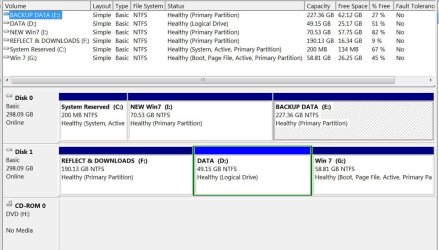
Well guys, you will see from the attached screengrab that the mission has been accomplished! That is entirely down to you two giving me the step-by-step idiots guide. Thanks SO much for that!

It was not without a few problems though ...

First of all, when in DISKPART mode I was unable to delete the partition that held the factory image for my system. I got the message "Cannot delete a protected partition without the force protected parameter set." I kinda guessed what that meant and exited. Then I used the Partition Wizard Bootable CD to delete that partition and increased the size of the old C: partition to get rid of any unallocated space.

Having done that I recommenced with the DISKPART operations and followed the instructions you gave me, following on from the formatting through to the complete installation of Win 7 on the new C: partition. I have attached a Word doc that incorporates all of that - may be easier for other folk to print out.

So it all seemed to work fine, I installed Windows updates and so on. However then I hit a real snag - on booting from cold I was not given a dual boot screen, the system just went straight to the new C: Win 7 partition.

So, having read about the excellent Easy BCD program in this thread I had already downloaded it to my data partition - so I installed it on C:. I started the application and manually added the old Win 7 on Drive G: and saved that. On re-booting I now had a nice new dual boot option screen - but, another problem arose when I tried to launch the old Win 7 ... "Windows failed to start" was the message I got.

The screen suggested I reboot from the Win 7 program disk and when I got to the Language selection screen, I was to select the "repair your computer" link. I did that and was presented with some options that I could see did not match the partitions I had created. It wasn't just a question of maybe some disk labels were incorrect, I could see from the partition sizes that the repair operation was targeting the wrong destinations. So I aborted that.

It was fairly clear that something had corrupted the boot loader for the old Win 7 partition. Fortunately I had taken a Drive Image of that partition prior to doing all this stuff, so I just restored that image, re-edited Easy BCD to make sure it was seeing the correct 2 partitions, C: and G: ... and rebooted.

I was presented with the dual boot screen and selected the old Win 7 for boot up ... which worked fine! Yippee! I now have a fully working system between which I can easily swap back and forth as I get time to install all my apps on C:.

I guess when the time comes I just edit Easy BCD and remove the reference to G: Win 7? I will then only have the option to boot to C: New Win 7.

I guess I will then use Partition Wizard to delete the old G: Win 7 partition and then expand the partitions on that physical drive to suit.

This was way more 'exciting' than I had planned :D. I was really concerned at not being able to dual boot at first, but I made my way around the problems.

I cannot thank you 2 guys enough for all your help - I would have really struggled by myself! If there is anything you can see that needs a tweak when you look at my new partitions map, please shout.

Cheers
Adrian
 

Attachments

My Computer My Computer

Computer Manufacturer/Model Number
Acer Aspire 8930G
OS
Microsoft Windows 7 Home Premium 32-bit, Service Pack 1
CPU
Intel(R) Core(TM)2 Duo CPU P8600 @ 2.40GHz
Motherboard
Acer Aspire 8930
Memory
4.00 GB, 3.00 GB usable
Graphics Card(s)
NVIDIA GeForce 9700M GT
Sound Card
(1) NVIDIA High Definition Audio (2) Realtek High Definiti
Monitor(s) Displays
18.4"
Screen Resolution
1920 x 1080
Hard Drives
(1) WDC WD3200BEVT-22ZCT0 (2) WDC WD3200BEVT-22ZCT0
Hello Adrian.


Before you go any further, there seems to be some issues with the new install; will you please boot to the "new" windows 7 and post a snip of that disk management for us to see, that last snip is from the 'old' Windows 7 and things look out of order; thanks.
 

My Computer My Computer

Computer Manufacturer/Model Number
* BFK Customs *
OS
W 7 64-bit Ultimate
CPU
Intel Q9550 Yorkfield
Motherboard
ASUS P5Q Pro
Memory
8GB Dominator 8500C5D
Graphics Card(s)
ATI : XFX 5870
Sound Card
Realtek HD Audio 7-1
Monitor(s) Displays
1x 47" LCD HDMI & 3x 26" LCD HDMI
Screen Resolution
1920x1080P & 1920x1200
Hard Drives
1x 80GB Intel X25-M G2 SSD : 1x 500GB & 1x 640GB WD Caviar Black(s)
PSU
Corsair 620HX
Case
Cooler Master RC-690
Cooling
Tuniq Tower 120, 2x 140mm and 3x 120mm case fans
Keyboard
Microsoft 500
Mouse
Razer Diamondback 3G
Internet Speed
14 Mb/s
Other Info
1x Koutech 3Gb/s SATA HDD Hot Swap Rack
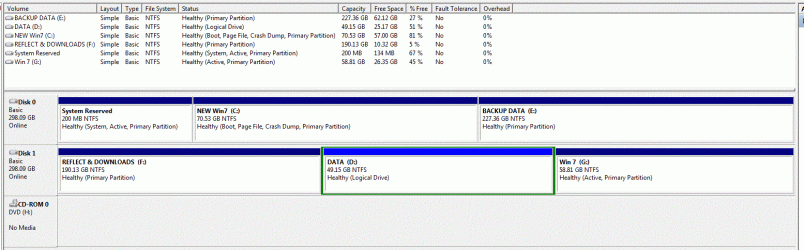
Hi Ted, I have no idea how you could tell that screengrab was taken from my old Win 7 partition - but it was!

Another one attached now, taken after booting from C: New Win 7.

Cheers
Adrian
 

Attachments

  • partition-map-from-C.gif
    partition-map-from-C.gif
    108 KB · Views: 20

My Computer My Computer

Computer Manufacturer/Model Number
Acer Aspire 8930G
OS
Microsoft Windows 7 Home Premium 32-bit, Service Pack 1
CPU
Intel(R) Core(TM)2 Duo CPU P8600 @ 2.40GHz
Motherboard
Acer Aspire 8930
Memory
4.00 GB, 3.00 GB usable
Graphics Card(s)
NVIDIA GeForce 9700M GT
Sound Card
(1) NVIDIA High Definition Audio (2) Realtek High Definiti
Monitor(s) Displays
18.4"
Screen Resolution
1920 x 1080
Hard Drives
(1) WDC WD3200BEVT-22ZCT0 (2) WDC WD3200BEVT-22ZCT0
Hello Adrian.


The flag "Boot" shows the OS you are booted into at the time.


There was just some discussion about an incorrect subject that this snip puts to rest, thank you.

You have done an excellent job of creating the partitions and getting Windows installed and you are to be commended for the on-your-feet thinking during the process, well done.


May I ask a couple questions?

1) How did you choose which OS to boot before you made these changes?

2) Are you going to use the same activation key as the 'old' Windows 7 to activate this one?


Here's something I want you to try when you have the time and let me know how it sorts out.

I want you to mark the Disk 1 partition 3 Inactive you can do it from an elevated command window within the 'new' Windows 7, you don't have to boot the disk.

Type these commands in diskpart ...

select disk 1

select partition 3

inactive

you should get a confirmation

Then restart the PC to the new Windows 7 to see if it worked and let me know and we'll go from there.

It won't affect how the PC or which OS boots but it needs done, I wanted to have you do it before all the new work but I didn't know how you were selecting which OS to boot and I didn't want to add to the issues.

Have a look at this snip from Option Two #2 of this tutorial for an outline.

Startup Repair - Run 3 Separate Times


My Computer My Computer

Computer Manufacturer/Model Number
* BFK Customs *
OS
W 7 64-bit Ultimate
CPU
Intel Q9550 Yorkfield
Motherboard
ASUS P5Q Pro
Memory
8GB Dominator 8500C5D
Graphics Card(s)
ATI : XFX 5870
Sound Card
Realtek HD Audio 7-1
Monitor(s) Displays
1x 47" LCD HDMI & 3x 26" LCD HDMI
Screen Resolution
1920x1080P & 1920x1200
Hard Drives
1x 80GB Intel X25-M G2 SSD : 1x 500GB & 1x 640GB WD Caviar Black(s)
PSU
Corsair 620HX
Case
Cooler Master RC-690
Cooling
Tuniq Tower 120, 2x 140mm and 3x 120mm case fans
Keyboard
Microsoft 500
Mouse
Razer Diamondback 3G
Internet Speed
14 Mb/s
Other Info
1x Koutech 3Gb/s SATA HDD Hot Swap Rack
Hello Adrian.

May I ask a couple questions?

1) How did you choose which OS to boot before you made these changes?

2) Are you going to use the same activation key as the 'old' Windows 7 to activate this one?

Before I started making these changes I was presented with a dual boot screen, listing Win 7 (default) and Vista. It looked exactly the same as I have achieved using EasyBCD.

Once I have completed installing and tweaking all my apps I intend deleting the old Win 7 partition and then activating Win 7 using the original key. Having said that, looking at the fancy license tag on the back of the Win 7 CD, I can't readily see what that might be! I forget what I did 18 months ago when I first installed and activated it.

Here's something I want you to try when you have the time and let me know how it sorts out.

I want you to mark the Disk 1 partition 3 Inactive you can do it from an elevated command window within the 'new' Windows 7, you don't have to boot the disk.

Type these commands in diskpart ...

select disk 1

select partition 3

inactive

you should get a confirmation

Then restart the PC to the new Windows 7 to see if it worked and let me know and we'll go from there.

It won't affect how the PC or which OS boots but it needs done, I wanted to have you do it before all the new work but I didn't know how you were selecting which OS to boot and I didn't want to add to the issues.

Have a look at this snip from Option Two #2 of this tutorial for an outline.

Startup Repair - Run 3 Separate Times

OK - I don't quite see where we're going with this, but have a lot to do over the next week installing apps, so will revert back to you then Ted.

Thanks
Adrian
 

My Computer My Computer

Computer Manufacturer/Model Number
Acer Aspire 8930G
OS
Microsoft Windows 7 Home Premium 32-bit, Service Pack 1
CPU
Intel(R) Core(TM)2 Duo CPU P8600 @ 2.40GHz
Motherboard
Acer Aspire 8930
Memory
4.00 GB, 3.00 GB usable
Graphics Card(s)
NVIDIA GeForce 9700M GT
Sound Card
(1) NVIDIA High Definition Audio (2) Realtek High Definiti
Monitor(s) Displays
18.4"
Screen Resolution
1920 x 1080
Hard Drives
(1) WDC WD3200BEVT-22ZCT0 (2) WDC WD3200BEVT-22ZCT0
Marking the G: Windows inactive is not all that necessary since you are going to remove the G: shortly, it is just the best course of action.

You can use this excellent little app to retrieve the activation key from G:, just install it to the G: Windows and it will list the key; actually it can be installed and will run from a USB stick, it's a great, free little app.

SIW - System Information for Windows


After you have retrieved the key from G: and are ready to activate the 'new' Windows 7, in the 'old' Windows from an elevated command window type this command slmgr -upk that will remove the key from that install, you will get a conformation.

The key can then be added to the 'new' Windows 7.

How to Activate Windows 7


Then when you're ready to remove G: Windows, use Partition Wizard to do a partition-specific wipe to that partition, have a look at Option Three of this tutorial for an outline of the wipe process.

Partition Wizard : Use the Bootable CD

Do not try to use diskpart as it will not do a single partition, it will do the entire HDD and it is not reversible once run.


Do remember to keep us informed when you have the time.
 

My Computer My Computer

Computer Manufacturer/Model Number
* BFK Customs *
OS
W 7 64-bit Ultimate
CPU
Intel Q9550 Yorkfield
Motherboard
ASUS P5Q Pro
Memory
8GB Dominator 8500C5D
Graphics Card(s)
ATI : XFX 5870
Sound Card
Realtek HD Audio 7-1
Monitor(s) Displays
1x 47" LCD HDMI & 3x 26" LCD HDMI
Screen Resolution
1920x1080P & 1920x1200
Hard Drives
1x 80GB Intel X25-M G2 SSD : 1x 500GB & 1x 640GB WD Caviar Black(s)
PSU
Corsair 620HX
Case
Cooler Master RC-690
Cooling
Tuniq Tower 120, 2x 140mm and 3x 120mm case fans
Keyboard
Microsoft 500
Mouse
Razer Diamondback 3G
Internet Speed
14 Mb/s
Other Info
1x Koutech 3Gb/s SATA HDD Hot Swap Rack
One other thing ...

Just one point that concerns me a bit. The partition maps are different, depending on which Win 7 installation I boot from - see attached maps. The System Reserved area has been assigned a Partition label in the case of the old Win 7 install, but not the new one. Should it have a separate label?

I reckon I will finish all the installs by maybe Monday and will be ready to delete G: Win 7, so I am not motivated to spend much time on this if its's not critical.

When Booted up from C: I have also started taking Drive Images of that partition, as I gradually install apps and tweak the settings. I figure I have a fail-safe approach by doing that.

Cheers
Adrian
 

Attachments

  • booted-from-C-NEW-WIN7.gif
    booted-from-C-NEW-WIN7.gif
    89 KB · Views: 7
  • booted-from-G-OLD-WIN7.gif
    booted-from-G-OLD-WIN7.gif
    143.3 KB · Views: 5

My Computer My Computer

Computer Manufacturer/Model Number
Acer Aspire 8930G
OS
Microsoft Windows 7 Home Premium 32-bit, Service Pack 1
CPU
Intel(R) Core(TM)2 Duo CPU P8600 @ 2.40GHz
Motherboard
Acer Aspire 8930
Memory
4.00 GB, 3.00 GB usable
Graphics Card(s)
NVIDIA GeForce 9700M GT
Sound Card
(1) NVIDIA High Definition Audio (2) Realtek High Definiti
Monitor(s) Displays
18.4"
Screen Resolution
1920 x 1080
Hard Drives
(1) WDC WD3200BEVT-22ZCT0 (2) WDC WD3200BEVT-22ZCT0
What's important is how it registers in Disk Mgmt from your new Install.

You appear all set to simply delete G in Disk Mgmt when you're ready.

If a ghost listing still appears on a Dual Boot menu after deleting G, you can remove it from the Boot tab on msconfig. Just type msconfig in Start Search box to get there.

You have 30 days to activate C so I would wait until I delete G to activate it with the 25-digit Product key on the insert in your Win7 DVD package. This is not the number labeled Product ID. If you have lost the insert with your Product Key then audit it before deleting G using Belarc Advisor. Belarc Advisor - Free software downloads and software reviews - CNET Download.com
 
All that matters is how the SysResv is listed in the "new" Windows 7, if it has a drive letter some programs/apps (or you) may try to write data there, that would cause all sorts of "low disk space" issues. This is what I wanted confirmation of when I asked for the snip of the "new" not the "old" Windows 7.

I wouldn't "simply delete" the old Windows, that will leave all the old Windows code still there to maybe cause future issues and a format removes nothing; do the wipe I suggested above using Partition Wizard, that will leave the partition as "Raw" space that can then be deleted and recovered into the D: Data partition or it can be formatted and again used as a storage partition.


As I stated earlier, you have 120 days to activate the new install.

Activation Trial Period - Extend Up to 120 Days


   Note

Contrary to popular belief, formatting does not remove any data at all, it just checks for sector errors and marks the space to be over-written as needed, all the data is still there including all the code from previous/failed installation attempts.


My Computer My Computer

Computer Manufacturer/Model Number
* BFK Customs *
OS
W 7 64-bit Ultimate
CPU
Intel Q9550 Yorkfield
Motherboard
ASUS P5Q Pro
Memory
8GB Dominator 8500C5D
Graphics Card(s)
ATI : XFX 5870
Sound Card
Realtek HD Audio 7-1
Monitor(s) Displays
1x 47" LCD HDMI & 3x 26" LCD HDMI
Screen Resolution
1920x1080P & 1920x1200
Hard Drives
1x 80GB Intel X25-M G2 SSD : 1x 500GB & 1x 640GB WD Caviar Black(s)
PSU
Corsair 620HX
Case
Cooler Master RC-690
Cooling
Tuniq Tower 120, 2x 140mm and 3x 120mm case fans
Keyboard
Microsoft 500
Mouse
Razer Diamondback 3G
Internet Speed
14 Mb/s
Other Info
1x Koutech 3Gb/s SATA HDD Hot Swap Rack
All that matters is how the SysResv is listed in the "new" Windows 7, if it has a drive letter some programs/apps (or you) may try to write data there, that would cause all sorts of "low disk space" issues. This is what I wanted confirmation of when I asked for the snip of the "new" not the "old" Windows 7.

I wouldn't "simply delete" the old Windows, that will leave all the old Windows code still there to maybe cause future issues and a format removes nothing; do the wipe I suggested above using Partition Wizard, that will leave the partition as "Raw" space that can then be deleted and recovered into the D: Data partition or it can be formatted and again used as a storage partition.

Yep, got all your thoughtful advice in http://www.sevenforums.com/installa...-7-plus-win-7-2-partitions-4.html#post1180451 above and will follow those routines.

Cheers
Adrian
 

My Computer My Computer

Computer Manufacturer/Model Number
Acer Aspire 8930G
OS
Microsoft Windows 7 Home Premium 32-bit, Service Pack 1
CPU
Intel(R) Core(TM)2 Duo CPU P8600 @ 2.40GHz
Motherboard
Acer Aspire 8930
Memory
4.00 GB, 3.00 GB usable
Graphics Card(s)
NVIDIA GeForce 9700M GT
Sound Card
(1) NVIDIA High Definition Audio (2) Realtek High Definiti
Monitor(s) Displays
18.4"
Screen Resolution
1920 x 1080
Hard Drives
(1) WDC WD3200BEVT-22ZCT0 (2) WDC WD3200BEVT-22ZCT0
What's important is how it registers in Disk Mgmt from your new Install.

You appear all set to simply delete G in Disk Mgmt when you're ready.

If a ghost listing still appears on a Dual Boot menu after deleting G, you can remove it from the Boot tab on msconfig. Just type msconfig in Start Search box to get there.

Hi Greg, I think I will follow the Wipe routine in Partition Wizard when I am ready to lose the old Win 7 partition.

[QUOTE
You have 30 days to activate C so I would wait until I delete G to activate it with the 25-digit Product key on the insert in your Win7 DVD package. This is not the number labeled Product ID. If you have lost the insert with your Product Key then audit it before deleting G using Belarc Advisor. Belarc Advisor - Free software downloads and software reviews - CNET Download.com[/QUOTE]

Belarc is a great tool - thanks for that. I ran it as well as SIW and it would seem that the Activation code is a 20 digit number in the format 00000-OEM-0000000-00000. I am amazed that I seem to have lost that as I am a meticulous person, but I am damned if I can find it in the Win 7 CD package!

BFK's note to remove the activation code BEFORE wiping that old partition is something I would never have thought of!

"After you have retrieved the key from G: and are ready to activate the 'new' Windows 7, in the 'old' Windows from an elevated command window type this command slmgr -upk that will remove the key from that install, you will get a confirmation."

Cheers
Adrian
 

My Computer My Computer

Computer Manufacturer/Model Number
Acer Aspire 8930G
OS
Microsoft Windows 7 Home Premium 32-bit, Service Pack 1
CPU
Intel(R) Core(TM)2 Duo CPU P8600 @ 2.40GHz
Motherboard
Acer Aspire 8930
Memory
4.00 GB, 3.00 GB usable
Graphics Card(s)
NVIDIA GeForce 9700M GT
Sound Card
(1) NVIDIA High Definition Audio (2) Realtek High Definiti
Monitor(s) Displays
18.4"
Screen Resolution
1920 x 1080
Hard Drives
(1) WDC WD3200BEVT-22ZCT0 (2) WDC WD3200BEVT-22ZCT0
The number you refer to is the Product ID because it has "OEM" in the string. This tells us it is an OEM copy of Win7 which means it either came pre-installed in factory or is an OEM retail copy of Win7 - both of which are tied to the motherboard they are first installed upon.

If you look at the Belarc report, the Product Key should be the 15 digits with 5 groups of 5 character appearing just beside the Product ID you referred to.

It isn't necessary to uninstall the Product Key if you are going to wipe the partition. You only need to do that if you want to change the key or put a machine in storage and use the key elsewhere.
 
Last edited:
Hello again Adrian, good to see you're coming along so good.


The activation key should look similar to this one below, 5 groups of 5 digits/letters.

G0BUY-TH3S0-FTWAR-3ATMI-CS0FT


The reason I suggested to remove the activation key from the old install and activate the new install before wiping the old one is so you can make sure you have no issues before you wipe the old.
 

My Computer My Computer

Computer Manufacturer/Model Number
* BFK Customs *
OS
W 7 64-bit Ultimate
CPU
Intel Q9550 Yorkfield
Motherboard
ASUS P5Q Pro
Memory
8GB Dominator 8500C5D
Graphics Card(s)
ATI : XFX 5870
Sound Card
Realtek HD Audio 7-1
Monitor(s) Displays
1x 47" LCD HDMI & 3x 26" LCD HDMI
Screen Resolution
1920x1080P & 1920x1200
Hard Drives
1x 80GB Intel X25-M G2 SSD : 1x 500GB & 1x 640GB WD Caviar Black(s)
PSU
Corsair 620HX
Case
Cooler Master RC-690
Cooling
Tuniq Tower 120, 2x 140mm and 3x 120mm case fans
Keyboard
Microsoft 500
Mouse
Razer Diamondback 3G
Internet Speed
14 Mb/s
Other Info
1x Koutech 3Gb/s SATA HDD Hot Swap Rack
Hi BFK/Greg. Well I remain confused about the damned Win 7 activation key. Here's what SIW reports in the "Licenses" section. I have changed some of the digits for obvious reasons.

Windows Default Product Key 12345-ABCDE-74XYM-BH4JX-67891

Windows PID 12345-OEM-8702121-67891

Windows Product Key 12345-ABCDE-7B636-WT73F-67891

The Belarc report just shows the last 2 keys. All very confusing.

I can confirm that I bought a full OEM version of Win 7 HP and of course it's being installed on the same laptop/motherboard, so there are no licensing issues.

As an aside I have installed Office 2007 on the new Win 7 and obviously was asked to input the Product Key. When I opened each application I was then asked to activate it - there was no request to enter any key for those, activation happened without that. I just don't remember what happened way back when I installed Win 7. It's something that happens SO infrequently (for me). I am very thankful of that!

Man - I hate this stuff!

Cheers
Adrian
 
Last edited:

My Computer My Computer

Computer Manufacturer/Model Number
Acer Aspire 8930G
OS
Microsoft Windows 7 Home Premium 32-bit, Service Pack 1
CPU
Intel(R) Core(TM)2 Duo CPU P8600 @ 2.40GHz
Motherboard
Acer Aspire 8930
Memory
4.00 GB, 3.00 GB usable
Graphics Card(s)
NVIDIA GeForce 9700M GT
Sound Card
(1) NVIDIA High Definition Audio (2) Realtek High Definiti
Monitor(s) Displays
18.4"
Screen Resolution
1920 x 1080
Hard Drives
(1) WDC WD3200BEVT-22ZCT0 (2) WDC WD3200BEVT-22ZCT0
Click Edit now, remove Product Key you posted.

Triple check with Magic Jellybean to see which Product Key it confirms. It is likely the one Belarc audited.

Safeguard your installed Product Keys for Windows, Office and other pricey software like you would a bank account number.
 
Back
Top