Win 7 Virtual XP

barrygcole

New member
Hello.
Firstly, I am sorry if this is in the wrong place.
I am a 63year old computer user, not a compter fixer.

I have just got a new Dell E 5510 Laptop with Win 7 Pro 32bit.

I want to use some programs that only run on XP Pro.

I has downloaded and installed Virtual XP, loaded my program, and all is well.

Now the bad news. The program needs to be activated by getting a file from drive A

If I plug my USB disk drive in and connect it, it comes up as drive B

How can I make the virtual drive A active.

Help urgently needed in simple plain English.

I await your wise words.

BC
 

My Computer

Computer Manufacturer/Model Number
Dell/E5510
OS
Win 7 32 Bit
CPU
Intel
Motherboard
??
Memory
4Mb
Graphics Card(s)
??
Sound Card
??
Monitor(s) Displays
??
Hard Drives
Yes
Help still needed.

Come on people I still need help..

:) :) :) :)

BC
 

My Computer

Computer Manufacturer/Model Number
Dell/E5510
OS
Win 7 32 Bit
CPU
Intel
Motherboard
??
Memory
4Mb
Graphics Card(s)
??
Sound Card
??
Monitor(s) Displays
??
Hard Drives
Yes
Hello Barry, welcome to the Seven Forums.

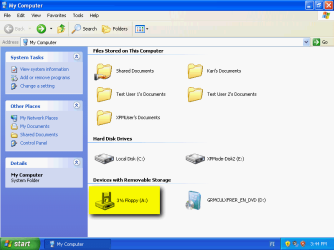
Virtual PC adds an emulated pseudo floppy drive to XP Mode. This drive uses the drive letter A: as the screenshot shows:

XPM_Floppy_1.png

In order to be able to give your USB floppy the letter A:, you have to remove this VPC native emulated drive, to get drive letter A: available. This might work:
  1. Disconnect the USB floppy drive
  2. Open the Device Manager. If you don't know how, you can open it like this:
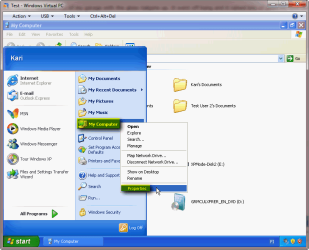
    • Click Start, right click My Computer, select Properties:
      XPM_Floppy_2.png
      .
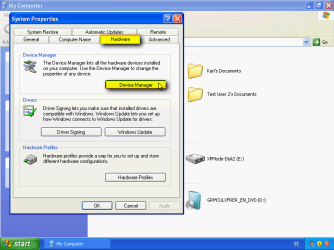
    • Select Hardware tab, click Device Manager:
      XPM_Floppy_3.png
      .
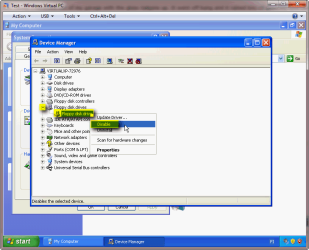
  3. When Device Manager opens, click the + sign in front of Floppy disk drives, right click Floppy disk drive, select Disable:
    XPM_Floppy_4.png
    .
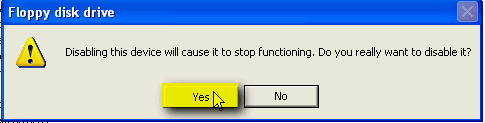
  4. You get a warning dialog. Just click Yes:
    XPM_Floppy_5.png
    .
  5. Close the Device Manager, close System Properties. You should now see the emulated floppy drive has disappeared:
    .
    XPM_Floppy_6.png
  6. Reboot XP Mode
  7. Connect your USB floppy drive, it should now get the drive letter A:

Kari
 
Last edited:

My Computer

Computer type
Laptop
Computer Manufacturer/Model Number
HP ENVY 17-1150eg
OS
Windows 10 Pro x64 EN-GB
CPU
1.6 GHz Intel Core i7-720QM Processor
Memory
6 GB
Graphics Card(s)
ATI Mobility Radeon HD 5850 Graphics
Sound Card
Beats sound system with integrated subwoofer
Monitor(s) Displays
17" laptop display, 22" LED and 32" Full HD TV through HDMI
Screen Resolution
1600*900 (1), 1920*1080 (2&3)
Hard Drives
Internal: 2 x 500 GB SATA Hard Disk Drive 7200 rpm
External: 2TB for backups, 3TB USB3 network drive for media
Cooling
As Envy runs a bit warm, I have it on a Cooler Master pad
Keyboard
Logitech diNovo Media Desktop Laser (bluetooth)
Mouse
Logitech Performance Mouse MX
Internet Speed
50/10 Mbps VDSL
Antivirus
Windows Defender 4.3.9431.0
Browser
Maxthon 3.5.2., IE11
Win 7 Virtual XP. Help still needed.

Kari,
That worked OK, up until I plugged the floppy drive into the USB port. Then nothing happened.

Any more ideas anyone.

Is there any way of asking Microsoft about this?

BC
 

My Computer

Computer Manufacturer/Model Number
Dell/E5510
OS
Win 7 32 Bit
CPU
Intel
Motherboard
??
Memory
4Mb
Graphics Card(s)
??
Sound Card
??
Monitor(s) Displays
??
Hard Drives
Yes
Kari,
With a bit more prodding, the floppy has connected. But still as Drive B. I need it to come up as drive A

In your original info, you said the "Disable" the virtual drive A. How about deleating it??

BC
 

My Computer

Computer Manufacturer/Model Number
Dell/E5510
OS
Win 7 32 Bit
CPU
Intel
Motherboard
??
Memory
4Mb
Graphics Card(s)
??
Sound Card
??
Monitor(s) Displays
??
Hard Drives
Yes
I have no USB floppy drive to test if this works, but it looks like as if you have to completely disable the internal VPC native floppy A: from XP Mode BIOS.

To enter BIOS in any Virtual PC virtual machine, you have to first shut down virtual machine completely and then disable automatic integration. If you have not changed default settings, XP Mode is always only hibernated, not shut down when you close it. To be able to shut down XP Mode, change the setting told in step 6 in this post. Step 7 in that same post shows you then how to close XP Mode so it really shuts down.

When XP Mode is shut down, open its settings and disable integration features. Open XP Mode settings, select Integration Features on left pane, uncheck the option Enable at startup and click OK to save settings and exit :

XPM_disable_integration.png

Now launch XP Mode and start hitting the DEL key on your keyboard until BIOS screen appears. When in BIOS, move to Advanced menu > Floppy configuration using arrow keys. Open this menu item with Enter:

XPM_BIOS_Floppy_1.png

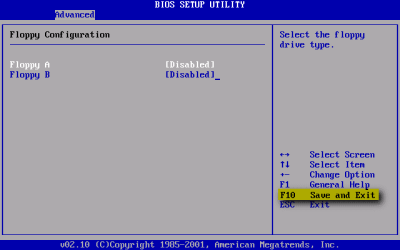
Again using arrow keys, select Floppy A and hit Enter to open a submenu. Select Disable, confirm with Enter:

XPM_BIOS_Floppy_2.png

Now both internal VPC floppy drives should be disabled. Press F10 to save settings and exit BIOS:

XPM_BIOS_Floppy_3.png

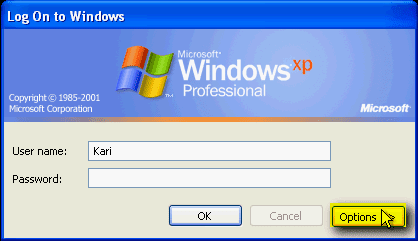
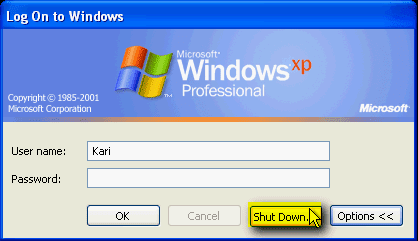
XP Mode reboots now. When it has booted to login screen, click Options button to reveal Shut Down button, then click Shut Down:

XPM_login_options.png
XPM_shutdown_from_login.png

When XP Mode is again shut down, re-enable integration features in settings, reboot XP Mode, connect your USB floppy and come back here to tell which letter it now got.

Kari
 

My Computer

Computer type
Laptop
Computer Manufacturer/Model Number
HP ENVY 17-1150eg
OS
Windows 10 Pro x64 EN-GB
CPU
1.6 GHz Intel Core i7-720QM Processor
Memory
6 GB
Graphics Card(s)
ATI Mobility Radeon HD 5850 Graphics
Sound Card
Beats sound system with integrated subwoofer
Monitor(s) Displays
17" laptop display, 22" LED and 32" Full HD TV through HDMI
Screen Resolution
1600*900 (1), 1920*1080 (2&3)
Hard Drives
Internal: 2 x 500 GB SATA Hard Disk Drive 7200 rpm
External: 2TB for backups, 3TB USB3 network drive for media
Cooling
As Envy runs a bit warm, I have it on a Cooler Master pad
Keyboard
Logitech diNovo Media Desktop Laser (bluetooth)
Mouse
Logitech Performance Mouse MX
Internet Speed
50/10 Mbps VDSL
Antivirus
Windows Defender 4.3.9431.0
Browser
Maxthon 3.5.2., IE11
Unless the Application's floppy has some hidden filesystem (some do):

Here's another way.

There is an old DOS command SUBST, still in XP and Windows 7 which allows a folder to be treated as if it were a floppy drive. Thus from a command prompt subst f: c:\docs, would create a drive F:\ containing the contents of C:\docs.

There is already an a:\drive in the XP Mode VM. It can be disabled from the device manager. Right-click My Computer, select Manage and then device manager from the Management Console. Double-Click on the Floppy Disk Drives to expand the branch, right click on the Floppy Disk Drive at the end of the branch and select disable. It should get a red cross against it.

From My Computer you should not see an A:\ drive any longer (press F5 to refresh, no restart required). If you copy the contents of your application's floppy drive to a folder accessible from your XP Mode (if possible on a short path without long filenames or spaces in the folders), eg c:\floppy - then use the subst command from a command prompt window:

Subst a: c:\floppy

My Computer will now show an a:\ drive (a hard drive icon, but that should not matter), containing the files from the floppy. Does your application now work?
 

My Computer

Computer Manufacturer/Model Number
Acer 7520, Packard Bell dot se, Acer travelmate 2423
OS
Win 7 Ult + Starter, XP Pro +Home, 2kAS, Linux Mint 8, SuperOS
CPU
AMD 64 Athlon X2 , Intel Atom N450, Intel Celeron M 1.50 Ghz
Motherboard
Acer Fuquene
Memory
2.5GB ; 1GB; 2GB
Graphics Card(s)
Nvidia GeForce7000m; Intel; Intel
Sound Card
Realtek AC57
Monitor(s) Displays
17" ;10.1"; 19"
Screen Resolution
1440x900;1024x600;1440x900;
Hard Drives
WD 80, WD 320;
PSU
19v
Case
Laptop
Cooling
Air
Internet Speed
9.7Mb/s down 0.99Mb/s up
Other Info
ISP VIRGINMEDIA 10M cable broadband - D-Link DIR615 wireless router, 3Com OfficeConnect ASDL router used as wireless extender switch
changing floppy letter to A: xp mode

Kari's method if followed exactly worked for me :D . I disabled native floppy. Then rebooted (closed down and reopened) xp mode, plugged in usb floppy, and then "attached" usb floppy and voila letter A :geek:. If you remove the native floppy it will simply reinstall itself when you reopen xp mode Hence the drive letter will remain B. Thankyou and Good Day!!!
 

My Computer

Computer Manufacturer/Model Number
custom made
OS
windows 7 ultimate x64
CPU
i7 860
Motherboard
evga p55
Memory
corsair 8 GB
Graphics Card(s)
xfx
Sound Card
on board sound (realtek)
Monitor(s) Displays
samsung widescreen syncmaster226BW
Hard Drives
seagate
PSU
corsair TX 750W
Case
zyan
Cooling
coolermaster
Hi Vaporize, welcome to the Seven Forums.

I want to thank you for joining the forums and posting this, it is always good to know something you have told as a possible solution but not been able to test by yourself works.

Kari
 

My Computer

Computer type
Laptop
Computer Manufacturer/Model Number
HP ENVY 17-1150eg
OS
Windows 10 Pro x64 EN-GB
CPU
1.6 GHz Intel Core i7-720QM Processor
Memory
6 GB
Graphics Card(s)
ATI Mobility Radeon HD 5850 Graphics
Sound Card
Beats sound system with integrated subwoofer
Monitor(s) Displays
17" laptop display, 22" LED and 32" Full HD TV through HDMI
Screen Resolution
1600*900 (1), 1920*1080 (2&3)
Hard Drives
Internal: 2 x 500 GB SATA Hard Disk Drive 7200 rpm
External: 2TB for backups, 3TB USB3 network drive for media
Cooling
As Envy runs a bit warm, I have it on a Cooler Master pad
Keyboard
Logitech diNovo Media Desktop Laser (bluetooth)
Mouse
Logitech Performance Mouse MX
Internet Speed
50/10 Mbps VDSL
Antivirus
Windows Defender 4.3.9431.0
Browser
Maxthon 3.5.2., IE11
Back
Top