Win7 / XP dual boot

laptopdummy

New member
Local time
11:42 AM
Messages
7
I have a new laptop with Win 7 installed on the C partition of my hard drive. The D partition is empty. I want to install Win XP on the D partition and have a dual boot system. I have read several articles on how to do this in this Forum and think I could manage the setup as outlined, but where can I obtain a legit copy of XP for this purpose? Also, does anybody have a suggestion for a good, user friendly, dual boot software utility?
 

My Computer

Computer Manufacturer/Model Number
Samsung RF510-S02 NP-RF510-S02US Notebook
OS
Win 7 Home Premium 64 bit
CPU
Intel Core i7-720QM 1.60GHz
Memory
4GB DDR3
Graphics Card(s)
NVIDIA GeForce 330M graphics with 1GB of video memory
Sound Card
3D SRS Premium Sound™.
Monitor(s) Displays
15.6" HD (1366 x 768) LED-backlit
Hard Drives
620 Gb 5200 RPM
That's what I thought too, but a post in another forum says that programs requiring activeX will not run on virtual XP. Samsung's on-line chat support is telling me that you cannot set up a dual boot system on a laptop? Has anybody heard that before? My guess is that they don't want to be flooded with support issues related to the install, but what would be different about a laptop that wouldn't let it work after you get it right?
 

My Computer

Computer Manufacturer/Model Number
Samsung RF510-S02 NP-RF510-S02US Notebook
OS
Win 7 Home Premium 64 bit
CPU
Intel Core i7-720QM 1.60GHz
Memory
4GB DDR3
Graphics Card(s)
NVIDIA GeForce 330M graphics with 1GB of video memory
Sound Card
3D SRS Premium Sound™.
Monitor(s) Displays
15.6" HD (1366 x 768) LED-backlit
Hard Drives
620 Gb 5200 RPM
This laptop has a hard drive developed by Samsung. The system came with Win7 installed. Would I need to obtain special XP drivers from Samsung to set up a Win7 / XP dual boot system? Maybe that's what the Samsung on-line chat support person was talking about when she said a laptop could not be set up with a dual boot system?????
 

My Computer

Computer Manufacturer/Model Number
Samsung RF510-S02 NP-RF510-S02US Notebook
OS
Win 7 Home Premium 64 bit
CPU
Intel Core i7-720QM 1.60GHz
Memory
4GB DDR3
Graphics Card(s)
NVIDIA GeForce 330M graphics with 1GB of video memory
Sound Card
3D SRS Premium Sound™.
Monitor(s) Displays
15.6" HD (1366 x 768) LED-backlit
Hard Drives
620 Gb 5200 RPM
Yes, you will need to download Win XP drivers from Samsung, sounds like Samsung do not support WinXP drivers for your notebook.
 

My Computer

OS
ME/XP/Vista/Win7
First You can buy a copy of windows xp(any copy will do) then when you install you won't be able to boot into w7 because xp overwrites the w7 MBR. to fix this issue download EasyBCD from this http://neosmart.net/downloads/software/EasyBCD/EasyBCD 2.0.2.exe
and press "Write MBR" (or something like that). it will write the w7 MBR into the comp and at boot you will be prompted with a option to select from.
Earlier version is xp

hope this helps
 

My Computer

OS
Windows 7 x32
Screen Resolution
1024x768
What programs are not running correctly in Win7 that make you want to dual boot XP? Let us help you see if you can get them running, perhaps using http://www.sevenforums.com/tutorials/316-compatibility-mode.html

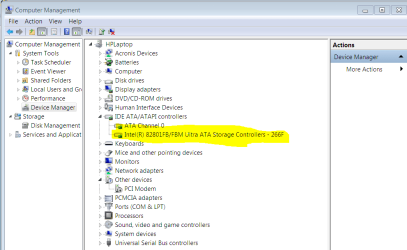
You'll need to determine the make and model of your SATA controller on your laptop then google for XP drivers to see if they exist:
 

Attachments

  • Capture.PNG
    Capture.PNG
    28.5 KB · Views: 20
GregRocker, Thanks, I'll experiment with compatibiltiy mode. Didn't know about it. Most of my applications were written before Win XP, but ran OK on Win XP. Haven't tried any on my new laptop, but pretty sure they will not work with Win7 64 bit, since they are all 32 bit. The most important one is my financial software (Parson's Tech Money Counts). I have been using since Win3. Company long out of business. This week I bit the bullet and installed the latest version of Quicken. Learning curve is steep, but I'm sure I'll be happy with it in a couple months. Thanks for your advise. I think it's time to upgrade everything. Much better solution than a dual boot.
 

My Computer

Computer Manufacturer/Model Number
Samsung RF510-S02 NP-RF510-S02US Notebook
OS
Win 7 Home Premium 64 bit
CPU
Intel Core i7-720QM 1.60GHz
Memory
4GB DDR3
Graphics Card(s)
NVIDIA GeForce 330M graphics with 1GB of video memory
Sound Card
3D SRS Premium Sound™.
Monitor(s) Displays
15.6" HD (1366 x 768) LED-backlit
Hard Drives
620 Gb 5200 RPM
You can consider clean reinstalling with 32bit Home Premium using the same Product Key if many programs you depend upon are only available in 32 bit - I'd research it first.

With 4gb of RAM you're right at the cut-off point anyway for 64gb. I prefer 32 bit on 4gb myself.

Here is how to get a purrfect reinstall of factory OEM - use the tips which apply: http://www.sevenforums.com/installation-setup/125874-re-install-windows-7-a.html#post1086729

Another option is to try running the XP programs virtually within Win7 using Virtual Box, Virtual Player, etc.
 
Oh yeah, that reminds me, I had planned to upgrade to 8 GB of ram. Got side tracked with learning new financial software. Virtual XP is interesting, but I know my video editing software requires Direct X, which I read somewhere in the forum is not available in virtual XP.
 

My Computer

Computer Manufacturer/Model Number
Samsung RF510-S02 NP-RF510-S02US Notebook
OS
Win 7 Home Premium 64 bit
CPU
Intel Core i7-720QM 1.60GHz
Memory
4GB DDR3
Graphics Card(s)
NVIDIA GeForce 330M graphics with 1GB of video memory
Sound Card
3D SRS Premium Sound™.
Monitor(s) Displays
15.6" HD (1366 x 768) LED-backlit
Hard Drives
620 Gb 5200 RPM
If you ever feel the need to reinstall, here's information on the best possible method.


After you have copied out or made back-ups of the data you need to save to external media, use Step One of this tutorial at the link below to do a wipe (secure erase) to the entire Hard Disk Drive / Solid State Drive.
  • Then if you do not want to create the new Windows 7 "System Reserved" partition use the outline in Step Two #2 to create, format and mark Active a single 100GB partition to do the installation to.
  • If you do want to create the "System Reserved" partition use the outline in Step Two #3 to create, format and mark Active the System Reserved partition and then create and format the 100GB partition to do the installation to.
Either way, running the "clean all" then creating and formatting the partition(s) using diskpart will get you the best possible space to do a clean install of Windows 7 to; you can always extend the Windows partition to include the remaining unallocated space on the HDD / SSD or create additional partitions after the installation completes if you choose.

SSD / HDD : Optimize for Windows Reinstallation

DISKPART : At PC Startup

Do a Clean Install with a Upgrade Windows 7 Version
 

My Computer

Computer Manufacturer/Model Number
* BFK Customs *
OS
W 7 64-bit Ultimate
CPU
Intel Q9550 Yorkfield
Motherboard
ASUS P5Q Pro
Memory
8GB Dominator 8500C5D
Graphics Card(s)
ATI : XFX 5870
Sound Card
Realtek HD Audio 7-1
Monitor(s) Displays
1x 47" LCD HDMI & 3x 26" LCD HDMI
Screen Resolution
1920x1080P & 1920x1200
Hard Drives
1x 80GB Intel X25-M G2 SSD : 1x 500GB & 1x 640GB WD Caviar Black(s)
PSU
Corsair 620HX
Case
Cooler Master RC-690
Cooling
Tuniq Tower 120, 2x 140mm and 3x 120mm case fans
Keyboard
Microsoft 500
Mouse
Razer Diamondback 3G
Internet Speed
14 Mb/s
Other Info
1x Koutech 3Gb/s SATA HDD Hot Swap Rack
My system setup was supposed to set up a partition for that, and the software to manage the backup and restore is included, but I can't see the partition. I know it's there because the C partition and the D partition don't add up to 640 GB (the total HD space). How can I view the partition for this save/restore utility? Thanks.
 

My Computer

Computer Manufacturer/Model Number
Samsung RF510-S02 NP-RF510-S02US Notebook
OS
Win 7 Home Premium 64 bit
CPU
Intel Core i7-720QM 1.60GHz
Memory
4GB DDR3
Graphics Card(s)
NVIDIA GeForce 330M graphics with 1GB of video memory
Sound Card
3D SRS Premium Sound™.
Monitor(s) Displays
15.6" HD (1366 x 768) LED-backlit
Hard Drives
620 Gb 5200 RPM
If you want to see Windows disk management, use this info below.


In the Windows start menu right click computer and click manage, in the left pane of the "Computer Management" window that opens click disk management.
 

My Computer

Computer Manufacturer/Model Number
* BFK Customs *
OS
W 7 64-bit Ultimate
CPU
Intel Q9550 Yorkfield
Motherboard
ASUS P5Q Pro
Memory
8GB Dominator 8500C5D
Graphics Card(s)
ATI : XFX 5870
Sound Card
Realtek HD Audio 7-1
Monitor(s) Displays
1x 47" LCD HDMI & 3x 26" LCD HDMI
Screen Resolution
1920x1080P & 1920x1200
Hard Drives
1x 80GB Intel X25-M G2 SSD : 1x 500GB & 1x 640GB WD Caviar Black(s)
PSU
Corsair 620HX
Case
Cooler Master RC-690
Cooling
Tuniq Tower 120, 2x 140mm and 3x 120mm case fans
Keyboard
Microsoft 500
Mouse
Razer Diamondback 3G
Internet Speed
14 Mb/s
Other Info
1x Koutech 3Gb/s SATA HDD Hot Swap Rack
Not sure how to post a screen, but let's try this: I printed the screen to the clipboard, then pasted the clipboard to a Word Doc, which I attached to this reply. Hope that works. I see the recovery drive in that view. I haven't run a system back up yet. Been dragging my heals until I have time to read more about it. Should do it soon though. Thanks for the tip.
 

Attachments

My Computer

Computer Manufacturer/Model Number
Samsung RF510-S02 NP-RF510-S02US Notebook
OS
Win 7 Home Premium 64 bit
CPU
Intel Core i7-720QM 1.60GHz
Memory
4GB DDR3
Graphics Card(s)
NVIDIA GeForce 330M graphics with 1GB of video memory
Sound Card
3D SRS Premium Sound™.
Monitor(s) Displays
15.6" HD (1366 x 768) LED-backlit
Hard Drives
620 Gb 5200 RPM

My Computer

Computer Manufacturer/Model Number
* BFK Customs *
OS
W 7 64-bit Ultimate
CPU
Intel Q9550 Yorkfield
Motherboard
ASUS P5Q Pro
Memory
8GB Dominator 8500C5D
Graphics Card(s)
ATI : XFX 5870
Sound Card
Realtek HD Audio 7-1
Monitor(s) Displays
1x 47" LCD HDMI & 3x 26" LCD HDMI
Screen Resolution
1920x1080P & 1920x1200
Hard Drives
1x 80GB Intel X25-M G2 SSD : 1x 500GB & 1x 640GB WD Caviar Black(s)
PSU
Corsair 620HX
Case
Cooler Master RC-690
Cooling
Tuniq Tower 120, 2x 140mm and 3x 120mm case fans
Keyboard
Microsoft 500
Mouse
Razer Diamondback 3G
Internet Speed
14 Mb/s
Other Info
1x Koutech 3Gb/s SATA HDD Hot Swap Rack
Looks like D should be used for backup. I'd use Win7 built-in file and imaging backup or just save an image and drag active User folders to backup periodically to save space wasted by any backup utility - they also tend to hog resources when running.

Posting screenshots is easy when you use the Snipping Tool in Start Menu. :geek:
 
Back
Top