Windows 7 i slocking me out of my own files

eresin

New member
Local time
12:27 AM
Messages
3
Hi All,

like the title said, WIndows 7 is starting to put padlocks on my own home folder and it is also not letting move the contents of a folder on the desktop into My Music folder.

I bought a new laptop 3 weeks ago running windows 7 64bit and it's been great so far. I have previously been using an iMac so my knowledge on WIndows 7 is limited.

I initaially transfered all my music from my mac onto a folder on the desktop of my laptop. Installed iTunes, added the music to my library and all was fine. I then realised that if I used windows media centre instead then i could sync it up with my xbox 360.
I couldn't get it to work so I decided to go back to iTunes.
Since then I have noticed that my home folder found at Users/fiona has a padlock icon on it and properties state that it is read-only. No matter how many time I uncheck that read-only box each time I go back it's read only.
I tried the properties > security and according that what is shown I have full permissions to do whatever I want.

I then decided I wanted to move my music (which I had just saved to the desktop) into the My Music folder, however I keep getting an access denied, and I am unsure if it related to the folder on the desktop or the My Music folder.

I am the only account on the machine, I have full admin. I really don't understand what has happened to cause this nor how to fix it. The only thing I tried to get working was Windows Media Centre, and I don't see why it would lock down all my files. I certainly won't bother trying it again though.

I am close to just using my recovery partition to just delete everything and start from scratch in the hope it will fix it and it won't happen again.

Any help would be most apprectiated. I have done various google searches to resolve this following various directions but since my machine already sees me as having full permission to do things, I don't see why I should be getting locked out of my own files.

I am new to Windows so be gentle please and thank you in advance :)
 

My Computer My Computer

At a glance

Windows 7 Ultimate 64 bit
OS
Windows 7 Ultimate 64 bit
First off, the pad lock icon means the folder/file is not SHARED, it is private to you. Second, folders do not have "read-only" as it says in the properties for a folder it only applies to files. Alright, are you moving the files to "C:\Users\[username]\Music"? While no applications like iTunes or Media Player have any of those music files open?
 

My Computer My Computer

At a glance

Windows 10 Pro (x64)Intel Core i7-3930K (3.2GHz - 4.5GHz)4x Samsung 4GB PC3-12800 DDR3 (16GB 1600MHz)Nvidia Geforce GTX 690
Computer type
PC/Desktop
Computer Manufacturer/Model Number
Alienware Aurora ALX R4
OS
Windows 10 Pro (x64)
CPU
Intel Core i7-3930K (3.2GHz - 4.5GHz)
Motherboard
Alienware Aurora-R4 x79
Memory
4x Samsung 4GB PC3-12800 DDR3 (16GB 1600MHz)
Graphics Card(s)
Nvidia Geforce GTX 690
Sound Card
SteelSeries Siberia Elite
Monitor(s) Displays
Dell UltraSharp U3011
Screen Resolution
2560x1600
Hard Drives
Samsung 850 Pro 256 GB, Seagate 1TB Desktop Hybrid HDD, 2x Western Digital 4TB Green HDD
PSU
875W Some Dell PSU <.<
Case
Alienware Aurora ALX
Cooling
Custom Liquid Cooling (EK CPU & GPU blocks) dual EK 480RAD
Keyboard
Logitech G710+ Mechanical
Mouse
Logitech G700s
Internet Speed
Verizon Fios (50 mbps average)
Other Info
Server: Intel NUC D54250WYK: i5-4250U, 16GB, 256 GB mSATA, Windows Server 2012 R2
First off, the pad lock icon means the folder/file is not SHARED, it is private to you. Second, folders do not have "read-only" as it says in the properties for a folder it only applies to files. Alright, are you moving the files to "C:\Users\[username]\Music"? While no applications like iTunes or Media Player have any of those music files open?

Yes there are no applications running when I am trying to move the files. I get an error saying Access Denied and that I do not have permission to perform that action.

Also can you explain what you mean by "folders do not have "read-only" as it says in the properties for a folder it only applies to files"
Why are the files within my user folder read only when they are my files?
 

My Computer My Computer

At a glance

Windows 7 Ultimate 64 bit
OS
Windows 7 Ultimate 64 bit
When looking at the folder properties the read-only check box will always be filled in. The filled in box is an intermediate value neither yes or no. See attached image. Make note of "Only applies to files in folder"
 

Attachments

  • Untitled.png
    Untitled.png
    13.7 KB · Views: 1

My Computer My Computer

At a glance

Windows 10 Pro (x64)Intel Core i7-3930K (3.2GHz - 4.5GHz)4x Samsung 4GB PC3-12800 DDR3 (16GB 1600MHz)Nvidia Geforce GTX 690
Computer type
PC/Desktop
Computer Manufacturer/Model Number
Alienware Aurora ALX R4
OS
Windows 10 Pro (x64)
CPU
Intel Core i7-3930K (3.2GHz - 4.5GHz)
Motherboard
Alienware Aurora-R4 x79
Memory
4x Samsung 4GB PC3-12800 DDR3 (16GB 1600MHz)
Graphics Card(s)
Nvidia Geforce GTX 690
Sound Card
SteelSeries Siberia Elite
Monitor(s) Displays
Dell UltraSharp U3011
Screen Resolution
2560x1600
Hard Drives
Samsung 850 Pro 256 GB, Seagate 1TB Desktop Hybrid HDD, 2x Western Digital 4TB Green HDD
PSU
875W Some Dell PSU <.<
Case
Alienware Aurora ALX
Cooling
Custom Liquid Cooling (EK CPU & GPU blocks) dual EK 480RAD
Keyboard
Logitech G710+ Mechanical
Mouse
Logitech G700s
Internet Speed
Verizon Fios (50 mbps average)
Other Info
Server: Intel NUC D54250WYK: i5-4250U, 16GB, 256 GB mSATA, Windows Server 2012 R2
Permissions

Sometimes the permissions just "freak out" (on my PC at least).

Within the last two weeks I encountered a file that I was the "Owner" of and "Users" was listed in the "Security" tab, but I couldn't do anything with it.
The "Administrators" group (which I'm a member of) was also listed in the "Security" tab.

Once I rebooted my PC, everything was OK. :confused:

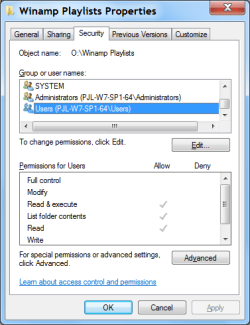
Check the "Security" tab (shown below).
See if your user account and/or "Users" are listed.
You should at least have the permissions in the picture.

Security Tab.png
 
Last edited:

My Computer My Computer

At a glance

W7 Ultimate SP1, LM19.2 MATE, W10 Home 1703, ...AMD Phenom II x6 1100T, 3.3 GHz12GB DDR3 1333 G-Skill (4GB x 2), G-Skill (2G...NVIDIA GeForce GTX 660
Computer type
PC/Desktop
Computer Manufacturer/Model Number
n/a
OS
W7 Ultimate SP1, LM19.2 MATE, W10 Home 1703, W10 Pro 1703 VM, #All 64 bit
CPU
AMD Phenom II x6 1100T, 3.3 GHz
Motherboard
ASUS M4A88T-M/USB3 (AM3)
Memory
12GB DDR3 1333 G-Skill (4GB x 2), G-Skill (2GB x 2)
Graphics Card(s)
NVIDIA GeForce GTX 660
Sound Card
Realtek?
Monitor(s) Displays
Samsung S23B350
Screen Resolution
1920x1080
Hard Drives
WD Green 2TB (SATA), WD Green 3TB (SATA), WD Blue 4TB (SATA), WD Blue 6TB (SATA)
PSU
Cooler Master
Case
Antec GX300 Tower
Cooling
3x Antec TRICOOL 120mm Fans
Mouse
Wired Optical
Internet Speed
DSL
Antivirus
Avast
Browser
Pale Moon (64 bit)
Other Info
2018-12-27 Upgraded HDDs
2015-12-10 Upgraded case, graphics card, storage
2015-08-15 Upgraded motherboard & RAM
2015-07-15 Upgraded LM17.1 to LM17.2
I can assure you I have tried rebooting :) My Windows Updater is all up to date too. I just can't understand why I would ever be denied anything. When I get home I will try to delete the folder on the desktop (the one i'm not allowed to move, so I'm not holding my breath). I can always transfer my music over from my mac again, takes forever to do but if need be.
 

My Computer My Computer

At a glance

Windows 7 Ultimate 64 bit
OS
Windows 7 Ultimate 64 bit
Did you try to uninstall iTunes ? It may lock the folder. Also, make sure you have the right security privileges for both source and destination folders. The best way to do this is to grab ownership of the folders.

Just to make sure, stop any iTunes processes using the task manager before you try the following:

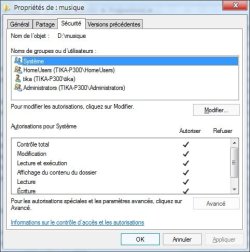
Right click on the folder then go to the security tab:

security1.jpg

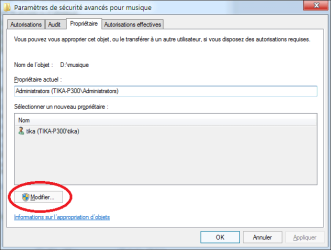
Click on the "Advanced button. Go to the Owner, or Ownership tab (not sure of the name, I run in french). Cick on the Modify (or Edit) button

security2.png

Select your user name from the list, make sure you check the 'Apply to files and subfolders' option.

security3.jpg

Doing this to both source and destination folder should fix your problem.
 

My Computer My Computer

At a glance

Windows 7 Ultimate 32bits2GHz Intel T5800 dual core3 GBATI Radeon HD3650
Computer Manufacturer/Model Number
Toshiba P300-1EI
OS
Windows 7 Ultimate 32bits
CPU
2GHz Intel T5800 dual core
Memory
3 GB
Graphics Card(s)
ATI Radeon HD3650
Sound Card
Yamaha MW10C USB mix board
Hard Drives
250 MB Seagate Momentus XT internal
1 GB 2.5" Samsung HN-M101MBB internal
1GB 3.5" Hitachi external
Back
Top