

Benedict2468
New member
'Windows Installation cannot proceed' - error during windows 7 installation.
Everything was going very well indeed with my 'Windows 7 Ultimate 64-Bit SP1' installation until:
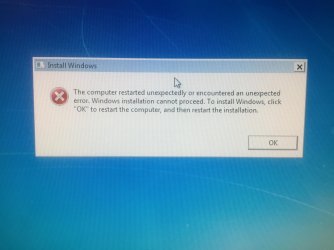
After the first reboot during the installation process, during the 'setup is starting services' screen, everything seems to suddenly 'crash', and an error message pops up saying:
I went round in a circle with this, trying everything I could think of. I treid striping the pc to its' skeletal mainframe, removing all but the last 2GB of RAM, and even trying the install on a different HDD, but every time, I would receive the same error message...
Yes, so I'm answering my own question, but I thought I might as well post this anyway, so that others may benefit from it if they happen to have the same problem as me...
To fix this issue, you must do one of the following 3 things. Do them in the order that they are specified here. If method 1 works for you, then stop there; if it does not, then proceed to method 2. If method 2 works for you (it worked for me) then stop there, but if it doesn't, the proceed to method 3. Oh, and if method 3 doesn't work for you, then maybe you should reconsider your life choices...
1) This is the most simple of the three solutions. Sometimes during a windows installation, the administrator account gets disabled. To fix this, you will need to:
i) On the error message screen, press shift and F10 (to open command prompt)
ii) Type: net user administrator /active:yes (and press enter)
iii) Type: net user administrator mypass (and press enter)
iv) Exit the command prompt and press the 'x' at the top to exit the error message window. Setup should now continue.
2) If that didn't work, then do the following:
i) On the error message screen, press shift and F10 (to open the command prompt)
ii) The default directory should be set to '%windir%\system32', but if you don't understand that, then all you need to know is that the bottom line of the command prompt should say: 'C:\Windows\System32>'. You will have to change this directory to '%windir%\system32\oobe'. To do this, type the following in the command prompt, then press enter: cd oobe. Underneath the line where you just typed this, a new line should appear. This new line should say: 'C:\Windows\System32\oobe>'
iii) On this new line, type: msoobe (and press enter). At first, nothing will happen, but wait a few seconds, and the setup process should jump a few steps and then continue...
3) If both of these didn't work, then you're really unlucky, But you can still try the following:
i) On the error message screen, press shift and F10 (to open command prompt)
ii) Type: mmc (and press enter). A new windows titled 'Console1 - [Console Root]' should open.
iii) On this window, press Ctrl and M. Another window, titled 'Add or Remove Snap-ins' should open.
iv) Locate 'Computer Management' - usually the 5th one down in the list, and press 'Add'. Another window, titled 'Computer Management', should appear, but all you need to do is select 'Finish'. You'll need to wait a moment for it to load computer management into the list on the right, and then just click 'Ok'.
v) On the left of the screen, you should see a column. There should be a folder icon, and next to it, the words 'Console Root'. Below this, You should be able to see 'Computer Management', which you just added. Drag out the grey bar separating the column from the rest of the screen, so that you can see more and read the full path and folder names.
vi) In this column, navigate to: Computer Management > System Tools > Local Users and Groups > Users. In the window on the right, right click 'Administrator'. Select 'Properties' from the list that pops up when you right click, and a window titled 'Administrator Properties' should be displayed.
vii) Uncheck the 4th box down, the box titled 'Account is disabled'. Once this box is UNchecked, you can click 'Apply', and then 'Ok'.
viii) Once more, right click on 'Administrator', and select 'Set Password'. A window titled 'Set Password for Administrator' should appear, but just select 'Proceed'. Now set a password and click 'Ok', and then 'Ok' again when the confirmation window appears.
ix) Now exit the outer window, which after the changes you've made, should be titled 'Console1 - |Console Root\Computer Management - (and then an address)'. Make sure to save the changes you made as you exit.
4) If none of these methods worked for you, then my advice would be to re-format the drive you're trying to install to, try the install with only 2GB of RAM, and then you could try removing all the unnecessary hardware from your computer until
after the installation.
PS: I wasn't trying this install on my main machine, but on a server on my network.
I hope someone out there benefits from this...
Everything was going very well indeed with my 'Windows 7 Ultimate 64-Bit SP1' installation until:
After the first reboot during the installation process, during the 'setup is starting services' screen, everything seems to suddenly 'crash', and an error message pops up saying:
'The computer restarted unexpectedly or encountered an unexpected error. Windows installation cannot proceed. To install Windows, click "OK" to restart the computer, and then restart the installation.'
I went round in a circle with this, trying everything I could think of. I treid striping the pc to its' skeletal mainframe, removing all but the last 2GB of RAM, and even trying the install on a different HDD, but every time, I would receive the same error message...
------------------------SOLUTION------------------------
Yes, so I'm answering my own question, but I thought I might as well post this anyway, so that others may benefit from it if they happen to have the same problem as me...
To fix this issue, you must do one of the following 3 things. Do them in the order that they are specified here. If method 1 works for you, then stop there; if it does not, then proceed to method 2. If method 2 works for you (it worked for me) then stop there, but if it doesn't, the proceed to method 3. Oh, and if method 3 doesn't work for you, then maybe you should reconsider your life choices...
1) This is the most simple of the three solutions. Sometimes during a windows installation, the administrator account gets disabled. To fix this, you will need to:
i) On the error message screen, press shift and F10 (to open command prompt)
ii) Type: net user administrator /active:yes (and press enter)
iii) Type: net user administrator mypass (and press enter)
iv) Exit the command prompt and press the 'x' at the top to exit the error message window. Setup should now continue.
2) If that didn't work, then do the following:
i) On the error message screen, press shift and F10 (to open the command prompt)
ii) The default directory should be set to '%windir%\system32', but if you don't understand that, then all you need to know is that the bottom line of the command prompt should say: 'C:\Windows\System32>'. You will have to change this directory to '%windir%\system32\oobe'. To do this, type the following in the command prompt, then press enter: cd oobe. Underneath the line where you just typed this, a new line should appear. This new line should say: 'C:\Windows\System32\oobe>'
iii) On this new line, type: msoobe (and press enter). At first, nothing will happen, but wait a few seconds, and the setup process should jump a few steps and then continue...
3) If both of these didn't work, then you're really unlucky, But you can still try the following:
i) On the error message screen, press shift and F10 (to open command prompt)
ii) Type: mmc (and press enter). A new windows titled 'Console1 - [Console Root]' should open.
iii) On this window, press Ctrl and M. Another window, titled 'Add or Remove Snap-ins' should open.
iv) Locate 'Computer Management' - usually the 5th one down in the list, and press 'Add'. Another window, titled 'Computer Management', should appear, but all you need to do is select 'Finish'. You'll need to wait a moment for it to load computer management into the list on the right, and then just click 'Ok'.
v) On the left of the screen, you should see a column. There should be a folder icon, and next to it, the words 'Console Root'. Below this, You should be able to see 'Computer Management', which you just added. Drag out the grey bar separating the column from the rest of the screen, so that you can see more and read the full path and folder names.
vi) In this column, navigate to: Computer Management > System Tools > Local Users and Groups > Users. In the window on the right, right click 'Administrator'. Select 'Properties' from the list that pops up when you right click, and a window titled 'Administrator Properties' should be displayed.
vii) Uncheck the 4th box down, the box titled 'Account is disabled'. Once this box is UNchecked, you can click 'Apply', and then 'Ok'.
viii) Once more, right click on 'Administrator', and select 'Set Password'. A window titled 'Set Password for Administrator' should appear, but just select 'Proceed'. Now set a password and click 'Ok', and then 'Ok' again when the confirmation window appears.
ix) Now exit the outer window, which after the changes you've made, should be titled 'Console1 - |Console Root\Computer Management - (and then an address)'. Make sure to save the changes you made as you exit.
4) If none of these methods worked for you, then my advice would be to re-format the drive you're trying to install to, try the install with only 2GB of RAM, and then you could try removing all the unnecessary hardware from your computer until
after the installation.
PS: I wasn't trying this install on my main machine, but on a server on my network.
I hope someone out there benefits from this...
Attachments
Last edited:
My Computer
At a glance
Windows 7 Ultimate 64-bitAMD FX-61008GB DDR3 1600MHzNvidia GeForce GT 710 2GB
- Computer type
- PC/Desktop
- Computer Manufacturer/Model Number
- Custom Build
- OS
- Windows 7 Ultimate 64-bit
- CPU
- AMD FX-6100
- Motherboard
- ASRock 970 Extreme3 R2.0 ATX
- Memory
- 8GB DDR3 1600MHz
- Graphics Card(s)
- Nvidia GeForce GT 710 2GB
- Monitor(s) Displays
- I have 3 1080p Monitors
- Screen Resolution
- 3 Monitors all running at 1080p @ 60hz
- Hard Drives
- Kingston SSD
- PSU
- Corsair CX500 - 500W PSU
- Case
- Zalman Z3 - ATX Mid-Tower
- Cooling
- 5 RGB Case Fans
- Keyboard
- Mechanical RGB Keyboard
- Mouse
- RGB Optical Mouse
- Internet Speed
- Gigabit = 1/10/100/1000
- Antivirus
- Avast, and MS Security Essentials
- Browser
- Google Chrome

 .
.


