Windows 7 restored from backup disk

Niikkee

New member
Local time
2:25 PM
Messages
10
I restored my Windows 7 from backup disk and everything was doubled or copied. Now my hard drive is full. How do I delete files and do a clean restore from backup disk or at least delete files that were copied? thanks
 

My Computer

Computer Manufacturer/Model Number
Dell Inspiron 1764 17" Laptop
OS
Window 7 Home Premium with 32bit and 64bit
CPU
Intel (R) Core (TM) i3CPU
Motherboard
M330 @2.13GHz 2.13GHz
Memory
4.00 GB (3.80 GB Usable)
Graphics Card(s)
Integrated Wireless 802 11b/g card
Sound Card
Integrated Intel Graphics Media Accelerator HD*
Monitor(s) Displays
Widescreen Display
Hard Drives
500 GB *Hard Drive
PSU
Intel Core Processor i3 -330M
Other Info
A few days ago or so I found programs would suddenly shut down after a single click. Also controlling files became problematic because a single click would mysteriously open a file, instead of e.g. merely selecting it. And when trying to map a file location, my computer would do one thing and I was doing another. Everything I try to do is now controlled by a System Permission so I'm not sure what
Hello Niikkee and welcome to Seven Forums.

Couple of questions if I may to help clarify things.

1. Was this backup disk something you created or was it provided by Dell?
2. If you created the disk, was it a recovery type disk, a backup of personal files only, or a system image of the entire hard drive?
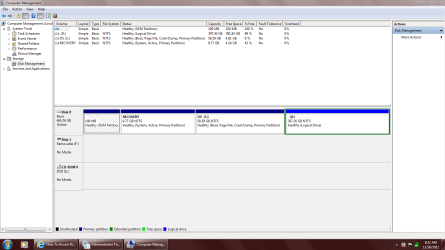
3. Could you post a screenshot of your maximized Disk Managment window. It may provide a clue as to what happened to fill up your hard drive.

How To Access Disk Management in Windows 7

http://www.sevenforums.com/tutorials/9733-screenshots-files-upload-post-seven-forums.html
 

My Computer

Computer type
Laptop
Computer Manufacturer/Model Number
Sony Vaio VPCEB47GM Laptop
OS
Win 7 Pro 64-bit
CPU
Intel i5 2.4 Ghz
Memory
8GB DDR3
Graphics Card(s)
Intel HD 3000
Sound Card
IDT High Definition
Monitor(s) Displays
15.6 WGXA Anti-Glare LED
Screen Resolution
1280x800
Hard Drives
640Gb 7200rpm
Antivirus
MSE
Browser
Opera (primary) with IE9 backup
I have faithfully backed up my computer system since doing a clean reinstall of Windows 7. I also have a system image disk. I thought the backup disk I used contained entire hard drive information. I sent attachment.
 

Attachments

  • Capture.PNG
    Capture.PNG
    39.3 KB · Views: 28

My Computer

Computer Manufacturer/Model Number
Dell Inspiron 1764 17" Laptop
OS
Window 7 Home Premium with 32bit and 64bit
CPU
Intel (R) Core (TM) i3CPU
Motherboard
M330 @2.13GHz 2.13GHz
Memory
4.00 GB (3.80 GB Usable)
Graphics Card(s)
Integrated Wireless 802 11b/g card
Sound Card
Integrated Intel Graphics Media Accelerator HD*
Monitor(s) Displays
Widescreen Display
Hard Drives
500 GB *Hard Drive
PSU
Intel Core Processor i3 -330M
Other Info
A few days ago or so I found programs would suddenly shut down after a single click. Also controlling files became problematic because a single click would mysteriously open a file, instead of e.g. merely selecting it. And when trying to map a file location, my computer would do one thing and I was doing another. Everything I try to do is now controlled by a System Permission so I'm not sure what
From what I can see, disk management is showing you have a 500 GB hard drive. You have a 100 MB System Reserved partition and a factory Recovery partition of almost 10 GB. These are normal. But your C: partition is only 58.59 GB with 4.61 GB free space while the D: partition is 397.30 GB with 391.83 GB of free space. So based on this info, your hard drive definitely isn't full. Just the C: partition is nearly full.

Do you know what's being saved on the D: partition? Did you deliberately create the D: partition when you did the clean reinstall? There's a free utility called MiniTool Partition Wizard.

MiniTool Partition Wizard

With this software you can explore a partition to see what files it contains. You can also use the same software to use all or part of the D: partition to extend the C: partition (increase its size.)

And there are some free programs that can search for duplicate files.

Duplicate File Finders

Please post back on how you'd like to proceed.
 

My Computer

Computer type
Laptop
Computer Manufacturer/Model Number
Sony Vaio VPCEB47GM Laptop
OS
Win 7 Pro 64-bit
CPU
Intel i5 2.4 Ghz
Memory
8GB DDR3
Graphics Card(s)
Intel HD 3000
Sound Card
IDT High Definition
Monitor(s) Displays
15.6 WGXA Anti-Glare LED
Screen Resolution
1280x800
Hard Drives
640Gb 7200rpm
Antivirus
MSE
Browser
Opera (primary) with IE9 backup
I just looked at the first program. Is there any specific part of the program I need or all of it? I am not really clear what it is I am doing with it.
 

My Computer

Computer Manufacturer/Model Number
Dell Inspiron 1764 17" Laptop
OS
Window 7 Home Premium with 32bit and 64bit
CPU
Intel (R) Core (TM) i3CPU
Motherboard
M330 @2.13GHz 2.13GHz
Memory
4.00 GB (3.80 GB Usable)
Graphics Card(s)
Integrated Wireless 802 11b/g card
Sound Card
Integrated Intel Graphics Media Accelerator HD*
Monitor(s) Displays
Widescreen Display
Hard Drives
500 GB *Hard Drive
PSU
Intel Core Processor i3 -330M
Other Info
A few days ago or so I found programs would suddenly shut down after a single click. Also controlling files became problematic because a single click would mysteriously open a file, instead of e.g. merely selecting it. And when trying to map a file location, my computer would do one thing and I was doing another. Everything I try to do is now controlled by a System Permission so I'm not sure what
The MiniTool Partition Wizard is a multi-function utility. If you install it, all of the various "tools" as listed under Main Features will be included. You could then open the "Explore" feature to see exactly what is on the C: partition and what is on the D: partition. If you discover that the D: partition contains nothing worth saving then all of that partition space (397.30 GB) can be added to the C: partition increasing it from its present 58.59 GB to roughly 455 GB by using the "Extend" feature.
 

My Computer

Computer type
Laptop
Computer Manufacturer/Model Number
Sony Vaio VPCEB47GM Laptop
OS
Win 7 Pro 64-bit
CPU
Intel i5 2.4 Ghz
Memory
8GB DDR3
Graphics Card(s)
Intel HD 3000
Sound Card
IDT High Definition
Monitor(s) Displays
15.6 WGXA Anti-Glare LED
Screen Resolution
1280x800
Hard Drives
640Gb 7200rpm
Antivirus
MSE
Browser
Opera (primary) with IE9 backup
I would like to follow your advice, however I am not computer knowledgable and I have tried following your instructions. I downloaded the MiniTool and I can highlight the D: and Explore, but then do not have the option to Extend.

I don't know how to answer the question about whether I created what is on the D: but by looking at it the only thing that I would recognize that maybe should be kept is a file named System Volume Information and I don't know whether I would need that.

I know it isn't easy with someone like me so if you would like to move on I understand, but if you could help me I would really appreciate it. I am pretty good at following steps to do things, but understanding what I am doing is lost.
 

My Computer

Computer Manufacturer/Model Number
Dell Inspiron 1764 17" Laptop
OS
Window 7 Home Premium with 32bit and 64bit
CPU
Intel (R) Core (TM) i3CPU
Motherboard
M330 @2.13GHz 2.13GHz
Memory
4.00 GB (3.80 GB Usable)
Graphics Card(s)
Integrated Wireless 802 11b/g card
Sound Card
Integrated Intel Graphics Media Accelerator HD*
Monitor(s) Displays
Widescreen Display
Hard Drives
500 GB *Hard Drive
PSU
Intel Core Processor i3 -330M
Other Info
A few days ago or so I found programs would suddenly shut down after a single click. Also controlling files became problematic because a single click would mysteriously open a file, instead of e.g. merely selecting it. And when trying to map a file location, my computer would do one thing and I was doing another. Everything I try to do is now controlled by a System Permission so I'm not sure what
Sorry for the delay in responding, Niikkee. System Volume Information files usually contain restore points and sometimes shadow copies of backups. But since the D: partition has over 390GB of free space, you can use just a portion of that free space and assign it back to the almost full C: partition. For example, you could take 350GB from the D: partition and give it to the C: partition. Your C: partition would be increased to over 400GB total while the D: partition would be reduced to about 47GB and still preserve the System Volume Information file(s).

Using MiniTool Partition Wizard, you would want to right-click on the C: partition since that's the partition you want to extend (increase in size). A drop down menu will appear and you'd select "Extend". Once you do that you'll see another screen open confirming you want to extend C: and it will ask you where you want to take the free space from. You'd use the drop down menu to select the D: partition and then follow the prompts to take 350GB from D: and give it to the C: partition.

The Partition Wizard has a great tutorial on how to do all of this including screenshots.

Extend partition with partition magic software ? MiniTool Partition Wizard.
 

My Computer

Computer type
Laptop
Computer Manufacturer/Model Number
Sony Vaio VPCEB47GM Laptop
OS
Win 7 Pro 64-bit
CPU
Intel i5 2.4 Ghz
Memory
8GB DDR3
Graphics Card(s)
Intel HD 3000
Sound Card
IDT High Definition
Monitor(s) Displays
15.6 WGXA Anti-Glare LED
Screen Resolution
1280x800
Hard Drives
640Gb 7200rpm
Antivirus
MSE
Browser
Opera (primary) with IE9 backup
I am sorry for not responding sooner but have been out of pocket. Okay, I did as you advised and I (first I had to download the Minitool Partition Wizard correctly) and I have read over your instructions and checked out tutorial. I am now ready to proceed and it advises to close all programs and disconect power adapter from computer. I did check to see if I recognized anything on the D: partition that would possibly be needed and the only file would be a Dell file that has my computer information on it. Can I save just that file to another location? I have an 8GB Flash Drive and also regular computer disks. I haven't downloaded a program to detect for duplicate files yet as I didn't know which program to choose, but I can see on my C: that I have Windows.old and Windows files and I have a file that is named MSOCache that is locked. Is that supposed to be that way?

I just want to say again how much I appreciate your help and before I do this last step I will wait for a response to my questions. Thanks!
 

My Computer

Computer Manufacturer/Model Number
Dell Inspiron 1764 17" Laptop
OS
Window 7 Home Premium with 32bit and 64bit
CPU
Intel (R) Core (TM) i3CPU
Motherboard
M330 @2.13GHz 2.13GHz
Memory
4.00 GB (3.80 GB Usable)
Graphics Card(s)
Integrated Wireless 802 11b/g card
Sound Card
Integrated Intel Graphics Media Accelerator HD*
Monitor(s) Displays
Widescreen Display
Hard Drives
500 GB *Hard Drive
PSU
Intel Core Processor i3 -330M
Other Info
A few days ago or so I found programs would suddenly shut down after a single click. Also controlling files became problematic because a single click would mysteriously open a file, instead of e.g. merely selecting it. And when trying to map a file location, my computer would do one thing and I was doing another. Everything I try to do is now controlled by a System Permission so I'm not sure what
Let me try to answer your questions.

I am sorry for not responding sooner but have been out of pocket.
Not a problem. We all have things to do that don't involve computers. :)
Okay, I did as you advised and I (first I had to download the Minitool Partition Wizard correctly) and I have read over your instructions and checked out tutorial. I am now ready to proceed and it advises to close all programs and disconect power adapter from computer.
Don't worry about closing all programs. At least one (Partition Wizard) will have to remain open. ;)

Are you sure it said to disconnect the power adapter? Last thing you need or want is to lose power during the procedure. Sometimes it might say to turn off power balance (or words to that effect) but that can be ignored. Do not disconnect the power adapter.

When you get to the final step to actually make the changes, you'll probably get a warning that programs were open and the changes can't be made. You should have 3 choices: (1) Cancel the entire operation; (2) Close open programs and retry; or (3) Restart computer and let Partition Wizard make the changes after the computer reboots. Restart computer is the option you want to select. When the computer reboots you'll get a black screen with white letters saying that Partition Wizard will start in 5, 4, 3... seconds and to press any key if you wish to cancel. Just let Partition Wizard do its thing

I did check to see if I recognized anything on the D: partition that would possibly be needed and the only file would be a Dell file that has my computer information on it. Can I save just that file to another location? I have an 8GB Flash Drive and also regular computer disks.
Yes, you could save the Dell file to another location. Or, as suggested earlier, use just 350GB of the D: partition's free space. Partition Wizard will not mess with any of the files on D: and only use actual free space. Personally, I'd leave the files on D: as is (don't worry about saving them to another location) and just shrink that partition down by 350GB. I think that would be the safest thing to do. You'll increase C: by 350GB and have a smaller D: partition with all files intact.
I haven't downloaded a program to detect for duplicate files yet as I didn't know which program to choose, but I can see on my C: that I have Windows.old and Windows files and I have a file that is named MSOCache that is locked. Is that supposed to be that way?
At this point I wouldn't worry about looking for duplicate files, etc. You have ample free space on your hard drive to handle those duplicates ... just not on the right partition. :) Once you've taken care of the free space issue on the C: partition you can take care of additional clean up chores.
I just want to say again how much I appreciate your help and before I do this last step I will wait for a response to my questions. Thanks!
Don't thank me yet. Don't want anything to jinx this! :)

There's one thing we have not discussed and I apologize for not bringing this up earlier. And that is making a full system image of your hard drive "just in case". I've used Partition Wizard several times and I have full faith and trust in it. But sometimes "stuff" happens for no apparent reason. A system image is like taking a picture of your entire hard drive. That "picture" can be used to restore your computer to the exact condition it was in at the moment the image was created. The entire operating system would be restored as well as all updates, all installed programs and their updates, all photos, music, videos, all personalized settings ... everything on the hard drive is saved.

Your computer has about 73GB of data on it (the 100MB System Reserved partition, the 10GB Recovery partition, about 55GB on the C: partition, and about 8GB on the D: partition.) You could try to save all this data to disks (DVDs) but that would take about 20 disks. And if just one of those disks failed, the entire system image would be useless. So most folks recommend saving a system image on an external hard drive. And those cost money if you don't already have one.

You have to make a difficult decision, Niikkee. Do you want to make a system image "just in case"? Or do you want to proceed without a system image?
 

My Computer

Computer type
Laptop
Computer Manufacturer/Model Number
Sony Vaio VPCEB47GM Laptop
OS
Win 7 Pro 64-bit
CPU
Intel i5 2.4 Ghz
Memory
8GB DDR3
Graphics Card(s)
Intel HD 3000
Sound Card
IDT High Definition
Monitor(s) Displays
15.6 WGXA Anti-Glare LED
Screen Resolution
1280x800
Hard Drives
640Gb 7200rpm
Antivirus
MSE
Browser
Opera (primary) with IE9 backup
I think I have a System Image created on disk from when I had to do a clean restore about 6 months ago. I guess I didn't think to tell you that the only thing on this computer that did not come loaded on it is Microsoft Word, which I purchased and have the disk to reinstall if ever needed. Also, I have my Windows 7 disk that was purchased with my computer and since it is a Dell there is a copy of my computer with them. So basically what I am trying to say is that all I do is watch alot of Youtube and research different sites. There isn't anything on this computer that I have to worry about saving that I couldn't reinstall. I recently purchased a memory stick and installed it (yes, by myself) because I was worried about how full my C: is and I thought it would make my computer perform better. It still operates pretty well most of the time, but I do have a hesitation now and then and I don't have the patience to be on a computer that is not 'lightening fast..lol' and so this is where I find myself today. I hope I have now told you the information pertinent to this procedure. Thanks and waiting..
 

My Computer

Computer Manufacturer/Model Number
Dell Inspiron 1764 17" Laptop
OS
Window 7 Home Premium with 32bit and 64bit
CPU
Intel (R) Core (TM) i3CPU
Motherboard
M330 @2.13GHz 2.13GHz
Memory
4.00 GB (3.80 GB Usable)
Graphics Card(s)
Integrated Wireless 802 11b/g card
Sound Card
Integrated Intel Graphics Media Accelerator HD*
Monitor(s) Displays
Widescreen Display
Hard Drives
500 GB *Hard Drive
PSU
Intel Core Processor i3 -330M
Other Info
A few days ago or so I found programs would suddenly shut down after a single click. Also controlling files became problematic because a single click would mysteriously open a file, instead of e.g. merely selecting it. And when trying to map a file location, my computer would do one thing and I was doing another. Everything I try to do is now controlled by a System Permission so I'm not sure what

My Computer

Computer type
Laptop
Computer Manufacturer/Model Number
Sony Vaio VPCEB47GM Laptop
OS
Win 7 Pro 64-bit
CPU
Intel i5 2.4 Ghz
Memory
8GB DDR3
Graphics Card(s)
Intel HD 3000
Sound Card
IDT High Definition
Monitor(s) Displays
15.6 WGXA Anti-Glare LED
Screen Resolution
1280x800
Hard Drives
640Gb 7200rpm
Antivirus
MSE
Browser
Opera (primary) with IE9 backup
That was awesome. Thank you so much. You have no idea how much I appreciate the help. These situations are very frustration for people like me that are on computers every day, but don't know much about them. You are truly a gift. Thanks! Niikkee
 
Last edited:

My Computer

Computer Manufacturer/Model Number
Dell Inspiron 1764 17" Laptop
OS
Window 7 Home Premium with 32bit and 64bit
CPU
Intel (R) Core (TM) i3CPU
Motherboard
M330 @2.13GHz 2.13GHz
Memory
4.00 GB (3.80 GB Usable)
Graphics Card(s)
Integrated Wireless 802 11b/g card
Sound Card
Integrated Intel Graphics Media Accelerator HD*
Monitor(s) Displays
Widescreen Display
Hard Drives
500 GB *Hard Drive
PSU
Intel Core Processor i3 -330M
Other Info
A few days ago or so I found programs would suddenly shut down after a single click. Also controlling files became problematic because a single click would mysteriously open a file, instead of e.g. merely selecting it. And when trying to map a file location, my computer would do one thing and I was doing another. Everything I try to do is now controlled by a System Permission so I'm not sure what
You're too kind, Niikkee. :o

Glad to hear everything worked out for you. :thumbsup:
 

My Computer

Computer type
Laptop
Computer Manufacturer/Model Number
Sony Vaio VPCEB47GM Laptop
OS
Win 7 Pro 64-bit
CPU
Intel i5 2.4 Ghz
Memory
8GB DDR3
Graphics Card(s)
Intel HD 3000
Sound Card
IDT High Definition
Monitor(s) Displays
15.6 WGXA Anti-Glare LED
Screen Resolution
1280x800
Hard Drives
640Gb 7200rpm
Antivirus
MSE
Browser
Opera (primary) with IE9 backup
Back
Top