Solved Windows 7, stuck in windows startup repair loop after power failure

Hao99

New member
Local time
10:11 AM
Messages
4
I had a power failure yesterday and I have been unable to restart my Windows. It is stuck at the startup repair or "start windows normally". Neither options works and it keeps coming back to this screen.

Unable to to start in safe mode or restart in last good configuration.

Did some research and got to the "system recovery option" by pressing F8. I don't have a boot CD or original windows installation CD. "System restore" didn't work.

I then followed the following tutorial by going to "command prompt". See link below. I was able to follow the instructions exactly but the restart still didn't work. Keeps going back to the loop.

Any help is is greatly appreciated! Thanks!

http://www.sevenforums.com/tutorials/139576-startup-repair-infinite-loop-recovery.html
 

My Computer My Computer

At a glance

Windows 7, 64 bits
Computer type
PC/Desktop
Computer Manufacturer/Model Number
HP
OS
Windows 7, 64 bits
Hello Hao99 and welcome to the forums. First, please go into BIOS and look at your boot options and make sure your hard drive is there. If it is seen there, you can recover your personal files using Copy/Paste from the recovery console http://www.sevenforums.com/tutorials/93347-copy-paste-windows-recovery-console.html

The Infinite loop recovery tutorial is usually the last thing before a clean install. But, this tutorial lists everything that can be done for a failure to boot. http://www.sevenforums.com/tutorials/219533-troubleshooting-windows-7-failure-boot.html

I hope this helps you some. If you have any questions I will try to help.
 

My Computers My Computers

  • At a glance

    Windows 11 ProRyzen 9 5900X32GB G Skill DDR4-3600EVGA RTX 3080 FTW 3 Ultra
    Computer type
    PC/Desktop
    Computer Manufacturer/Model Number
    ALWAYS UNDER CONSTRUCTION
    OS
    Windows 11 Pro
    CPU
    Ryzen 9 5900X
    Motherboard
    Asus X570 Crosshair Viii Hero
    Memory
    32GB G Skill DDR4-3600
    Graphics Card(s)
    EVGA RTX 3080 FTW 3 Ultra
    Sound Card
    On Board/Sennheiser PC37X Headset
    Monitor(s) Displays
    3 X Asus 27"
    Screen Resolution
    2560x1440
    Hard Drives
    2 X 1 TB NVME drives
    PSU
    EVGA 850
    Case
    Phanteks Eclipse P400A
    Cooling
    EVGA 280 AIO
    Keyboard
    Logitech G510s/ Logitech G13
    Mouse
    Logitech G502
    Internet Speed
    24/1
    Antivirus
    ESET/MBAM Pro/SAS Pro
    Browser
    Chrome/ Firefox/ Edge
  • At a glance

    Windows 11 ProIntel Ultra 9 288V32 GB LPDDR5X 8533
    Computer type
    Laptop
    System Manufacturer/Model Number
    Dell 16 Plus
    OS
    Windows 11 Pro
    CPU
    Intel Ultra 9 288V
    Memory
    32 GB LPDDR5X 8533
    Monitor(s) Displays
    16" Mini-LED HDR600 Touch 90 Hz
    Screen Resolution
    2560X1600
    Hard Drives
    1 TB NVME
PHP:
[DEL][/DEL]
Hello Hao99 and welcome to the forums. First, please go into BIOS and look at your boot options and make sure your hard drive is there. If it is seen there, you can recover your personal files using Copy/Paste from the recovery console http://www.sevenforums.com/tutorials/93347-copy-paste-windows-recovery-console.html

The Infinite loop recovery tutorial is usually the last thing before a clean install. But, this tutorial lists everything that can be done for a failure to boot. http://www.sevenforums.com/tutorials/219533-troubleshooting-windows-7-failure-boot.html

I hope this helps you some. If you have any questions I will try to help.

Thanks for your help! I don't really understand how to "go into BIOS". Is the purpose of copy/paste to recover some critical personal files?

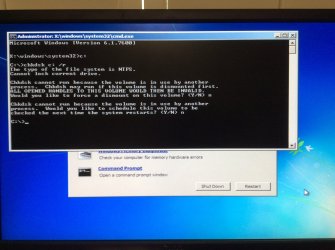
I had tried to do a check disk from command prompt on the advice on another forum. I didn't proceed because of the warning messages that I did not understand. Can you comment on it?

Pls see attached image
 

Attachments

  • image.jpg
    image.jpg
    361.5 KB · Views: 0

My Computer My Computer

At a glance

Windows 7, 64 bits
Computer type
PC/Desktop
Computer Manufacturer/Model Number
HP
OS
Windows 7, 64 bits
Use the second one, where you schedule it to run at next startup. Just put y there and restart the computer. You will get a message that you have like 9 seconds to press any key to cancel it. Do nothing and it will run chkdsk. Just do not stop it once it starts. The reason is that it cannot run chkdsk while the disk is in use.

When you start the computer, you get the HP boot menu screen. It usually has a key you press to enter BIOS or set up. Once there go to the boot menu or boot options. That is where you tell the computer which drive to boot from. Just see if it detects your hard drive. And, yes. The copy/paste from recovery console will let you copy any personal files to another drive or an external drive if you connect it before you start up the computer.
 

My Computers My Computers

  • At a glance

    Windows 11 ProRyzen 9 5900X32GB G Skill DDR4-3600EVGA RTX 3080 FTW 3 Ultra
    Computer type
    PC/Desktop
    Computer Manufacturer/Model Number
    ALWAYS UNDER CONSTRUCTION
    OS
    Windows 11 Pro
    CPU
    Ryzen 9 5900X
    Motherboard
    Asus X570 Crosshair Viii Hero
    Memory
    32GB G Skill DDR4-3600
    Graphics Card(s)
    EVGA RTX 3080 FTW 3 Ultra
    Sound Card
    On Board/Sennheiser PC37X Headset
    Monitor(s) Displays
    3 X Asus 27"
    Screen Resolution
    2560x1440
    Hard Drives
    2 X 1 TB NVME drives
    PSU
    EVGA 850
    Case
    Phanteks Eclipse P400A
    Cooling
    EVGA 280 AIO
    Keyboard
    Logitech G510s/ Logitech G13
    Mouse
    Logitech G502
    Internet Speed
    24/1
    Antivirus
    ESET/MBAM Pro/SAS Pro
    Browser
    Chrome/ Firefox/ Edge
  • At a glance

    Windows 11 ProIntel Ultra 9 288V32 GB LPDDR5X 8533
    Computer type
    Laptop
    System Manufacturer/Model Number
    Dell 16 Plus
    OS
    Windows 11 Pro
    CPU
    Intel Ultra 9 288V
    Memory
    32 GB LPDDR5X 8533
    Monitor(s) Displays
    16" Mini-LED HDR600 Touch 90 Hz
    Screen Resolution
    2560X1600
    Hard Drives
    1 TB NVME
Update: I came home from work today and was ready to check disk for errors. I was told that it could take hours. I had another power outage today when I was at work. (Sometimes I feel like I live in a 3rd world country with the recent power outage. )

Miraculously when I started the Windows, it didn't go into the loop and it started normally. :)

I tried to check disk from windows as per instruction posted here. It restarted and somehow it only took less than a min to check the disk (maybe I did something incorrectly). It had a very short report and didn't find anything wrong.

Should I do anything at this point? I am thinking maybe I should leave things alone and upgrade to Windows 10 at the end of the month? I assume that by upgrade to Windows 10, I will have a clean start.

Thanks!
 

My Computer My Computer

At a glance

Windows 7, 64 bits
Computer type
PC/Desktop
Computer Manufacturer/Model Number
HP
OS
Windows 7, 64 bits
chkdsk should take longer than it did. However, If it is working right, I would just keep a close watch on it and see how it goes. As a precaution, I would keep my personal files backed up to an external hard drive, just in case. That is something you should always do anyway. As for Windows 10, that is your choice. It is a good operating system, but still has a few things that need to be fixed, as any other operating system would when first released. I have been using the Previews since they came out and like it. Some people don't. But it is a good system. In the end, that is your choice.
 

My Computers My Computers

  • At a glance

    Windows 11 ProRyzen 9 5900X32GB G Skill DDR4-3600EVGA RTX 3080 FTW 3 Ultra
    Computer type
    PC/Desktop
    Computer Manufacturer/Model Number
    ALWAYS UNDER CONSTRUCTION
    OS
    Windows 11 Pro
    CPU
    Ryzen 9 5900X
    Motherboard
    Asus X570 Crosshair Viii Hero
    Memory
    32GB G Skill DDR4-3600
    Graphics Card(s)
    EVGA RTX 3080 FTW 3 Ultra
    Sound Card
    On Board/Sennheiser PC37X Headset
    Monitor(s) Displays
    3 X Asus 27"
    Screen Resolution
    2560x1440
    Hard Drives
    2 X 1 TB NVME drives
    PSU
    EVGA 850
    Case
    Phanteks Eclipse P400A
    Cooling
    EVGA 280 AIO
    Keyboard
    Logitech G510s/ Logitech G13
    Mouse
    Logitech G502
    Internet Speed
    24/1
    Antivirus
    ESET/MBAM Pro/SAS Pro
    Browser
    Chrome/ Firefox/ Edge
  • At a glance

    Windows 11 ProIntel Ultra 9 288V32 GB LPDDR5X 8533
    Computer type
    Laptop
    System Manufacturer/Model Number
    Dell 16 Plus
    OS
    Windows 11 Pro
    CPU
    Intel Ultra 9 288V
    Memory
    32 GB LPDDR5X 8533
    Monitor(s) Displays
    16" Mini-LED HDR600 Touch 90 Hz
    Screen Resolution
    2560X1600
    Hard Drives
    1 TB NVME
Thanks Essenbe!
 

My Computer My Computer

At a glance

Windows 7, 64 bits
Computer type
PC/Desktop
Computer Manufacturer/Model Number
HP
OS
Windows 7, 64 bits
Back
Top