Hi thanks for the files

.
I see you have the latest BIOS, did you recently update, if so why?
Code:
Error    03/12/2013 19:36:32    iaStor    9    None
The device, \Device\Ide\iaStor0, did not respond within the timeout period.

Critical    03/12/2013 19:42:03    Kernel-Power    41    (63)
The system has rebooted without cleanly shutting down first. This error could be caused if the system stopped responding, crashed, or lost power unexpectedly.
:ar:
Please remove IRST:
Arc said:
Get rid of intel rapid storage. First uninstall it from Control Panel > Programs and Features.
Then Uninstall the driver from device manager.
- Right click on "my computer" icon and click "manage" on the context menu.
- It will open the "computer management" window.
- Select "Device Manager" in the left pane, It will list all the existing devices up.
- Expand "IDE ATA/ATAPI controllers" by clicking on the triangle in front of it.
- Select one Intel device item under it, right click, uninstall.
- Continue the process for all Intel items under "IDE ATA/ATAPI controllers"
- Now restart the computer. At restart, windows will auto configure the appropriate native system driver.
Warning
The Following Method Should NOT Be Performed On An SSD!
:ar:
Please test the HDD:
- Perform a Disk Check | Disk Check- Scroll down to OPTION TWO of the tutorial and use the /R switch in the CHKDSK command | chkdsk C: /R.
- Then Post the Disk Check results following | This Tutorial.
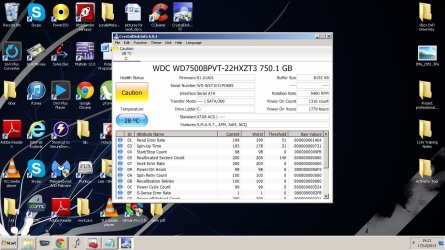
- Once back in Windows, download Crystal Disk Info and post a screenshot (multiple shots if you have more than one drive).
- Download SeaTools for DOS if you don't want to use a CD to test the HDD you can use YUMI – Multiboot USB Creator to create a bootable USB (instructions are found at the bottom of both pages).
- If SeaTools for DOS is unable to recognize your HDD:
- Visit HDDdiag and follow the instructions | Or follow the instructions below.
If SeaTools For DOS does not recognize the drive;
Boot into the BIOS using the
*Fx key.
Look for an entry called
SATA Mode (or something similar), it should be set to
IDE / AHCI.
It's probably set to
AHCI which is why SeaTools doesn't recognize them in the DOS environment.
Set it to
IDE then save and exit usually by pressing the
F10 key.
Now boot into SeaTools and it should detect the drives.
Start the
Long Test and let it run.
Upon completion don't try to boot into Windows as it will only result in a BSOD, go back into the BIOS
and change the SATA setting back to what it was in the first place.
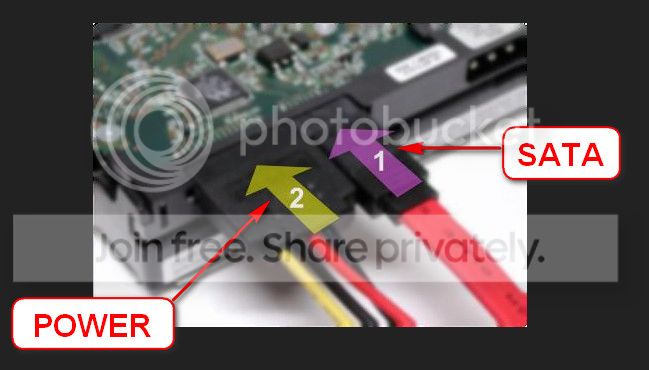
Re-seat the sata and power.
Let us know the results.


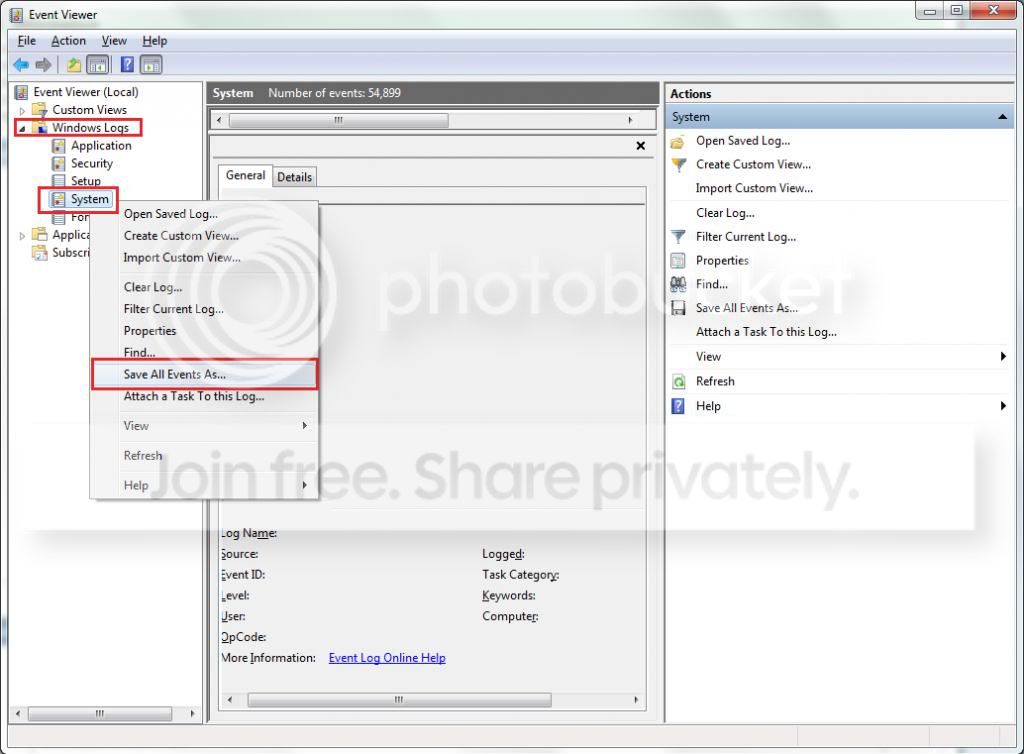
 rb: Start → type eventvwr → hit Enter.