Windows 7 x64 startup errors, can't enter safe mode or repair system

meatdraw

New member
Local time
8:31 PM
Messages
14
Right now I cannot get my Windows 7 Enterprise x64 to boot up. I get to the "Starting Windows" screen and it just hangs there.

General troubleshooting:
Unplugged all USB devices on start up
Reset BIOS to default settings

Here are some troubleshooting steps I have taken so far:

1. Attempt to boot into safe mode (pressing f8 on startup)
result: While loading files the system stops and hangs after loading
Windows\system32\DRIVERS\AtiPcie.sys

2. Attempt to repair computer from safe mode menu (f8)
result: windows loading files screen>Starting windows screen>system stops and hangs at the blue background screen for Win7 sign in, but there is no sign in window.
all other options in Safe mode yield the same or similar results.

3. Attempt to repair computer with install disc
result: Get to the "System Recovery Options" screen. My drive with OS appears in the selection box and appears highlighted, however I cannot advance past this screen. On further attempts I plugged in a USB mouse and tried to use the pointer to hit the "next" button, but I get the spinning blue ring and the screen hangs.
I have tried repairing from multiple discs. One an install disc, another a repair disc I made on my laptop. Both times I got the same results.

I had this happen to my system 2 weeks ago, and then again 1 week ago.
The first time I could not solve the problem and I re-installed my OS on another of my internal drives, recovered all my data from the drive with my old OS, and used the newly installed OS as my start up. 1 week later on the new drive I had a similar problem but I was able to use the "Repair Computer" option from the safe mode menu and fix it.

SYSTEM:
OS: Windows 7 Enterprise x64
CPU: AMD 965 x4 Black Edition 3.4Ghz
MB: Asus M489GTD Pro
Memory: Kingston Hyper X 12Gb DDR3
GPU: Sapphire Radeon HD 6870 1GB 900MHZ 4.2 Ghz DDR5
HD: 2 X Western Digital Caviar Black 640G 7200RPM
1 X Western Digital Caviar Black 1 TB 7200RPM
PSU: Corsair 750w

Any help would be much appreciated, I don't want to do another fresh install and have this happen all over again.
 

My Computer My Computer

At a glance

Windows 7 Ultimate x64AMD 965 x4 Black Edition 3.4GhzKingston Hyper X 12GbASUS AMD R9 280x
Computer type
PC/Desktop
OS
Windows 7 Ultimate x64
CPU
AMD 965 x4 Black Edition 3.4Ghz
Motherboard
Asus M489GTD Pro
Memory
Kingston Hyper X 12Gb
Graphics Card(s)
ASUS AMD R9 280x
Sound Card
none
Monitor(s) Displays
Samsung 23" LCD
Screen Resolution
1920x1080
Hard Drives
1 x Samsung 840 EVO 250 GB
2 X Western Digital Caviar Black 640G 7200RPM
1 X Western Digital Caviar Black 1 TB 7200RPM
PSU
Corsair 750w
Case
Fractal Define R2
Cooling
Zalman Quiet CPU cooler 120mm
Mouse
Razer Naga
Is the HD detected in BIOS setup?

If so run the maker's HD Diagnostic extended CD scan on it, followed by Disk Check from the installer's Recovery Options Command Line.

Next run the RAM test and start working through the steps for Troubleshooting Windows 7 Failure to Start

You will have to be able to boot a disk, which failure is almost always due to user error. The last resort is to boot PW CD provided which will boot itself, wipe the HD, which will force installer to autostart to reinstall. The Paragon Rescue disk to rescue your files will also boot itself.
 
Thank you for the reply.

The BIOS does see all the HDs
I tried using the HD diagnostic bootable disc, I was able to boot from the disc, and it looked like it was starting up but I got a line that said "unable to find cd drivers" or something like that.

I had read something on the HD Diag download page about all drives being able to affect a start up, so I unplugged all the SATA lines from my non-start up drives inside. Yup, it started up just fine.

I guess I'll try to narrow it down to one of the 2 other drives that is causing the problem by plugging them in individually at start up.

I'll still try your steps above so I can try to fix the problem disk.
Would it be possible to plug the problem drive in to it's SATA line while the computer was on? That would make diagnosing a problem with the drive easier for me.
 

My Computer My Computer

At a glance

Windows 7 Ultimate x64AMD 965 x4 Black Edition 3.4GhzKingston Hyper X 12GbASUS AMD R9 280x
Computer type
PC/Desktop
OS
Windows 7 Ultimate x64
CPU
AMD 965 x4 Black Edition 3.4Ghz
Motherboard
Asus M489GTD Pro
Memory
Kingston Hyper X 12Gb
Graphics Card(s)
ASUS AMD R9 280x
Sound Card
none
Monitor(s) Displays
Samsung 23" LCD
Screen Resolution
1920x1080
Hard Drives
1 x Samsung 840 EVO 250 GB
2 X Western Digital Caviar Black 640G 7200RPM
1 X Western Digital Caviar Black 1 TB 7200RPM
PSU
Corsair 750w
Case
Fractal Define R2
Cooling
Zalman Quiet CPU cooler 120mm
Mouse
Razer Naga
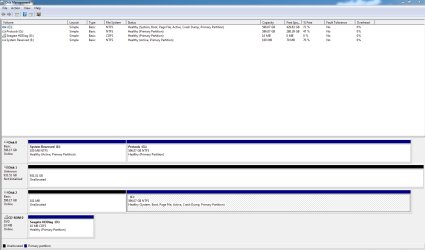
With all drives plugged in please post back a screenshot of your maximized Disk Management drive map and listings:

1. Type Disk Management in Start Search box.
2. Open Disk Mgmt. window and maximize it.
3. Type Snipping Tool in Start Search box.
4. Open Snipping Tool, choose Rectangular Snip, click New, draw a box around full drive map and all listings.
5, Save Snip, attach using paper clip in Reply Box.

Tell us what is on each partition.

If you cannot boot with all drives plugged in, and do not have AHCI hot-plugging, then by process of elimination determine which HD is blocking boot, copy it's data off and wipe it with Diskpart Clean Command from the Win7 installer System Recovery Options or System Repair Disk Command Line then repartition it in Disk Mgmt.
 
Your specs say Windows 7 Ultimate. Did you download the free 90 day trial for Windows 7 Enterprise x64?
 

My Computer My Computer

At a glance

Windows 7 Ultimate 32bit SP1Intel(R) Core(TM)2 Quad CPU @ 2.40GHz, 2400 MHz4 GBATI Radeon HD 2600 Pro
Computer type
PC/Desktop
Computer Manufacturer/Model Number
Bruce ... somewhere in his 40's
OS
Windows 7 Ultimate 32bit SP1
CPU
Intel(R) Core(TM)2 Quad CPU @ 2.40GHz, 2400 MHz
Motherboard
INTEL/D975XBX2
Memory
4 GB
Graphics Card(s)
ATI Radeon HD 2600 Pro
Monitor(s) Displays
Samsung SyncMaster 914v
Screen Resolution
1280 x 1024
Hard Drives
2/500GB each ... ST3500630AS ATA Device.
One is not connected
PSU
Rocketfish 700 W
Case
G.Skill Gigabyte Chassis
Keyboard
Standard PS/2 Keyboard
Mouse
Microsoft PS/2 Mouse
Internet Speed
DSL
Antivirus
Avira Internet Security
Browser
IE 11
Other Info
ATI HDMI Audio
Jacee, that is a mistake on my part. I have a fully authorized version of Enterprise on this machine.

gregrocker, I figured out which drive was giving me problems, and I was able to boot the computer up successfully with the problem drive hooked up. I opened the Disk Management and the problem drive is not initialized.

C drive is my Windows 7 Enterprise install, all programs etc
Protools (G) is all data, primarily .wav files and back ups for Pro Tools sessions. this is the drive that had the OS on it the first time i had this problem. I have since removed the OS, but that is why the system reserve appears there.
 

Attachments

  • drivemgr2.PNG
    drivemgr2.PNG
    26.5 KB · Views: 23

My Computer My Computer

At a glance

Windows 7 Ultimate x64AMD 965 x4 Black Edition 3.4GhzKingston Hyper X 12GbASUS AMD R9 280x
Computer type
PC/Desktop
OS
Windows 7 Ultimate x64
CPU
AMD 965 x4 Black Edition 3.4Ghz
Motherboard
Asus M489GTD Pro
Memory
Kingston Hyper X 12Gb
Graphics Card(s)
ASUS AMD R9 280x
Sound Card
none
Monitor(s) Displays
Samsung 23" LCD
Screen Resolution
1920x1080
Hard Drives
1 x Samsung 840 EVO 250 GB
2 X Western Digital Caviar Black 640G 7200RPM
1 X Western Digital Caviar Black 1 TB 7200RPM
PSU
Corsair 750w
Case
Fractal Define R2
Cooling
Zalman Quiet CPU cooler 120mm
Mouse
Razer Naga
In the future delete an OS/Boot partition in Disk Mgmt after marking it Inactive. Likewise during reinstall always delete all partitions and create new so you get a fresh start.

Disk 2 is clearly booting itself as shown by the System boot files flag being on C. I would want it in disk0 slot though, or otherwise the first time you run repairs it may derail the System boot files to an earlier partition that is incorrectly marked Active.

To do this, swap the data cable between Disk0 and DIsk2, then boot into BIOS setup to set Disk0 to boot first (after DVD drive).

Either way you'll want to mark the System Reserved partition Inactive: Partition - Mark as Inactive - Windows 7 Forums. Then I would delete it in Disk Mgmt.

Once this is all sorted, boot into WIn7 DVD or REpair CD to run Startup Repair - Run up to 3 Separate Times to see if it will sort the F8 hotlink to WinRE System Recovery Options
 
OK!
I've made the reserve on the G drive inactive and erased it, and I swapped the cables on the 2 drives to make my boot drive the 0 volume.

I ran start up repair in the system recovery options via f8 3 times and after a some other adjustments in the bios I was able to get the computer to start up normally and have the problematic disk to appear!

My plan now it so recover my data to an external drive, and wipe this one clean and then restore the data. Would you have anything to add to this?

Thank you so much for your time with this problem.
 

My Computer My Computer

At a glance

Windows 7 Ultimate x64AMD 965 x4 Black Edition 3.4GhzKingston Hyper X 12GbASUS AMD R9 280x
Computer type
PC/Desktop
OS
Windows 7 Ultimate x64
CPU
AMD 965 x4 Black Edition 3.4Ghz
Motherboard
Asus M489GTD Pro
Memory
Kingston Hyper X 12Gb
Graphics Card(s)
ASUS AMD R9 280x
Sound Card
none
Monitor(s) Displays
Samsung 23" LCD
Screen Resolution
1920x1080
Hard Drives
1 x Samsung 840 EVO 250 GB
2 X Western Digital Caviar Black 640G 7200RPM
1 X Western Digital Caviar Black 1 TB 7200RPM
PSU
Corsair 750w
Case
Fractal Define R2
Cooling
Zalman Quiet CPU cooler 120mm
Mouse
Razer Naga
I agree it's best to wipe the HD using Diskpart Clean Command to clear the boot sector of any code which might have interfered, starting with the cleanest slate.

You can then initialize it as MBR disk by right clicking the panel to the left of HD in Disk Mgmt with the red "Not Initialized" warning on it, create new partition(s) as you wish: Partition or Volume - Create New
 
OK, I thought I was done with this issue, but now I am trying to recover my data from the corrupted disk and having problems.

I was in the middle of transferring data when the disk disconnected. I rebooted and had to run system repair to start up properly.

Now I can see the disk, but the transfer rates I am getting are really really slow. sometimes under 1mb/s. Earier this morning I was transferring at rates of about 45mb/s to 100mb/s, but i actually watched it dip way down to 5mb/s at one point and now it will not transfer any faster.

at the moment I am transferring some files at about 5mb/s. The funny thing is, i figured out you can actually transfer multiple files at the same transfer rate at the same time.
So i have 10 files that are 350mb all being transferred at a rate of 5mb/s.

I have run start up repair multiple times, and windows has run a CHKDSK at start up 2 times now.

I am tentative about running the manufacturer's repair tools boot up disk, as the drive has been in many different states in the past 2 days. At one point it was not showing up at all, another time it was unallocated, etc.
 

My Computer My Computer

At a glance

Windows 7 Ultimate x64AMD 965 x4 Black Edition 3.4GhzKingston Hyper X 12GbASUS AMD R9 280x
Computer type
PC/Desktop
OS
Windows 7 Ultimate x64
CPU
AMD 965 x4 Black Edition 3.4Ghz
Motherboard
Asus M489GTD Pro
Memory
Kingston Hyper X 12Gb
Graphics Card(s)
ASUS AMD R9 280x
Sound Card
none
Monitor(s) Displays
Samsung 23" LCD
Screen Resolution
1920x1080
Hard Drives
1 x Samsung 840 EVO 250 GB
2 X Western Digital Caviar Black 640G 7200RPM
1 X Western Digital Caviar Black 1 TB 7200RPM
PSU
Corsair 750w
Case
Fractal Define R2
Cooling
Zalman Quiet CPU cooler 120mm
Mouse
Razer Naga
You'll only know the exact condition by running the manufacturer's HD Diagnostic extended CD scan with all other HD's unplugged as I advised in first post, although you can read SMART data at any time using CrystalDiskInfo - Software

If data is irreplaceable then perhaps you should use a rescue disk as described in Step 9 of Troubleshooting Windows 7 Failure to Start so that it's the DVD or CD which is doing the work.
 
Back
Top