radioempty
New member
- Local time
- 5:25 PM
- Messages
- 1
Okay, so last night I decided to do a fresh install on my desktop of Windows 7 Home Premium 32bit. I have 2 hard drives, an old 120GB (C and a new 1TB (F. The prior install of Windows 7 was on my C: drive, and so I installed the fresh install on F:. The reason I did this was because I was getting tired of having to redirect my installs to F: every time I installed something new.
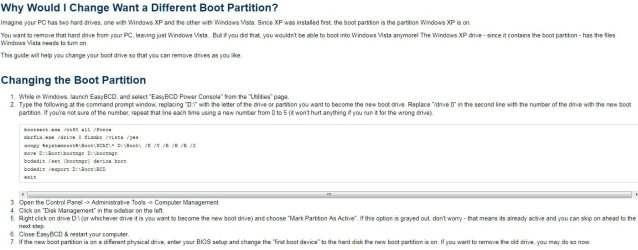
My plan was to use my C: drive as a drive for media (pictures, music, docs, etc. etc.) and use my F: drive for installs like games, software, etc. Had I thought about it more, I probably would've caught my mistake right away, but I didn't. When I opened up disk manager after the install to wipe the C: partition clean, I got "Windows cannot delete the active system partition on this disk."
Is there a way to counter this, so I don't have a "ghost" install of Windows 7 on my C: disk? Or did I screw myself out of 120GB of HD space?
Thanks!
and a new 1TB (F. The prior install of Windows 7 was on my C: drive, and so I installed the fresh install on F:. The reason I did this was because I was getting tired of having to redirect my installs to F: every time I installed something new. My plan was to use my C: drive as a drive for media (pictures, music, docs, etc. etc.) and use my F: drive for installs like games, software, etc. Had I thought about it more, I probably would've caught my mistake right away, but I didn't. When I opened up disk manager after the install to wipe the C: partition clean, I got "Windows cannot delete the active system partition on this disk."
Is there a way to counter this, so I don't have a "ghost" install of Windows 7 on my C: disk? Or did I screw myself out of 120GB of HD space?
Thanks!
My Computer
- Computer Manufacturer/Model Number
- Custom
- OS
- Windows 7 Home Premium 32 bit
- CPU
- AMD64 2.3ghz Dual-core
- Memory
- 6GB
- Graphics Card(s)
- Nvidia geforce 9800gt
- Hard Drives
- 120gb + 1tb