Windows Cannot

cgbozz37

New member
Local time
6:48 PM
Messages
7
I recently just swapped cases of a computer i had running Windows 7 Ultimate 64 and upon boot i receive this error

"C:\Windows\system32\winload.exe

Windows cannot verify the digital signature for this file. A recent hardware or software change might have installed a file that is signed incorrectly or damaged, or that might be malicious software from an unknown source."

after this appears i hit enter and it gives me the option to select OS but it only lists Windows Vista (recovered) and no Windows 7.

And when i hit F8 it sends me back to the original error screen.

No hardware has changed since swapping over all components to new case and the Windows 7 was an upgrade version from Windows Vista.

I am lost on what to do and any help would be appreciated.
 

My Computer

OS
Windows 7 Ultimate x64
Boot the Windows 7 DVD Repair Console or Repair CD, see if it discovers an installation and accept any offered Repair, click through to Recovery Options to run Startup Repair repeatedly. System Repair Disc - Create

If this fails try booting into Vista, post back a screenshot of your full Disk Mgmt drive map with listings. Screenshot with Paint If Vista won't boot use free Partition Wizard bootable CD.

Try marking Win7 partition Active in Vista Disk Mgmt if it is not, or if using PW CD click on Win7 HD to Modify>Set to Active then from Disk Tab run Rebuild MBR.

If Win7 won't start boot back into DVD/Repair CD to run Startup Repair up to 3 separate times with reboots on Active Win7 partition.

Let us know how this goes.
 
When i insert the disc into repair it wont recognize the disk

It wont boot into vista

Downloading Partition Wizard now i will get back with how it goes
 

My Computer

OS
Windows 7 Ultimate x64
What disk are you using to attempt repairs? What error appears, or how else does it fail?

Can you access either OS via Safe Mode?
 
I am able to enter bios screen, the error screen and the two other screens mentioned above that loop me back to the original error screen.

Unless there is a way to enter safe mode that i am unaware of then no.

I have tried both disk to repair and it appears to not recognize either disk
 

My Computer

OS
Windows 7 Ultimate x64
How many hard drives do you have? Did you maybe mix them up or plug them into a different SATA port than they were connected to originally.
Filling in your complete system specs would help. ;)
 

My Computer

Computer type
PC/Desktop
Computer Manufacturer/Model Number
Home Built
OS
Windows 10 Education 64 bit
CPU
AMD Phenom II X4 980 Black Edition Deneb 3.7GHz
Motherboard
Asus M4N68T-M V2 µATX Motherboard
Memory
8GB 4GBx2 Kingston PC10600 DDR3 1333 Memory
Graphics Card(s)
Zotac NVIDIA Geforce GT640 2 Gig DDR3 PCIe
Sound Card
VIA VT1708s High Definition Audio 8-channel Onboard
Monitor(s) Displays
22" LG E2242 1080p and 2 19" I-INC AG191D
Screen Resolution
1280x1024 - 1920x1080 - 1280x1024
Hard Drives
Crucial M100 256 GB SSD and 500 GB WD Blue SATA
PSU
Thermaltake TR 620
Case
Power Up Black ATX Mid-Tower Case
Cooling
Stock heatsink and fan
Keyboard
Logitech Wireless K350 Wave
Mouse
Logitech Wireless M570 Trackman Wheel
Internet Speed
80 Mbps Down 30 Mbps Up
Antivirus
Windows Defender
Browser
Internet Explorer 11
Other Info
HP DVD1040e Lightscribe - External USB2
Im sure i have done that update. I do all of them that it recommended to me but i have no way of telling at the moment

And i may have plugged it into in to a different SATA slot which would make a lot of sense because the only component change was the case. Is there any way to know where i had it? I assume i will have to just try every slot.

I don;t know every component its been a while since i built it

EVGA 780i MOBO
OCZ DDR2 6400 4GB
GALAXY 460 FERMI DDR5 756MB
INTEL Quad Core 2.63GHz
74Gb WD Raptor HDD (Primary)
500Gb WD
1TB WD Green
H50 Cpu Cooler
Sony DVD Drives
 

My Computer

OS
Windows 7 Ultimate x64
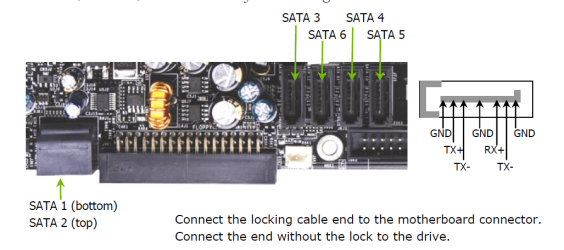
For Sata ports Take a look at page 29 of manual.

MOBO1.PNG
 

My Computer

OS
ME/XP/Vista/Win7
Got it working. double checked order of SATA and then change boot priority from original:
74GB Raptor (Primary)
500GB WD (Back up HDD)
1TB WD (Storage)

To:
500GB WD (Back up HDD)
74GB Raptor (Primary)
1TB WD (Storage)

And on boot it went to a restore point and loaded windows after like 10min and now appears to be fixed

Thanks for everyones help.
 

My Computer

OS
Windows 7 Ultimate x64
So you have
500gb pluged in to Sata 1 port
74gb pluged in to Sata 2 port
1tb pluged in to Sata 3 port
is that right?
 

My Computer

OS
ME/XP/Vista/Win7
It sounds wrong to have the System Boot files on the Backup HD. They should be on the Win7 HD.

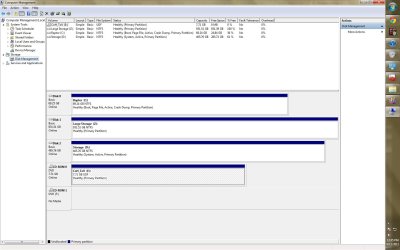
Can you post back a screenshot of your maximized full Disk Mgmt drive map with listings showing all columns, using the Snipping Tool in Start Menu. We can look it over for you.
 
500gb pluged in to Sata 2 port
74gb pluged in to Sata 1 port
1tb pluged in to Sata 3 port
 

My Computer

OS
Windows 7 Ultimate x64
I think this is what your looking for
 

Attachments

  • diskmanagement screen shot.jpg
    diskmanagement screen shot.jpg
    132.7 KB · Views: 11

My Computer

OS
Windows 7 Ultimate x64
I think this is what your looking for

Cable set up is
74gb pluged in to Sata 1 port
1tb pluged in to Sata 2 port
500gb pluged in to Sata 3 port
&
boot from 500gb pluged in to Sata 3 port


Did you have your old OS on the 500gb HD?
 
Last edited:

My Computer

OS
ME/XP/Vista/Win7
Storage drive must have been in one of the lower number slots and marked Active which caused the System boot files to be placed on it. This is not correct and makes your Win7 bootable only if Storage is connected and working.

Best to move the System boot files to Win7 as they should be.

Set Win7 HD as first HD to boot in BIOS setup, after DVD drive.

Boot the Win7 DVD or Repair CD, Use Diskpart to mark D Inactive. Partition - Mark as Active Method Two

Then from the DVD/Repair CD System Recovery Options run Startup Repair up to 3 separate times with reboots until Win7 starts and System flag is now on C.

If this fails you may need to power down to unplug D while the Repairs are run.

You can also use free Partition Wizard bootable CD to have a graphical picture of the HD's: rightclick on D to Modify>Set Inactive, OK. Now highlight the Win7 HD and from Disk tab select Rebuild MBR, Apply all Steps. This may preclude the need to run the Repairs.

Make sure Win7 HD remains first HD to boot and marked Active throughout.
 
Hi greg
BIOS boot order may be out aswell.
 

My Computer

OS
ME/XP/Vista/Win7
Hello cgbozz37, welcome to Seven Forums!


Power down and disconnect all but the Windows OS HDD and make sure it is set as the first boot device after the CD/DVD drive and do the 3 separate startup repairs to (re)create the "System" system volume boot files to the OS drive, as it's already Active that part will be unnecessary.

When it's booting independently you can power down and reconnect the HDDs back.


Startup Repair - Run 3 Separate Times


Then use Option Two #2 to mark the non-OS HDDs Inactive from an elevated command window.
 

My Computer

Computer Manufacturer/Model Number
* BFK Customs *
OS
W 7 64-bit Ultimate
CPU
Intel Q9550 Yorkfield
Motherboard
ASUS P5Q Pro
Memory
8GB Dominator 8500C5D
Graphics Card(s)
ATI : XFX 5870
Sound Card
Realtek HD Audio 7-1
Monitor(s) Displays
1x 47" LCD HDMI & 3x 26" LCD HDMI
Screen Resolution
1920x1080P & 1920x1200
Hard Drives
1x 80GB Intel X25-M G2 SSD : 1x 500GB & 1x 640GB WD Caviar Black(s)
PSU
Corsair 620HX
Case
Cooler Master RC-690
Cooling
Tuniq Tower 120, 2x 140mm and 3x 120mm case fans
Keyboard
Microsoft 500
Mouse
Razer Diamondback 3G
Internet Speed
14 Mb/s
Other Info
1x Koutech 3Gb/s SATA HDD Hot Swap Rack
Back
Top